
How to See and Use a List of All Windows 7 Shell Commands
Information
This will show you a list of Windows 7 Shell commands that can be used to open certain special folders directly from the Start menu or Run dialog window.
Tip
You can find the shell commands listed at this registry location:
HKEY_LOCAL_MACHINE\SOFTWARE\Microsoft\Windows\CurrentVersion\explorer\FolderDescriptions
HKEY_LOCAL_MACHINE\SOFTWARE\Microsoft\Windows\CurrentVersion\explorer\FolderDescriptions
Note
The Shell commands that are new in Windows 7 from Vista are bolded in red.
You can use the shell commands with either format below:
shell:command
OR
explorer shell:command
You can use the shell commands with either format below:
shell:command
OR
explorer shell:command
Here's How:
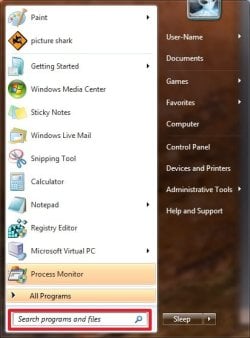
1. Open the Start menu and type in the shell command in bold below for the folder that you want to open, then press Enter. (See screenshot below)
OR
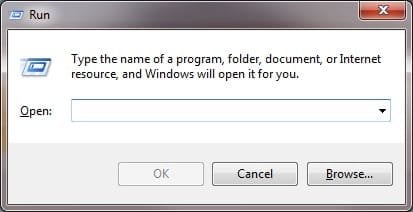
2. Open the Run dialog window, and type in the shell command in bold below for the folder that you want to open, then press Enter. (See screenshot below)
shell:Administrative Tools | hidden C:\Users\User-Name\AppData\Roaming\Microsoft\Windows\Start Menu\Programs\Administrative Tools
shell:AppData | hidden C:\Users\(User-Name)\AppData\Roaming
shell:AppUpdatesFolder | Installed Updates
shell:Cache | hidden C:\Users\User-Name\AppData\Local\Microsoft\Windows\Temporary Internet Files
shell:CD Burning | hidden C:\Users\User-Name\AppData\Local\Microsoft\Windows\Burn\Burn
shell:ChangeRemoveProgramsFolder | Control Panel\All Control Panel Items\Programs and Features
shell:Common Administrative Tools | hidden C:\ProgramData\Microsoft\Windows\Start Menu\Programs\Administrative Tools
shell:Common AppData | hidden C:\ProgramData
shell:Common Desktop | C:\Users\Public\Desktop
shell:Common Documents | C:\Users\Public\Documents
shell:CommonDownloads | C:\Users\Public\Downloads
shell:CommonMusic | C:\Users\Public\Music
shell:CommonPictures | C:\Users\Public\Pictures
shell:Common Programs | hidden C:\ProgramData\Microsoft\Windows\Start Menu\Programs
shell:CommonRingtones | hidden C:\ProgramData\Microsoft\Windows\Ringtones
shell:Common Start Menu | hidden C:\ProgramData\Microsoft\Windows\Start Menu
shell:Common Startup | hidden C:\ProgramData\Microsoft\Windows\Start Menu\Programs\Startup
shell:Common Templates | hidden C:\ProgramData\Microsoft\Windows\Templates
shell:CommonVideo | C:\Users\Public\Videos
shell:ConflictFolder | Control Panel\All Control Panel Items\Sync Center\Conflicts
shell:ConnectionsFolder | Control Panel\All Control Panel Items\Network Connections
shell:Contacts | C:\Users\User-Name\Contacts
shell:ControlPanelFolder | Control Panel\All Control Panel Items
shell:Cookies | hidden C:\Users\User-Name\AppData\Roaming\Microsoft\Windows\Cookies
shell:Cookies\Low | hidden C:\Users\User-Name\AppData\Roaming\Microsoft\Windows\Cookies\Low
shell:CredentialManager | hidden C:\Users\User-Name\AppData\Roaming\Microsoft\Credentials
shell:CryptoKeys | hidden C:\Users\User-Name\AppData\Roaming\Microsoft\Crypto
shell:default Gadgets | C:\Program Files\Windows Sidebar\Gadgets
shell:desktop | C:\Users\User-Name\Desktop
shell:device Metadata Store | hidden C:\ProgramData\Microsoft\Windows\DeviceMetadataStore
shell:documentsLibrary |Libraries\Documents
shell:downloads | C:\Users\User-Name\Downloads
shell:dpapiKeys | hidden C:\Users\User-Name\AppData\Roaming\Microsoft\Protect
shell:Favorites | C:\Users\User-Name\Favorites
shell:Fonts | C:\Windows\Fonts
shell:Gadgets | hidden C:\Users\User-Name\AppData\Local\Microsoft\Windows Sidebar\Gadgets
shell:Games | Games
shell:GameTasks | hidden C:\Users\User-Name\AppData\Local\Microsoft\Windows\GameExplorer
shell:History | hidden C:\Users\User-Name\AppData\Local\Microsoft\Windows\History
Shell:HomeGroupFolder |Homegroup
shell:ImplicitAppShortcuts | hidden C:\Users\User-Name\AppData\Roaming\Microsoft\Internet Explorer\Quick Launch\User Pinned\ImplicitAppShortcuts
shell:InternetFolder | 32-bit Internet Explorer.
shell:Links | C:\Users\User-Name\Links
shell:Libraries |Libraries
shell:Local AppData | hidden C:\Users\User-Name\AppData\Local
shell:LocalAppDataLow | hidden C:\Users\User-Name\AppData\LocalLow
shell:MusicLibrary |Libraries\Music
shell:My Music | C:\Users\User-Name\Music
shell:My Pictures | C:\Users\User-Name\Pictures
shell:My Video | C:\Users\User-Name\Videos
shell:MyComputerFolder | Computer
shell:NetHood | hidden C:\Users\User-Name\AppData\Roaming\Microsoft\Windows\Network Shortcuts
shell:NetworkPlacesFolder | Network
shell
 ersonal
| C:\Users\User-Name\Documents
ersonal
| C:\Users\User-Name\Documentsshell
icturesLibrary
|Libraries\Picturesshell
rintersFolder
| All Control Panel Items\Printersshell
rintHood
|
hidden
C:\Users\User-Name\AppData\Roaming\Microsoft\Windows\Printer Shortcutsshell
rofile
| C:\Users\User-Nameshell
rogramFiles
| C:\Program Filesshell
rogramFilesCommon
| C:\Program Files\Common Filesshell
rogramFilesCommonX64
|C:\Program Files\Common Files
(in 64-bit Windows only)
shellrogramFilesCommonX86
| C:\Program Files (x86)\Common Files
(in 64-bit Windows only)
shellrogramFilesX64
|C:\Program Files
(in 64-bit Windows only)
shellrogramFilesX86
| C:\Program Files (x86)
(in 64-bit Windows only)
shellrograms
|
hidden
C:\Users\User-Name\AppData\Roaming\Microsoft\Windows\Start Menu\Programsshell
ublic
| C:\Publicshell
ublicGameTasks
|
hidden
C:\ProgramData\Microsoft\Windows\GameExplorerShell
ublicLibraries
| C:\Users\Public\Librariesshell
ublicSuggestedLocations
|C:\Users\Public\Library\PublicSuggestedLocationsshell:Quick Launch | hidden C:\Users\User-Name\AppData\Roaming\Microsoft\Internet Explorer\Quick Launch
shell:Recent | hidden C:\Users\User-Name\AppData\Roaming\Microsoft\Windows\Recent
shell:RecycleBinFolder | Recycle Bin
shell:ResourceDir | C:\Windows\Resources
shell:Ringtones | hidden C:\ProgramData\Microsoft\Windows\Ringtones
shell:SampleMusic | C:\Users\Public\Music\Sample Music
shell:SamplePictures | C:\Users\Public\Pictures\Sample Pictures
shell:SampleVideos | C:\Users\Public\Videos\Sample Videos
shell:SavedGames | C:\Users\User-Name\Saved Games
shell:Searches | C:\Users\User-Name\Searches
shell:SearchHomeFolder |search-ms:
shell:SendTo | hidden C:\Users\User-Name\AppData\Roaming\Microsoft\Windows\SendTo
shell:Start Menu | hidden C:\Users\User-Name\AppData\Roaming\Microsoft\Windows\Start Menu
shell:Startup | hidden C:\Users\User-Name\AppData\Roaming\Microsoft\Windows\Start Menu\Programs\Startup
shell:SyncCenterFolder | Control Panel\All Control Panel Items\Sync Center
shell:SyncResultsFolder | Control Panel\All Control Panel Items\Sync Center\Sync Results
shell:SyncSetupFolder | Control Panel\All Control Panel Items\Sync Center\Sync Setup
shell:System | C:\Windows\System32
shell:SystemCertificates | hidden C:\Users\User-Name\AppData\Roaming\Microsoft\SystemCertificates
shell:SystemX86 | C:\Windows\SysWOW64
shell:Templates | hidden C:\Users\User-Name\AppData\Roaming\Microsoft\Windows\Templates
shell:User Pinned | hidden C:\Users\User-Name\AppData\Roaming\Microsoft\Internet Explorer\Quick Launch\User Pinned
shell:UserProfiles | C:\Users
shell:UsersFilesFolder | C:\Users\User-Name
shell:UsersLibrariesFolder |Libraries
shell:VideosLibrary | Libraries\Videos
shell:Windows | C:\Windows
Last edited:


