Windows 7 Forums


Windows 7: Windows Features - Turn On or Off


Windows Features - Turn On or Off

How to Turn Windows 7 Features On or Off
Published 09 Mar 2009
Published by

Featured Tutorial

Safe Internet Browsing

How to safely operate on the internet and stay free from malware infections

Portable OS - Carry your OS on an External Drive

How to Create a Portable OS on an External Drive

Microsoft Account Display Name - Change

How to Change your Microsoft Account Display Name

Online Scanners - Scan Suspicious Files on your PC

How to Scan Suspicious Files using Online Scanners

Clean Up Factory Bloatware


SF Diagnostic Tool - Using for Troubleshooting

Using SF Diagnostic Tool for Troubleshooting
How to Turn Windows 7 Features On or Off


information   Information
Some programs and features included with Windows 7 must be turned on before you can use them. Certain other features are turned on by default. This will show you how to turn the features you select on or off.
Note   Note
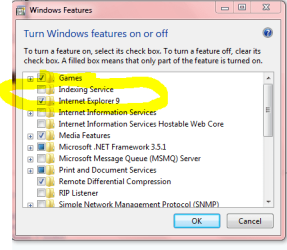
New Windows Features to Turn On or Off in Windows 7:
  • Games - Internet Games
  • Internet Explorer 9
  • Internet Information Services - FTP Server
  • Internet Information Services Hostable Web Core
  • Media Features
  • Microsoft .NET Framework 3.51
  • Services for NFS (Network File System)
  • Subsystem for UNIX-based Applications
  • TIFF IFilter
  • Windows Gadget Platform
  • Windows Search
  • XPS Services
  • XPS Viewer
Tip   Tip
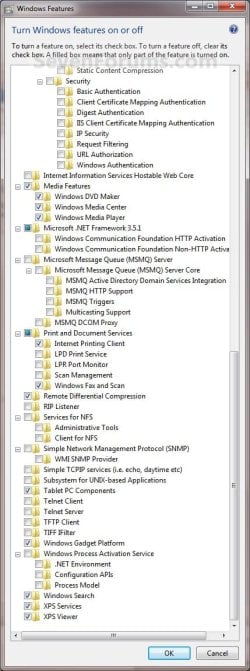
  • A blue box indicates that you have the main feature selected and turned on, but not all of the subfeatures under the expanded main feature are checked.
  • If the box is checked for the main feature, then it means that all of the subfeatures under the expanded main feature are checked and turned on as well.
If Windows Features is empty, then see:

The "Windows Features" dialog box is empty in Windows 7 or Windows Vista, or you receive an error message that includes the following code when you try to use Windows Update: "0x80073712"

warning   Warning
Turning off a feature does not uninstall the feature, and it does not reduce the amount of hard disk space used by the Windows 7 feature. The features remain stored on your hard disk so you can turn them back on if you want to later.


Here's How:
1. Do step 2 or 3 below.

2. Open the Start Menu, type Windows Features in the search box, and press Enter.
A) Go to step 4.
OR

3. Open the Control Panel (icons view), and click on the Programs and Features icon.
A) In the left pane, click on the Turn Windows features on or off link. (See screenshot below)
Windows Features - Turn On or Off-step1.jpg
B) Go to step 4.
4. If prompted by UAC, click on Yes to approve.

5. If open, you can close the Programs and Features window now. (See screenshot above)

6. To Turn On a Windows Feature
A) Check the selected feature. (See screenshots below step 8)
NOTE: Some Windows features are grouped together in folders, and some folders contain subfolders with additional features. If a check box is partially checked or is dimmed, then some of the items inside the folder are turned on and some are turned off. To expand and view the contents of a folder, double-click it. Hovering the mouse pointer over a folder will give you a pop-up desciption of the feature.
7. To Turn Off a Windows Feature
A) Uncheck the selected feature. (See screenshots below step 8)
8. When done, click on OK. (See screenshots below)
NOTE: These are the default settings in Windows Features.
Windows Features - Turn On or Off-features-1.jpgWindows Features - Turn On or Off-features-2.jpg
9. After turning on or off a feature, you may be prompted to restart the computer.
That's it,
Shawn


Need more help? Try searching our extensive help and support site.
Loading
24 Oct 2009   #1
adgower

windows 7 pro 64 bit


Thanks! I was looking for something like this! Works great!

My System SpecsSystem Spec

24 Oct 2009   #2
Brink

64-bit Windows 7 Ultimate SP1 & Windows 8 Enterprise
Texas


You're welcome Adgower.
My System SpecsSystem Spec
30 Oct 2009   #3
Lucretius

7 Home Premium x86


Goodbye Internet Explorer 8 and Goodbye Tablet PC Components!
My System SpecsSystem Spec
.


06 Dec 2009   #4
isaaclopez

Windows 7 Ultimate 32-Bit (x86)


Somethings wrong with mine....It says loading and then the box turns white but nothing is in it. I am running Ultimate 32-Bit
My System SpecsSystem Spec
06 Dec 2009   #5
Brink

64-bit Windows 7 Ultimate SP1 & Windows 8 Enterprise
Texas


Hello Isaac,

See if the suggestions in the link in the yellow tip box at the top of the tutorial may be able to help fix it for you.

Hope this helps,
Shawn
My System SpecsSystem Spec
10 Dec 2009   #6
isaaclopez

Windows 7 Ultimate 32-Bit (x86)


But here's the thing there is no error..And I just tried the scan and it said nothing was found...Will I have to reinput my key if I repair...It seems I have lost it.
My System SpecsSystem Spec
10 Dec 2009   #7
Brink

64-bit Windows 7 Ultimate SP1 & Windows 8 Enterprise
Texas


Isaac,

No, you will not lose anything doing a repair install to fix this.
My System SpecsSystem Spec
13 Mar 2010   #8
jacksparrow

Windows 7 HP x86
Chennai, Tamil Nadu, India


Hi,
Is it safe to turn off all the features? Will it increase my computer's performance in any way?

Thanks.
--
Incredible India
My System SpecsSystem Spec
13 Mar 2010   #9
Brink

64-bit Windows 7 Ultimate SP1 & Windows 8 Enterprise
Texas


Hello Jacksparrow, and welcome to Seven Forums.

No. It would not be safe to turn off all of the features. You would only want to turn off the ones that you do not use. If you are not sure, then it's best to leave them at default to avoid turning a feature off that you may not know that you needed.

You will not gain any hard drive space by turning off a feature, but you may gain a very slight increase in performance by not having features, that may run in the background as a process, that you do not use.

Hope this helps,
Shawn
My System SpecsSystem Spec
Comment

 Windows Features - Turn On or Off problems?


Tutorial Tools


Similar help and support threads for: Windows Features - Turn On or Off
Windows 7 Tutorial Category
Turn Windows features on or off is blank, I've tried everything General Discussion
Cannot turn Windows Features On/Off with either Admin or personal IDs System Security
Solved Turn windows features on and off broken General Discussion
Turn Windows Features On and Off Question General Discussion
Turn windows features on and off? General Discussion


All times are GMT -5. The time now is 04:25 AM.


Seven Forums Android App Seven Forums IOS App Follow us on Facebook

Windows 7 Forums is an independent web site and has not been authorized,
sponsored, or otherwise approved by Microsoft Corporation.
"Windows 7" and related materials are trademarks of Microsoft Corp.
© Designer Media Ltd
  

1 2 3 4 5 6 7 8 9 10 11 12 13 14 15 16 17 18 19 20 21 22 23 24 25 26 27 28 29 30 31 32