
How to Encrypt or Unencrypt Offline Files in Windows 7 and Windows 8
Information
Offline files are copies of network files that are stored on your computer so that you can work with them when you're not connected to the network or when the network folder that the files are stored in is not available. File encryption provides an additional level of access protection that works independently of NTFS file system permissions. Offline files are not encrypted by default. You might want to encrypt your offline files if they contain sensitive or confidential information to help prevent unauthorized access to them. This can also help safeguard your files in case your computer is ever lost or stolen.
Note
If you encrypt your offline files, you encrypt only the offline files stored on your computer, and not the network versions of the files. You do not need to decrypt an encrypted file or folder stored on your computer before using it. This is done for you automatically when you open them.
In Windows 7, offline files is only available in the Windows 7 Professional, Ultimate, and Enterprise editions.
In Windows 8, offline files is only available in the Windows 8 Pro and Windows 8 Enterprise editions.
In Windows 7, offline files is only available in the Windows 7 Professional, Ultimate, and Enterprise editions.
In Windows 8, offline files is only available in the Windows 8 Pro and Windows 8 Enterprise editions.
Here's How:
1. Open the Control Panel (icons view) in Windows 7 or Windows 8, and click/tap on the Sync Center icon.
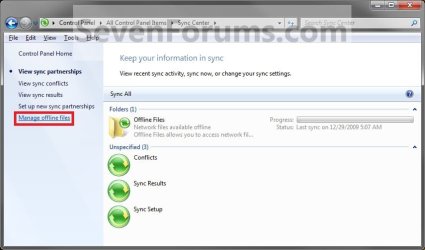
2. In the left pane, click/tap on the Manage offline files link. (see screenshot below)
3. To Unencrypt All Offline Files on Your Computer
A) Click/tap on the Encryption tab, Unencypt button, and on OK. (see screenshot below)

B) You will see this for a moment while the offline files are being unencrypted. (see screenshot below)

C) Close the Sync Center window. You're done. (see screenshot below step 2)
4. To Encrypt All Offline Files on Your Computer
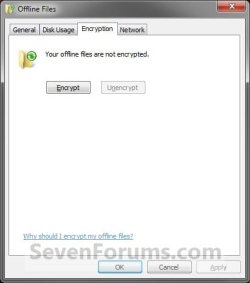
A) Click/tap on the Encryption tab, Encrypt button, and on OK. (see screenshot below)
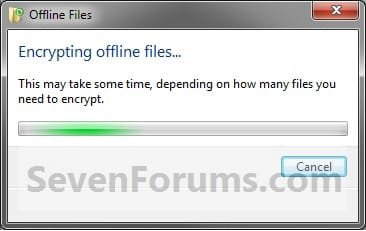
B) You will see this for a moment while the offline files are being encrypted. (see screenshot below)
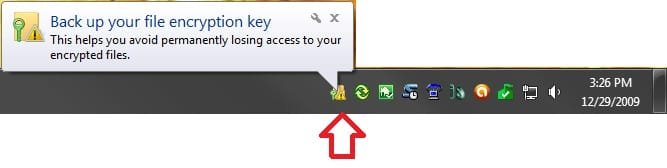
C) If this is the first time that you have encrypted a folder on your computer, then you will also now see this in your notification area to let you know that you should Back up your file encryption key. (see screenshot below)
C) Close the Sync Center window. (see screenshot below step 2)
5. To Back up your File Encryption Key
Warning
You should back up your file encryption key to help avoid permanently losing access to your encrypted offline files on your computer. This way if you lose access, all you would have to do is to double click on the back up encryption key to import it back in your computer to regain access to your encrypted offline files.
A) Click/tap on the notification icon from step 4C above to open it. (see screenshot below)
B) Click/tap on Back up now. (see screenshot below)
NOTE: If you click on Back up later, you will see the notification icon above displayed again the next time you log on to remind you to back up the encryption key again.
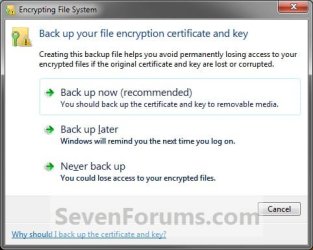
C) Click/tap on Next. (see screenshot below)

D) Select and check all available (not grayed out) options, and click/tap on Next. (see screenshot below)
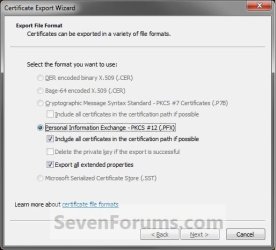
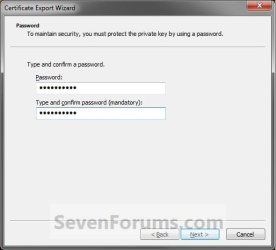
E) Type in a password to protect this key, and click/tap on Next. (see screenshot below)
WARNING: You should write down this password. You will need it if you ever need or want to be able to import this back up encryption key.
F) Type in a name for the backup encryption key file that will help let you know what it is, and click/tap on Next. (see screenshot below)
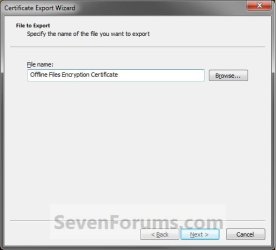
G) By default, the back up encryption key file will be saved to your C:\Users\(user-name)\Documents folder. Click/tap on Finish. (see screenshots below)
NOTE: When done, you should make a copy this file and place it somewhere safe in case you need it to regain access to your encrypted offline files again.

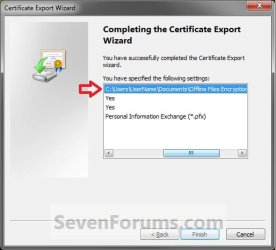
H) Click/tap on OK. (see screenshot below)

That's it,
Shawn
Related Tutorials
- Enable or Disable the Use Of Offline Files in Windows 7 and Windows 8
- How to Make Network Files or Folders Available Offline in Windows 7 and Windows 8
- How to View All Your Offline Files in Windows 7 and Windows 8
- How to View and Change Your Offline Files Status in Windows 7
- How to Manually Sync Your Offline Files in Windows 7 and Windows 8
- How to Manage the Offline Files Disk Space Usage in Windows 7 and Windows 8
- How to Add Encrypt and Decrypt to Context Menu in Windows 7 and Windows 7
- How to Create an Offline Files "Sync Center" Shortcut in Windows 7 and Windows 8
- How to Create an "Offline Files Folder" Shortcut in Windows 7 and Windows 8
- How to Create an Offline Files "Sync Conflicts" Shortcut in Windows 7 and Windows 8
- How to Create an "Encrypting File System Manager" Shortcut
- How to Restore Encrypted File System (EFS) Certificate in Vista, Windows 7, and Windows 8
- How to Backup Encrypted File System (EFS) Certificate in Vista, Windows 7, and Windows 8
- How to Find and See a List of All Encrypted Files on All Local Hard Drives
Last edited:


