

How to Add "Copy To Folder" and "Move To Folder" to Context Menu in Windows 7 and Windows 8
InformationThis tutorial will show you how to add or remove Copy To Folder and Move to Folder to the context menu for all users in Windows 7 and Windows 8.
You must me logged in as an administrator to be able to do the steps in this tutorial.
NoteCopy To Folder allows you to right click selected file(s) and folder(s) and copy them to another location immediately.
Move to Folder allows you to right click on selected file(s) and folder(s) and move them to another location, then remove them from their current location immediately.
In Windows 7, the default location for Copy To Folder and Move To Folder is in the Edit menu bar menu in Windows Explorer.
In Windows 8 and 8.1, the default location for Copy To Folder and Move To Folder is in the Home tab in the ribbon of File Explorer. You would click/tap on Choose location to see the "Copy Items" or "Move Items" dialog.
 TipTo Copy file(s) regardless of the source and target destination, hold down the CTRL key while you drag and drop the file(s).
To Move file(s) regardless of the source and target destination, hold down the SHIFT key while you drag and drop the file(s).
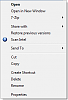
EXAMPLE: "Copy To Folder" and "Move To Folder" added to the Context Menu
NOTE: Right click on selected file(s) and folder(s) to see your new additions.
EXAMPLE: Copy To Folder and Move To Folder windows
NOTE: You can see what happens when you click on each of these context menu items to.
OPTION ONEAdd or Remove "Copy To Folder" from the Context Menu
1. To Add "Copy To Folder" to Context Menu
A) Click/tap on the Download button below to download the file below, and go to step 3 below.2. To Remove "Copy To Folder" from Context Menu
Add_Copy_To_Folder.regB) Go to step 3.
A) Click/tap on the Download button below to download the file below, and go to step 3 below.3. Save the .reg file to the desktop.
Remove_Copy_To_Folder.reg
4. Double click/tap on the downloaded .reg file to merge it.
5. When prompted, click/tap on Run, Yes (UAC), Yes, and OK to approve merging the .reg file.
6. You can now delete the downloaded .reg file if you like.
OPTION TWOAdd or Remove "Move To Folder" from the Context Menu
1. To Add "Move To Folder" to Context MenuThat's it,
A) Click/tap on the Download button below to download the file below, and go to step 3 below.2. To Remove "Move To Folder" from Context Menu
Add_Move_To_Folder.regB) Go to step 3.
A) Click/tap on the Download button below to download the file below, and go to step 3 below.3. Save the .reg file to the desktop.
Remove_Move_To_Folder.reg
4. Double click/tap on the downloaded .reg file to merge it.
5. When prompted, click/tap on Run, Yes (UAC), Yes, and OK to approve merging the .reg file.
6. You can now delete the downloaded .reg file if you like.
Shawn
Related Tutorials
- How to Reset Browse For Folders type Dialog Boxes to Default Size in Windows
- How to Add Empty Folder and Subfolders to the Windows 7 Context Menu
- How to Expand the Windows 7 Context Menu for More Options
- How to Enable or Disable Windows 7 Explorer Context Menu
- How to Add Shortcuts to the Windows 7 Context Menu with Icons
- How to Remove and Restore the Default Windows 7 Send To Context Menu Items
- How to Add "Copy Content to Clipboard" to Context Menu in Vista, Windows 7, and Windows 8
Context Menu - Add Copy To Folder and Move To Folder
-
New #1
hey brink
i always enjoy your tutorials
most cover some very useful stuff
like this one
Thanks Great work
RellikZephyr
-
-
New #3
Not going to use it, but it taught me heaps, didn't know to display the menu with ALT (yay, coz I like the new "action" menus), and therefore didn't know that there was send to/move to in the edit menu. That's great, I use it a lot.
Really from Explorer in XP which I never used (Xplorer2 always) to win 7 with its great functionality, quick previews, good flexibility of views etc - I've hardly ever fired up Xplorer2, and since I can get 2 explorers on one of my monitors (thus dual pane) Xplorer 2 may be on its last legs for me.
Anyway many thanx for the tutorial and the ones it links to - learnt lots again!
-
New #4
Wow this is sweet! Thanks for that!
-
-
New #6
You're welcome Charles Kane, DigitalRurouni, and Larry. :)Last edited by Brink; 16 Jun 2009 at 15:37.
-
New #7
Hi! Great tut, as usual, do i have to dl the reg file or can i manually do it as i could in vista? Is it the same location and key?
-
New #8
Hello Superneat,
No you do not have to download it if you do not like to. I just included the .reg to make it easy to do automatically. It's the same location as in Vista though. :)
-
Context Menu - Add Copy To Folder and Move To Folder
How to Add "COPY TO FOLDER" and "MOVE TO FOLDER" to Context Menu in Windows 7 and Windows 8Published by Brink


 Quote
Quote larry
larry
Related Discussions