Windows 7 Forums


Windows 7: Encrypt and Decrypt - Add to Context Menu


Encrypt and Decrypt - Add to Context Menu

How to Add Encrypt and Decrypt to the Windows 7 Context Menu
Published 06 Jan 2010
Published by

Featured Tutorial

User Profile - Customize During Installation

How to Customize Default User Profile in Audit Mode

SF Diagnostic Tool - Using for Troubleshooting

Using SF Diagnostic Tool for Troubleshooting

Online Scanners - Scan Suspicious Files on your PC

How to Scan Suspicious Files using Online Scanners

SSD Alignment
SSD Alignment


System Preparation Tool - Use to Customize Windows

How to Use Sysprep to Customize Windows 7 and Windows 8

Clean Up Factory Bloatware


How to Add Encrypt and Decrypt to the Windows 7 Context Menu

information   Information
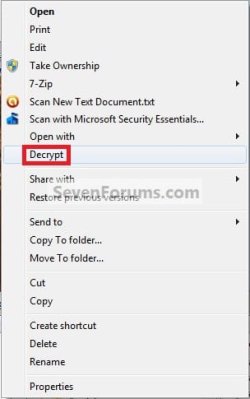
This will allow you to add Encrypt and Decrypt to the context menu so that you can encrypt or decrypt a file or folder by simply right clicking on the item and selecting Encrypt or Decrypt.
Note   Note
Encrypting folders and files is a way to protect them from unwanted access. Encrypting a file or folder will prevent other user accounts from being able to open it. Encrypting File System (EFS) is a feature of Windows that you can use to store information on your hard disk in an encrypted format. Encryption is the strongest protection that Windows provides to help you keep your information secure.

Encrypting File System (EFS) is only available in the Windows 7 Professional, Ultimate, and Enterprise editions.

Tip   Tip
If this is the first time that you have encrypted a file or folder on your computer, then you will also see this in your notification area to let you know that you should Back up your file encryption key.
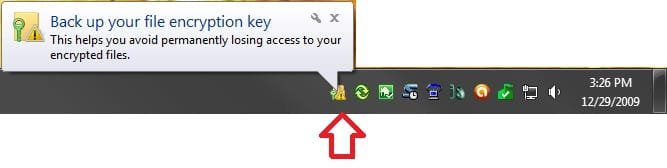
Encrypt and Decrypt - Add to Context Menu-step3-encrypt.jpg


EXAMPLE: Context Menu after Adding Encrypt and Decrypt
NOTE: Only one will appear in the context menu at a time depending on if the file or folder is currently encrypted or not.
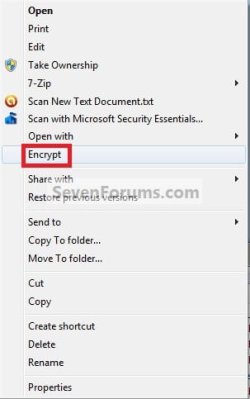
Encrypt and Decrypt - Add to Context Menu-encrypt.jpgEncrypt and Decrypt - Add to Context Menu-decrypt.jpg


OPTION ONE
Using a REG File Download
1. To Add Encrypt and Decrypt to the Context Menu
A) Click on the download button below to download the file below.
Add_Encrypt-Decrypt.reg
download
B) Go to step 3.
2. To Remove Encrypt and Decrypt to the Context Menu
A) Click on the download button below to download the file below.
Remove_Encrypt-Decrypt.reg

download
3. Click on Save, and save the .reg file to the Desktop.

4. Right click on the downloaded .reg file and click on Merge.

5. Click on the Run, Yes, Yes, and then OK when prompted.

6. When done, you can now delete the downloaded .reg file if you would like to.


OPTION TWO
Manually Using the Registry Editor
1. Open the Start Menu, the type regedit in the search box and press Enter.

2. If prompted by UAC, then click on Yes.

3. In regedit, go to: (see screenshot below)
HKEY_CURRENT_USER\Software\Microsoft\Windows\CurrentVersion\Explorer\Advanced
Encrypt and Decrypt - Add to Context Menu-step1.jpg
4. To Add Encrypt and Decrypt to the Context Menu
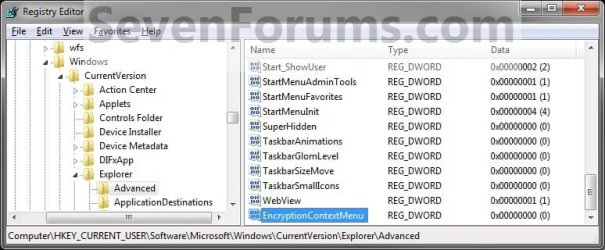
A) In the right pane of Advanced, right click on a empty space and click on New and DWORD (32-bit) Value and type EncryptionContextMenu and press Enter. (see screenshot below)
Encrypt and Decrypt - Add to Context Menu-step2.jpg
B) In the right pane, right click on EncryptionContextMenu and click on Modify. (see screenshot above)
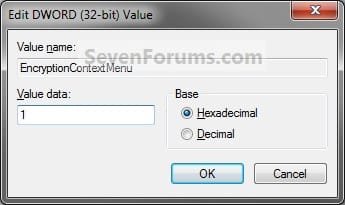
C) Type 1 and click on OK. (see screenshot below)
Encrypt and Decrypt - Add to Context Menu-step3.jpg
D) Go to step 6.
5. To Remove Encrypt and Decrypt
A) In the right pane of Advanced, right click on EncryptionContextMenu and click on Delete. (see screenshot below step 4)

B) Click on Yes to confirm deletion.
6. Close regedit.
That's it,
Shawn


Need more help? Try searching our extensive help and support site.
Loading
07 Jan 2010   #1
grimreaper

Windows 7 Ultimate X64
43° 40' 0 N 79° 25' 0 W


download was much easier Shawn thank you
ps- wonder why Windows didn't have this from the beginning?
very useful.

My System SpecsSystem Spec

07 Jan 2010   #2
Brink

64-bit Windows 7 Ultimate SP1 & Windows 8 Enterprise
Texas


You're welcome Grim. I'm not sure why they didn't inlcude it by default in the context menu. It sure makes it easier.
My System SpecsSystem Spec
14 Feb 2010   #3
Guareguao

Dual boot Windows 7 Pro and Windows XP Pro SP3


Brink,

I downloaded the file and merged it. I have it on the context menu. I encrypted a folder with pictures, it says encrypted but I still can see the pictures. What I am doing wrong? I have win 7 Pro. By the way thanks, this is a great forum I have learned a lot here.
My System SpecsSystem Spec
.


14 Feb 2010   #4
Brink

64-bit Windows 7 Ultimate SP1 & Windows 8 Enterprise
Texas


Hello Guareguao, and welcome to Seven Forums.

Yes, your user account would still be able to open and view your encrypted files just like your other unencrypted files. Encrypting a file or folder will prevent other user accounts from being able to open it instead.
My System SpecsSystem Spec
14 Feb 2010   #5
Guareguao

Dual boot Windows 7 Pro and Windows XP Pro SP3


Thanks, that makes a lot of sense.
My System SpecsSystem Spec
14 Feb 2010   #6
Brink

64-bit Windows 7 Ultimate SP1 & Windows 8 Enterprise
Texas


You're most welcome.
My System SpecsSystem Spec
20 Oct 2010   #7
headshot

Windows 7 Ultimate x86
Indonesia


When i encrypt a file, it doesnt prompt "Back up your file encryption key" like this picture:


how to re-enable that?
My System SpecsSystem Spec
20 Oct 2010   #8
Brink

64-bit Windows 7 Ultimate SP1 & Windows 8 Enterprise
Texas


Hello Headshot,

You would only see that if it was the first time you encrypted a file. It will not show again afterwards. The tutorial below can show you how to back up your file encryption key though if needed. It's for Vista, but it's the same procedure.

Encrypted File System (EFS) Certificate Backup - Vista Forums

Hope this helps,
Shawn
My System SpecsSystem Spec
23 Mar 2011   #9
dcwill83

Windows 7 Home Premium 32bit
Western Massachusetts


What program can I download that would take the place of this feature in Windows 7 Home Premium?
My System SpecsSystem Spec
Comment

 Encrypt and Decrypt - Add to Context Menu problems?


Tutorial Tools


Similar help and support threads for: Encrypt and Decrypt - Add to Context Menu
Windows 7 Tutorial Category
How do I move context menu items into a cascading context menu? Customization
Relocate WinRAR Context Menu (Context Menu Handlers) Customization
How do I encrypt and decrypt harddrive on computer boot? System Security
Solved Context Menu add for Compress and Uncompress or Encrypt and Unencrypt? Customization
Problem with Encrypt and Decrypt System Security


All times are GMT -5. The time now is 07:05 AM.


Seven Forums Android App Seven Forums IOS App Follow us on Facebook

Windows 7 Forums is an independent web site and has not been authorized,
sponsored, or otherwise approved by Microsoft Corporation.
"Windows 7" and related materials are trademarks of Microsoft Corp.
© Designer Media Ltd
  

1 2 3 4 5 6 7 8 9 10 11 12 13 14 15 16 17 18 19 20 21 22 23 24 25 26 27 28 29 30 31 32