
How to Create a Windows 7 "Troubleshooting" Shortcut
Information
This will show you how to create or download a Windows 7 Troubleshooting shortcut. You can also Pin to Taskbar or Pin to Start Menu this shortcut, or move where you like for easy use.
Note
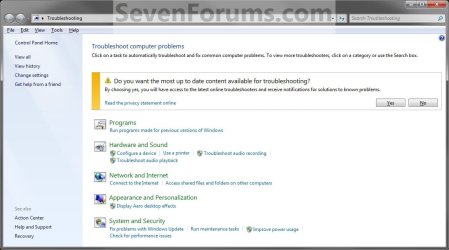
Troubleshooting in Windows 7 helps you troubleshoot problems with Programs, Devices, Network, Printing, Display, Sound, Performance, and Windows. Each category will open up a separate troubleshooting wizard that will automatically diagnose and report any problems it finds, then will list any available options to help resolve the problem. Sometimes it can automatically fix the problem for you as well.
EXAMPLE: Troubleshooting
OPTION ONE
To Download the "Troubleshooting" Shortcut
1. Click on the Download button below to download the Troubleshooting.zip file.
Download
2. Click on Save, and save the .zip file to the desktop.
3. Open the .zip file and extract the Troubleshooting shortcut to the desktop.
4. Right click on the Troubleshooting shortcut, and click on Properties, General tab, and on the Unblock button. (See screenshot below)
NOTE: If you do not have a Unblock button under the General tab, then the shortcut is already unblocked and you can continue on to step 5.

5. Move the shortcut to where you like for easy use.
6. When done, you can delete the downloaded .zip file on the desktop if you like, or save it to use again.
OPTION TWO
To Manually Create the "Troubleshooting" Shortcut
1. Right click on a empty area on desktop, and click on New and Shortcut. (See screenshot below)
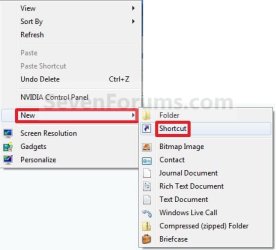
2. Type the location below into the location area, and click on the Next button. (See screenshot below)
Code:
C:\Windows\explorer.exe shell:::{C58C4893-3BE0-4B45-ABB5-A63E4B8C8651}
3. Type Troubleshooting for the name, and click on the Finish button. (See screenshot below)
NOTE: You can name this anything you would like though.
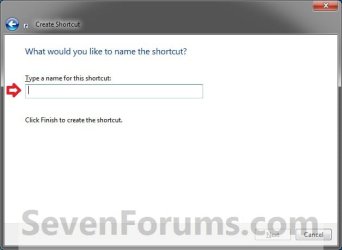
4. Right click on the new Troubleshooting shortcut on the Desktop and click on Properties.
5. Click on the Shortcut tab, then click on the Change Icon button. (See screenshot below)

6. In the line under "Look for icons in this file", type C:\Windows\System32\imageres.dll and press Enter. (See screenshot below)
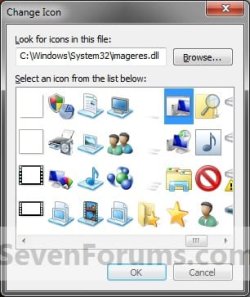
7. Select the icon highlighted in blue above and click on OK. (See screenshot above)
NOTE: You can use any icon that you would like instead though.
8. Click on OK. (See screenshot below)
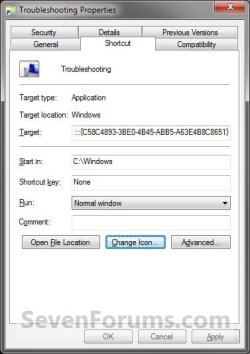
9. Move the shortcut to where you like for easy use.
That's it,
Shawn
Related Tutorials
- How to View the Troubleshooting History in Windows 7
- How to Change Windows 7 Troubleshooting Settings
- How to Open Troubleshooting in Windows 7
- How to Create a Aero Troubleshoot Shortcut in Windows 7
- How to Create a Connection to Workplace using DirectAccess Troubleshoot Shortcut in Windows 7
- How to Create a Devices and Printers Troubleshoot Shortcut in Windows 7
- How to Create a Hardware and Devices Troubleshoot Shortcut in Windows 7
- How to Create a HomeGroup Troubleshoot Shortcut in Windows 7
- How to Create a Incoming Connections Troubleshoot Shortcut in Windows 7
- How to Create a Internet Connections Troubleshoot Shortcut in Windows 7
- How to Create a Network Adapter Troubleshoot Shortcut in Windows 7
- How to Create a Performance Troubleshoot Shortcut in Windows 7
- How to Create a Playing Audio Troubleshoot Shortcut in Windows 7
- How to Create a Power Troubleshoot Shortcut in Windows 7
- How to Create a Printing Troubleshoot Shortcut in Windows 7
- How to Create a Program Compatibility Troubleshoot Shortcut in Windows 7
- How to Create a Recording Audio Troubleshoot Shortcut in Windows 7
- How to Create a Search and Indexing Troubleshoot Shortcut in Windows 7
- How to Create a Shared Folders Troubleshoot Shortcut in Windows 7
- How to Create a System Maintenance Troubleshoot Shortcut in Windows 7
- How to Create a Windows Media Player DVD Troubleshoot Shortcut in Windows 7
- How to Create a Windows Media Player Library Troubleshoot Shortcut in Windows 7
- How to Create a Windows Media Player Settings Troubleshoot Shortcut in Windows 7
- How to Create a Windows Update Troubleshoot Shortcut in Windows 7
Attachments
Last edited:


