
How to Change Log On Screen Background in Windows 7
Information
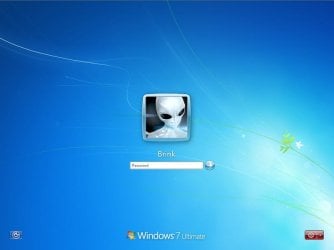
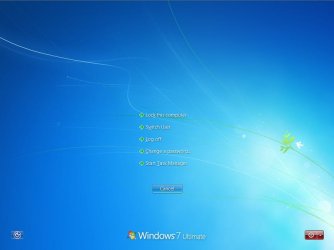
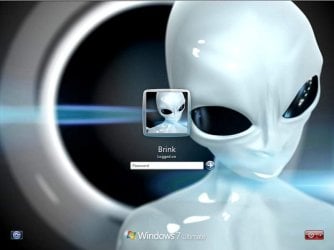
This will show you how to change the default Windows 7 log on screen background to a custom image of your choice. The log on screen consists of the Welcome, Ctrl+Alt+Del, Shutdown, Lock Computer, Switch User, Log On, and Log Off screens.
Tip
If you need or want the default Windows 7 log on screen background image, then you can click on the Download button below to get it. It is normally located at C:\Windows\System32\oobe\background.bmp by default in Windows 7. While this is the looks like the log on screen background image, it is not the location to change the log on screen background image of.
Download
Download
Warning
The custom image that you use must be a .jpg image less than 256 KB in size, or this will not work.
EXAMPLE: Default Log On and Ctrl+Alt+Del screens
EXAMPLE: Custom Log On and Ctrl+Alt+Del screens

OPTION ONE
Using the "Windows 7 Logon Background Changer" Program
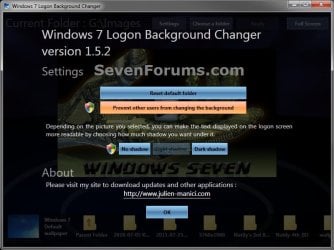
NOTE: This will let you easily change the default Windows 7 log on screen automatically with a stand-alone exe program called by our member Julien (aka: link8583). You can use OPTION FOUR below to restore the default Windows 7 log on screen, or just select the image using this program.1. If you have not already, download the latest version of Windows 7 Logon Background Changer.
2. Extract (drag and drop) the Win7LogonBackgroundChanger folder to your desktop, and run the Win7LogonBackgroundChanger.exe file in it.
NOTE: This is only a standalone EXE file, and does not install on your computer.
3. Click on Run in the Open File - Security Warning dialog box.
Tip
If you click on the Settings button, you could click on the Prevent other users from changing the background option to prevent standard users from being able to run this program to change the log on screen until the next time you change it. This option will give them a UAC prompt for them to have to type in an administrator's password before being able to run the program.
4. Click on the Choose a folder button at the top. (see screenshot below)
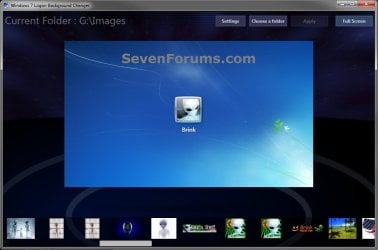
5. Navigate to and select the folder that contains the image you want to use for your log on screen background, and click on OK. (see screenshot below)
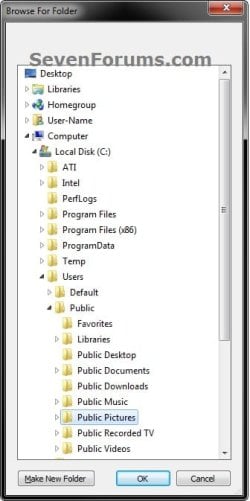
6. Select the image you want to use in the bottom row to have it displayed in the main window of the program, then click on the Apply button at the top. (see screenshot below step 4)
NOTE: You can click on the arrows boxed in red below to scroll through the available images. If you select an image that is over 256KB in size, it will automatically be reduced in size to be below 256KB.
7. If prompted, click on Yes to apply. (see screenshot below)
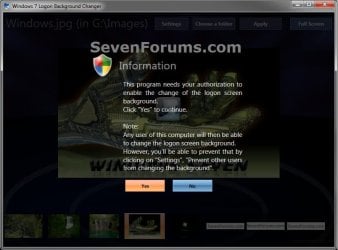
A) If prompted by UAC, then click on Yes.
8. When it's finished, your log on screen has now been changed. You can press Ctrl+Alt+Del to test it. Click on Cancel to return to the desktop.
9. When finished, you can close the Windows 7 Logon Background Changer program.
WARNING: It is important to wait until the program has completely finished creating the images and applying the background before closing the program or testing it.
10. Depending on how light or dark your background image is, you may want to change the log on screen text shadow to make it look better as well.
OPTION TWO
Using the "Tweaks.com Logon Changer for Windows 7" Program
NOTE: This will let you easily change and restore the default Windows 7 log on screen automatically with another stand-alone exe program. 1. If you have not already, download the latest version of the Tweaks.com Logon Changer for Windows 7 program, and save it to your desktop.
2. Open the downloaded tweakslogon.zip file, extract (drag and drop) the TweaksLogon.exe file to your desktop, and run the program.
3. Click on Run in the Open File - Security Warning dialog box.
4. To Change the Log On Screen in Windows 7A) Click on the Change Logon Screen button. (see screenshot below)
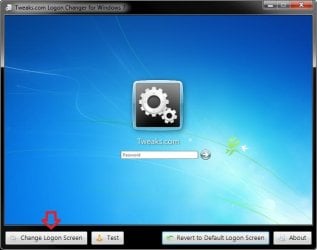
B) Navigate to and select the JPG image that you want to have as the new log on screen background, then click on Open. (see screenshot below)
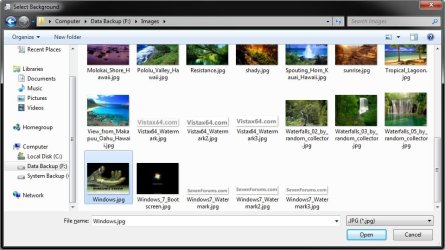
Note
If the selected image is to large, then click on OK after clicking on Open to have it automatically resized for you.

C) Go to step 6.
5. To Restore the Default Log On Screen in Windows 7
NOTE: I find that this step doesn't work to well in this program. If you find the same, then you can use OPTION FOUR below to restore the default Windows 7 log on screen. A) Click on the Restore to Default Logon Screen button. (see screenshot below)

6. Click on OK. The log on screen has now been changed. (see screenshot below)
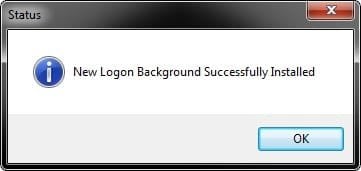
7. If you would like, click on the Test button to see how the new logon screen looks in case you change your mind and wish to change it again.
NOTE: This will take you to the Lock screen. You can log on again to your user account to be right back where you were without anything being closed.
8. When finished, close the program.
OPTION THREE
To Manually Change the Log On Screen in Windows 7
NOTE: This was discovered by Rafael Rivera at Within Windows. You should also visit his website for more detailed information on this.1. Unhide file type extensions.
2. Click on the Download button to download the file below.Use_Custom_Log_On_Screen.reg
Download
3. Save the .reg file to the desktop.
4. Right click on the extracted .reg file and click on Merge.
5. Click on Run, Yes (UAC), Yes, and OK when prompted.
6. Save the custom .jpg image you want to use to the desktop with the name backgroundDefault.jpg.
WARNING: The custom image that you use must be a .jpg image less than 256 KB in size, or this will not work.
7. Check to see what your primary display screen resolution is. (See screenshot below)
NOTE: For example, mine is 1920 x 1280.
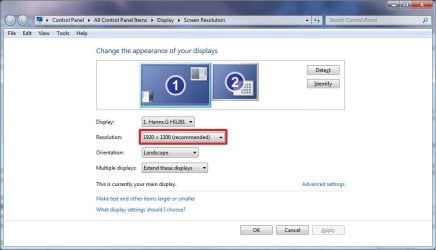
8. Open Paint, and click on the File icon (top left corner), Open, and navigate to and select the .jpg image from step 6.
NOTE: You can open Paint by typing mspaint.exe in the Start menu search line and pressing enter.
9. In Paint, click on Resize, dot Pixels, uncheck Maintain aspect ratio, then resize the .jpg image to the screen resolution size in step 7. (See screenshot below)
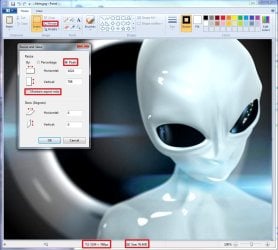
10. In Paint, click on the File icon (top left corner), Save as, then save the new .jpg file to the desktop with the exact file name below with the screen resolution size of the image.
NOTE: For example, since by screen resolution is 1920 x 1280, I will resize the image to this size and save it with the name background1920×1200.jpg.
Warning
The custom image that you use must be a .jpg image less than 256 KB in size, or this will not work. The backgroundDefault.jpg (step 6) image will be Streched to Fit and used by default if Windows 7 cannot find or use the correct screen resolution image file created in this step. These are the only sizes supported by the log on screen.
- background768×1280.jpg
- background960×1280.jpg
- background900×1440.jpg
- background1024×768.jpg
- background1024×1280.jpg
- background1280×768.jpg
- background1280×960.jpg
- background1280×1024.jpg
- background1360×768.jpg
- background1440×900.jpg
- background1600×1200.jpg
- background1920×1200.jpg
11. When done, close Paint.
12. In Windows Explorer, navigate to
C:\Windows\System32\oobe\info\backgrounds. (See screenshot below step 13)
NOTE: If you do not have any of these folders (ex: info and backgrounds usually), then create a new folder for the missing folder and rename it to the missing folder's name. If you are prompted by UAC when creating and renaming the folders, just click on Yes to approve.
13. Copy and Paste the .jpg files from step 10, and from step 6 into the C:\Windows\system32\oobe\info\backgrounds folder, then close the window. (See screenshot below)
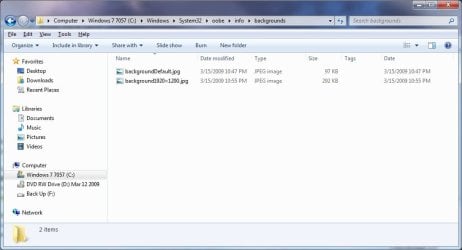
14. You're logon screen is now changed. You can press Ctrl+Alt+Del to test it. Click on Cancel to return to the desktop.
NOTE: You can now delete the .reg and .zip files on the desktop if you like.
15. You can now hide the file extensions again if you like.
16. Depending on how light or dark your background image is, you may want to change the log on screen text shadow to make it look better as well.
OPTION FOUR
To Restore the Default Log On Screen
NOTE: This will restore the default Windows 7 log on screen if it was changed from either OPTION ONE, OPTION TWO, or OPTION THREE above.1. Click on the Download button to download the file below.Use_Default_Log_On_Screen.reg
Download
2. Save, and the .reg file to the desktop.
3. Right click on the extracted .reg file and click on Merge.
4. Click on Run, Yes (UAC), Yes, and OK when prompted.
5. You're logon screen is now changed back to the default one. You can press Ctrl+Alt+Del to test it. Click on Cancel to return to the desktop.
NOTE: You can now delete the downloaded .reg and .zip files if you like.
That's it,
Shawn
Related Tutorials
- How to Change the Windows 7 Log On Screen Text Shadow
- How to Enable or Disable Secure Logon CTRL+ALT+DELETE in Windows 7
- How to Automatically Log On a User Account at Windows 7 Startup
- How To Change or Remove the Windows 7 Log On Screen Text Branding
- How to Add and Change the "System" OEM Support Information in Windows 7
- How to Enable or Disable the Windows 7 Log On Screen Saver
- How to Make Windows 7 Require a User Name and Password at Log On
- How to Add or Remove Ease of Access Center from Windows 7 Log On Screen
- How to Change Your User Account Picture in Windows 7
- How to Change the Windows Logo on the System Properties Page
- How to Change the "Welcome" Text Message at Log On in Windows 7 and Vista
- How to Fix Windows 7 Logon Screen Showing Only "Other User" and Last Logged On User Icon
- How to Change the Font on the Log On Screen in Windows 7
Attachments
Last edited:


