Windows 7 Forums Search

Go Back Windows 7 Forums > Windows 7 help and support > Tutorials » Burn Disc Image - ISO or IMG file

Welcome to Windows 7 Forums. Our forum is dedicated to helping you find solutions with any problems, errors or issues you are experiencing with Windows 7. The Windows 7 forum also covers news and updates and has an extensive Windows 7 tutorial section that covers a wide range of tips and tricks.

Windows 7 - Burn Disc Image - ISO or IMG file


Burn Disc Image - ISO or IMG file

How to Burn a Disc Image from a ISO or IMF file in Windows 7
Published by Brink
11-16-2008
Default Burn Disc Image - ISO or IMG file

How to Burn a Disc Image from a ISO or IMF file in Windows 7

information   Information
This will show you how to use the built-in Windows Disc Image Burning Tool to burn a CD or DVD disc image from a ISO or IMG file in Windows 7.
warning   Warning
Windows Disc Image Burner will need to be set as the default program with all of it associations (.iso & .img) set to it for this to work. It is by default in Windows 7.


Here's How:
1. Place a blank unformatted CD or DVD into your CD/DVD drive.
NOTE: If a AutoPlay window opens with the option to format the CD/DVD, then just close it.

2. Right click on the ISO or IMG file you want to burn a disc image with, then click on Burn disc image. (See screenshot below)
Burn Disc Image - ISO or IMG file-right_click.jpg
3. Next to Disc burner, click on the drop down arrow and select the CD/DVD drive with the blank CD/DVD in it. (See screenshot below step 4)

4. Check the Verify disc after burning box if you want Windows 7 to verify the disc image afterwards, otherwise leave it unchecked. (See screenshot below)
NOTE: Verifying the disc will take a little bit longer for the disc image to be finished.
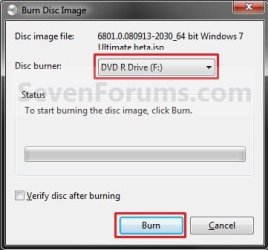
Burn Disc Image - ISO or IMG file-burn-1.jpg
5. You will now see this. (See screenshots below)
Burn Disc Image - ISO or IMG file-burn-2.jpg

Burn Disc Image - ISO or IMG file-burn-3.jpg
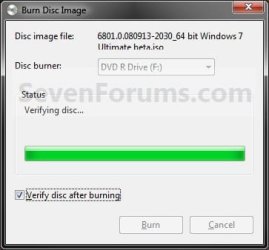
6. If you checked the Verify disc after burning box in step 4, then you will see this next. (See screenshot below)
NOTE: You will not see this if you did not check the box. Instead you will see step 7.
Burn Disc Image - ISO or IMG file-burn-4.jpg
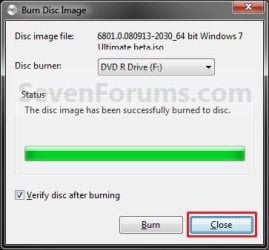
7. When it is finished burning the disc image, click on the Close button. (See screenshot below)
Burn Disc Image - ISO or IMG file-burn-5.jpg
8. Remove your new CD/DVD image from the CD/DVD drive.
That's it,
Shawn


Published by
Brink's Avatar
Administrator

Join Date: Oct 2008
Location: Texas
Posts: 17,035
Brink has a reputation beyond reputeBrink has a reputation beyond reputeBrink has a reputation beyond reputeBrink has a reputation beyond repute
Brink has a reputation beyond reputeBrink has a reputation beyond reputeBrink has a reputation beyond reputeBrink has a reputation beyond reputeBrink has a reputation beyond reputeBrink has a reputation beyond reputeBrink has a reputation beyond reputeBrink has a reputation beyond repute

Tutorial Tools
11-16-2008   #1
mansrm81


Windows 7 Ultimate x64/ Windows Vista Ultimate x64
Rockford, IL USA


This is nice don't need any 3rd party software. Thanks Shawn keep them coming.

My System SpecsSystem Spec
11-16-2008   #2
Brink


Windows 7 Ultimate x64 SP1 beta
Texas


You're welcome Mansrm. Thank you to John (z3r010) for finding this feature.

Shawn
My System SpecsSystem Spec
02-12-2009   #3
Ex_Brit


Vista Ultimate SP2/Windows 7 Ultimate/x64/XP SP3 in VM
Toronto, Canada


How come I don't have that option in my right-click?
My System SpecsSystem Spec
.
02-12-2009   #4
Brink


Windows 7 Ultimate x64 SP1 beta
Texas


Hello Peter,

Are you right clicking on a .img or .iso file? It will only appear for these file types.
My System SpecsSystem Spec
02-12-2009   #5
Ex_Brit


Vista Ultimate SP2/Windows 7 Ultimate/x64/XP SP3 in VM
Toronto, Canada


.iso. I have several stored on my various drives and they all just start with the option to open, take ownership and so on.

Under default programs, associate a file type......etc. it isn't even listed as a file type.
My System SpecsSystem Spec
02-12-2009   #6
Ex_Brit


Vista Ultimate SP2/Windows 7 Ultimate/x64/XP SP3 in VM
Toronto, Canada


However....if I double-click one of .iso files this comes up....
Attached Thumbnails
Burn Disc Image - ISO or IMG file-capture.jpg  
My System SpecsSystem Spec
02-12-2009   #7
Brink


Windows 7 Ultimate x64 SP1 beta
Texas


If you had installed some other 3rd party disc image program, it may have unset the default Windows Disc Image Burner that Windows 7 uses. In Default Programs, check to make sure that Windows Disc Image Burner is set as the default program with all of it's associations set to it as well.
My System SpecsSystem Spec
02-12-2009   #8
Ex_Brit


Vista Ultimate SP2/Windows 7 Ultimate/x64/XP SP3 in VM
Toronto, Canada


You hit the nail on the head. Although it appeared if I double-clicked a .iso it had 0 of its 2 defaults in Default Programs.

Now that I specified them it shows in the right-click too.

Thanks.

Not sure why that had come undone.
My System SpecsSystem Spec
02-12-2009   #9
Brink


Windows 7 Ultimate x64 SP1 beta
Texas


Peter,

I'm happy to hear that you got it back now. My only guess is some 3rd party program may have unset it.
My System SpecsSystem Spec
Comment

Tutorial Tools


Similar Threads for: Burn Disc Image - ISO or IMG file
Windows 7 Tutorial Category
TV Tuners: What file format and can I burn to DVD? Media Center
Solved anyone succeed in burn a system image disc? Performance & Maintenance
Burn image to disk? General Discussion
Remove 'Burn disk Image' from context menu Customization
What program do you use to burn the ISO file to DVD? Installation & Setup


All times are GMT -5. The time now is 08:10 AM.


Windows 7 Forums is an independent web site and has not been authorized,
sponsored, or otherwise approved by Microsoft Corporation.
"Windows 7" and related materials are trademarks of Microsoft Corp.
© Designer Media Ltd

1 2 3 4 5 6 7 8 9 10 11 12 13 14 15 16 17 18 19 20 21 22 23 24 25 26 27 28