Windows 7 Forums Search

Go Back Windows 7 Forums > Windows 7 help and support > Tutorials » Start Menu - Enable Folder and Library Pin to Start Menu

Welcome to Windows 7 Forums. Our forum is dedicated to helping you find solutions with any problems, errors or issues you are experiencing with Windows 7. The Windows 7 forum also covers news and updates and has an extensive Windows 7 tutorial section that covers a wide range of tips and tricks.

Windows 7 - Start Menu - Enable Folder and Library Pin to Start Menu


Start Menu - Enable Folder and Library Pin to Start Menu

How to Enable Pin Folders and Libraries to Windows 7 Start Menu
Published by Brink
03-22-2009
Default Start Menu - Enable Folder and Library Pin to Start Menu

How to Enable or Disable Pin Folders and Libraries to Windows 7 Start Menu

information   Information
This will allow all users to use Pin to Start Menu on any folder or Library to pin it to the Windows 7 Start menu for easy access. By default, you can only pin programs to the Start menu in Windows 7 and not folders or libraries.
Note   Note
Normally you can drag a folder to the Start button until you see Pin to Start Menu and drop it to pin the folder to the Start Menu.

This tutorial will the add the Pin to Start Menu option to the context menu of the folder or library so that you can also have the this option here.
Tip   Tip
A Pinned folder or library to the Start Menu will not expand to see it's contents. For this you will need to pin the folder or library to the taskbar instead.
warning   Warning
From the Start menu All Programs area, you can only pin the folders you have added and not any of the default Accessories, Administrative Tools, Maintenance, and Startup folders. You can pin any folder or library from within Windows Explorer to the Start Menu.

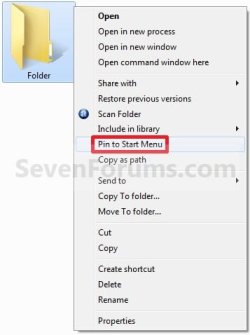
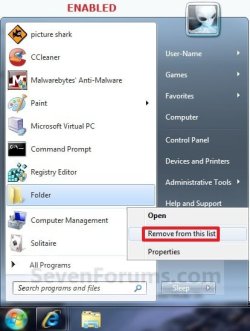
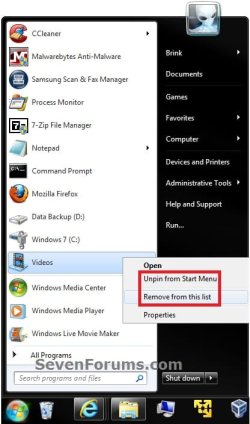
EXAMPLE: Pin to Start Menu Enabled for Folders
NOTE: You will need to press and hold Shift and right click on a folder to see Pin to Start Menu.
Start Menu - Enable Folder and Library Pin to Start Menu-folder.jpgStart Menu - Enable Folder and Library Pin to Start Menu-folder2.jpg
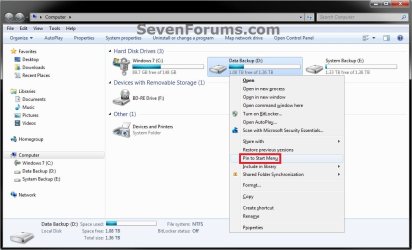
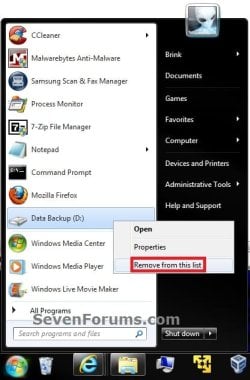
EXAMPLE: Pin to Start Menu Enabled for Libraries
NOTE: You will just need to right click on a library to see Pin to Start Menu.
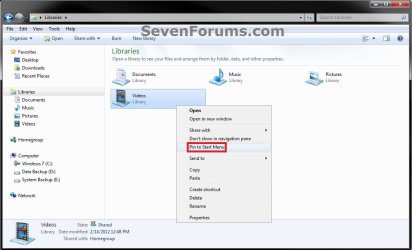
Start Menu - Enable Folder and Library Pin to Start Menu-library1.jpgStart Menu - Enable Folder and Library Pin to Start Menu-library2.jpg


OPTION ONE

Through a Download
1. To Enable Folder and Library Pin to Start Menu -
A) Click on the Download button below to download the
Enable_Folder_Library_Pin_to_Start_Menu.zip file below.
download
B) Go to step 3.
2. To Disable Folder and Library Pin to Start Menu -
A) Click on the Download button below to download the
Disable_Folder_Library_Pin_to_Start_Menu.zip file below.
download
3. Click on Save, and save the .zip file to the desktop.

4. Open the .zip file and extract the .reg file to the desktop.

5. Right click the .reg file (On Desktop) and click on Merge.

6. Click on Run, Yes, Yes, and OK when prompted.

7. When done, you can delete the downloaded .reg and .zip files on the desktop if you like.


OPTION TWO

Manually Through the Registry
1. Open the Start Menu.

2. In the search line, type regedit and press Enter. (See screenshot below)
Start Menu - Enable Folder and Library Pin to Start Menu-search_box.jpg
3. If prompted by UAC, then click on Yes to approve.

4. In regedit, go to: (See screenshot below)

Code:
HKEY_CLASSES_ROOT\Folder\shellex\ContextMenuHandlers
Start Menu - Enable Folder and Library Pin to Start Menu-reg1.jpg
5. To Enable Folder and Library Pin to Start Menu -
A) In the left pane, right click on ContextMenuHandlers, and click on New and Key. (See screenshot above)

B) Type {a2a9545d-a0c2-42b4-9708-a0b2badd77c8} and press Enter. (See screenshot below)

Start Menu - Enable Folder and Library Pin to Start Menu-reg2.jpg
6. To Disable Folder and Library Pin to Start Menu -
A) Right click on {a2a9545d-a0c2-42b4-9708-a0b2badd77c8} and click on Delete. (See screenshot above)
B) Click on Yes to confirm the deletion.
7. Close regedit.
That's it,
Shawn


Published by
Brink's Avatar
Administrator

Join Date: Oct 2008
Location: Texas
Posts: 18,062
Brink has a reputation beyond reputeBrink has a reputation beyond reputeBrink has a reputation beyond reputeBrink has a reputation beyond repute
Brink has a reputation beyond reputeBrink has a reputation beyond reputeBrink has a reputation beyond reputeBrink has a reputation beyond reputeBrink has a reputation beyond reputeBrink has a reputation beyond reputeBrink has a reputation beyond reputeBrink has a reputation beyond reputeBrink has a reputation beyond reputeBrink has a reputation beyond reputeBrink has a reputation beyond repute

Tutorial Tools
04-13-2009   #1
Darius Darksaber


Windows 7


Issue with unpinning a library

Hi,

I pinned a custom library (named Downloads) to the Start Menu without downloading the registry entries found in this thread. The problem was, I was unable to unpin the item from the Start Menu. Whenever I right clicked on it, I would get two options, open or properties. I tried deleting the library. Not only did the Start Menu entry not go away, but now when I right clicked and selected properties, I was informed the item did not exist. Still no option to unpin though, even for a non-existent item. So I went googling. With the enable registry keys provided here the issue was corrected. So this is more of an FYI, if this is released without those registry keys, then the custom libraries will need to be prevented from being pinned to the Start Menu.

My System SpecsSystem Spec
04-13-2009   #2
Brink


Windows 7 Ultimate x64 SP1 beta
Texas


Thank you Darius, and welcome to Seven Forums.

Interesting, I'm curious as to how you managed to pin the folder to the Start Menu without these registry entries though?
My System SpecsSystem Spec
04-13-2009   #3
Darius Darksaber


Windows 7


Thanks. Well as to that, I didn't know about these registry entries, so I went looking for a solution myself. I'm a tinkerer at heart, so I tried a number of ways to get it to pin in place. The method that worked was to create a custom library, use the context menu to create a desktop shortcut, then pin the shortcut to the start menu. Then I deleted the shortcut and everything worked as intended. At least for 2 days until I decided I did not really want a downloads link on my start menu after all. What I really wanted was the ability to add it to the list of libraries on the right side of the menu. Haven't quite figured that one out yet
My System SpecsSystem Spec
.
04-13-2009   #4
Darius Darksaber


Windows 7


After a little more poking around, this works without the custom library. To pin any library to your start menu, you can simply create a desktop shortcut, then drag that to the start menu to pin it. You just can't unpin it.
My System SpecsSystem Spec
04-13-2009   #5
Brink


Windows 7 Ultimate x64 SP1 beta
Texas


Using this tutorial, you should be able to just right click on any library in the Libray folder and click on Pin to Start Menu to do so instead, and Unpin from Start Menu to remove it.
My System SpecsSystem Spec
04-15-2009   #6
bobo3atlon


Windows 7
Croatia


Hi!

We can just drag folder from anywhere to start menu and pin...
My System SpecsSystem Spec
04-15-2009   #7
Brink


Windows 7 Ultimate x64 SP1 beta
Texas


Hello Bob, and welcome to Seven Forums.

Yes, thank you that is true, but this will add the Pin to Start Menu option to the folder or library context menu so that you can also have it as an option to use to pin a folder or library to the Start Menu as well. Either way is good though.
My System SpecsSystem Spec
01-01-2010   #8
bardos


windows 7


thing is, if it doesn't display as a menu on mouseover, it's kind of worthless.
My System SpecsSystem Spec
01-01-2010   #9
Brink


Windows 7 Ultimate x64 SP1 beta
Texas


Hello Bardos,

It can be helpful if you wanted to use it as a quick shortcut to just open the folder from the Start Menu Pin To area. I agree though, you would be better off pinning the folder to the taskbar instead to be able to expand it.
My System SpecsSystem Spec
Comment

Tutorial Tools


Similar Threads for: Start Menu - Enable Folder and Library Pin to Start Menu
Windows 7 Tutorial Category
Add Custom Folder/Library to the Start Menu Customization
Custom Library in Start Menu Customization
pin folder to start menu General Discussion
Can I Pin a Folder to the Start Menu? Customization
Disabling Library Access from Start menu General Discussion


All times are GMT -5. The time now is 03:42 PM.


Windows 7 Forums is an independent web site and has not been authorized,
sponsored, or otherwise approved by Microsoft Corporation.
"Windows 7" and related materials are trademarks of Microsoft Corp.
© Designer Media Ltd

1 2 3 4 5 6 7 8 9 10 11 12 13 14 15 16 17 18 19 20 21 22 23 24 25 26 27 28