
How to Remove an Included Folder from a Library in Windows 7
Information
This will show you how to remove an included folder so that it's contents will no longer be included in a library in Windows 7.
Note
Libraries let you access and arrange items from one or more folders quickly without moving them from their original location. Libraries themselves don't store your files or folders. Instead, they point to different locations on a hard disk or external drive attached to your computer. This gives you easy access to a category of files no matter where they are stored. For instance, if you have music files on your hard disk and on an external drive, you can access all of your music files from within the "Music" library.
For more information about Windows 7 Libraries see:
For more information about Windows 7 Libraries see:
Tip
The full path to the hidden Libraries folder is below.
C:\Users\(User-Name)\AppData\Roaming\Microsoft\Windows\Libraries
OR
%AppData%\Microsoft\Windows\Libraries
C:\Users\(User-Name)\AppData\Roaming\Microsoft\Windows\Libraries
OR
%AppData%\Microsoft\Windows\Libraries
Here's How:
1. Open the Start Menu.
2. Right click on the User Name button and click on Open. (See screenshot below)
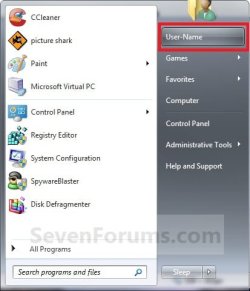
3. From the Library Properties Page
A) Right click on the library (ex: Music) that you want to remove the included folder from, and click on Properties. (See screenshot below)
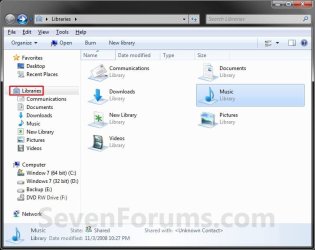
B) Select (highlight) the included folder you want to remove from the library, and click on the Remove button. (See screenshot below)
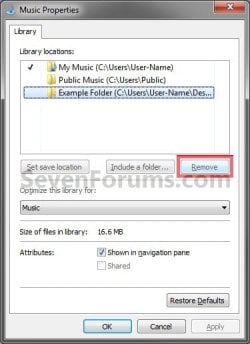
D) Click on OK. (See screenshot above)
E) Go to step 6.
4. From Inside the Library
A) Open the library (ex: Music) that you want to remove the included folder from. (See screenshot below step 3A)
B) Click on the # locations toolbar button. (See screenshot below)
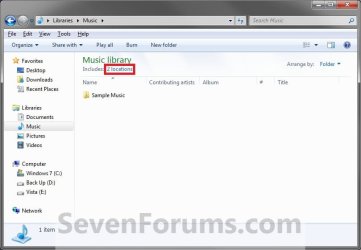
C) Select (highlight) the included folder you want to remove from the library, and click on the Remove button. (See screenshot below)
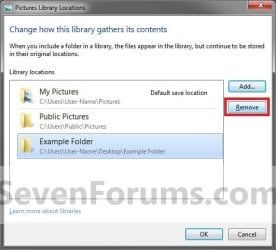
D) Click on OK. (See screenshot above)
E) Close the library window when done. (See screenshot below step 4B)
F) Go to step 6.
5. From the Navigation Pane
A) Click on the drop down triangle to the left of the Library, that you want remove a included folder from, to expand it. (See screenshot below step 5B)
B) Right click on the included folder (subfolder) under the library, and click on Remove Location from library. (See screenshot below)

6. Close the Libraries window when done. (See screenshot below step 3A)
That's it,
Shawn
Related Tutorials
- User Folders in Windows 7 Libraries
- How to Restore the Default Libraries in Windows 7
- How to Fix Libraries when Hidden and Empty in Windows 7
- How to Hide or Show a Library in the Windows 7 Navigation Pane
- How to Create a New Library in Windows 7
- How to Include a Folder in a Library in Windows 7
- How to Include a Network Drive or Folder in a Library in Windows 7 and Windows 8
- How to Set the Default Save Folder for a Library in Windows 7
- How to Create a "Games" Library with Correct Icon in Windows 7 and Windows 8
- How to Create a "Downloads" Library with Correct Icon in Windows 7 and Windows 8
- How to Create a "Favorites" Library with Correct Icon in Windows 7 and Windows 8
- How to Create a "Searches" Library with Correct Icon in Windows 7 and Windows 8
- How to Create a "Links" Library with Correct Icon in Windows 7 and Windows 8
- How to Turn the Library Pane On or Off in Windows 7
- How to Add or Remove "Include in library" in Windows 7 Context Menu
- How to Arrange Folders Included in a Library in Any Order in Windows 7 and Windows 8
- How to Clear Changes made to Library View in Windows 7 and Windows 8
Last edited:


