
How to Allow or Block Specific Websites in Internet Explorer Content Advisor
Information
Content Advisor is a tool for controlling the types of content that your computer can access on the Internet in Internet Explorer. After you turn on Content Advisor, only rated content that meets or exceeds your criteria can be viewed. You can adjust the settings to suit your preferences.
This will show you how to create a list of specific websites in Internet Explorer Content Advisor to allow or block from being viewable by all users regardless of how they are rated.
You will only be able to do the steps in this tutorial while logged in to an administrator account.
This will show you how to create a list of specific websites in Internet Explorer Content Advisor to allow or block from being viewable by all users regardless of how they are rated.
You will only be able to do the steps in this tutorial while logged in to an administrator account.
Warning
If you have IE10 now through Windows Updates, then you will have the "Family Safety" option instead of "Content Advisor" now.
If you like, you can set to show Content Advisor in IE10 and IE11 Internet Options again.
When you click on "Family Safety", you will be taken to Parental Controls. However, Web restrictions and activity reports are not included in Windows 7 Parental Controls like they were in Vista. You can still restrict the sites a standard user account can visit and see reports of their online activity by adding a service provider in Windows 7 Parental Controls, such as Windows Live Family Safety.
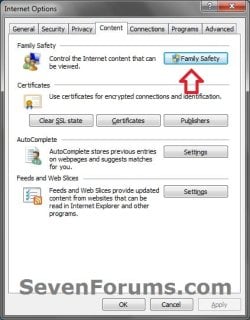
If you like, you can set to show Content Advisor in IE10 and IE11 Internet Options again.
When you click on "Family Safety", you will be taken to Parental Controls. However, Web restrictions and activity reports are not included in Windows 7 Parental Controls like they were in Vista. You can still restrict the sites a standard user account can visit and see reports of their online activity by adding a service provider in Windows 7 Parental Controls, such as Windows Live Family Safety.
Here's How:
1. If not already, then enable Internet Explorer Content Advisor.
2. Open the Control Panel (icons view), and click on the Internet Options icon.
A) Go to step 4.
OR
3. In Internet Explorer, click on Tools and Internet Options.
4. Click on the Content tab and on the Settings button. (See screenshot below)
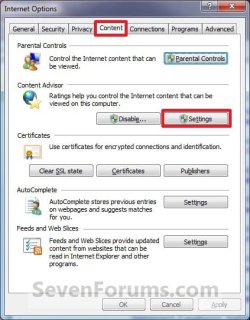
5. If prompted by UAC, then click on Yes.
6. Type in your Content Advisor supervisor password and click on OK. (See screenshot below)

7. Click on the Approved Sites tab. (See screenshot below)
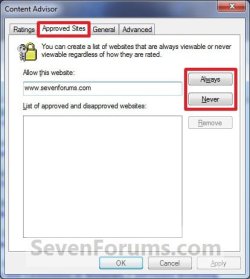
8. To Allow a Website
A) Type in the website address in the top line, and click on the Always button. (See screenshot above)
9. To Block a Website
A) Type in the website address in the top line, and click on the Never button. (See screenshot below step 7)
10. To Remove a Website from the List
A) Select (highlight) a listed website address in the bottom section that you want to remove, and click on the Remove button. (See screenshot below)
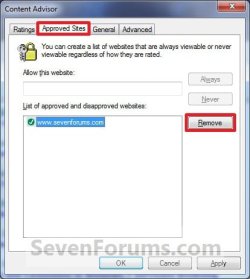
11. When done, click on OK. (See screenshot above)
12. Click on OK. (See screenshot below step 4)
That's it,
Shawn
Related Tutorials
- Hide or Show Content Advisor in Internet Options for IE10 and IE11
- How to Reset Internet Explorer Content Advisor
- How to Reset or Change the Internet Explorer Content Advisor Password
- How to Enable or Disable Internet Explorer Content Advisor
- How to Change Ratings Level in Internet Explorer Content Advisor
- How to Allow or Block Unrated Websites with Internet Explorer Content Advisor
- How to Create a Internet Explorer Content Advisor Shortcut
- How to Add and Remove Internet Explorer Restricted Sites
- How to Setup and Use Parental Controls in Windows 7
- How to Access and Use the Windows Hosts File in Windows 7 and Vista
Last edited:

