
How to Turn the Navigation Pane On or Off in Windows 7
Information
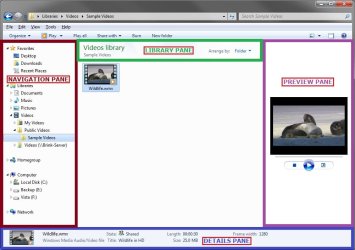
You can use the navigation pane (the left pane) to find files and folders. It displays favorites, libraries, and an expandable list of drives and folders. You can also move or copy items directly to a destination in the navigation pane.
This will show you how to turn the navigation pane on or off in all Windows Explorer windows in Windows 7.
This will show you how to turn the navigation pane on or off in all Windows Explorer windows in Windows 7.
Tip
When the Navigation pane is turned on, you can drag it's right border line left and right to increase or decrease the size of the Navigation pane.
EXAMPLE: Windows Explorer Layout
NOTE: The navigation pane is the far left pane in Windows Explorer.

OPTION ONE
To Turn Navigation Pane On or Off in Windows Explorer
1. Open Windows Explorer (explorer.exe).
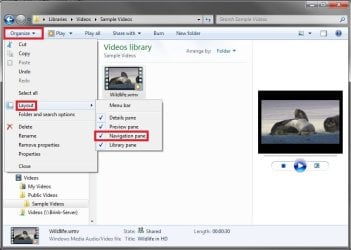
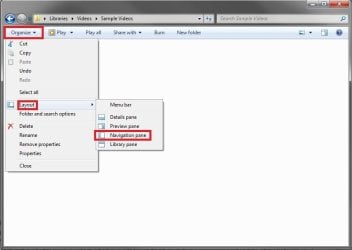
2. On the toolbar, click on Organize and Layout. (see screenshots below)
3. To Turn On the Navigation Pane in Windows Explorer
NOTE: This is the default setting.
A) Select (click) Navigation pane to have it checked. (see screenshots above)
4. To Turn Off the Navigation Pane in Windows Explorer
A) Select (click) Navigation pane to have it unchecked with the icon now showing. (see screenshots above)
5. All Windows Explorer windows will now open as you set this.
OPTION TWO
To Turn Navigation Pane On or Off using a REG File Download
1. To Turn On the Navigation Pane in Windows Explorer
NOTE: This is the default setting.
A) Click on the Download button below to download the file below.
Turn_Navigation_Pane_On.reg
Download
B) Go to step 3.
2. To Turn Off the Navigation Pane in Windows Explorer
A) Click on the Download button below to download the file below.
Turn_Navigation_Pane_Off.reg
Download
3. Save the .reg file to the desktop.
4. Right click on the downloaded .reg file and click on Merge.
5. Click on Run, Yes, Yes, and OK when prompted.
6. Close and reopen any open Windows Explorer window to apply.
NOTE: Sometimes you may need to log off and log on, or restart the computer to apply instead.
7. When done, you can delete the downloaded .reg file if you like.
That's it,
Shawn
Related Tutorials
- How to Turn On or Off Expand to Current Folder in Windows 7 Navigation Pane
- How to Show or Not Show All Folders in the Windows 7 Navigation Pane
- How to Change the Active Navigation Folder Icon in Windows 7
- How to Add or Remove Favorites from the Windows 7 Navigation Pane
- How to Add or Remove the "Libraries" Folder from the Navigation Pane
- How to Hide or Show a Library in the Windows 7 Navigation Pane
- How to Add or Remove "Computer" from the Windows 7 Navigation Pane
- How to Add or Remove "Homegroup" from the Windows 7 Navigation Pane
- How to Add or Remove "Network" from the Windows 7 Navigation Pane
- How to Add or Remove "Control Panel" from the Windows 7 Navigation Pane
- How to Add or Remove your "User Folder" from the Windows 7 Navigation Pane
- How to Add or Remove the "Recycle Bin" from the Windows 7 Navigation Pane
- How to Turn the Menu Bar On or Off in Windows 7
- How to Turn the Windows Explorer Status Bar On or Off in Windows 7
- How to Turn the Details Pane On or Off in Windows 7
- How to Turn the Preview Pane On or Off in Windows 7
- How to Turn the Library Pane On or Off in Windows 7
- How to Customize Default Places Bar in Windows Common File Dialog Box
Attachments
Last edited:


