
How to Make Windows 7 Require a User Name and Password in Log On Screen
Information
This will show you how to make Windows 7 require all users to type in their user name and password in the Windows log on screen instead of only selecting their user icon and entering their password. This is like the old classic Windows log on screen.
Note
For the "User name" entry field in the log on screen, you would type in your account's user name as it is on your C:\Users\(user-name) folder. To log on to a domain, you would type Domain Name (Computer Name)/User name instead in the "User name" entry field.
If you did not create a password (recommended to have one) for your user account, then just leave the field empty. You can press TAB or SHIFT+TAB to move between the User name and Password fields if you entered something incorrectly.
If you did not create a password (recommended to have one) for your user account, then just leave the field empty. You can press TAB or SHIFT+TAB to move between the User name and Password fields if you entered something incorrectly.
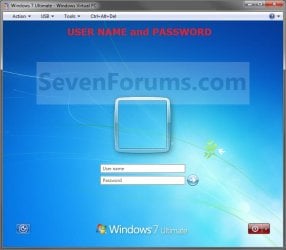
EXAMPLE: Log On Screen
NOTE: This is the default log on screen (left screenshot below) and the user name and password log on screen (right screenshot below).

OPTION ONE
Using a REG File Download
1. To Enable Enter User Name and Password Log On Screen
A) Click on the Download button below to download the file below.
Log_On_with_User_Name_and_Password.reg
Download
B) Go to step 3.
2. To Restore Enter Password Only Log On Screen
NOTE: This is the default setting.
A) Click on the Download button below to download the file below.
Log_On_with_Default_Password_Only.reg
Download
3. Click on Save, and save the .reg file to the Desktop.
4. Right click on the downloaded .reg file and click on Merge.
5. Click on the Run, Yes, Yes, and then OK when prompted.
6. When done, you can delete the .reg file on desktop if you like.
7. Log off and log on to see the change.
8. You may also wish to set the same setting for the locked computer screen: How to Display User Information or Not when a Windows Session is Locked
OPTION TWO
Manually in Registry Editor
1. Open the Start Menu, then type regedit in the search box and press enter.
2. If prompted by UAC, then click on Yes.
3. In regedit, navigate to: (See screenshot below)
Code:
HKEY_LOCAL_MACHINE\SOFTWARE\Microsoft\Windows\CurrentVersion\Policies\System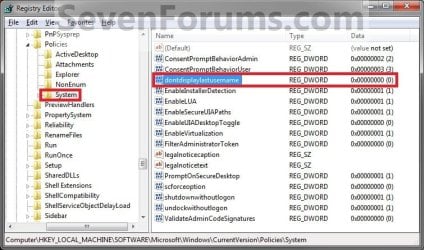
4. In the right pane, right click on dontdisplaylastusername and click on Modify. (See screenshot above)
5. To Enable Enter User Name and Password Log On Screen
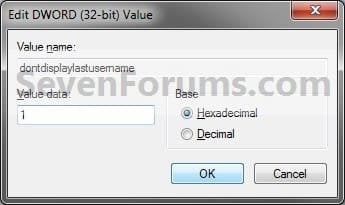
A) Type 1 and click on OK. (See screenshot below)
B) Go to step 7.
6. To Restore Enter Password Only Log On Screen
NOTE: This is the default setting.
A) Type 0 (number zero) and click on OK. (See screenshot above)
7. Close regedit.
8. Log off and log on to see the change.
9. You may also wish to set the same setting for the locked computer screen: How to Display User Information or Not when a Windows Session is Locked
OPTION THREE
Through Local Security Policy
1. Open the Local Security Policy editor.
2. In the left pane, expand Local Policies, and click on Security Options. (See screenshot below)
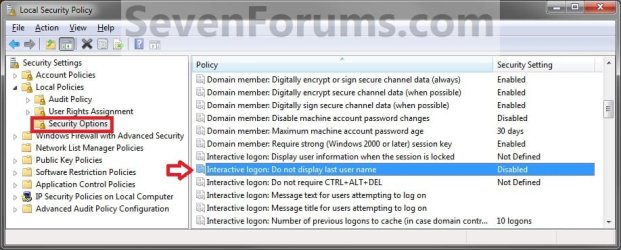
3. In the right pane, right click on Interactive logon: Do not display last user name and click on Properties. (See screenshot above)
4. To Enable Enter User Name and Password Log On Screen
A) Select (dot) Enabled, and click on OK. (See screenshot below)
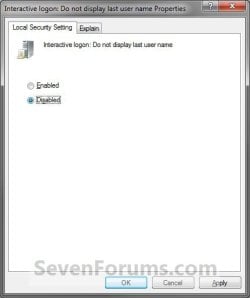
B) Go to step 7.
5. To Restore Enter Password Only Log On Screen
NOTE: This is the default setting.
A) Select (dot) Disabled, and click on OK. (See screenshot above)
6. Close the Local Security Policy window.
7. Log off and log on to see the change.
8. You may also wish to set the same setting for the locked computer screen: How to Display User Information or Not when a Windows Session is Locked
That's it,
Shawn
Related Tutorials
- How to Display User Information or Not when a Windows Session is Locked
- How to Automatically Log On a User Account at Windows 7 Startup
- How to Change the Windows 7 Log On Screen Background
- How to Change the Windows 7 Log On Screen Text Shadow
- How to Enable or Disable Secure Log on CTRL+ALT+DELETE in Windows 7
- How To Change or Remove the Windows 7 Log On Screen Text Branding
- How to Enable or Disable the Windows 7 Log On Screen Saver
- How to Add or Remove Ease of Access Center from Windows 7 Log On Screen
- How to Set Account Lockout Threshold for Invalid Logon Attempts
- How to Set Account Lockout Duration for Locked Out User Accounts
- How to Set the Reset Account Lockout Counter After Setting
- How to Enable or Disable Password Expiration for a User in Windows 7
- How to Change the Maximum and Minimum Password Age in Windows 7
- How to Enable or Disable Windows 7 Password History Enforcement
- How to Change the Time to Warn a User to Change Password Before Expiration
- How to Display Information About Previous Logons During User Logon in Vista and Windows 7
Attachments
Last edited:


 and thanks for any solutions
 thanks for answer but I still compare this with that other laptop, where it works for me fine. when I go to account settings, I can see three accounts, my (admin), ASP.NET Machine Accouunt (standard user), and Guest (account turned off). And it works. but on that laptop where appears that unnecessary window I only have two accounts. Mine and two built in accounts, administrator and guest - turned off... thanks for writing anyway. great forum.


