
How to Turn the Windows 7 Backup Files Schedule On or Off
Information
This will show you how to turn the Windows 7 automatic backup files schedule on or off for an existing or new backup configuration.
OPTION ONE
For an Existing Backup Configuration
1. Open the Control Panel (icons view).
2. Click on the Backup and Restore icon.
3. To Turn Off the Automatic Backup Schedule A) Click on the Turn off schedule link in the upper left blue pane. (See screenshot below)
NOTE: It may take a few seconds to turn off.
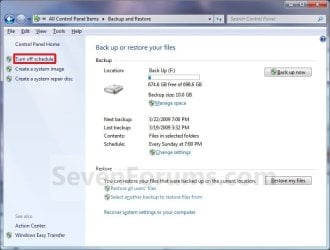
B) Go to step 5.
4. To Turn On the Automatic Backup Schedule
NOTE: To change the schedule settings after turning it on, click on the Change settings link and follow the instructions from step 5 on in this tutorial. A) Click on the Turn on schedule link to the right of Schedule. (See screenshot below)
NOTE: It may take a few seconds to turn on.

5. Close the Backup and Restore window when done. (See screenshot above)
OPTION TWO
For a New Backup Configuration
Warning
This will create a new backup after finishing the steps below.
2. Click on the Backup and Restore icon.
3. Click on the Set up backup button. (See screenshot below)
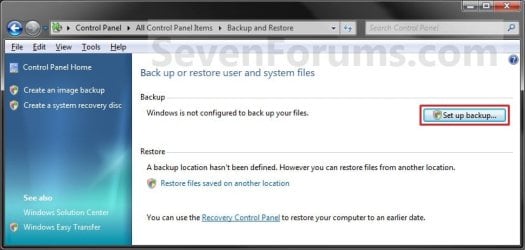
4. Follow the steps in this tutorial until you get to step 10B.
NOTE: This will show you how to configure a new backup.
5. To Turn Off the Automatic Backup Schedule A) Uncheck the Run backup on a schedule box. (See screenshot below step 7)
B) Go to step 7.
6. To Turn On the Automatic Backup Schedule A) Check the Run backup on a schedule box. (See screenshot below step 7)
7. Click on OK. (See screenshot below)

8. Finish the rest of the steps (step 10C on) in this tutorial.
That's it,
Shawn
Related Tutorials
- How to Backup User and System Files in Windows 7
- How to Delete Windows 7 User and System Backup Files
- How to Reset the Backup Files Configuration in Windows 7
- How to Restore Backup User and System Files in Windows 7
- How to Enable or Disable to Backup Data Files in Windows 7
- How to Create a Windows 7 Backup User and System Files Shortcut
- How to Create a Windows 7 Restore Backup User and System Files Shortcut
Last edited:


