
How to Specify a Desktop Background for Users in Windows
Information
This tutorial will show you how to specify a BMP or JPG image of your choice as the default desktop background wallpaper for all or specific users in Vista, Windows 7, and Windows 8.
You will also be able to specify that the wallpaper image position to have the center, fill, fit, tile, or stretch style on the desktop. The options to change the desktop background in personalization will not be grayed out, but users will not be able to change anything after you have specified a desktop background in this tutorial.
You must be logged in as an administrator to be able to do the steps in this tutorial.
You will also be able to specify that the wallpaper image position to have the center, fill, fit, tile, or stretch style on the desktop. The options to change the desktop background in personalization will not be grayed out, but users will not be able to change anything after you have specified a desktop background in this tutorial.
You must be logged in as an administrator to be able to do the steps in this tutorial.
Note
When you specify a desktop background, it will disable the Set as desktop background (image on PC) and Set as Background (image in web browser) context menu items. They will still be there and not grayed out, but they will not work.


Warning
This does not apply to guest accounts.
While guest accounts will still be able to change their desktop background wallpaper.
While guest accounts will still be able to change their desktop background wallpaper.
OPTION ONE
To Specify Default Desktop Background using Group Policy
1. Open the all users, specific users or groups, or all users except administrators Local Group Policy Editor for how you want this policy applied.
2. In the left pane, click on to expand User Configuration, Administrative Templates, Desktop, and Desktop. (See screenshot below)
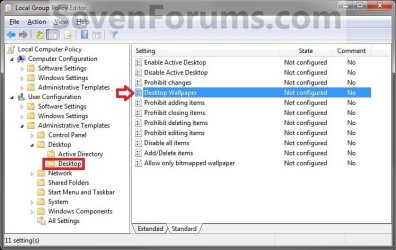
3. In the right pane, double click/tap on Desktop Wallpaper. (See screenshot above)
4. To Not Specify a Desktop Background
NOTE: This is the default setting to allow users to change their own desktop backgrounds instead.
A) Select (dot) Disabled or Not Configured, click/tap on OK, and go to step 6 below. (See screenshot below)
NOTE: Not Configured is the default setting.

5. To Specify a Desktop Background and Prevent Changing it
A) Select (dot) Enabled. (See screenshot above)
B) In the Wallpaper Name: box, type in the full path of a BMP or JPG image not in quotes that you want displayed as a wallpaper for all users. (See screenshot below step 3A)
NOTE: If you just want a blank wallpaper, you can enter a invalid path (EX: C:\ ), or place the path within quotes.
Warning
Be sure to have the wallpaper that you want to be displayed for all users saved in either one of the C:\Users\Public folders, or in the C:\Windows\Web\Wallpaper system folder.
If you save the wallpaper in one of your user account's C:\Users\(user-name) folders, then the other users will not have access permission to see it and will only see a blank wallpaper instead.
If you save the wallpaper in one of your user account's C:\Users\(user-name) folders, then the other users will not have access permission to see it and will only see a blank wallpaper instead.
C) In the Wallpaper Style: drop down menu box, select if you want the wallpaper to be the Center, Fill, Fit, Stretch, or Tile style on the desktop. (See screenshot below step 2)
D) Click/tap on OK, and go to step 6 below. (See screenshot below step 2)
6. Close the Local Group Policy Editor window.
7. Restart the computer to fully apply.
OPTION TWO
To Specify Default Desktop Background in Registry Editor
1. Press the Windows + R keys to open the Run dialog, type regedit.exe, and press Enter.
2. If prompted by UAC, then click/tap on Yes (Windows 7/8) or Continue (Vista).
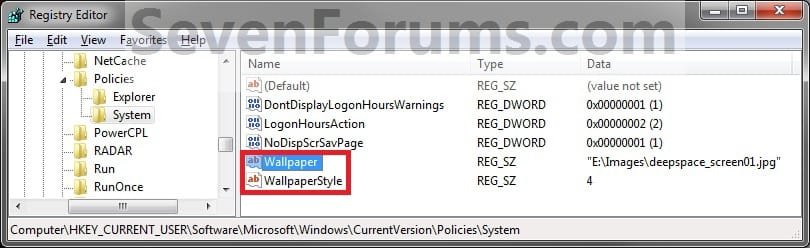
3. In Regedit, go to the location below: (See screenshot below)
HKEY_CURRENT_USER\Software\Microsoft\Windows\CurrentVersion\Policies\System
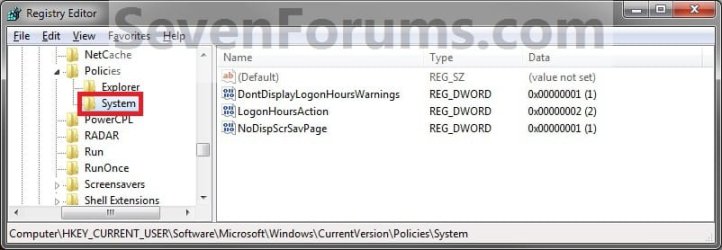
4. To Specify a Desktop Background and Prevent Changing it for Only Current User
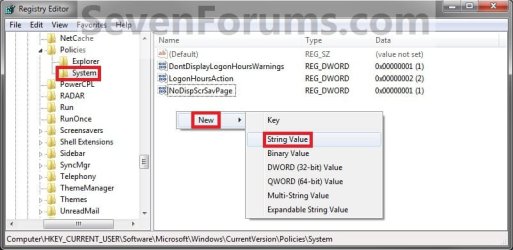
A) In the right pane of System, right click on an empty area and click on New and String Value. (See screenshot below)
NOTE: If you do not have System, then right click on Policies, click on New and Key, type System, and press Enter.
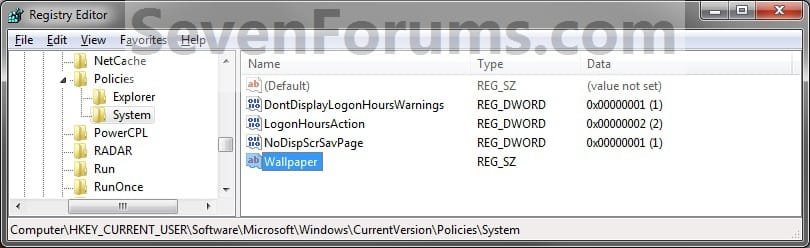
B) Type Wallpaper and press enter, then double click/tap on Wallpaper to modify it. (See screenshot below)
C) Type in the full path of a BMP or JPG image not in quotes that you want displayed as a wallpaper for all users. (See screenshot below)
NOTE: If you just want a blank wallpaper, you can enter a invalid path. (EX: C:\ )
Warning
Be sure to have the wallpaper that you want to be displayed for all users saved in either one of the C:\Users\Public folders, or in the C:\Windows\Web\Wallpaper system folder.
If you save the wallpaper in one of your user account's C:\Users\(user-name) folders, then the other users will not have access permission to see it and will only see a blank wallpaper instead.
If you save the wallpaper in one of your user account's C:\Users\(user-name) folders, then the other users will not have access permission to see it and will only see a blank wallpaper instead.
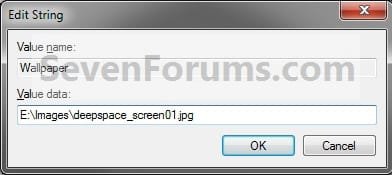
D) In the right pane of System, right click on an empty area, and click on New and String Value. (See screenshot below)
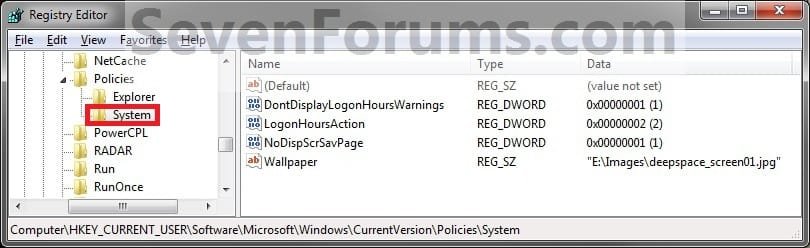
E) Type WallpaperSyle and press enter, then double click/tap on WallpaperStyle to modify it. (See screenshot below)
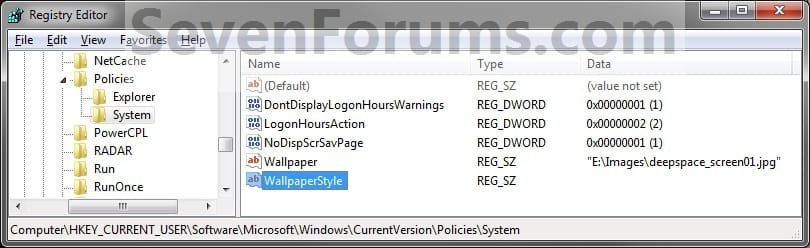
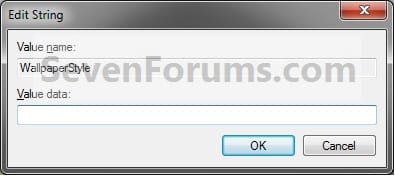
F) Type in a number below for the wallpaper to be the Center, Fill, Fit, Stretch, or Tile style on the desktop, and click/tap on OK. (See screenshot below)
- Type 0 to Center the wallpaper on the desktop.
- Type 1 to Tile the wallpaper on the desktop.
- Type 2 to Stretch the wallpaper to fit the desktop.
- Type 3 to Fit the wallpaper to the desktop.
- Type 4 to Fill the wallpaper on the desktop.
G) Go to step 6 below.
5. To Not Specify a Desktop Background for Only Current User
NOTE: This is the default setting to allow users to change their own desktop backgrounds instead.
A) In the right pane of System, right click on Wallpaper, and click on Delete. (See screenshot below)
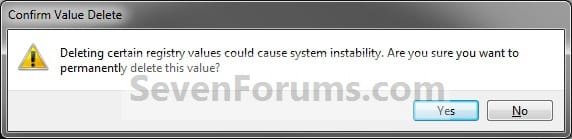
B) Click/tap on Yes to confirm deletion. (See screenshot below)
C) In the right pane of System, right click on WallpaperStyle, and click on Delete. (See screenshot below step 5A)
D) Click/tap on Yes to confirm deletion. (See screenshot below step 5B)
6. Close regedit.
7. Restart the computer to fully apply.
That's it,
Shawn
Related Tutorials
- How to Change the Windows 7 Desktop Background
- How to Change the Desktop Background in Windows 8
- How to Show your Desktop Background on Start Screen in Windows 8.1
- How to Create a Change "Desktop Background" Shortcut in Vista and Windows 7
- How to Allow or Prevent Changing Desktop Background in Vista, Windows 7, and Windows 8
- How to Add or Remove "Set as desktop background" from Context Menu in Windows 7 and Windows 8
- How to Allow or Prevent Changing Screen Saver in Windows 7
- How to Allow or Prevent Changing Sounds in Windows 7
- How to Allow or Prevent Changing Window Color and Appearance in Windows 7
- How to Allow or Prevent Changing Theme
- How to Allow or Prevent Changing Mouse Pointers in Windows 7
- How to Remove Background Images to have Only Solid Colors in Windows 7
- How to Remove the Windows 7 Desktop Background Picture Location History
- How to Specify a Default Theme to Load for New Users in Windows 7
- How to Play a Music Video as the Desktop Background
Last edited:


 . Indeed, I follow the step 4 "To Specify a Desktop Background and Prevent Changing it for All Users" ... and only works when I'm in administrator account. When I use the other accounts (guest's accounts) that I have created does not work, and the user may change desktop, both in pc or in web browser. I also try to desactive desktop throught registry