
Backup User and System Files - Delete Backups

How to Delete Windows 7 User Data and System Image Backup Files

   Information
Windows Backup provides you with the flexibility of managing the disk space that is used by your backups. After you set up Windows Backup, you can view how much disk space is being used by the backup and how much free space you have on the disk that your backups are being saved on. To control how much disk space is being used, you can choose how many file backups and how many system images Windows keeps.

This will show you how to manage and delete user data file backups and system image backups in Windows 7.

   Note
New backups are saved in this format:

drive letter:\computer name\Backup Set YYYY-MM-DD HHMMSS
For example: If your computer name is Brink-PC, your backup location is on hard drive (network or local) F: , and you backed up on July 9th 2011 at 3:10:38 PM (it will use 24 hour time), then your backup would be located at:
F:\BRINK-PC\Backup Set 2011-07-09 151038

There will be a incremental Backup Files YYYY-MM-DD HHMMSS folder in the Backup Set... folder location above that contains ZIP folders each under 200MB in size. These ZIP folders contain the selected backed up files. If a file that you included to be backed up is larger 200MB then it will be automatically broken up into several pieces each under 200 MB to fit into multiple ZIP files. The pieces are combined back automatically when restored from the backup though.

Backups are created in sets known as backup periods. To help maximize your disk space, Windows Backup backs up all selected folders the first time it's run and then it only backs up files that are new or have been changed since the last scheduled backup was made. Periodically, Windows creates a new, full backup. Each full backup is known as a backup period. When you view your file backups, you see all of the backup periods labeled with date ranges. If you decide to delete file backups, you should always keep the most recent file backup.

By default, Windows automatically saves as many system images as it has space for without taking up more than 30 percent of space on the backup disk. If a system image was created through Windows Backup instead with the Include a System Image of Drives box checked, you can set Windows to retain as many system images as it has space for on the backup disk or to only keep the most recent system image. You should always keep the most recent system image. If you are saving your system image on a network location, you can only keep the most recent system image.

For more information, see:

Managing backup disk space - The Storage Team at Microsoft - File Cabinet Blog - Site Home - TechNet Blogs

   Warning
In order to be able to delete User and System Backup Files, you would have had to create a User and System Files Backup first.


EXAMPLE: With All User and System File Backups Deleted
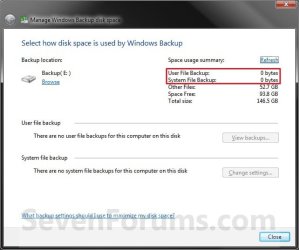
Step10.jpg


OPTION ONE

To View and Manage Space of Backups on Current Backup Location


NOTE: This option is only for the backup HDD/partition location that you had already set up and still currently using Windows Backup to create file backups and optional included system images on.
1. Open the Control Panel (icons view), and click on the Backup and Restore icon.

2. Click on Manage space, click on Yes if prompted by UAC, and go to step 3, 4, or 5 below depending on what you would like to do. (see screenshot below)
Step1.jpg
3. To View and Delete File Backup Periods
A) Under Data file backup, click on the View backups button. (see screenshot below)
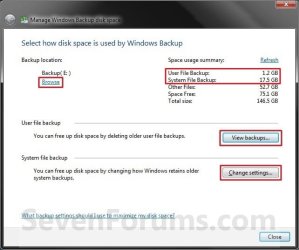
Step2.jpg
B) Select a backup period you want to delete, and click on Delete. (see screenshot below)
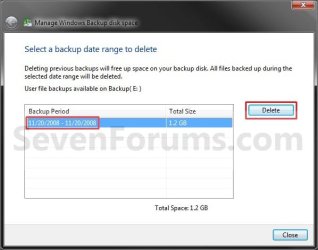
Step3.jpg
C) Click on Delete to approve. (see screenshot below)
NOTE: If you like, you could click on Delete and run backup now instead to delete the selected backup period and create a new one.
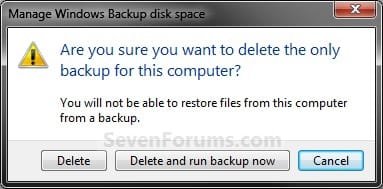
Step4.jpg
D) When it's finished deleting the backup period, click on Close. (see screenshot below)
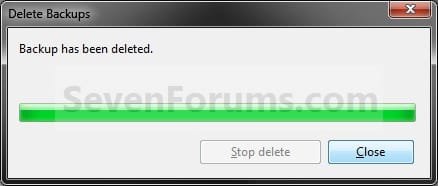
Step5.jpg
E) Repeat step 3B to 3D above if you would like to delete another backup period.

F) When finished, click on Close, and go to step 4, 5, or 6 below for what you would like to do.
4. To Delete or Manage Space for System Images Not Created Automatically
NOTE: This step is what you will see when you have your current file backup set up to also include creating a system image without running the backup on a schedule.
A) Under System image, click on the Change settings button. (see screenshot below step 3A)

B) Select how you would like Windows to retain older system images, and click on OK. (see screenshot below)
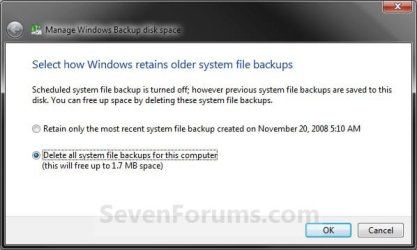
Step8B.jpg
C) If you selected the bottom option above, then click on Delete. (see screenshot below)
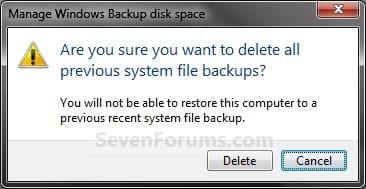
Step9B.jpg
D) Go to step 3 or 6 for what you would like to do.
5. To Delete or Manage Space for System Images when Created Automatically
NOTE: This step is what you will see when you have your current file backup set up to also include creating a system image while running the backup on a schedule.
A) Under System image, click on the Change settings button. (see screenshot below step 3A)

B) Select how you would like Windows to retain older system images, and click on OK. (see screenshot below)

   Tip
You can change the maximum space used for system images on the drive letter you are saving the Windows Backup to by changing the maximum space used by System Protection for the same drive letter. This is the same setting.

You do not have to have System Protection turned on for the drive letter, but do need to adjust the maximum space to what you like.

The size of a system image can be quite large since it will include all system drives in the image by default plus any drives you have included. If you want to keep multiple system images, be sure to increase the max size accordingly.
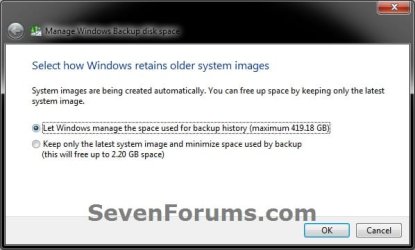

Manage_on.jpg
C) If you selected the bottom option above, then click on Delete. (see screenshot below)
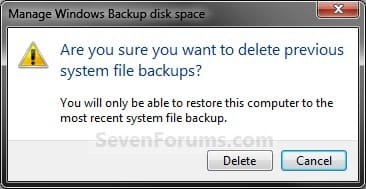
step9.jpg
D) Go to step 3 or 6 for what you would like to do.
6. When finished, click on Close. (see screenshot below step 3A, 4A, or 5A)

7. You can close Windows 7 File Recovery if you like. (see screenshot below step 2)


OPTION TWO

To Delete Backups on Backup Locations not Used by Current Setup


NOTE: This option is to delete backup periods you want that are created on a backup HDD/partition location that you are not currently using Windows Backup to create file backups and optional included system images on. If you like, you could also use change settings to create a new backup at this other backup location, then be able to use OPTION ONE instead since it will then be the current backup location.
1. Dostep 2 or 3 below for how you would like to start.

2. Delete File Backup Periods Directly from Backup Location
A) Go to step 4 below.
3. Delete File Backup Periods using Manage Windows Backup disk space
A) Open the Control Panel (icons view), and click on the Backup and Restore icon.

B) Click on Manage space, click on Yes if prompted by UAC. (see screenshot below)
Step1.jpg
C) Under Backup location, click on Browse. (see screenshot below)
Step2.jpg
D) Click on Close for the window above, and go to step 4 below.
4. Navigate to and open the location where the backup is saved at.

   Note
Backups are saved in this format:

drive letter:\computer name\Backup Set YYYY-MM-DD HHMMSS
For example: If your computer name is Brink-PC, your backup location is on hard drive (network or local) D: , and you backed up on August 29th 2012 at 1:53:41 PM (it will use 24 hour time), then your backup would be located in the folder below. You will need to right click on BRINK-PC (computer name), and click/tap on Open to be able to see the Backup Set YYYY-MM-DD HHMMSS folder.
D:\BRINK-PC\Backup Set 2012-08-29 135341


5. Right click on the computer name of the backup that you want to delete, and click on Open. (see screenshot below)
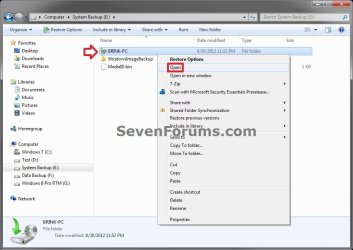
location-2.jpg
6. If prompted, click on Continue and Yes (UAC). (see screenshot below)
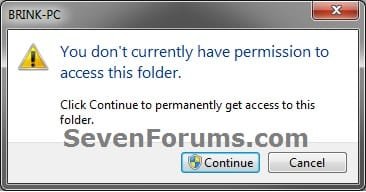
location-3.jpg
7. Right click on the Backup Set YYYY-MM-DD HHMMSS folder of the backup period that you want to delete, and click on Delete. (see screenshot below)
location-4.jpg
8. If prompted, click on Yes, Continue and Yes (UAC).

9. When finished, you can close the backup location window if you like.
That's it,
Shawn


Attachments

  • Step8.jpg
    Step8.jpg
    107 KB · Views: 10
Last edited:
why if you follow this tutorial and delete a backup; does it still keep two files on my backup partition.

under manage space, space usage summary theres 90.69MB, just crap left over?
 

Attachments

  • backup items left behind.png
    backup items left behind.png
    378.9 KB · Views: 58,085

My Computers

System One System Two

  • Computer type
    PC/Desktop
    Computer Manufacturer/Model Number
    PowerSpec G164
    OS
    WIN10
    CPU
    AMD Ryzen 5 3600 6-Core Processor 3.59 GHz
    Memory
    16.0 GB
    Internet Speed
    VERY FAST>>>!!!
  • Antivirus
    ESET Security Premium
Hello Eldinv,

The mediaid.bin file is used by Windows 7 to reference the backup's location. The shorcut file is used to allow you to do a quick backup restore using it instead of having to go through the Control Panel or other options.

If you do not have a backup anymore on the drive or partition, then you can safely delete these two files.

Hope this helps,
Shawn
 

My Computer

Computer type
PC/Desktop
Computer Manufacturer/Model Number
Self built custom
OS
64-bit Windows 11 Pro for Workstations
CPU
Intel i7-8700K OC'd to 5 GHz
Motherboard
ASUS ROG Maximus XI Formula Z390
Memory
64 GB (4x16GB) G.SKILL TridentZ RGB DDR4 3600 MHz
Graphics Card(s)
ASUS ROG-STRIX-GTX1080TI-O11G-GAMING
Sound Card
Integrated
Monitor(s) Displays
2 x Samsung Odyssey G7 27"
Screen Resolution
2560x1440
Hard Drives
1TB Samsung 990 PRO M.2,
4TB Samsung 990 PRO PRO M.2,
TerraMaster F8 SSD Plus NAS
PSU
Seasonic Prime Titanium 850W
Case
Thermaltake Core P3
Cooling
Corsair Hydro H115i
Keyboard
Logitech wireless K800
Mouse
Logitech MX Master 4
Internet Speed
2 Gb/s Download and 100 Mb/s Upload
Antivirus
Malwarebyte Anti-Malware Premium
Browser
Google Chrome
Other Info
Logitech Z625 speaker system,
Logitech BRIO 4K Pro webcam,
HP Color LaserJet Pro MFP M477fdn,
APC SMART-UPS RT 1000 XL - SURT1000XLI,
Galaxy S23 Plus phone
Specify number of user data, file backups?

Brink,

Excellent tutorials here! Do you know of a way to specify the maximum number of user data, file backup periods to keep (under manage space) and of course keeping the newest? I don't want my clients to have to delete super old backup periods when it says their backup hard drive is running out of space.

Thanks!
mados123
 

My Computer

Computer Manufacturer/Model Number
Custom system
OS
Windows 7 Premium 64bit
CPU
Intel Core 2 Duo E8400 - 3GHz
Motherboard
Abit IP35 Pro
Memory
4GB Corsair - DDR2
Graphics Card(s)
Asus/nVIDIA GeForce EN8600GT
Sound Card
On Board
Monitor(s) Displays
2
Screen Resolution
High
Hard Drives
3 Samsung 7200's - 500/250/160GB
PSU
SeaSonic 450W
Case
LianLi
Internet Speed
Cable
Hello Mados, and welcome tback to Seven Forums.

By default, Windows automatically saves as many system images as it has space for without taking up more than 30 percent of space on the backup disk. Once the disk starts running out of room, Windows deletes older system images.

To keep older system images, your clients could use the method in the NOTE box at the top of the tutorial below.

http://www.sevenforums.com/tutorials/663-backup-complete-computer-create-image-backup.html

Hope this helps,
Shawn
 

My Computer

Computer type
PC/Desktop
Computer Manufacturer/Model Number
Self built custom
OS
64-bit Windows 11 Pro for Workstations
CPU
Intel i7-8700K OC'd to 5 GHz
Motherboard
ASUS ROG Maximus XI Formula Z390
Memory
64 GB (4x16GB) G.SKILL TridentZ RGB DDR4 3600 MHz
Graphics Card(s)
ASUS ROG-STRIX-GTX1080TI-O11G-GAMING
Sound Card
Integrated
Monitor(s) Displays
2 x Samsung Odyssey G7 27"
Screen Resolution
2560x1440
Hard Drives
1TB Samsung 990 PRO M.2,
4TB Samsung 990 PRO PRO M.2,
TerraMaster F8 SSD Plus NAS
PSU
Seasonic Prime Titanium 850W
Case
Thermaltake Core P3
Cooling
Corsair Hydro H115i
Keyboard
Logitech wireless K800
Mouse
Logitech MX Master 4
Internet Speed
2 Gb/s Download and 100 Mb/s Upload
Antivirus
Malwarebyte Anti-Malware Premium
Browser
Google Chrome
Other Info
Logitech Z625 speaker system,
Logitech BRIO 4K Pro webcam,
HP Color LaserJet Pro MFP M477fdn,
APC SMART-UPS RT 1000 XL - SURT1000XLI,
Galaxy S23 Plus phone
Thanks Shawn, for your quick reply, but I was specifically referring to the file backup sets & their respective backup periods (under manage space). As a note, I don't include system images with my file backups. Does the 30% also apply to those accumulating weeks of file backups? I didn't think so as I once got a notice to delete some of those backup sets since I was running out of space - just trying to avoid this needed intervention when space is low on those files.

I might be misunderstanding you. If so, please excuse :)
 

My Computer

Computer Manufacturer/Model Number
Custom system
OS
Windows 7 Premium 64bit
CPU
Intel Core 2 Duo E8400 - 3GHz
Motherboard
Abit IP35 Pro
Memory
4GB Corsair - DDR2
Graphics Card(s)
Asus/nVIDIA GeForce EN8600GT
Sound Card
On Board
Monitor(s) Displays
2
Screen Resolution
High
Hard Drives
3 Samsung 7200's - 500/250/160GB
PSU
SeaSonic 450W
Case
LianLi
Internet Speed
Cable
Mados,

For "Data file backups", Windows will automatically delete older backups when free space runs out to make room for new backups. Of course we can still use OPTION ONE to manually delete the backup periods as well.
 

My Computer

Computer type
PC/Desktop
Computer Manufacturer/Model Number
Self built custom
OS
64-bit Windows 11 Pro for Workstations
CPU
Intel i7-8700K OC'd to 5 GHz
Motherboard
ASUS ROG Maximus XI Formula Z390
Memory
64 GB (4x16GB) G.SKILL TridentZ RGB DDR4 3600 MHz
Graphics Card(s)
ASUS ROG-STRIX-GTX1080TI-O11G-GAMING
Sound Card
Integrated
Monitor(s) Displays
2 x Samsung Odyssey G7 27"
Screen Resolution
2560x1440
Hard Drives
1TB Samsung 990 PRO M.2,
4TB Samsung 990 PRO PRO M.2,
TerraMaster F8 SSD Plus NAS
PSU
Seasonic Prime Titanium 850W
Case
Thermaltake Core P3
Cooling
Corsair Hydro H115i
Keyboard
Logitech wireless K800
Mouse
Logitech MX Master 4
Internet Speed
2 Gb/s Download and 100 Mb/s Upload
Antivirus
Malwarebyte Anti-Malware Premium
Browser
Google Chrome
Other Info
Logitech Z625 speaker system,
Logitech BRIO 4K Pro webcam,
HP Color LaserJet Pro MFP M477fdn,
APC SMART-UPS RT 1000 XL - SURT1000XLI,
Galaxy S23 Plus phone
Hi Brink read this tutorial and this works ok if the backups exist on the backup location. My gripe is why does the Windows 7 backup not allow a purging of any backups that have been deleted by accident or lost by hard drive failure. I backed up my Users folder now and again and lost the backup by deleting it and all my current files in the folder Users are when selecting 'restore previous versions' pointing to the deleted backup location because I did a restore folder using backup pior to losing the backup. This causes the Windows 7 backup to stop working since it cannot find the backup when creating the shadow copy. Do you know any way of purging these ghost backups by way of the registry?
 

My Computer

Computer Manufacturer/Model Number
Sony Z series
OS
Windows 7 64 bit
CPU
intel i7
Motherboard
Sony custom model
Memory
8 GB
Graphics Card(s)
nvidia
Sound Card
n/a
Monitor(s) Displays
lcd
Hard Drives
256 GB solid state
Hello Sharpy,

You can reset backup back to default to purge it of these ghosts backup listings, but it will also purge all of them. It will not delete any actual backups you have though.

Hope this helps,
Shawn
 

My Computer

Computer type
PC/Desktop
Computer Manufacturer/Model Number
Self built custom
OS
64-bit Windows 11 Pro for Workstations
CPU
Intel i7-8700K OC'd to 5 GHz
Motherboard
ASUS ROG Maximus XI Formula Z390
Memory
64 GB (4x16GB) G.SKILL TridentZ RGB DDR4 3600 MHz
Graphics Card(s)
ASUS ROG-STRIX-GTX1080TI-O11G-GAMING
Sound Card
Integrated
Monitor(s) Displays
2 x Samsung Odyssey G7 27"
Screen Resolution
2560x1440
Hard Drives
1TB Samsung 990 PRO M.2,
4TB Samsung 990 PRO PRO M.2,
TerraMaster F8 SSD Plus NAS
PSU
Seasonic Prime Titanium 850W
Case
Thermaltake Core P3
Cooling
Corsair Hydro H115i
Keyboard
Logitech wireless K800
Mouse
Logitech MX Master 4
Internet Speed
2 Gb/s Download and 100 Mb/s Upload
Antivirus
Malwarebyte Anti-Malware Premium
Browser
Google Chrome
Other Info
Logitech Z625 speaker system,
Logitech BRIO 4K Pro webcam,
HP Color LaserJet Pro MFP M477fdn,
APC SMART-UPS RT 1000 XL - SURT1000XLI,
Galaxy S23 Plus phone
Thank Brink for the prompt reply.
I have applied the registry file and also used the command line to run shadowcopy delete and shadowstorage delete, removed all system restore points and to be extra sure ran cleanup to delete any shadow copies.
The result - this restores backup to a default state but the most recent shadow copies remain. In the folder I backed up ie Users in the C directory if I right click on a file and select 'restore previous versions' the link to the deleted backup is still there.
I did do a restore backup operation pior to deleting the backup and this would have the most recent backup so this link has become the most recent shadow copy file information. Now the external drive the backup was on had no system protection set and I've deleted the mediaID.bin file.
This means that there's still some link somewhere to this deleted backup in the registry or in a system file. Could there be still be something on the external drive causing this problem? I'am sure that this is a defect in Vista/Windows 7 backup since the inablity to purge backups lost by accident or hard drive failure is a real pain.
Anyway I stop here and ask is their anything more possible to resolve this or should I let this lie?
 

My Computer

Computer Manufacturer/Model Number
Sony Z series
OS
Windows 7 64 bit
CPU
intel i7
Motherboard
Sony custom model
Memory
8 GB
Graphics Card(s)
nvidia
Sound Card
n/a
Monitor(s) Displays
lcd
Hard Drives
256 GB solid state
hmm, the browse button opens an exlporer window but navigating to another disk doesn't change the backup location on the backup dialog box
 

My Computer

OS
Windows 7 Pro x64
Hello Smoothchat, and welcome to Seven Forums.

That will only give you the option to select a backup location if there was not already a backup location displayed above the browse link.
 

My Computer

Computer type
PC/Desktop
Computer Manufacturer/Model Number
Self built custom
OS
64-bit Windows 11 Pro for Workstations
CPU
Intel i7-8700K OC'd to 5 GHz
Motherboard
ASUS ROG Maximus XI Formula Z390
Memory
64 GB (4x16GB) G.SKILL TridentZ RGB DDR4 3600 MHz
Graphics Card(s)
ASUS ROG-STRIX-GTX1080TI-O11G-GAMING
Sound Card
Integrated
Monitor(s) Displays
2 x Samsung Odyssey G7 27"
Screen Resolution
2560x1440
Hard Drives
1TB Samsung 990 PRO M.2,
4TB Samsung 990 PRO PRO M.2,
TerraMaster F8 SSD Plus NAS
PSU
Seasonic Prime Titanium 850W
Case
Thermaltake Core P3
Cooling
Corsair Hydro H115i
Keyboard
Logitech wireless K800
Mouse
Logitech MX Master 4
Internet Speed
2 Gb/s Download and 100 Mb/s Upload
Antivirus
Malwarebyte Anti-Malware Premium
Browser
Google Chrome
Other Info
Logitech Z625 speaker system,
Logitech BRIO 4K Pro webcam,
HP Color LaserJet Pro MFP M477fdn,
APC SMART-UPS RT 1000 XL - SURT1000XLI,
Galaxy S23 Plus phone
Brink...How do I delete the System Image Restore Point entries from the "catalog" (see attached, the "show more restore points" box must be checked to see them)? The images themselves were deleted from my ext backup HD long ago. The Automatic Restore Points behave normally, and drop off/are deleted in the usual ways. The SIRPs appear to be permanent entries, is it supposed to be that way? Thnx
 

Attachments

  • ScreenShot002.jpg
    ScreenShot002.jpg
    72.2 KB · Views: 1,566

My Computer

OS
Win 7 Home Prem 64

My Computer

Computer type
PC/Desktop
Computer Manufacturer/Model Number
Self built custom
OS
64-bit Windows 11 Pro for Workstations
CPU
Intel i7-8700K OC'd to 5 GHz
Motherboard
ASUS ROG Maximus XI Formula Z390
Memory
64 GB (4x16GB) G.SKILL TridentZ RGB DDR4 3600 MHz
Graphics Card(s)
ASUS ROG-STRIX-GTX1080TI-O11G-GAMING
Sound Card
Integrated
Monitor(s) Displays
2 x Samsung Odyssey G7 27"
Screen Resolution
2560x1440
Hard Drives
1TB Samsung 990 PRO M.2,
4TB Samsung 990 PRO PRO M.2,
TerraMaster F8 SSD Plus NAS
PSU
Seasonic Prime Titanium 850W
Case
Thermaltake Core P3
Cooling
Corsair Hydro H115i
Keyboard
Logitech wireless K800
Mouse
Logitech MX Master 4
Internet Speed
2 Gb/s Download and 100 Mb/s Upload
Antivirus
Malwarebyte Anti-Malware Premium
Browser
Google Chrome
Other Info
Logitech Z625 speaker system,
Logitech BRIO 4K Pro webcam,
HP Color LaserJet Pro MFP M477fdn,
APC SMART-UPS RT 1000 XL - SURT1000XLI,
Galaxy S23 Plus phone
Brink...nope, they don't even show (ie, not listed) in CCleaner. I've been bringing this up with knowledgeable people (like you) around the Internet, all the usual ways to delete regular SR points (incl CCleaner) don't work. I can't even find them in the registry, it may just be a bug in Win7. Thnx
 

My Computer

OS
Win 7 Home Prem 64
Last edited:

My Computer

Computer type
PC/Desktop
Computer Manufacturer/Model Number
Self built custom
OS
64-bit Windows 11 Pro for Workstations
CPU
Intel i7-8700K OC'd to 5 GHz
Motherboard
ASUS ROG Maximus XI Formula Z390
Memory
64 GB (4x16GB) G.SKILL TridentZ RGB DDR4 3600 MHz
Graphics Card(s)
ASUS ROG-STRIX-GTX1080TI-O11G-GAMING
Sound Card
Integrated
Monitor(s) Displays
2 x Samsung Odyssey G7 27"
Screen Resolution
2560x1440
Hard Drives
1TB Samsung 990 PRO M.2,
4TB Samsung 990 PRO PRO M.2,
TerraMaster F8 SSD Plus NAS
PSU
Seasonic Prime Titanium 850W
Case
Thermaltake Core P3
Cooling
Corsair Hydro H115i
Keyboard
Logitech wireless K800
Mouse
Logitech MX Master 4
Internet Speed
2 Gb/s Download and 100 Mb/s Upload
Antivirus
Malwarebyte Anti-Malware Premium
Browser
Google Chrome
Other Info
Logitech Z625 speaker system,
Logitech BRIO 4K Pro webcam,
HP Color LaserJet Pro MFP M477fdn,
APC SMART-UPS RT 1000 XL - SURT1000XLI,
Galaxy S23 Plus phone
Brink........neither of your suggestions deletes the SIRPs, nor does Option Two. It deletes the regular ("automatic") SR points, but not SIRPs. See why I'm frustrated? The only thing I've learned is to delete the existing backup image (on the ext HD) with "Manage Space" BEFORE I create a new one....that will delete the SIRP of the existing image. If I forget and make a new image (which overwrites the older existing image), then the SIRP of the older image can never be removed. Thnx.
 

My Computer

OS
Win 7 Home Prem 64

My Computer

Computer type
PC/Desktop
Computer Manufacturer/Model Number
Self built custom
OS
64-bit Windows 11 Pro for Workstations
CPU
Intel i7-8700K OC'd to 5 GHz
Motherboard
ASUS ROG Maximus XI Formula Z390
Memory
64 GB (4x16GB) G.SKILL TridentZ RGB DDR4 3600 MHz
Graphics Card(s)
ASUS ROG-STRIX-GTX1080TI-O11G-GAMING
Sound Card
Integrated
Monitor(s) Displays
2 x Samsung Odyssey G7 27"
Screen Resolution
2560x1440
Hard Drives
1TB Samsung 990 PRO M.2,
4TB Samsung 990 PRO PRO M.2,
TerraMaster F8 SSD Plus NAS
PSU
Seasonic Prime Titanium 850W
Case
Thermaltake Core P3
Cooling
Corsair Hydro H115i
Keyboard
Logitech wireless K800
Mouse
Logitech MX Master 4
Internet Speed
2 Gb/s Download and 100 Mb/s Upload
Antivirus
Malwarebyte Anti-Malware Premium
Browser
Google Chrome
Other Info
Logitech Z625 speaker system,
Logitech BRIO 4K Pro webcam,
HP Color LaserJet Pro MFP M477fdn,
APC SMART-UPS RT 1000 XL - SURT1000XLI,
Galaxy S23 Plus phone
Brink.....nope. I still think the clue is in the fact that the "permanent" SIRPs had their images removed by overwrite, not Manage Space.
 

My Computer

OS
Win 7 Home Prem 64
According to this thread:

Windows 7 backup file management.

the program will not automatically delete older file backups. Instead, the OS will notify you that the storage space is full and that you need to delete older file sets.
 

My Computer

OS
MS Windows 7 Home Premium 64-bit SP1
CPU
Intel Core 2 Quad Q6600 @ 2.40GHz
Motherboard
ASUSTeK Computer INC. P5B-VM SE (LGA775)
Memory
Corsair PC2-6400 (400 MHz) 4.00 GB DDR2
Graphics Card(s)
GeForce 9600 GT 1024 MB
Sound Card
SB Audigy
Monitor(s) Displays
LG W2252
Screen Resolution
1680x1050 @ 60Hz
Hard Drives
977GB Seagate ST31000528AS ATA Device (SATA)
488GB Seagate ST3500630AS ATA Device (SATA)
PSU
Corsair HX750W
Case
Antec 900
Cooling
Thermaltake fans
Keyboard
Microsoft Sidewinder X6
Mouse
Microsoft Sidewinder Mouse
Internet Speed
2 Mbps
Other Info
D-Link DIR-655 router
WD My Book 1.0 TB
Buffalo NAS LS-CHL v2 2 TB
Back
Top