Windows 7 Forums


Windows 7: Sticky Notes - Change Text Format


Sticky Notes - Change Text Format

How to Format Text in a Sticky Note in Windows 7 and Windows 8
Published 01 Apr 2009
Published by

Featured Tutorial

User Profiles - Create and Move During Windows 7 Installation

How to Create User Accounts on another Partition or Disk During Windows 7 Installation

Safe Internet Browsing

How to safely operate on the internet and stay free from malware infections

Microsoft Account "Two-step Verification" - Turn On or Off

How to Turn "Two-step Verification" On or Off for your Microsoft Account

Microsoft Accounts - Link

How to Link your Microsoft Accounts

System Preparation Tool - Use to Customize Windows

How to Use Sysprep to Customize Windows 7 and Windows 8

Portable OS - Carry your OS on an External Drive

How to Create a Portable OS on an External Drive
How to Format Text in a Sticky Note in Windows 7 and Windows 8

information   Information
This will show you how to format text, add bullets to make a list, or change the text size of Sticky Notes by using keyboard shortcuts in Windows 7 and Windows 8.

Sticky Notes is not available in the Windows 7 Starter and Home Basic editions.

Tip   Tip
Sticky Notes uses the Segoe Print font by default. While you cannot change the font in Sticky Notes, you could copy and paste text with a different font from other programs (ex: WordPad) into a Sticky Note to have that text and font in a Sticky Note.


Here's How:
1. While modifying or creating a Sticky Note, highlight the text that you want to change the format of. (See screenshot below)
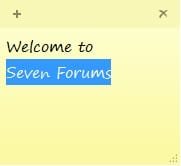
Name:  Format.jpg
Views: 102945
Size:  7.0 KB
2. Use one of the keyboard shortcuts below to change the format of the highlighted text for how you want it to be.
Keyboard Shortcut Description
Ctrl+B Bold text
Ctrl+I Italic text
Ctrl+T Strikethrough
Ctrl+U Underlined text
Ctrl+Shift+L Bulleted (press once) or Numbered (press twice) list
Ctrl+Shift+> Increased text size
Ctrl+Shift+< Decreased text size
Ctrl+A Select all
Ctrl+Shift+A Toggles all caps
Ctrl+L Left aligns text
Ctrl+R Right aligns text
Ctrl+E Centers text
Ctrl+Shift+L Small Alpha list (3rd), Capital Alpha list (4th), small roman (5th), Capital roman (6th)
Ctrl+Scroll Wheel Increase/Decrease text size
Ctrl+1 Single-space lines
Ctrl+2 Double-space lines
Ctrl+5 Set 1.5-line spacing
Ctrl+= Subscript
Ctrl+Shift++ Superscript
Ctrl+Z Undo
Ctrl+Y Redo
Ctrl+X Cut
Ctrl+C Copy
Ctrl+V Paste
Ctrl+N New sticky note

That's it,
Shawn


Need more help? Try searching our extensive help and support site.
Loading
27 May 2009   #1
vi76

windows 7 64 bit RC 7100 (dual boot with Vista SP1 64 bit)


Use Ctrl+Shift+L more than two times for more options, and eventually to disable it.

My System SpecsSystem Spec

31 Oct 2009   #2
maranello

Windows 7 Ultimate SP1 x64
Not Italy


nice...didn't know that, i was really interested on how to make the text smaller
thanks for this tip Brink

it would be great if the colour (of text) could also be changed
My System SpecsSystem Spec
31 Oct 2009   #3
Brink

64-bit Windows 7 Ultimate SP1 & Windows 8 Enterprise
Texas


You're welcome Maranello.

The font color can't be changed. You might see if the free program Stickies may work better for this though.
My System SpecsSystem Spec
.


23 Jan 2010   #4
Shroom

Windows 7 Professional 64bit


Sticky notes use many of the standard word processing keyboard shortcuts:

Ctrl+A - Select all
Ctrl+Shift+A - Toggles all caps
Ctrl+L - Left aligns text
Ctrl+R - Right aligns text
Ctrl+E - Centers text
Ctrl+Shift+L - Small Alpha list (3rd), Capital Alpha list (4th), small roman (5th), Capital roman (6th)
Ctrl+Scroll Wheel - Increase/Decrease text size
Ctrl+1 - Single-space lines
Ctrl+2 - Double-space lines
Ctrl+5 - Set 1.5-line spacing
Ctrl+= - Subscript
Ctrl+Shift++ - Superscript
Ctrl+z - Undo
Ctrl+y - Redo
Ctrl+x - Cut
Ctrl+c - Copy
Ctrl+v - Paste
Ctrl+n - New sticky note
My System SpecsSystem Spec
12 Feb 2010   #5
ninasfamily

Windows 7
 
 
Formatting Windows 7 Sticky Notes

That's adorable! Would you happen to know what font this is? I know some people hate it but I love it!

Thanks.
My System SpecsSystem Spec
13 Feb 2010   #6
Shroom

Windows 7 Professional 64bit


Quote   Quote: Originally Posted by ninasfamily View Post
That's adorable! Would you happen to know what font this is? I know some people hate it but I love it!

Thanks.
The font is "Segoe Print".
My System SpecsSystem Spec
13 Feb 2010   #7
ninasfamily

Windows 7
 
 
Stegoe Print Font

Thanks, Shroom. Is it used in any programs besides Sticky Notes?

Again, many thanks.
My System SpecsSystem Spec
13 Feb 2010   #8
ninasfamily

Windows 7
 
 
Stegoe Print Font

Found it in Word. Thanks again.
My System SpecsSystem Spec
29 Mar 2010   #9
tw33k

Windows 7 Ultimate (x64) SP1


Quote   Quote: Originally Posted by Brink View Post
You're welcome Maranello.

The font color can't be changed. You might see if the free program Stickies may work better for this though.
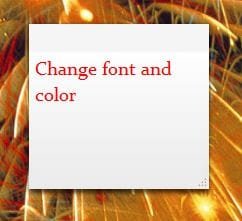
It actually can. Use Word (or similiar) to create the text ie:font style, colour, size, and paste it into a new note. Easy!
Attached Images
 
My System SpecsSystem Spec
Comment

 Sticky Notes - Change Text Format problems?


Tutorial Tools


Similar help and support threads for: Sticky Notes - Change Text Format
Windows 7 Tutorial Category
Sticky Notes - Change Default Font Tutorials
Sticky Notes Taskbar Hider - Send Notes to Tray! Software
Sticky Notes: Change Default look Tutorials
Change 7's Sticky Notes Skin Customization
Sticky Notes - Change Color Tutorials


All times are GMT -5. The time now is 04:39 PM.


Seven Forums Android App Seven Forums IOS App Follow us on Facebook

Windows 7 Forums is an independent web site and has not been authorized,
sponsored, or otherwise approved by Microsoft Corporation.
"Windows 7" and related materials are trademarks of Microsoft Corp.
© Designer Media Ltd
  

1 2 3 4 5 6 7 8 9 10 11 12 13 14 15 16 17 18 19 20 21 22 23 24 25 26 27 28 29 30 31 32