
How to Change the Windows 7 Startup Sound
Information
This will show you how to change the Windows 7 startup sound, not the "Windows Logon" sound, to any WAV file of your choice.
You must be logged in as an administrator to be able to do the steps in this tutorial.
You must be logged in as an administrator to be able to do the steps in this tutorial.
Note
If you run a sfc /scannow command, then you will lose all changes made to the system file in the tutorial below since it and all other system files will be restored back to default by the command.
Warning
Making a mistake while modifying system files can render your Windows 7 installation unusable. To be safe, you should create a restore point before doing this tutorial in case you need to do a system restore at boot using the restore point to undo any mistakes that may be made.
Tip
If you like, here are the Startup Sounds from previous Windows releases.
Windows History: logos, bootscreens, startup sounds etc | Redmond Pie
Windows History: logos, bootscreens, startup sounds etc | Redmond Pie
OPTION ONE
To Change Startup Sound in Windows 7 using "Startup Sound Changer"
NOTE: You will need to click on the grey download button at the program's site below. WinAero: Downloads / Software / Startup Sound Changer - change your Windows startup

2. Open the ZIP file, and extract (drag and drop) the StartupSoundChanger.exe to your desktop.
3. Run the StartupSoundChanger.exe file, and click on Yes when prompted by UAC.
NOTE: This is a standalone .exe file that does not install anything on your computer.
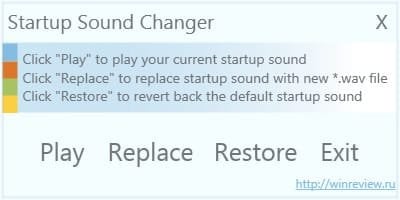
4. With "Startup Sound Changer" you can set a .wav file to replace the startup sound, play current startup sound, and restore the default startup sound. (see screenshot below)
OPTION TWO
To Manually Change Startup Sound in Windows 7
2. To Restore Default Startup Sound in Windows 7
Note
If you lost your backup or didn't create one, then here's a copy of the default startup sound .wav file that you could use to restore it with using step 3 below.
Download
Download
B) Right click on the imageres_original.dll file and click on Rename.
C) Rename it to imageres.dll and press enter.
D) Repeat steps 3Q to 3X below to restore this file.
3. To Change Startup Sound in Windows 7 A) In Windows Explorer, navigate to C:\Windows\System32\imageres.dll. (see screenshot below)
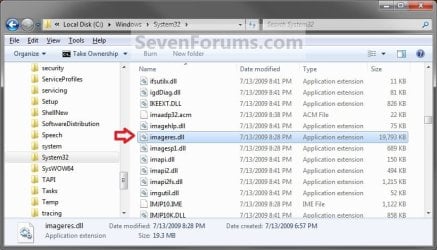
B) Right click on the imageres.dll file, and click on Copy. (see screenshot above)
C) Right click on your desktop, and click on Paste.
D) If you have not already, then download and install Resource Hacker.
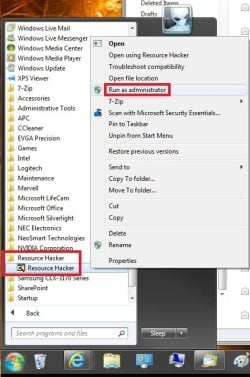
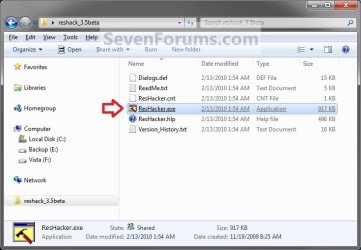
E) Right click on the Resource Hacker shortcut in Start Menu - All Programs, then click on Run as administrator. (see screenshot below)
F) If prompted by UAC, then click on Yes.
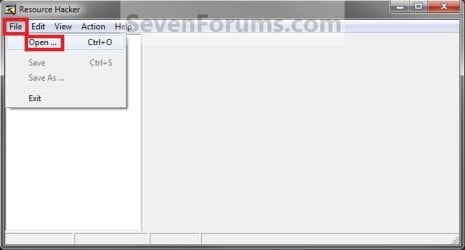
G) In Resource Hacker, click on File and Open. (see screenshot below)
H) Navigate to and select the imageres.dll file copy on your desktop, and click on Open. (see screenshot below)
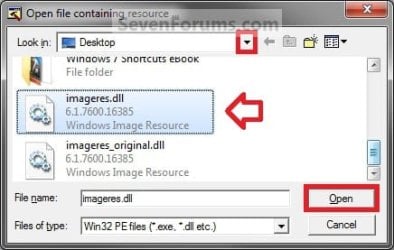
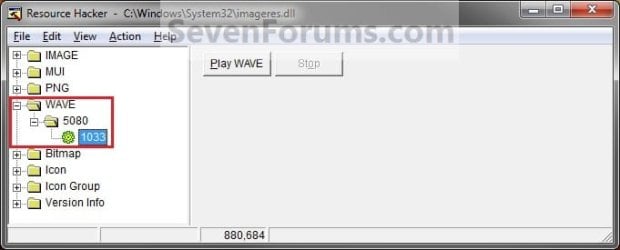
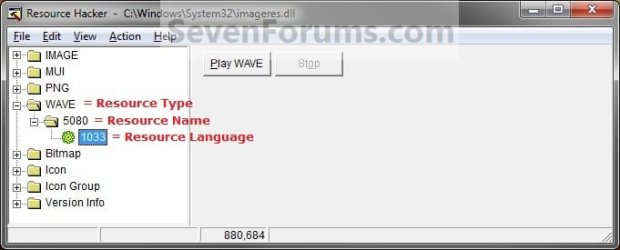
I) In the left pane of Resource Hacker, expand WAVE, and 5080, to 1033. (see screenshot below)
NOTE: If 5080 and 1033 is named something else, then that is fine as long as they are still under WAVE. Just substitute what you have instead in the steps below. You can click on the Play WAVE button to hear what the current startup sound is.
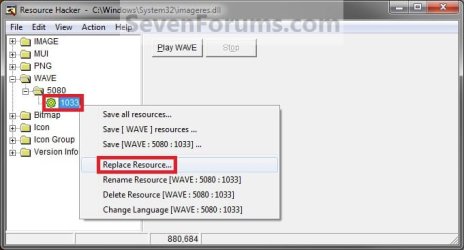
J) Right click on 1033 and click on Replace Resource. (see screenshot below)
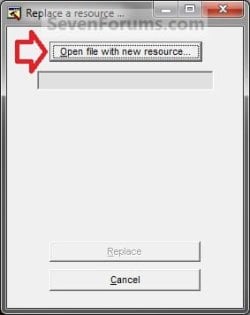
K) Click on Open file with new resource. (see screenshot below)
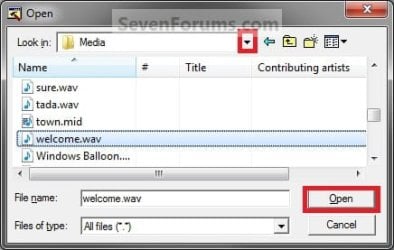
L) Navigate to and select the .wav file that you want for the startup sound, and click on Open. (see screenshot below)
NOTE: This .wav file must be unblocked and remain at this same location. For example, move or copy the .wav into the C:\Windows\Media. If you move or delete this .wav file, the startup sound will no longer play it.
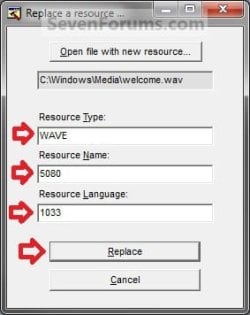
M) Under Resource Type, type WAVE. Under Resource Name, type 5080. Under Resource Language, type 1033. Click on the Replace button. (see screenshots below)
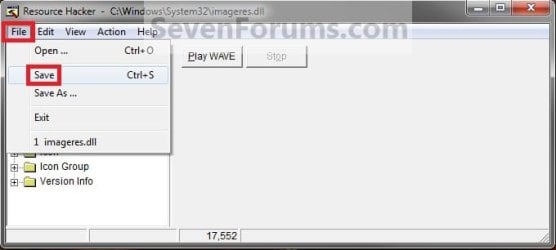
N) Click on File and Save, then close Resource Hacker. (see screenshot below)
NOTE: You can click on the Play WAVE button first to hear and verify what the current startup sound is set as in this file.
O) On your desktop, Move and Save the imageres_original.dll file to another safe location of your choice as a backup.
Warning
THIS IS YOUR ONLY BACKUP OF THE ORIGINAL IMAGERES.DLL FILE WITH THE DEFAULT STARTUP SOUND.
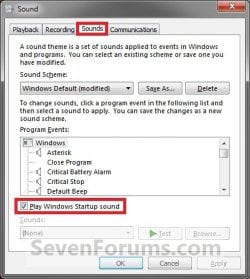
P) Check to make sure that the Play Windows Startup sound is checked in Sound so that it is turned on. (see screenshot below)
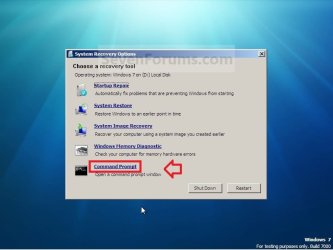
Q) Restart the computer and boot into the System Recovery Options (WinRE) screen, then select the Command Prompt option and press enter.
NOTE: If you do not have a retail Windows 7 installation disc, then you can create a System Repair Disc to use to boot to the System Recovery Screen instead.
R) In the command prompt, type diskpart and press enter. (see screenshot below step 3V)
S) In the command prompt, type list volume and press enter. (see screenshot below step 3V)
T) Make note of what the drive letter is for your Windows 7 partition or drive. (see screenshot below step 3V)
NOTE: The Windows drive is not always C at boot. For example, mine is listed as D here. Look at the volume name and size to help you determine which letter is the one that you have Windows 7 installed on.
U) In the command prompt, type exit and press enter. (see screenshot below step 3V)
V) In the command prompt, type the command below and press enter. (see screenshot below)
NOTE: Substitute D in the command below with the drive letter you have listed in step 3T for your Windows 7, and substitute username in the command below with your user account name.
Code:
COPY /V /Y "[B][COLOR=red]D[/COLOR][/B]:\Users\[B][COLOR=red]username[/COLOR][/B]\Desktop\imageres.dll" "[B][COLOR=red]D[/COLOR][/B]:\Windows\System32"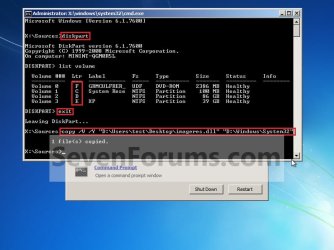
W) Close the command prompt, and click on the Restart button. (see screenshot above)
X) As Windows 7 restarts, you will hear your new startup sound.
Tip
If you ever wanted to change the startup sound again anytime after the first time you did this tutorial, you would only need to replace the .wav file at the exact same location in step 3L in Windows Explorer with a different .wav file that you want to use now instead, then rename the new .wav file with the exact same name as the old .wav file. No other steps would be required.
That's it,
Shawn
Related Tutorials
- How to Change the Event Sound Effects in Windows 7
- How to Enable or Disable the Startup Sound in Vista and Windows 7
- How to Allow or Prevent Changing Sounds in Windows 7
- How to Create a Custom Logon Sound that Speaks What You Like
- How to Change the "Welcome" Text Message at Log On in Windows 7 and Vista
Attachments
Last edited:


