
How to Create a System Image Backup in Windows 7
Information
A system image is an exact copy of a drive. By default, a system image includes the drives required for Windows to run. A system image would include all NTFS formatted partitions with an operating system installed on it (ex: C ), as well as the System Reserved partition. These system partitions cannot be unselected. It also includes Windows and your system settings, programs, and files. You can use a system image to restore the contents of your computer if your hard disk or computer ever stops working. When you restore your computer from a system image, it's a complete restoration—you can't choose individual items to restore, and all of your current programs, system settings, and files are replaced with the contents of the system image.
This tutorial will show you how to create a system image (clone) backup of the entire hard drive or partition that Windows 7 is on, and any other selected drive or partition. You can use this image to be able to do a system image recovery to restore the hard drive or partition at boot back to the way it was at the time the backup image was created.
If you want to include additional drives in the system image, you can manually create a system image. If you manually create a system image, it can be saved on a USB flash drive, CDs, DVDs, or a hard drive.
If a system image was created through Windows Backup instead with the Include a System Image of Drives box checked, you can set Windows to retain as many system images as it has space for on the backup disk or to only keep the most recent system image.
This tutorial will show you how to create a system image (clone) backup of the entire hard drive or partition that Windows 7 is on, and any other selected drive or partition. You can use this image to be able to do a system image recovery to restore the hard drive or partition at boot back to the way it was at the time the backup image was created.
If you want to include additional drives in the system image, you can manually create a system image. If you manually create a system image, it can be saved on a USB flash drive, CDs, DVDs, or a hard drive.
If a system image was created through Windows Backup instead with the Include a System Image of Drives box checked, you can set Windows to retain as many system images as it has space for on the backup disk or to only keep the most recent system image.
Note
Keeping different versions of system images
If you're saving your system images on an internal or external drive, or on CDs or DVDs, you can keep several versions of system images. On internal and external hard drives, older system images will be deleted when the drive runs out of space. To help conserve disk space, you can manually delete older system images.
Backup images are saved as backup periods in this format at the selected saved to location like the example below.
drive letter:\WindowsImageBackup\computer name\Backup YYYY-MM-DD HHMMSS
For example, if your computer name is Computer, your backup image location is on hard disk or partition (network or local) D: , and you backed up on 11/22/2008 at 1:00:50 PM (It uses 24 hour time), then that backup image would be located in the folder below.
D:\WindowsImageBackup\Computer\Backup 2008-11-22 130050
If you're saving your system images in a network location, you can only keep the most current system image for each computer. If you have an existing system image for a computer and are creating a new one for the same computer, the new system image will overwrite the existing one.
If you're saving your system images on an internal or external drive, or on CDs or DVDs, you can keep several versions of system images. On internal and external hard drives, older system images will be deleted when the drive runs out of space. To help conserve disk space, you can manually delete older system images.
Backup images are saved as backup periods in this format at the selected saved to location like the example below.
drive letter:\WindowsImageBackup\computer name\Backup YYYY-MM-DD HHMMSS
For example, if your computer name is Computer, your backup image location is on hard disk or partition (network or local) D: , and you backed up on 11/22/2008 at 1:00:50 PM (It uses 24 hour time), then that backup image would be located in the folder below.
D:\WindowsImageBackup\Computer\Backup 2008-11-22 130050
If you're saving your system images in a network location, you can only keep the most current system image for each computer. If you have an existing system image for a computer and are creating a new one for the same computer, the new system image will overwrite the existing one.
Tip
If you want to keep multiple system image versions on the same drive or partition, then you can use either method below to do so.
METHOD ONE:
Change the maximum space used for system images on the drive letter you are saving the Windows Backup to by changing the maximum space used by System Protection for the same drive letter. This is the same setting.
You do not have to have System Protection turned on for the drive letter, but do need to adjust the maximum space to what you like.
The size of a system image can be quite large since it will include all system drives in the image by default plus any drives you have included. If you want to keep multiple system images, be sure to increase the max size accordingly.
METHOD TWO:
1. Navigate to the backup location above for where you saved a system image that you want to keep before creating a new system image.
2. Right click, or press and hold, on the WindowsImageBackup folder, and click/tap on Rename.
3. Rename it to something like WindowsImageBackup-Copy-1, press Enter, and click//tap on Yes if prompted by UAC.
NOTE: This way you can just easily change the 1 an the end of the name to 2, 3, 4, etc... for each new system image that you make a copy of.
4. You now have a different system image version that you can leave at this location to be able to keep multiple versions.
 NOTE: When you want to restore a system image in a renamed WindowsImageBackup-Copy-1 folder in the future, then you must rename the current WindowsImageBackup folder first, then rename the WindowsImageBackup-Copy-1 folder back to WindowsImageBackup in order to be able to restore it. The WindowsImageBackup folder must be in the root directory of the drive, and not within another folder.
METHOD ONE:
Change the maximum space used for system images on the drive letter you are saving the Windows Backup to by changing the maximum space used by System Protection for the same drive letter. This is the same setting.
You do not have to have System Protection turned on for the drive letter, but do need to adjust the maximum space to what you like.
The size of a system image can be quite large since it will include all system drives in the image by default plus any drives you have included. If you want to keep multiple system images, be sure to increase the max size accordingly.
METHOD TWO:
1. Navigate to the backup location above for where you saved a system image that you want to keep before creating a new system image.
2. Right click, or press and hold, on the WindowsImageBackup folder, and click/tap on Rename.
3. Rename it to something like WindowsImageBackup-Copy-1, press Enter, and click//tap on Yes if prompted by UAC.
NOTE: This way you can just easily change the 1 an the end of the name to 2, 3, 4, etc... for each new system image that you make a copy of.
4. You now have a different system image version that you can leave at this location to be able to keep multiple versions.
Warning
- Windows 7 can only include drives formatted with the NTFS file system in the system image.
- Windows 7 cannot include the partition or drive that you are saving the backup image to in the image.
- All "system" or "boot" drives/partitions are included in the system image by default, so you will not be able to save the system image to a system or boot drive/partition.
- If you are saving the system image to a HDD or partition, then you can only save the system image on a separate hard drive (recommended) or partition than what Windows 7 is installed on. It cannot be saved to the C: drive.
- Only the Windows 7 Professional, Ultimate, and Enterprise editions can backup to a network location.
- You cannot restore a 64-bit Windows 7 backup image on a 32-bit system.
- You cannot restore a 64-bit Windows 7 backup image with a 32 bit Windows 7 installation DVD or recovery partition, or the other way around. You must use the same 32-bit or 64-bit Windows 7 installation DVD or recovery partition as the backup image is.
- A system image that was created on a computer using EFI cannot be restored on a computer using BIOS. It can only be restored on a computer using EFI.
- When restoring a system image from a dynamic volume, the disks on your computer cannot be formatted to match the layout of the disks on the backup. To have full functionality, select a volume (partition) on a basic disk as your backup location instead.
- I would recommend to create a system image on a separate HDD, or a separate partition on a separate HDD, for the best reliability to restore from it. CDs or DVDs are just not as reliable. A scratch one just one of them could ruin the whole image.
Here's How:
1. Open the Control Panel (icons view).
2. Click on the Backup and Restore icon.
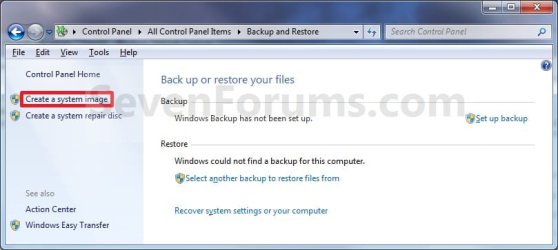
3. Click on the Create a system image link. (See screenshot below)
4. If prompted by UAC, click on Yes.
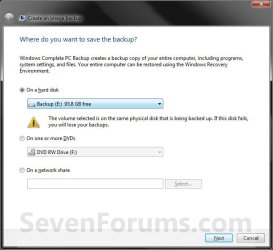
5. Select the location to where you would like to save the backup image at, and click on the Next button. (See screenshot below)
NOTE: See the Warning box at the top of the tutorial. Only the Windows 7 Professional, Ultimate, and Enterprise editions can backup to a network location.
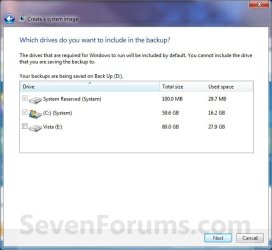
6. If available, check any additional hard drives or partitions (ex: Vista) that you would like to include in the backup image with the Windows 7 (System and C: ) partition or hard drive, and click on the Next button. (See screenshot below)
NOTE: See the WARNING box at the top of the tutorial. If you do not want to add any additional hard drives or partitions, then just leave the others unchecked. You will not see this, if you do not have any other OS installed other than Windows 7.
7. Click on the Start backup button. (See screenshot below)
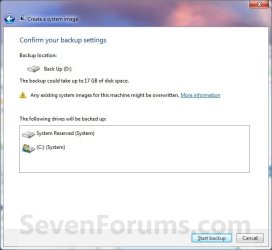
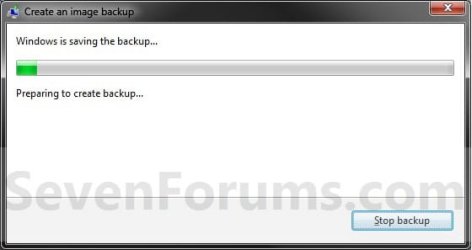
8. You will now see this window. (See screenshot below)
NOTE: If you wish to stop creating the backup image during this point, click on the Stop backup, Stop, and Close buttons.
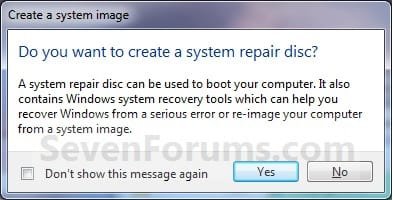
9. When it is finished you will see this create a System Repair disc pop-up window. Click on No. (See screenshot below)
NOTE: For how to always hide or show this message, see this tutorial.
10. Click on the Close button. (See screenshot below)

11. Close the Backup and Restore window. (See screenshot below step 3)
That's it,
Shawn
Related Tutorials
- How to Backup User and System Files in Windows 7
- How to Do a System Image Recovery in Windows 7
- How to Backup and Restore the Windows 7 Registry
- How to Enable or Disable the Ability to Create a System Image in Windows 7
- How to Extract Files from Windows 7 System Image using Virtual PC
- How to Extract Windows 7 System Image Files Using Disk Management
- Imaging with free Macrium
- How to Restore your System with a Broken Windows 7 System Image
- How to Manually Extract Files from a Backup in Vista and Windows 7
- How to Enable or Disable Backing up to a CD or DVD in Windows 7
- How to Enable or Disable Backing up to Local Hard Disks in Windows 7
- How to Delete Windows 7 User Data and System Image Backup Files
- How to Create a "Create a System Image" Shortcut in Windows 7
- How to Hide or Show "Do you want to create a system repair disc?" Message
- How to Fix Backup Error 0x81000019 in Windows 7
- New Installation: How to Create a General System Image in Audit Mode
Last edited:


