How to Set the Number of Processors or Cores to be Used by Windows 7
Information
If you have a multiple core processor (CPU) or multiple processors, then this will show you how to limit the number of processors to be used by Windows 7, or to make sure that you are using all processors.
This can be handy for troubleshooting and debugging purposes to be able to determine if there is a problem with a single processor/core, or for a programmer to test their code against a single core while still running on their multi-processor/core system.
Windows 7 uses all of your processors or processor cores by default.
Note
You must be logged in as an administrator to be able to do this.
Here's How:
1. Open the Start Menu, then type msconfig and press enter.
3. Under the Boot tab in System Configuration, click on the Advanced options button. (see screenshot below)

4. To Have Windows 7 Use All Processors or Cores
A) Uncheck the Number of processors box, and click on OK. (see screenshot below) NOTE:This is the default setting.
B) Go to step 6.
5. For Windows 7 to Use a Specified Number of Processors or Cores
A) Check the Number of processors box, then select how may processors or cores you want Windows 7 to only be able to use in the drop down arrow menu and click on OK.
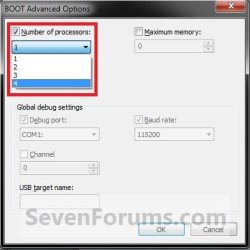
6. Check the Make all boot settings permanent box, and click on OK. (see screenshot below) NOTE:You will still be able to come back and make changes again if you like.
7. Click on Yes. (see screenshot below) NOTE:You will still be able to come back and make changes again if you like.
8. Click on the Restart button. (see screenshot below) WARNING:This will restart the computer immediately. Make sure you save and close anything open that you do not want to lose first.
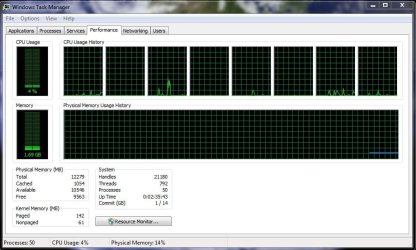
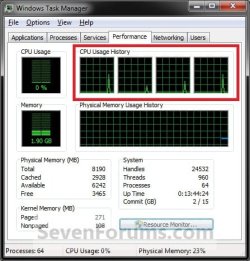
9. When Windows 7 is finished restarting, it will now be using only the number of processors or cores that you specified. NOTE:You can look in Task Manager (CTRL+SHIFT+ESC) to confirm this number of processors or cores.You will have one graph per core in the CPU Usage History area.
System Manufacturer/Model Number HP, Dell, Gateway, Toshiba - 4 laptops and 2 desktops OS Vista, Windows7, Mint Mate, Zorin, Windows 8 CPU from 1.6GHz Duo to i7 Monitor(s) Displays 2x HP w2207
Keyboard with trackball - no mices Mouse Trackball mice Hard Drives 5x HDD, 7x SSD, 12x Externals Internet Speed DSL 6000
Yes, it's only for testing purposes for troubleshooting and debugging to be able to determine if there is a problem with a single processor/core, or for a programmer to test their code against a single core while still running on their multi-processor/core system.
I also added it for reference just in case someone used this option and forgot about it, and is wondering why not all of the processor cores are being used.
Good, that clarification is useful. I posted my comment because I have seen guys thinking that it would speed up their system - which, of course, it does not.
System Manufacturer/Model Number HP, Dell, Gateway, Toshiba - 4 laptops and 2 desktops OS Vista, Windows7, Mint Mate, Zorin, Windows 8 CPU from 1.6GHz Duo to i7 Monitor(s) Displays 2x HP w2207
Keyboard with trackball - no mices Mouse Trackball mice Hard Drives 5x HDD, 7x SSD, 12x Externals Internet Speed DSL 6000
LOL, yeah I still get people that report to me that they swear that it has improved performance by selecting all processors. I just do not see how though since they are all used by default anyway.
where do get that all cores are used by default. this is not the case. when you go to msconfig, boot, advance option and it's default setting for cores being used is 1, that is exactly what it is using. changing it 2 or more depending on you cpu makes windows use more cores. various programs you install may or may not use all cores by default, but win 7 does not.
Here we go. No core setting will change that if the program is not designed for it. And the windows kernel needs a major revamp in order to use all cores.
System Manufacturer/Model Number HP, Dell, Gateway, Toshiba - 4 laptops and 2 desktops OS Vista, Windows7, Mint Mate, Zorin, Windows 8 CPU from 1.6GHz Duo to i7 Monitor(s) Displays 2x HP w2207
Keyboard with trackball - no mices Mouse Trackball mice Hard Drives 5x HDD, 7x SSD, 12x Externals Internet Speed DSL 6000
where do get that all cores are used by default. this is not the case. when you go to msconfig, boot, advance option and it's default setting for cores being used is 1, that is exactly what it is using. changing it 2 or more depending on you cpu makes windows use more cores. various programs you install may or may not use all cores by default, but win 7 does not.
System Manufacturer/Model Number Airbot 2.0 OS Windows 7 Ultimate x64 SP1 CPU Core i7 920 (D0) @ 4Ghz, *26c idle *65c full load on air Motherboard Asus P6X58D Premium - Sata 6Gb/s - USB 3.0 Memory 12GB DDR3 Corsair Dominator -CMD12GX3M6A1600C8 at 1600MHz Graphics Card EVGA GeForce GTX 480 -Aftermaket Accelero Xtreme Plus cooler Sound Card ASUS Xonar D2X Monitor(s) Displays 1 LG 24" Flatron W2453V-PF 1 Samsung 24" P2450H both 2ms RT Screen Resolution 1920x1080@60hz
Keyboard Logitech Wireless MK700 Mouse Logitech Wireless MK700 PSU Corsair HX1000W Case Cooler Master HAF 932 Cooling Case Fans *3 230mm, *1 140mm/CPU - *Tuniq Tower 120 Extreme Hard Drives 1 OCZ Vertex2 180GB SSD
1 TB Samsung Spinpoint F1 7200RPM 32MB cache
2 500GB WD Caviar Blacks 7200RPM 32MB cache (WD5001AALS)
Pioneer DVD Burner DVR-S18M Internet Speed DL 15 Mbps UL 0.98 Mbps Antivirus None Browser Firefox Nightly Other Info Processor-7.7 *RAM- 7.9 *Graphics-7.9 *Gaming Graphics- 7.9 *SSD- 7.8 W.E.I final score= 7.7
*Phone- Samsung Galaxy Nexus
where do get that all cores are used by default. this is not the case. when you go to msconfig, boot, advance option and it's default setting for cores being used is 1, that is exactly what it is using. changing it 2 or more depending on you cpu makes windows use more cores. various programs you install may or may not use all cores by default, but win 7 does not.
Here we go. No core setting will change that if the program is not designed for it. And the windows kernel needs a major revamp in order to use all cores.
what did you mean "here we go"? here we go someone who does not know what they are talking about, or here we go these two lines are my proof? win 7 out of the box when you click on computer it takes about 3 seconds before it list the drives. click on one of the drives and it takes about 3 seconds before it list the contents. when i go in and change the core count to 2 and do the required restart once back in 7 i no longer have this lag accessing my drives and files. i have tested this on a clean install where it was the first thing i changed. i have tested on a clean install where i have installed all of my drivers, software, and performed all of my tweaks then change the core setting. the only time that i actually get rid of this lag is when i change the cores from 1 to 2. nothing else gets rid of the lag.
"Here we go" was supposed to mean "here we go starting the discussion". Since you were the first poster after Brink and I had the little exchange of ideas, you started the (very useful) discussion. There is a lot of mystery around the full usage of multi cores and therefore this will help us to better understand it.
PS: your observation/setting is interesting. I never tried that.
System Manufacturer/Model Number HP, Dell, Gateway, Toshiba - 4 laptops and 2 desktops OS Vista, Windows7, Mint Mate, Zorin, Windows 8 CPU from 1.6GHz Duo to i7 Monitor(s) Displays 2x HP w2207
Keyboard with trackball - no mices Mouse Trackball mice Hard Drives 5x HDD, 7x SSD, 12x Externals Internet Speed DSL 6000