System Image Recovery

How to Do a System Image Recovery in Windows 7


   Information
This will show you how to restore your Windows 7 hard disk back to exactly how it was when you created a system image backup.
   Warning

  • You can only do a system image recovery to a HDD that is the same size or larger than the one the system image was created from. You will not be able to do a system image recovery to a smaller HDD.
  • When you restore your computer from a image backup, it is a complete restoration. You can't choose individual items to restore, and all of your current programs, system settings, and files are replaced.
  • If your backup image is on a external device (ex: USB drive), then make sure it is connected before starting. If USB drive, then also make sure that you have your BIOS settings (ex: Legacy USB) set to allow USB devices at boot.
  • A system image recovery will format everything on each hard drive that was included in a system image, and will only restore what is included (see steps 7-9 in STEP TWO below) in the system image back. Be sure to backup anything that you do not want to lose that is not included in the system image backup first.


STEP ONE

Only if You Renamed the "WindowsImageBackup" Folder


   Note
To be able to have multiple versions of system images saved on the same drive or partition, you would need to rename the older WindowsImageBackup folder from the previously created system image as described in the NOTE box at the top of this tutorial.

If you renamed the WindowsImageBackup folder for the system image version that you wanted to restore, then you will need to do the steps below before you will be able to restore that system image.

1. If you are "Able to Boot" into Windows 7 A) In Windows Explorer, navigate to the renamed (drive letter)\WindowsImageBackup folder location of the system image that you want to restore.

B) If you already have a folder named WindowsImageBackup that is not the system image version that you want to restore, then you will need to right click on it, click on Rename, and type in say WindowsImageBackup-Copy-2 as an example.

C) Now, right click on the renamed system image version (ex: WindowsImageBackup-Copy-1) that you did want to restore, click on Rename, type in WindowsImageBackup an press enter.

D) Go to the STEP TWO section below to do the System Image Recovery.
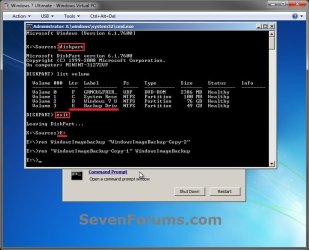
2. If you are "Not Able to Boot" into Windows 7 A) If you have the system image backup save to an external device, be sure that it is connected now.

B) Open a command prompt at boot.

C) In the command prompt, type diskpart and press enter. (see screenshot below)

D) In the command prompt, type list volume and press enter. (see screenshot below)

E) Make note of the drive letter (ex: E: ) that you have the system image backup saved to.

F) In the command prompt, type exit and press enter. (see screenshot below)

G) In the command prompt, type the E: and press enter. (see screenshot below)
NOTE: Subsititute E: for your actual drive letter at step 2E instead.

H) If you already have a folder named "WindowsImageBackup"

NOTE: This is if you already have a folder named WindowsImageBackup that is not the system image version that you want to restore. If so, you would need to rename it to say WindowsImageBackup-Copy-2 as an example.
  • In the command prompt, type the command below and press enter. (see screenshot below)
    NOTE: Substitute WindowsImageBackup-Copy-2 in the command below with any name in quotes that you would like to rename it to instead.
Code:
[B]ren WindowsImageBackup "[COLOR=red]WindowsImageBackup-Copy-2[/COLOR]"[/B]
I) In the command prompt, type the command below and press enter. (see screenshot below)
NOTE: Substitute WindowsImageBackup-Copy-1 in the command below with the actual name of your renamed system image folder in quotes that you want to use to restore instead.
Code:
[B]ren "[COLOR=red]WindowsImageBackup-Copy-1[/COLOR]" WindowsImageBackup[/B]
J) Close the command prompt window. (see screenshot below)

K) Continue on to step 3B in the STEP TWO section below to do the System Image Recovery.
Rename-1.jpg


STEP TWO

To Do the System Image Recovery

1. If you have the system image backup save to an external device, be sure that it is connected and turned on (powered up) now.
A) Start with either step 2 or step 3 below first.
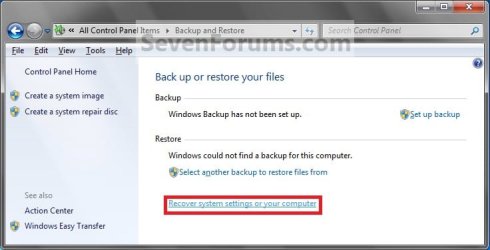
2. From "Backup and Restore" in the Control Panel while in Windows 7 A) Open the Control Panel (icons view), and click on Backup and Restore.

B) Click on the Recover system settings on your computer link. (see screenshot below) Step1.jpg
C) Click on the Advanced recovery methods link. (see screenshot below) Step2.jpg
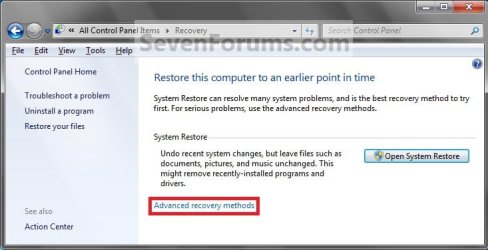
D) Select the Use a system image you created earlier to recover your computer option. (see screenshot below) Step3.jpg
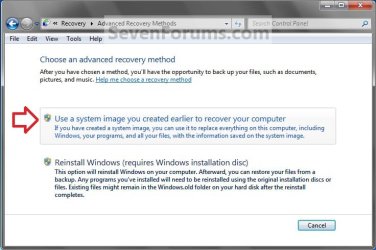
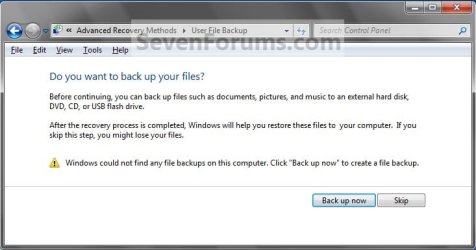
E) Select to either create a Back up now, or to Skip it and continue the system image recovery without backing up any of your current files.
NOTE: If you select Back up now, it will take you to step 6 in this tutorial link to create a User and System File back up of your current files first before continuing to step 1F. (see screenshot below) Step4A.jpg
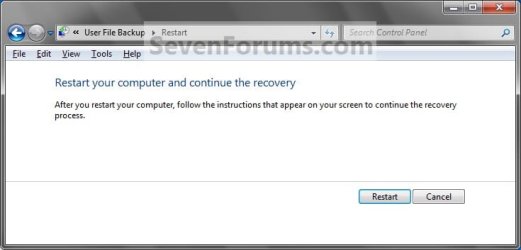
F) Click on Restart. (see screenshot below) Step5A.jpg
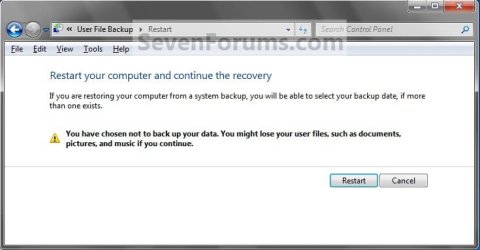
Step5B.jpg

G) Select a languange to be used for your keyboard input and click on Next. (see screenshot below) Step6.jpg
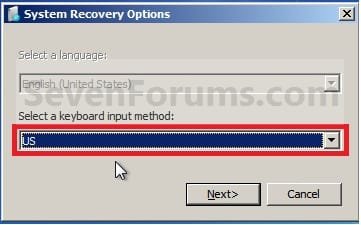
H) Go to step 4.
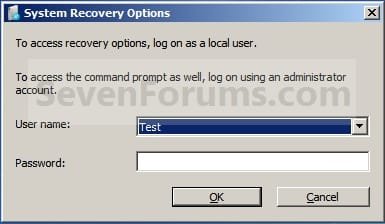
3. From the System Recovery Options Screen at Boot A) Boot to the System Recovery Options screen from your Windows 7 installation DVD/USB, or System Repair Disc.

B) Select the System Image Recovery option. (see screenshot below) System_Recovery_Options.jpg
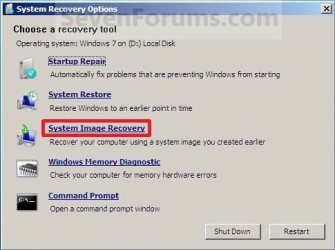
4. If you saved the system image backup to a set of DVDs, then insert the last DVD from the set when prompted. If not, go to step 5 for a system image backup on a hard drive. A) Go to step 7 below.
5. To Use the Latest System Image A) Select (dot) Use the latest available system image and click on Next. (see screenshot below) Step7.jpg
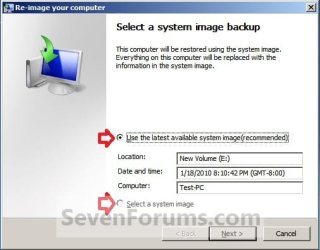
B) Go to step 7.
6. To Select a System Image A) Select (dot) Select a system image, and click on Next. (see screenshot above)
NOTE: This is if the system image that you want to use is not listed here and is at another location that you wish to choose from instead.

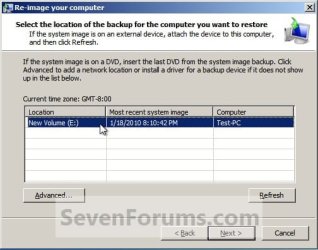
B) Select the location of the backup image for the computer you want to restore from the list, and click on Next. (see screenshot below)

   Note
To add a image from a network location, click on the Advanced button, and on the Search for a system image on the network option.

If the drive cannot be seen to select a system image from, then you may need to use the tutorial below to load your SATA or RAID drivers before it will be seen. You would click on the Advanced button, and on the Install a driver option.

SATA Drivers - Load in Windows 8 System Image Recovery
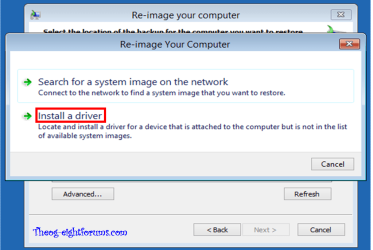
RecoveryBackup004-8.PNG


Step8A.jpg
C) Select the date and time of the system image to restore, and click on Next. (see screenshot below) Step8B.jpg
7. To Do a Full System Image Recovery
NOTE: This option will format everything on each hard disk drive that was included in the system image, then restore them as they were when the system image was created.

   Note
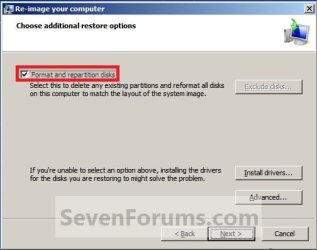
Format and repartition disks box:
NOTE: Special thanks to MJF for this addition. 1) Grayed out and selected
You are forced to have the whole disk formatted and repartitioned to match the partition structure of the disk the image was made from. This can occur when restoring an image to a new disk or the original disk with a modified partition structure. Data on other partitions on the disk you are restoring to will be lost.

2) Grayed out and unselected
You are not given the option to format and repartition the disk. This will occur if you are restoring Windows from a partition on the same disk.

3) Not grayed out and unselected
Here you have the option to select format the whole disk and repartition or not. In this case the disk the image was taken from has a matching partition structure to the disk you are restoring the image to. By not selecting the format and repartition option your image will be restored and other partitions untouched such as valuable data partitions.
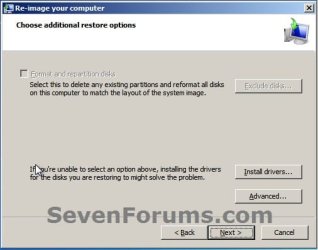
A) Check the Format and repartition disks box (if not grayed out) and uncheck Only restore system drives box (if available), and click on Next. (see screenshots below) Exclude_Disks.jpg
Step9.jpg
System_Drives.jpg
B) Go to step 10.
8. To Only Restore System Drives in System Image Recovery
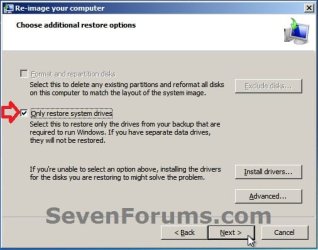
NOTE: When restoring to the same disk containing data partitions, the Format and repartition disks option may format the data partitions as well. If this is the case and you have the option to leave the Format and repartition disks box unchecked, then initially attempt your image recovery with the Format and repartition disks box unchecked. If recovery is unsuccessful, repeat the process with the format box ticked. A) If available, check the Only restore system drives box, and click on Next. (see screenshot below) System_Drives.jpg
B) Go to step 10.
9. To Exclude Restoring Specific Drives in System Image Recovery
NOTE: Since a system image recovery will format everything on each hard disk drive that was included in a system image, this will allow you to exclude specific disks so that specific disk will not be formated or restored. A) Check the Format and repartition disks box , and click on the Exclude disks button (if not grayed out). (see screenshot below)
NOTE: If the Exclude disks button is grayed out, then the HDD that you are restoring to is empty, or you do not have any disks in the system image that are able to be excluded from being restored. Exclude 001.JPG
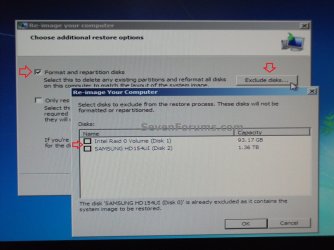
B) Unselect the drives that you want to exclude from being restored.

C) Click on Next.
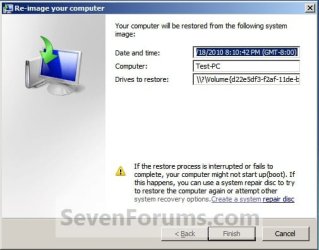
10. Click on Finish. (see screenshot below) Step10.jpg
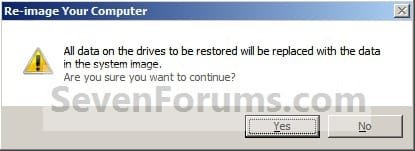
11. Click on Yes. (See screenshot below) Step11.jpg
12. You will now see this screenshot below.
NOTE: If you have the backup image on DVDs, have them ready. See step 4 above. Step12.jpg
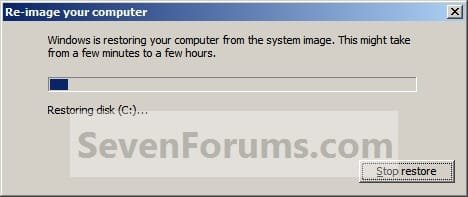
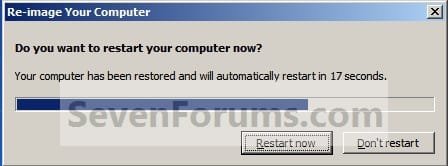
13. When it is through, click on Restart Now to finish. (see screenshot below)
NOTE: Your computer will restart and the backup image restoration will be done. Step13.jpg
14. If you created a backup in step 1E, then you will now see this option to Restore my files after the computer restarts. (see screenshot below) Step14.jpg
That's it,
Shawn


Attachments

  • Step6A.jpg
    Step6A.jpg
    47.1 KB · Views: 244
Last edited:
I am going to try this tutorial this weekend. I have a small XP partition (and W7 partition) that was included in the Complete PC Image so it should restore it to exactly how it was when I created the image (including the boot manager) right? Has anyone had problems with this messing anything up?

I will post back and let you know how it works. Looks like a good tool.
 

My Computer

Computer Manufacturer/Model Number
Keeps changing - (Custom)
OS
Windows 7 Professional x64
CPU
Intel Core i7 860
Motherboard
Gigabyte GA-P55-UD4P
Memory
4GB DDR3 Mushkin 1600Mhz @ 7-8-7-20
Graphics Card(s)
MSI GTS250 1GB DDR3 Twin Frozr
Sound Card
Onboard realtek
Monitor(s) Displays
Samsung SyncMaster 24" P2450 + Samsung 20" 2033
Screen Resolution
1920 X 1080 and 1600 X 900 (#2 system 1440 X 900)
Hard Drives
Patriot Inferno 120GB SSD + 3 WD Blue 640GB drives
PSU
Corsair 750 HX Modular
Case
Lancool PC-K62
Cooling
Cooler Master TX3 CPU cooler and 4-140mm and 1-120mm case
Keyboard
Gigabyte USB keyboard
Mouse
Microsoft wireless laser mouse 5000
Internet Speed
7 Mb down 1.5 up
Other Info
System #2: AMD Phenom II X6 1055T (Freezer 7 Pro cooler) - Gigabyte 880GMA-UD2H - WD 500GB Black - 9500GT (1GB) 500W OCZ modular PSU - Antec 200 case. System #3 (LapTop) Core 2 Duo T6670 - 320GB 7200RPM HD - 4GB DDR3 RAM.
Hi Nate,

Yes, it should if both the XP and W7 partitions were selected when you created the system image backup. :)
 

My Computer

Computer type
PC/Desktop
Computer Manufacturer/Model Number
Self built custom
OS
64-bit Windows 11 Pro for Workstations
CPU
Intel i7-8700K OC'd to 5 GHz
Motherboard
ASUS ROG Maximus XI Formula Z390
Memory
64 GB (4x16GB) G.SKILL TridentZ RGB DDR4 3600 MHz
Graphics Card(s)
ASUS ROG-STRIX-GTX1080TI-O11G-GAMING
Sound Card
Integrated
Monitor(s) Displays
2 x Samsung Odyssey G7 27"
Screen Resolution
2560x1440
Hard Drives
1TB Samsung 990 PRO M.2,
4TB Samsung 990 PRO PRO M.2,
TerraMaster F8 SSD Plus NAS
PSU
Seasonic Prime Titanium 850W
Case
Thermaltake Core P3
Cooling
Corsair Hydro H115i
Keyboard
Logitech wireless K800
Mouse
Logitech MX Master 4
Internet Speed
2 Gb/s Download and 100 Mb/s Upload
Antivirus
Malwarebyte Anti-Malware Premium
Browser
Google Chrome
Other Info
Logitech Z625 speaker system,
Logitech BRIO 4K Pro webcam,
HP Color LaserJet Pro MFP M477fdn,
APC SMART-UPS RT 1000 XL - SURT1000XLI,
Galaxy S23 Plus phone
I wanted to report back on this. I have a system with XP, Windows 7, and a recovery partition for the XP install. When I created the image with Windows 7 it would not let me choose the recovery partition. Just the XP and W7. I created the image anyway. When it was done I unplugged the USB drive, plugged it back in and booted from the repair disc created by Windows 7. Everything went fine. I found it interesting that ALL 3 partitions were there when done. I don't know if the recovery partition was left there or recovered. Anyway, the "System Image Recovery" works great (again) for anyone wondering. Have a great day. :)
 

My Computer

Computer Manufacturer/Model Number
Keeps changing - (Custom)
OS
Windows 7 Professional x64
CPU
Intel Core i7 860
Motherboard
Gigabyte GA-P55-UD4P
Memory
4GB DDR3 Mushkin 1600Mhz @ 7-8-7-20
Graphics Card(s)
MSI GTS250 1GB DDR3 Twin Frozr
Sound Card
Onboard realtek
Monitor(s) Displays
Samsung SyncMaster 24" P2450 + Samsung 20" 2033
Screen Resolution
1920 X 1080 and 1600 X 900 (#2 system 1440 X 900)
Hard Drives
Patriot Inferno 120GB SSD + 3 WD Blue 640GB drives
PSU
Corsair 750 HX Modular
Case
Lancool PC-K62
Cooling
Cooler Master TX3 CPU cooler and 4-140mm and 1-120mm case
Keyboard
Gigabyte USB keyboard
Mouse
Microsoft wireless laser mouse 5000
Internet Speed
7 Mb down 1.5 up
Other Info
System #2: AMD Phenom II X6 1055T (Freezer 7 Pro cooler) - Gigabyte 880GMA-UD2H - WD 500GB Black - 9500GT (1GB) 500W OCZ modular PSU - Antec 200 case. System #3 (LapTop) Core 2 Duo T6670 - 320GB 7200RPM HD - 4GB DDR3 RAM.
System Image Recover just let me down

I think I know why I just had a problem and the reason is quite disappointing from my perspective.

I just installed an SSD to replace a 1TB (RAID 0) dual HDD setup. Windows 7 Ultimate 64-bit (RTM) was sitting on the 1TB partition when a System Image was taken.

The SSD was a mere 128GB. System Image Recovery failed and I think it's because the new SSD isn't offering the same size of partition as it was taken from. The actual data content of the image was less than 90GB.

This really disappointed me because I also have Mac experience and I know that Mac system images are not original partition size dependent (when made properly). Apple sensibly designed the technology to essentially care about the data content, not the partition size. That allows one to restore it to any partition with enough capacity for the original data.

Windows 7 not being to restore the data here is really stupid. I'm not really surprised though. MS seems to do things like this quite often. The short-sightedness is shocking.

If anyone knows a command line workaround to this or something, let me know. Thanks in advance.
 

My Computer

OS
Windows 7 Ultimate 64-bit RTM
CPU
Intel Core i7 940
Motherboard
ASUS P6T Deluxe
Memory
6GB DDR3 1600MHz
Graphics Card(s)
Sparkle 9600GT 512MB Silent
Sound Card
Auzentech X-Fi Prelude 7.1
Monitor(s) Displays
Sony KDL-40W2000
Hard Drives
2 x Seagate 7200.11 500GB in RAID 0
PSU
Gigabyte Odin
Case
Thermaltake Tenor
Cooling
Intel standard, case-included fans
Do you have to re-activate the restored image?
 

My Computer

OS
Windows 7 Professional x64 x86 VISTA XP 98SE 95 3.x
CPU
Intel(R) Core(TM)2 Quad CPU Q9400 @ 2.66GHz
Memory
8 GB
Screen Resolution
1920 x 1200
PSU
OCZ Fatal1ty OCZ550FTY 550W ATX12V v2.2 25A on each rail
Hello Polycue,

If it's restored to the same computer that the system image was taken from, then I do not believe you will need to activate again. It can vary though.
 

My Computer

Computer type
PC/Desktop
Computer Manufacturer/Model Number
Self built custom
OS
64-bit Windows 11 Pro for Workstations
CPU
Intel i7-8700K OC'd to 5 GHz
Motherboard
ASUS ROG Maximus XI Formula Z390
Memory
64 GB (4x16GB) G.SKILL TridentZ RGB DDR4 3600 MHz
Graphics Card(s)
ASUS ROG-STRIX-GTX1080TI-O11G-GAMING
Sound Card
Integrated
Monitor(s) Displays
2 x Samsung Odyssey G7 27"
Screen Resolution
2560x1440
Hard Drives
1TB Samsung 990 PRO M.2,
4TB Samsung 990 PRO PRO M.2,
TerraMaster F8 SSD Plus NAS
PSU
Seasonic Prime Titanium 850W
Case
Thermaltake Core P3
Cooling
Corsair Hydro H115i
Keyboard
Logitech wireless K800
Mouse
Logitech MX Master 4
Internet Speed
2 Gb/s Download and 100 Mb/s Upload
Antivirus
Malwarebyte Anti-Malware Premium
Browser
Google Chrome
Other Info
Logitech Z625 speaker system,
Logitech BRIO 4K Pro webcam,
HP Color LaserJet Pro MFP M477fdn,
APC SMART-UPS RT 1000 XL - SURT1000XLI,
Galaxy S23 Plus phone
Do you have to re-activate the restored image?

I have done this twice (to same system like Brink suggested) and have not had to re-activate the restored image.

FYI
 

My Computer

Computer Manufacturer/Model Number
Keeps changing - (Custom)
OS
Windows 7 Professional x64
CPU
Intel Core i7 860
Motherboard
Gigabyte GA-P55-UD4P
Memory
4GB DDR3 Mushkin 1600Mhz @ 7-8-7-20
Graphics Card(s)
MSI GTS250 1GB DDR3 Twin Frozr
Sound Card
Onboard realtek
Monitor(s) Displays
Samsung SyncMaster 24" P2450 + Samsung 20" 2033
Screen Resolution
1920 X 1080 and 1600 X 900 (#2 system 1440 X 900)
Hard Drives
Patriot Inferno 120GB SSD + 3 WD Blue 640GB drives
PSU
Corsair 750 HX Modular
Case
Lancool PC-K62
Cooling
Cooler Master TX3 CPU cooler and 4-140mm and 1-120mm case
Keyboard
Gigabyte USB keyboard
Mouse
Microsoft wireless laser mouse 5000
Internet Speed
7 Mb down 1.5 up
Other Info
System #2: AMD Phenom II X6 1055T (Freezer 7 Pro cooler) - Gigabyte 880GMA-UD2H - WD 500GB Black - 9500GT (1GB) 500W OCZ modular PSU - Antec 200 case. System #3 (LapTop) Core 2 Duo T6670 - 320GB 7200RPM HD - 4GB DDR3 RAM.
For general info (sorry McNaugha - only just seen your post) - there is a workaround.

Use Disk Management to shrink the source partition before creating the image. Then just expand it again afterwards.


The SSD was a mere 128GB. System Image Recovery failed and I think it's because the new SSD isn't offering the same size of partition as it was taken from. The actual data content of the image was less than 90GB.
 

My Computers

System One System Two

  • Computer type
    PC/Desktop
    OS
    7 X64
    CPU
    i5 8400
    Motherboard
    gigabyte b365m ds3h
    Memory
    2x8gb 3200mhz
    Hard Drives
    various
    PSU
    pure power 11 400w cm
    Case
    Coolermaster
    Cooling
    cryorig m9i
  • Computer type
    PC/Desktop
    OS
    7x64
    CPU
    g5400
    Motherboard
    ga b365m ds3h
    Memory
    8gb ddr4 2400
    PSU
    xfx pro 450w
Well I'd figured as much, but I had already taken the HDDs out and couldn't be bothered having to go through it all again just to get the restore to work. I will remember next time. I was able to get my files out of the incremental backups.
 

My Computer

OS
Windows 7 Ultimate 64-bit RTM
CPU
Intel Core i7 940
Motherboard
ASUS P6T Deluxe
Memory
6GB DDR3 1600MHz
Graphics Card(s)
Sparkle 9600GT 512MB Silent
Sound Card
Auzentech X-Fi Prelude 7.1
Monitor(s) Displays
Sony KDL-40W2000
Hard Drives
2 x Seagate 7200.11 500GB in RAID 0
PSU
Gigabyte Odin
Case
Thermaltake Tenor
Cooling
Intel standard, case-included fans
Hello Polycue,

If it's restored to the same computer that the system image was taken from, then I do not believe you will need to activate again. It can vary though.

I have done this twice (to same system like Brink suggested) and have not had to re-activate the restored image.

FYI

Hi Brink and nate42nd

Does it affect the activation if you restore to a different partition or drive on the same system. Also would norton ghost 14 images created from an XP partition on the same system restore the activation as well.
 

My Computer

OS
Windows 7 Professional x64 x86 VISTA XP 98SE 95 3.x
CPU
Intel(R) Core(TM)2 Quad CPU Q9400 @ 2.66GHz
Memory
8 GB
Screen Resolution
1920 x 1200
PSU
OCZ Fatal1ty OCZ550FTY 550W ATX12V v2.2 25A on each rail
Polycue,

I'm not certain about Norton Ghost, but as long as it's on the same system it should be fine with activation. :)
 

My Computer

Computer type
PC/Desktop
Computer Manufacturer/Model Number
Self built custom
OS
64-bit Windows 11 Pro for Workstations
CPU
Intel i7-8700K OC'd to 5 GHz
Motherboard
ASUS ROG Maximus XI Formula Z390
Memory
64 GB (4x16GB) G.SKILL TridentZ RGB DDR4 3600 MHz
Graphics Card(s)
ASUS ROG-STRIX-GTX1080TI-O11G-GAMING
Sound Card
Integrated
Monitor(s) Displays
2 x Samsung Odyssey G7 27"
Screen Resolution
2560x1440
Hard Drives
1TB Samsung 990 PRO M.2,
4TB Samsung 990 PRO PRO M.2,
TerraMaster F8 SSD Plus NAS
PSU
Seasonic Prime Titanium 850W
Case
Thermaltake Core P3
Cooling
Corsair Hydro H115i
Keyboard
Logitech wireless K800
Mouse
Logitech MX Master 4
Internet Speed
2 Gb/s Download and 100 Mb/s Upload
Antivirus
Malwarebyte Anti-Malware Premium
Browser
Google Chrome
Other Info
Logitech Z625 speaker system,
Logitech BRIO 4K Pro webcam,
HP Color LaserJet Pro MFP M477fdn,
APC SMART-UPS RT 1000 XL - SURT1000XLI,
Galaxy S23 Plus phone
Hello everyone, newbie here with some knowledge. I am having trouble restoring Windows 7 Ultimate from a system image stored on a network folder.

When I go into System Recovery Options screen and select System Image Recovery, I do Select a system image manually, as mine is not on any internal or external drives and Windows doesn't see it.

Then it connects to my network fine. I get to Search for the system image on the network and I have to enter the folder name where the image is - it gives the example of \\server\share. It asks for login credentials for the NAS which I enter correctly; and then I invariably get the 0x80070035 message "the network path is not found"! The name of my NAS is DiskStation so I've tried Diskstation\backup\WindowsImageBackup\{My PC's name}\{Backup Date and Time} There is a folder \\DISKSTATION\backup\WindowsImageBackup\MyPC\Backup 2009-08-30 230012 on my NAS, I just copied and pasted this from Windows Explorer so you can see the exact folder location. I can browse this folder and open it and whatnot in Windows, of course.

I tried this over WiFi and Ethernet, same thing. I've tried other folders on my NAS, same message. If I enter a non-existent location just for the heck of it, I get 0x70070043, which makes me think it does perhaps see... something and connectivity is not the issue.

What is the deal?! Please help.
 
Last edited:

My Computer

OS
Windows 7 Ultimate RTM
I just tried restored an image. The image was from a 128GB drive to a 640GB drive. Windows CREATED a 128GB partition and left the rest unallocated. It really worked great! Great program!

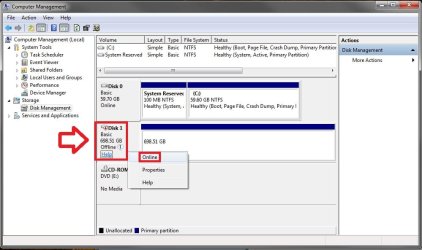
I have a small problem however. The original disk was a 128GB SSD. It was not plugged in during this process. After I finished restoring the image. I plugged the 128GB SSD back into the SATA port, changed the boot order in the BIOS and booted into Windows 7 on the new 640GB HD. Windows automatically detected the 128 GB SSD and installed the driver and had me reboot. After reboot I went into disk management and the 128GB SSD is shown but says it's "offline" so I cannot format it. I is also not shown in "My computer" Any advice? I was going to try another SATA controller...my mobo has 6 ports on one controller and 2 on another. What am I missing?
 

My Computer

Computer Manufacturer/Model Number
Keeps changing - (Custom)
OS
Windows 7 Professional x64
CPU
Intel Core i7 860
Motherboard
Gigabyte GA-P55-UD4P
Memory
4GB DDR3 Mushkin 1600Mhz @ 7-8-7-20
Graphics Card(s)
MSI GTS250 1GB DDR3 Twin Frozr
Sound Card
Onboard realtek
Monitor(s) Displays
Samsung SyncMaster 24" P2450 + Samsung 20" 2033
Screen Resolution
1920 X 1080 and 1600 X 900 (#2 system 1440 X 900)
Hard Drives
Patriot Inferno 120GB SSD + 3 WD Blue 640GB drives
PSU
Corsair 750 HX Modular
Case
Lancool PC-K62
Cooling
Cooler Master TX3 CPU cooler and 4-140mm and 1-120mm case
Keyboard
Gigabyte USB keyboard
Mouse
Microsoft wireless laser mouse 5000
Internet Speed
7 Mb down 1.5 up
Other Info
System #2: AMD Phenom II X6 1055T (Freezer 7 Pro cooler) - Gigabyte 880GMA-UD2H - WD 500GB Black - 9500GT (1GB) 500W OCZ modular PSU - Antec 200 case. System #3 (LapTop) Core 2 Duo T6670 - 320GB 7200RPM HD - 4GB DDR3 RAM.
Hello Nate,

In Disk Management, see if it will let you right click on the Disk # (must be Disk # area and not partition) that is offline and click on Online to fix it.

Disk.jpg
 

My Computer

Computer type
PC/Desktop
Computer Manufacturer/Model Number
Self built custom
OS
64-bit Windows 11 Pro for Workstations
CPU
Intel i7-8700K OC'd to 5 GHz
Motherboard
ASUS ROG Maximus XI Formula Z390
Memory
64 GB (4x16GB) G.SKILL TridentZ RGB DDR4 3600 MHz
Graphics Card(s)
ASUS ROG-STRIX-GTX1080TI-O11G-GAMING
Sound Card
Integrated
Monitor(s) Displays
2 x Samsung Odyssey G7 27"
Screen Resolution
2560x1440
Hard Drives
1TB Samsung 990 PRO M.2,
4TB Samsung 990 PRO PRO M.2,
TerraMaster F8 SSD Plus NAS
PSU
Seasonic Prime Titanium 850W
Case
Thermaltake Core P3
Cooling
Corsair Hydro H115i
Keyboard
Logitech wireless K800
Mouse
Logitech MX Master 4
Internet Speed
2 Gb/s Download and 100 Mb/s Upload
Antivirus
Malwarebyte Anti-Malware Premium
Browser
Google Chrome
Other Info
Logitech Z625 speaker system,
Logitech BRIO 4K Pro webcam,
HP Color LaserJet Pro MFP M477fdn,
APC SMART-UPS RT 1000 XL - SURT1000XLI,
Galaxy S23 Plus phone
Hey Brink, as usual you are correct. It was that easy. Thank you so much for all your help.
 

My Computer

Computer Manufacturer/Model Number
Keeps changing - (Custom)
OS
Windows 7 Professional x64
CPU
Intel Core i7 860
Motherboard
Gigabyte GA-P55-UD4P
Memory
4GB DDR3 Mushkin 1600Mhz @ 7-8-7-20
Graphics Card(s)
MSI GTS250 1GB DDR3 Twin Frozr
Sound Card
Onboard realtek
Monitor(s) Displays
Samsung SyncMaster 24" P2450 + Samsung 20" 2033
Screen Resolution
1920 X 1080 and 1600 X 900 (#2 system 1440 X 900)
Hard Drives
Patriot Inferno 120GB SSD + 3 WD Blue 640GB drives
PSU
Corsair 750 HX Modular
Case
Lancool PC-K62
Cooling
Cooler Master TX3 CPU cooler and 4-140mm and 1-120mm case
Keyboard
Gigabyte USB keyboard
Mouse
Microsoft wireless laser mouse 5000
Internet Speed
7 Mb down 1.5 up
Other Info
System #2: AMD Phenom II X6 1055T (Freezer 7 Pro cooler) - Gigabyte 880GMA-UD2H - WD 500GB Black - 9500GT (1GB) 500W OCZ modular PSU - Antec 200 case. System #3 (LapTop) Core 2 Duo T6670 - 320GB 7200RPM HD - 4GB DDR3 RAM.
You're welcome Nate. I'm happy to hear that you got it back online. :)
 

My Computer

Computer type
PC/Desktop
Computer Manufacturer/Model Number
Self built custom
OS
64-bit Windows 11 Pro for Workstations
CPU
Intel i7-8700K OC'd to 5 GHz
Motherboard
ASUS ROG Maximus XI Formula Z390
Memory
64 GB (4x16GB) G.SKILL TridentZ RGB DDR4 3600 MHz
Graphics Card(s)
ASUS ROG-STRIX-GTX1080TI-O11G-GAMING
Sound Card
Integrated
Monitor(s) Displays
2 x Samsung Odyssey G7 27"
Screen Resolution
2560x1440
Hard Drives
1TB Samsung 990 PRO M.2,
4TB Samsung 990 PRO PRO M.2,
TerraMaster F8 SSD Plus NAS
PSU
Seasonic Prime Titanium 850W
Case
Thermaltake Core P3
Cooling
Corsair Hydro H115i
Keyboard
Logitech wireless K800
Mouse
Logitech MX Master 4
Internet Speed
2 Gb/s Download and 100 Mb/s Upload
Antivirus
Malwarebyte Anti-Malware Premium
Browser
Google Chrome
Other Info
Logitech Z625 speaker system,
Logitech BRIO 4K Pro webcam,
HP Color LaserJet Pro MFP M477fdn,
APC SMART-UPS RT 1000 XL - SURT1000XLI,
Galaxy S23 Plus phone
I have saved my image on a my seagate external HDD some time back and now just thought i'd attempt this tutorial to restore it onto another laptop. I have an issue with the gui not detecting my USB HDD. Has anyone come across this?
 

My Computer

Computer Manufacturer/Model Number
Lenovo ThinkPad T60
OS
Windows 7 Ultimate 64Bit
CPU
GenuineIntel Intel(R) Core(TM) DuoCore T2400 @ 1.83GHz
Motherboard
Intel(R) 82801G (ICH7 Family)
Memory
2.00 GB
Graphics Card(s)
Mobile Intel(R) 945 Express Chipset
Sound Card
SoundMAX Integrated Digital HD Audio
Monitor(s) Displays
ThinkPad Display
Screen Resolution
1400x1050
Hard Drives
100Gb SATA
Keyboard
Standard Keyboard
Mouse
HID-compliant Mouse
Internet Speed
Cable Broadband - 54Mbps
Other Info
Intel(R) PRO/1000 PL Network Connection
11a/b/g Wireless LAN Mini PCI Express Adapter
Brink,

Could try to do an system image restore to/from DVDs as well? I have no problem with backing up to a partition but when I attempt that with DVDs the experience has been vastly different.

First off the backup process never terminate. It keep asking for more and more medias. It asked me to put in a DVDs and label it disk 1, then after awhile it asked for another blank media that has been label disk 2. The process kept on repeating. I think it should stop automatically on disk 1.

Secondly on the restore process, it require to input the last media which is disk 2. The problem is that in the restore partition list for disk 2 it listed "C:, C:" vs. just "C" for disk one. I checked and all the subsequence media that I insert after disk 1 has more and C: in it. So "C:" for disk one "C:, C:" for disk 2, "C:, C:, C:" for disk 1 that has been inserted after this two... and this kept on growing

More importantly the restore process errors out since "C:, C:" are two duplicated partition (Duh). So I am just wondering if this is an isolate error on my part or a bug in Windows 7. Perhaps somebody with your expertise can shed some light on this.

Thanks,
 

My Computer

OS
Windows 7
Hello Firefly, and welcome to Seven Forums.

While it's best to backup to a separate disk than another partition on the same disk to prevent data loss in case of disk failure, backing up to another partition is better than to DVDs for a system image. A system image is to large for DVDs in my opinion, and not as reliable as on a drive. A single sided DVD only holds 4.7 GB. A typical Windows 7 installation is arounf 16 GB + any installed programs and personal files.

It sounds like something may have gone wrong during writing to the DVDs. :(
 

My Computer

Computer type
PC/Desktop
Computer Manufacturer/Model Number
Self built custom
OS
64-bit Windows 11 Pro for Workstations
CPU
Intel i7-8700K OC'd to 5 GHz
Motherboard
ASUS ROG Maximus XI Formula Z390
Memory
64 GB (4x16GB) G.SKILL TridentZ RGB DDR4 3600 MHz
Graphics Card(s)
ASUS ROG-STRIX-GTX1080TI-O11G-GAMING
Sound Card
Integrated
Monitor(s) Displays
2 x Samsung Odyssey G7 27"
Screen Resolution
2560x1440
Hard Drives
1TB Samsung 990 PRO M.2,
4TB Samsung 990 PRO PRO M.2,
TerraMaster F8 SSD Plus NAS
PSU
Seasonic Prime Titanium 850W
Case
Thermaltake Core P3
Cooling
Corsair Hydro H115i
Keyboard
Logitech wireless K800
Mouse
Logitech MX Master 4
Internet Speed
2 Gb/s Download and 100 Mb/s Upload
Antivirus
Malwarebyte Anti-Malware Premium
Browser
Google Chrome
Other Info
Logitech Z625 speaker system,
Logitech BRIO 4K Pro webcam,
HP Color LaserJet Pro MFP M477fdn,
APC SMART-UPS RT 1000 XL - SURT1000XLI,
Galaxy S23 Plus phone
Back
Top