Windows 7 Forums Search
Welcome to Windows 7 Forums. Our forum is dedicated to helping you find solutions with any problems, errors or issues you are experiencing with Windows 7. The Windows 7 forum also covers news and updates and has an extensive Windows 7 tutorial section that covers a wide range of tips and tricks.


Windows 7 - Task - Create to Run a Program at Startup and Log On


Task - Create to Run a Program at Startup and Log On

How to Create a Task to Run a Program at Startup and Log On in Windows 7
Published by Brink
03-01-2010
Default Task - Create to Run a Program at Startup and Log On

How to Create a Task to Run a Program at Startup and Log On in Windows 7

information   Information
This will show you how to create a task in Windows 7 Task Scheduler to run a program of your choice at the Startup and/or Log On of any user account.

Note   Note
By default, you cannot run a elevated (Run as administrator) program that requires UAC permission at startup using the normal Windows 7 startup programs.

For a Administrator User Account:
You are able to have Run as administrator (elevated) programs run at startup or at log on for a administrator account in a task in Task Scheduler.

For a Standard User Account:
You will not be able to run elevated programs at startup or at log on for a standard user account though. Only unelevated programs (ex: Notepad).


Here's How:
1. Log on to the user account that you want to create this task to run for.

2. Open the Start Menu, then type taskschd.msc in the search box and press enter.

3. If prompted by UAC, click on Yes.

4. In the left pane of Task Scheduler, click on the Task Scheduler Library folder, then click on New Folder in the far right pane. (see screenshot below)
Task - Create to Run a Program at Startup and Log On-step1.jpg
5. Type in a name (ex: program name "Core Temp") you want for the new task folder to make finding the task easier, then click on OK. (see screenshot below)

Task - Create to Run a Program at Startup and Log On-step2.jpg
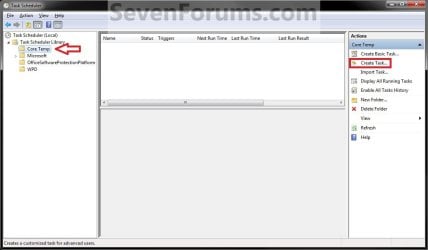
6. In the left pane of Task Scheduler, click on the new task folder (ex: Core Temp), and click on Create Task in the far right pane. (see screenshot below)
Task - Create to Run a Program at Startup and Log On-step3.jpg
7. Under the General tab, type in a name for the task (ex: Program Name "Core Temp"). (see screenshot below)
Task - Create to Run a Program at Startup and Log On-step4.jpg
8. Under the General tab,
  • If Used in a Administrator User Account
    • Check the Run with hightest Priveleges box. (see screenshot above)
  • If Used in a Standard User Account
    • Leave the Run with hightest Priveleges box unchecked. (see screenshot above)
9. Click on the Configure for drop down box to open it, and select Windows® 7, Windows Server™ 2008 R2. (see screenshot above and below)
NOTE: This is like compatibility mode. If the program does not support running in Windows 7 normally, then you can select the OS that is does support running in instead to have it run in compatibility mode as if it was running in that OS instead of Windows 7.

Task - Create to Run a Program at Startup and Log On-drop_down_box.jpg
10. Do steps 11 and/or 12 below for when you would like to have this task run.

11. To Have the Task Run "At startup"
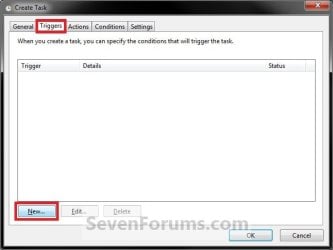
A) Click on the Triggers tab and New button. (see screenshot below)
Task - Create to Run a Program at Startup and Log On-step5.jpg
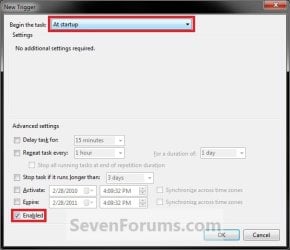
B) In the Begin the task drop down menu list, select At startup. Next, make sure that Enabled is checked, and click on OK. (see screenshot below)
Task - Create to Run a Program at Startup and Log On-step6.jpg
C) Do step 12 as well. It is required for the "At startup" to work.
12. To Have the Task Run "At log on"
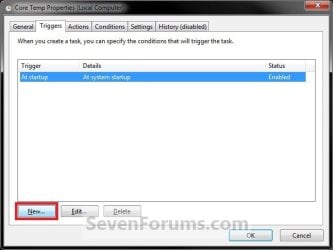
A) Under the Triggers tab, click on the New button. (see screenshot below)
Task - Create to Run a Program at Startup and Log On-step6a.jpg
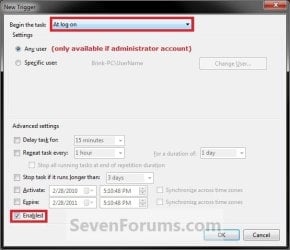
B) In the Begin the task drop down menu list, select At log on. Next, make sure that Enabled is checked, and click on OK. (see screenshot below)
Task - Create to Run a Program at Startup and Log On-step6b.jpg
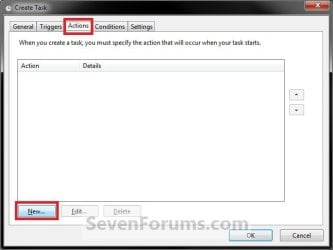
13. Click on the Actions tab and New button. (see screenshot below)
Task - Create to Run a Program at Startup and Log On-step7.jpg
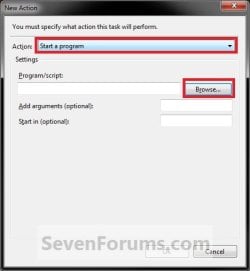
14. In the Action drop down menu list, select Start a program, then click on the Browse button. (see screenshot below)
Task - Create to Run a Program at Startup and Log On-step8.jpg
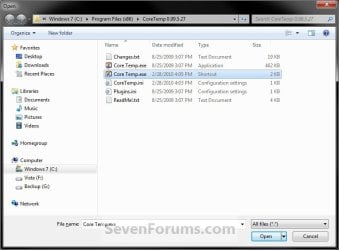
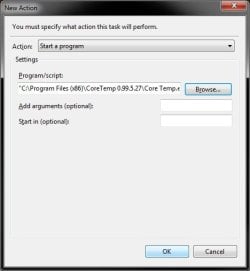
15. Navigate to and select the program's EXE file or shortcut to the EXE file, then click on Open. (see screenshot below)
NOTE: Remember that a standard user account cannot run a elevated program at startup or log on. See NOTE at top of tutorial for more information.
Task - Create to Run a Program at Startup and Log On-step9.jpg
16. Click on OK. (see screenshot below)
Task - Create to Run a Program at Startup and Log On-step10.jpg
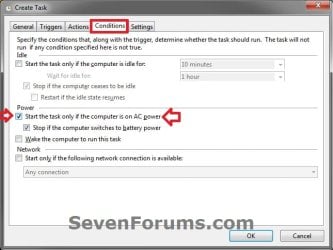
17. Click on the Conditions tab, and uncheck the Stop if the computer switches to battery power box first, then uncheck the Start the task only if the computer is on AC power box. (see screenshots below)
NOTE: This step is mostly for laptops, so that you will be able to run the program when the laptop is running on battery power.
Task - Create to Run a Program at Startup and Log On-step11.jpgTask - Create to Run a Program at Startup and Log On-conditions.jpg
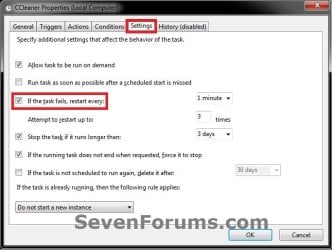
18. Click on the Settings tab, and check the If the task fails, restart every box. (see screenshot below)
Task - Create to Run a Program at Startup and Log On-settings.jpg
19. Click on OK. (see screenshot above)

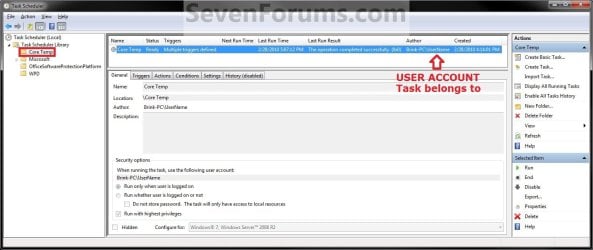
20. You can now close Task Scheduler. (see screenshot below)
NOTE: If you look in the middle pane under the Author column for the task that you just created, you will be able to tell what user account the task is for.
Task - Create to Run a Program at Startup and Log On-step12.jpg
21. Log off and log on this user account, or restart the computer to test you new task.

Tip   Tip
To Delete the Task:

If you decide you would like to delete the task later, then you can right click on the task (step 8) in the middle pane and click on Delete and Yes. Next, you can delete the task folder (step 5) when empty the same way. (see screenshot above)

That's it,
Shawn


Published by
Administrator

Join Date: Oct 2008
Location: Texas
Posts: 34,826
Brink has a reputation beyond reputeBrink has a reputation beyond reputeBrink has a reputation beyond repute
Brink has a reputation beyond reputeBrink has a reputation beyond reputeBrink has a reputation beyond reputeBrink has a reputation beyond reputeBrink has a reputation beyond reputeBrink has a reputation beyond reputeBrink has a reputation beyond reputeBrink has a reputation beyond reputeBrink has a reputation beyond reputeBrink has a reputation beyond reputeBrink has a reputation beyond reputeBrink has a reputation beyond reputeBrink has a reputation beyond reputeBrink has a reputation beyond repute

Tutorial Tools
06-21-2010   #1
lehnerus2000


Windows 7 Ultimate SP1 (64 bit), Windows XP SP3, Ubuntu 10.04


Thanks Brink

Another great tutorial.

I couldn't get this to work in the earlier versions of Windows 7 (b7048, b7077 & b7100).

It works great in Windows 7 (b7600).
Steps 10, 11, 12 & 13 confused me, until I realised that one pair was for "At startup" and the other was for "At log on". Perhaps they could be colour-coded.

Is it possible to get Task Scheduler to run programs after another program is closed?

What I was thinking is, it would be great to be able to get CCleaner and/or an AV program to run automatically, after shutting down IE8, Firefox or other browser.

I forgot to clean my cache the other day and my email got hijacked.

My System SpecsSystem Spec
06-21-2010   #2
Brink


Windows 7 Ultimate x64 SP1


Hello Lehnerus,

I added a subtitle in the steps to help with the "At startup" and "At log on".

Creating a task like that will be a bit involved and off topic for this tutorial a bit. I'm not sure on the exact way to create one for this though, but you should go ahead and post that in a new thread in the "General Discussion" forum area to see if you may be able to get a solution on it.
My System SpecsSystem Spec
06-22-2010   #3
lehnerus2000


Windows 7 Ultimate SP1 (64 bit), Windows XP SP3, Ubuntu 10.04


The subtitles are good.

Quote   Quote: Originally Posted by Brink View Post
Hello Lehnerus,

I added a subtitle in the steps to help with the "At startup" and "At log on".

Creating a task like that will be a bit involved and off topic for this tutorial a bit. I'm not sure on the exact way to create one for this though, but you should go ahead and post that in a new thread in the "General Discussion" forum area to see if you may be able to get a solution on it.
The subtitle make the sections stand out better.

Sorry about going off topic.
My System SpecsSystem Spec
.


06-22-2010   #4
Brink


Windows 7 Ultimate x64 SP1


No problem.
My System SpecsSystem Spec
04-01-2011   #5
sygnus21


Windows 7 Ultimate x64 SP1


Hey Brink I have an issue that's got me ready to completely disable UAC.

I installed APC's Power Chute software (version 3.0) last night. Now whenever I logon or restart the computer I get a UAC prompt before it will run; Version 2.2 never did this. The program is designed to run upon login/startup as it monitors my UPS.

Now the odd thing is once I give it permission.... all is good until the next restart/login.... I can open it from the the taskbar's notification area all day without a UAC prompt. But once I log off or restart I have to OK the UAC prompt again. As you can imagine this is rather annoying since I have to do this for every restart/login.

And now, for some odd reason, after uninstalling 3.0 and reinstalling 2.2, it too does the same thing as 3.0.... gives a UAC prompt upon login/restart where it never did before!

Anyway I tried the procedure listed above but can't get them to work. Any suggestions? Is there an issue because the program starts at system login?

Thanks. BTW I may not get back with you tonight because I'm going nite nite

Thanks.
My System SpecsSystem Spec
04-01-2011   #6
Orbital Shark


Hi Drew,

You could always remove the app from startup (using msconfig) and create a task that activates the app (with highest privileges) whenever a user logs in.
My System SpecsSystem Spec
04-01-2011   #7
sygnus21


Windows 7 Ultimate x64 SP1


Quote   Quote: Originally Posted by Orbital Shark View Post
Hi Drew,

You could always remove the app from startup (using msconfig) and create a task that activates the app (with highest privileges) whenever a user logs in.
I've already tried that with the procedures here. Are you suggesting that it should be removed from startup? i.e if I use these procedures, it doens't need to be in startup as well?

Hmmmm..... I'll give that a try
My System SpecsSystem Spec
04-01-2011   #8
sygnus21


Windows 7 Ultimate x64 SP1


Got it

Got it now…..

The problem is the APC software has a bunch of .exe’s with the main 3 being a systray Icon called display.exe – that one has a shortcut in the Startup folder, then there’s one for the systray called apcsystray.exe, and then we have the actual PowerChute.exe, so......

Task - Create to Run a Program at Startup and Log On-apc.exe.jpg

Anyway what I did was create a task run program using the "apcsystray.exe" and removed the "display.exe" from the Startup folder under All Programs and now all is good.

Thanks.
My System SpecsSystem Spec
04-01-2011   #9
Orbital Shark


Glad you've sorted it
My System SpecsSystem Spec
Comment

Task - Create to Run a Program at Startup and Log On problems?


Tutorial Tools


Similar Threads for: Task - Create to Run a Program at Startup and Log On
Windows 7 Tutorial Category
Task Scheduler - Create New Task Tutorials
Task Scheduler : Create Shut Down PC Automatically Task Tutorials
Task Scheduler - run program on wake General Discussion
Task Manager - Create Elevated Shortcut Tutorials
Task Scheduler Trigger @ Program shutdown Performance & Maintenance


All times are GMT -5. The time now is 03:40 AM.


Windows 7 Forums is an independent web site and has not been authorized,
sponsored, or otherwise approved by Microsoft Corporation.
"Windows 7" and related materials are trademarks of Microsoft Corp.
© Designer Media Ltd
  

1 2 3 4 5 6 7 8 9 10 11 12 13 14 15 16 17 18 19 20 21 22 23 24 25 26 27 28 29 30