Task - Create to Run a Program at Startup and Log On

How to Create a Task to Run a Program at Startup and Log On in Windows 7

   Information
This will show you how to create a task in Windows 7 Task Scheduler to run a program of your choice at the Startup and/or Log On of any user account.

   Note
By default, you cannot run a elevated (Run as administrator) program that requires UAC permission at startup using the normal Windows 7 startup programs.

For a Administrator User Account:
You are able to have Run as administrator (elevated) programs run at startup or at log on for a administrator account in a task in Task Scheduler.

For a Standard User Account:
You will not be able to run elevated programs at startup or at log on for a standard user account though. Only unelevated programs (ex: Notepad).


Here's How:
1. Log on to the user account that you want to create this task to run for.

2. Open the Start Menu, then type taskschd.msc in the search box and press enter.

3. If prompted by UAC, click on Yes.

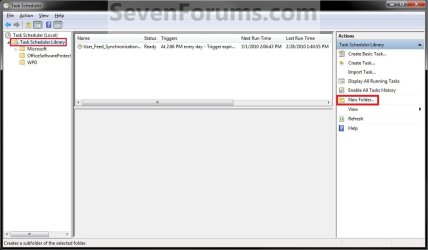
4. In the left pane of Task Scheduler, click on the Task Scheduler Library folder, then click on New Folder in the far right pane. (see screenshot below)
Step1.jpg
5. Type in a name (ex: program name "Core Temp") you want for the new task folder to make finding the task easier, then click on OK. (see screenshot below)
Step2.jpg
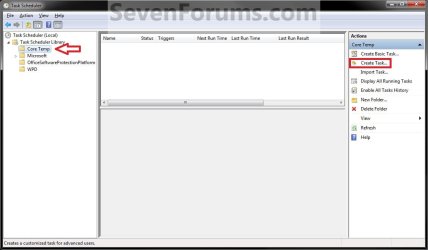
6. In the left pane of Task Scheduler, click on the new task folder (ex: Core Temp), and click on Create Task in the far right pane. (see screenshot below)
Step3.jpg
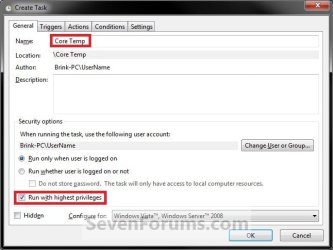
7. Under the General tab, type in a name for the task (ex: Program Name "Core Temp"). (see screenshot below)
Step4.jpg

8. Under the General tab,
  • If Used in a Administrator User Account
    • Check the Run with highest Privileges box. (see screenshot above)
  • If Used in a Standard User Account
    • Leave the Run with highest Privileges box unchecked. (see screenshot above)
9. Click on the Configure for drop down box to open it, and select Windows® 7, Windows Server™ 2008 R2. (see screenshot above and below)
NOTE: This is like compatibility mode. If the program does not support running in Windows 7 normally, then you can select the OS that is does support running in instead to have it run in compatibility mode as if it was running in that OS instead of Windows 7.

Drop_Down_Box.jpg
10. Do steps 11 and/or 12 below for when you would like to have this task run.

11. To Have the Task Run "At startup"
A) Click on the Triggers tab and New button. (see screenshot below)
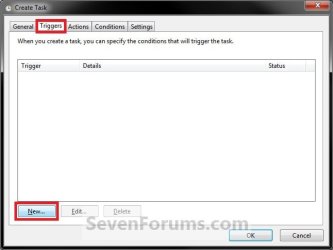
Step5.jpg
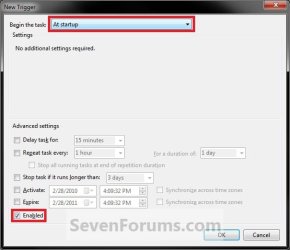
B) In the Begin the task drop down menu list, select At startup. Next, make sure that Enabled is checked, and click on OK. (see screenshot below)
Step6.jpg
C) Do step 12 as well. It is required for the "At startup" to work.
12. To Have the Task Run "At log on"
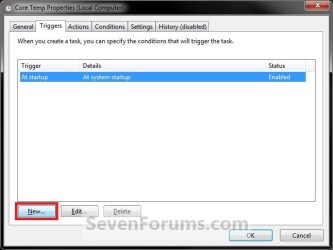
A) Under the Triggers tab, click on the New button. (see screenshot below)
Step6A.jpg
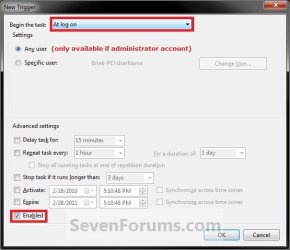
B) In the Begin the task drop down menu list, select At log on. Next, make sure that Enabled is checked, and click on OK. (see screenshot below)
Step6B.jpg
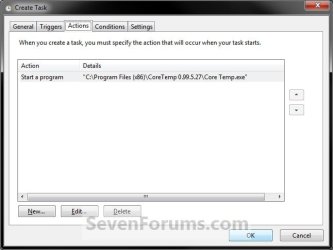
13. Click on the Actions tab and New button. (see screenshot below)
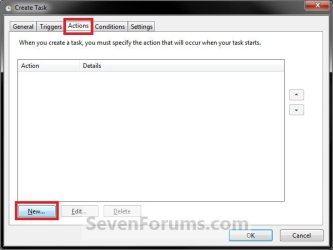
Step7.jpg
14. In the Action drop down menu list, select Start a program, then click on the Browse button. (see screenshot below)
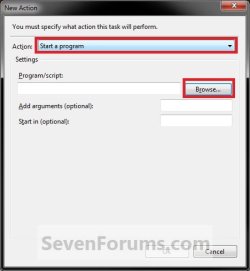
Step8.jpg
15. Navigate to and select the program's EXE file or shortcut to the EXE file, then click on Open. (see screenshot below)
NOTE: Remember that a standard user account cannot run a elevated program at startup or log on. See NOTE at top of tutorial for more information.

   Tip
If you created an elevated program shortcut and wanted to run it at startup and/or log in, you would enter the full path of the elevated program shortcut here.
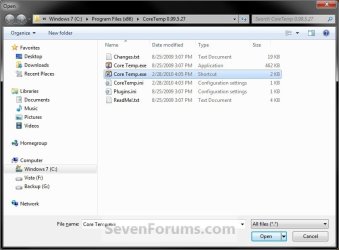
Step9.jpg
16. Click on OK. (see screenshot below)
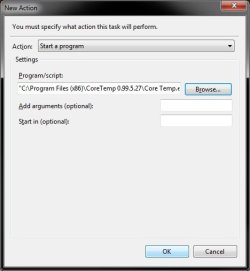
Step10.jpg
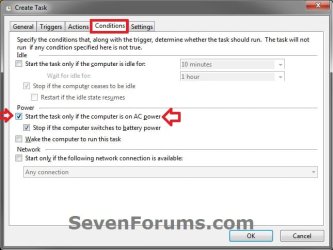
17. Click on the Conditions tab, and uncheck the Stop if the computer switches to battery power box first, then uncheck the Start the task only if the computer is on AC power box. (see screenshots below)
NOTE: This step is mostly for laptops, so that you will be able to run the program when the laptop is running on battery power.
Step11.jpg

Conditions.jpg

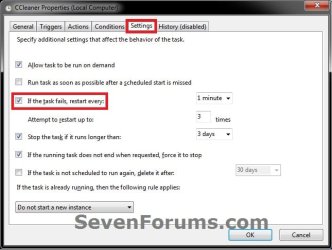
18. Click on the Settings tab, and check the If the task fails, restart every box. (see screenshot below)
Settings.jpg
19. Click on OK. (see screenshot above)

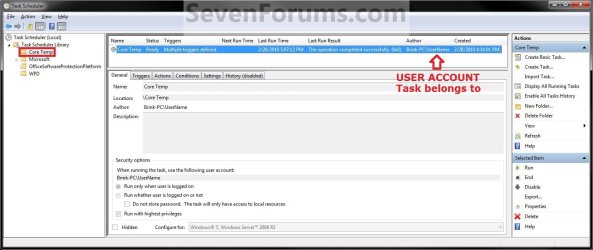
20. You can now close Task Scheduler. (see screenshot below)
NOTE: If you look in the middle pane under the Author column for the task that you just created, you will be able to tell what user account the task is for.
Step12.jpg
21. Log off and log on this user account, or restart the computer to test you new task.

   Tip
To Delete the Task:

If you decide you would like to delete the task later, then you can right click on the task (step 8) in the middle pane and click on Delete and Yes. Next, you can delete the task folder (step 5) when empty the same way. (see screenshot above)

That's it,
Shawn


Last edited:
Thanks Brink

Another great tutorial. :D

I couldn't get this to work in the earlier versions of Windows 7 (b7048, b7077 & b7100).

It works great in Windows 7 (b7600). :D
Steps 10, 11, 12 & 13 confused me, until I realised that one pair was for "At startup" and the other was for "At log on". Perhaps they could be colour-coded.

Is it possible to get Task Scheduler to run programs after another program is closed?

What I was thinking is, it would be great to be able to get CCleaner and/or an AV program to run automatically, after shutting down IE8, Firefox or other browser. :geek:

I forgot to clean my cache the other day and my email got hijacked. :o
 

My Computer

Computer type
PC/Desktop
Computer Manufacturer/Model Number
n/a
OS
W7 Ultimate SP1, LM19.2 MATE, W10 Home 1703, W10 Pro 1703 VM, #All 64 bit
CPU
AMD Phenom II x6 1100T, 3.3 GHz
Motherboard
ASUS M4A88T-M/USB3 (AM3)
Memory
12GB DDR3 1333 G-Skill (4GB x 2), G-Skill (2GB x 2)
Graphics Card(s)
NVIDIA GeForce GTX 660
Sound Card
Realtek?
Monitor(s) Displays
Samsung S23B350
Screen Resolution
1920x1080
Hard Drives
WD Green 2TB (SATA), WD Green 3TB (SATA), WD Blue 4TB (SATA), WD Blue 6TB (SATA)
PSU
Cooler Master
Case
Antec GX300 Tower
Cooling
3x Antec TRICOOL 120mm Fans
Mouse
Wired Optical
Internet Speed
DSL
Antivirus
Avast
Browser
Pale Moon (64 bit)
Other Info
2018-12-27 Upgraded HDDs
2015-12-10 Upgraded case, graphics card, storage
2015-08-15 Upgraded motherboard & RAM
2015-07-15 Upgraded LM17.1 to LM17.2
Hello Lehnerus,

I added a subtitle in the steps to help with the "At startup" and "At log on".

Creating a task like that will be a bit involved and off topic for this tutorial a bit. I'm not sure on the exact way to create one for this though, but you should go ahead and post that in a new thread in the "General Discussion" forum area to see if you may be able to get a solution on it. :)
 

My Computer

Computer type
PC/Desktop
Computer Manufacturer/Model Number
Self built custom
OS
64-bit Windows 11 Pro for Workstations
CPU
Intel i7-8700K OC'd to 5 GHz
Motherboard
ASUS ROG Maximus XI Formula Z390
Memory
64 GB (4x16GB) G.SKILL TridentZ RGB DDR4 3600 MHz
Graphics Card(s)
ASUS ROG-STRIX-GTX1080TI-O11G-GAMING
Sound Card
Integrated
Monitor(s) Displays
2 x Samsung Odyssey G7 27"
Screen Resolution
2560x1440
Hard Drives
1TB Samsung 990 PRO M.2,
4TB Samsung 990 PRO PRO M.2,
TerraMaster F8 SSD Plus NAS
PSU
Seasonic Prime Titanium 850W
Case
Thermaltake Core P3
Cooling
Corsair Hydro H115i
Keyboard
Logitech wireless K800
Mouse
Logitech MX Master 4
Internet Speed
2 Gb/s Download and 100 Mb/s Upload
Antivirus
Malwarebyte Anti-Malware Premium
Browser
Google Chrome
Other Info
Logitech Z625 speaker system,
Logitech BRIO 4K Pro webcam,
HP Color LaserJet Pro MFP M477fdn,
APC SMART-UPS RT 1000 XL - SURT1000XLI,
Galaxy S23 Plus phone
The subtitles are good.

Hello Lehnerus,

I added a subtitle in the steps to help with the "At startup" and "At log on".

Creating a task like that will be a bit involved and off topic for this tutorial a bit. I'm not sure on the exact way to create one for this though, but you should go ahead and post that in a new thread in the "General Discussion" forum area to see if you may be able to get a solution on it. :)

The subtitle make the sections stand out better. :)

Sorry about going off topic. :o
 

My Computer

Computer type
PC/Desktop
Computer Manufacturer/Model Number
n/a
OS
W7 Ultimate SP1, LM19.2 MATE, W10 Home 1703, W10 Pro 1703 VM, #All 64 bit
CPU
AMD Phenom II x6 1100T, 3.3 GHz
Motherboard
ASUS M4A88T-M/USB3 (AM3)
Memory
12GB DDR3 1333 G-Skill (4GB x 2), G-Skill (2GB x 2)
Graphics Card(s)
NVIDIA GeForce GTX 660
Sound Card
Realtek?
Monitor(s) Displays
Samsung S23B350
Screen Resolution
1920x1080
Hard Drives
WD Green 2TB (SATA), WD Green 3TB (SATA), WD Blue 4TB (SATA), WD Blue 6TB (SATA)
PSU
Cooler Master
Case
Antec GX300 Tower
Cooling
3x Antec TRICOOL 120mm Fans
Mouse
Wired Optical
Internet Speed
DSL
Antivirus
Avast
Browser
Pale Moon (64 bit)
Other Info
2018-12-27 Upgraded HDDs
2015-12-10 Upgraded case, graphics card, storage
2015-08-15 Upgraded motherboard & RAM
2015-07-15 Upgraded LM17.1 to LM17.2
No problem. :)
 

My Computer

Computer type
PC/Desktop
Computer Manufacturer/Model Number
Self built custom
OS
64-bit Windows 11 Pro for Workstations
CPU
Intel i7-8700K OC'd to 5 GHz
Motherboard
ASUS ROG Maximus XI Formula Z390
Memory
64 GB (4x16GB) G.SKILL TridentZ RGB DDR4 3600 MHz
Graphics Card(s)
ASUS ROG-STRIX-GTX1080TI-O11G-GAMING
Sound Card
Integrated
Monitor(s) Displays
2 x Samsung Odyssey G7 27"
Screen Resolution
2560x1440
Hard Drives
1TB Samsung 990 PRO M.2,
4TB Samsung 990 PRO PRO M.2,
TerraMaster F8 SSD Plus NAS
PSU
Seasonic Prime Titanium 850W
Case
Thermaltake Core P3
Cooling
Corsair Hydro H115i
Keyboard
Logitech wireless K800
Mouse
Logitech MX Master 4
Internet Speed
2 Gb/s Download and 100 Mb/s Upload
Antivirus
Malwarebyte Anti-Malware Premium
Browser
Google Chrome
Other Info
Logitech Z625 speaker system,
Logitech BRIO 4K Pro webcam,
HP Color LaserJet Pro MFP M477fdn,
APC SMART-UPS RT 1000 XL - SURT1000XLI,
Galaxy S23 Plus phone
Hey Brink I have an issue that's got me ready to completely disable UAC.

I installed APC's Power Chute software (version 3.0) last night. Now whenever I logon or restart the computer I get a UAC prompt before it will run; Version 2.2 never did this. The program is designed to run upon login/startup as it monitors my UPS.

Now the odd thing is once I give it permission.... all is good until the next restart/login.... I can open it from the the taskbar's notification area all day without a UAC prompt. But once I log off or restart I have to OK the UAC prompt again. As you can imagine this is rather annoying since I have to do this for every restart/login.

And now, for some odd reason, after uninstalling 3.0 and reinstalling 2.2, it too does the same thing as 3.0.... gives a UAC prompt upon login/restart where it never did before!

Anyway I tried the procedure listed above but can't get them to work. Any suggestions? Is there an issue because the program starts at system login?

Thanks. BTW I may not get back with you tonight because I'm going nite nite :sleepy:

Thanks.
 

My Computer

Computer type
PC/Desktop
Computer Manufacturer/Model Number
Custom built by me.
OS
Windows 10 Pro
CPU
Intel Core i7-4770K (3.5Ghz)
Motherboard
Gigabyte G1 Sniper 5 (F10 Bios)
Memory
32 gig Corsair Dominator Platinum (4x8Gig)
Graphics Card(s)
Sapphire Tri-X R9 Fury
Sound Card
Soundblaster ZXR
Monitor(s) Displays
NEC PA242W 24" LCD Monitor
Screen Resolution
1920 x 1200
Hard Drives
Primary - Samsung 850 Pro (512gig), Samsung 840 Pro (256gig), 2TB WD Caviar Black.
PSU
EVGA Supernova 1000 G2
Case
Cooler Master HAF X
Cooling
Corsair H100i with Corsair Air Series SP120 Quiet Fans
Keyboard
Logitech Wireless Wave
Mouse
Logitech Performance MX
Internet Speed
High Speed Cable
Antivirus
Norton Security
Browser
IE11
Other Info
Memory Timings - 1866MHz @ 9-9-9-27-1T @ 1.5 volts
Hi Drew,

You could always remove the app from startup (using msconfig) and create a task that activates the app (with highest privileges) whenever a user logs in.
 

My Computer

Computer Manufacturer/Model Number
Compaq Desktop
OS
Windows 7 Ultimate x64
CPU
AMD Sempron Dual Core
Memory
3GB
Graphics Card(s)
NVIDIA GeForce 6150SE nForce 430
Screen Resolution
1024x768
Hard Drives
150GB Sata
Hi Drew,

You could always remove the app from startup (using msconfig) and create a task that activates the app (with highest privileges) whenever a user logs in.

I've already tried that with the procedures here. Are you suggesting that it should be removed from startup? i.e if I use these procedures, it doens't need to be in startup as well?

Hmmmm..... I'll give that a try
 

My Computer

Computer type
PC/Desktop
Computer Manufacturer/Model Number
Custom built by me.
OS
Windows 10 Pro
CPU
Intel Core i7-4770K (3.5Ghz)
Motherboard
Gigabyte G1 Sniper 5 (F10 Bios)
Memory
32 gig Corsair Dominator Platinum (4x8Gig)
Graphics Card(s)
Sapphire Tri-X R9 Fury
Sound Card
Soundblaster ZXR
Monitor(s) Displays
NEC PA242W 24" LCD Monitor
Screen Resolution
1920 x 1200
Hard Drives
Primary - Samsung 850 Pro (512gig), Samsung 840 Pro (256gig), 2TB WD Caviar Black.
PSU
EVGA Supernova 1000 G2
Case
Cooler Master HAF X
Cooling
Corsair H100i with Corsair Air Series SP120 Quiet Fans
Keyboard
Logitech Wireless Wave
Mouse
Logitech Performance MX
Internet Speed
High Speed Cable
Antivirus
Norton Security
Browser
IE11
Other Info
Memory Timings - 1866MHz @ 9-9-9-27-1T @ 1.5 volts
Got it

Got it now…..

The problem is the APC software has a bunch of .exe’s with the main 3 being a systray Icon called display.exe – that one has a shortcut in the Startup folder, then there’s one for the systray called apcsystray.exe, and then we have the actual PowerChute.exe, so...... :confused:

View attachment 146809

Anyway what I did was create a task run program using the "apcsystray.exe" and removed the "display.exe" from the Startup folder under All Programs and now all is good.

Thanks.
 

My Computer

Computer type
PC/Desktop
Computer Manufacturer/Model Number
Custom built by me.
OS
Windows 10 Pro
CPU
Intel Core i7-4770K (3.5Ghz)
Motherboard
Gigabyte G1 Sniper 5 (F10 Bios)
Memory
32 gig Corsair Dominator Platinum (4x8Gig)
Graphics Card(s)
Sapphire Tri-X R9 Fury
Sound Card
Soundblaster ZXR
Monitor(s) Displays
NEC PA242W 24" LCD Monitor
Screen Resolution
1920 x 1200
Hard Drives
Primary - Samsung 850 Pro (512gig), Samsung 840 Pro (256gig), 2TB WD Caviar Black.
PSU
EVGA Supernova 1000 G2
Case
Cooler Master HAF X
Cooling
Corsair H100i with Corsair Air Series SP120 Quiet Fans
Keyboard
Logitech Wireless Wave
Mouse
Logitech Performance MX
Internet Speed
High Speed Cable
Antivirus
Norton Security
Browser
IE11
Other Info
Memory Timings - 1866MHz @ 9-9-9-27-1T @ 1.5 volts
Glad you've sorted it :)
 

My Computer

Computer Manufacturer/Model Number
Compaq Desktop
OS
Windows 7 Ultimate x64
CPU
AMD Sempron Dual Core
Memory
3GB
Graphics Card(s)
NVIDIA GeForce 6150SE nForce 430
Screen Resolution
1024x768
Hard Drives
150GB Sata

My Computer

Computer type
PC/Desktop
Computer Manufacturer/Model Number
Custom built by me.
OS
Windows 10 Pro
CPU
Intel Core i7-4770K (3.5Ghz)
Motherboard
Gigabyte G1 Sniper 5 (F10 Bios)
Memory
32 gig Corsair Dominator Platinum (4x8Gig)
Graphics Card(s)
Sapphire Tri-X R9 Fury
Sound Card
Soundblaster ZXR
Monitor(s) Displays
NEC PA242W 24" LCD Monitor
Screen Resolution
1920 x 1200
Hard Drives
Primary - Samsung 850 Pro (512gig), Samsung 840 Pro (256gig), 2TB WD Caviar Black.
PSU
EVGA Supernova 1000 G2
Case
Cooler Master HAF X
Cooling
Corsair H100i with Corsair Air Series SP120 Quiet Fans
Keyboard
Logitech Wireless Wave
Mouse
Logitech Performance MX
Internet Speed
High Speed Cable
Antivirus
Norton Security
Browser
IE11
Other Info
Memory Timings - 1866MHz @ 9-9-9-27-1T @ 1.5 volts
Did the tutorial several times and it never worked at startup. See the two attachments. The first one, capture.jpg, has he first part of the single line dialog and capture1.jpg has the remainder. I have no idea what this means. I don't remembe having to be on an network. I don't want to be on the network when the computer starts up.
Incidentally, if I RUN the task from the Task Scheduler it executes the program without the UAC. Like it should.
 

Attachments

  • Capture.JPG
    Capture.JPG
    23.8 KB · Views: 685
  • Capture1.JPG
    Capture1.JPG
    12.1 KB · Views: 3,566

My Computer

Computer type
Laptop
Computer Manufacturer/Model Number
Asus
OS
W7 Ultimate
CPU
2.2 bh Intel Core i3-2330M
Motherboard
Asustek Computer Inc. P53E 1.0
Memory
4MB
Graphics Card(s)
On Board
Sound Card
On Board
Monitor(s) Displays
On Board
Screen Resolution
1366 X 768
Hard Drives
ST9500423AS
ST2000DM USB Backup Drive External
Mariner,

Could you just run the task from Task Scheduler if it works that way? :huh:
 
Last edited:

My Computer

Computer type
PC/Desktop
Computer Manufacturer/Model Number
Self built custom
OS
64-bit Windows 11 Pro for Workstations
CPU
Intel i7-8700K OC'd to 5 GHz
Motherboard
ASUS ROG Maximus XI Formula Z390
Memory
64 GB (4x16GB) G.SKILL TridentZ RGB DDR4 3600 MHz
Graphics Card(s)
ASUS ROG-STRIX-GTX1080TI-O11G-GAMING
Sound Card
Integrated
Monitor(s) Displays
2 x Samsung Odyssey G7 27"
Screen Resolution
2560x1440
Hard Drives
1TB Samsung 990 PRO M.2,
4TB Samsung 990 PRO PRO M.2,
TerraMaster F8 SSD Plus NAS
PSU
Seasonic Prime Titanium 850W
Case
Thermaltake Core P3
Cooling
Corsair Hydro H115i
Keyboard
Logitech wireless K800
Mouse
Logitech MX Master 4
Internet Speed
2 Gb/s Download and 100 Mb/s Upload
Antivirus
Malwarebyte Anti-Malware Premium
Browser
Google Chrome
Other Info
Logitech Z625 speaker system,
Logitech BRIO 4K Pro webcam,
HP Color LaserJet Pro MFP M477fdn,
APC SMART-UPS RT 1000 XL - SURT1000XLI,
Galaxy S23 Plus phone
yeah, I can do that. I was hoping that a method could be devised that was not visible to the user because I was going to test it on my computer and install it on my brothers computer to let him know I had had an unattended remote session with his computer. There are other ways, however.
 

My Computer

Computer type
Laptop
Computer Manufacturer/Model Number
Asus
OS
W7 Ultimate
CPU
2.2 bh Intel Core i3-2330M
Motherboard
Asustek Computer Inc. P53E 1.0
Memory
4MB
Graphics Card(s)
On Board
Sound Card
On Board
Monitor(s) Displays
On Board
Screen Resolution
1366 X 768
Hard Drives
ST9500423AS
ST2000DM USB Backup Drive External
Thanks for this guide; I have been using this sort of method for a while now...however, in order to fully "tweak" this, I have a few questions.

For simplicity, let me hone-in on one specific example: I want to run "System Explorer" [I like this app!] at logon with administrator privileges.

However, I noticed that while running it on-demand (or via http://www.sevenforums.com/tutorials/11949-elevated-program-shortcut-without-uac-prompt-create.html) it correctly runs with admin privileges. But I now think that it may NOT be running in admin-mode on start-up (but I am not sure) So...


  1. Is Step 15 really required? I never pointed my start-up task to a shortcut to another task that is setup to run in admin without a UAC prompt. Instead, I just ran this singular task directly pointed to the exe with "Run with highest privileges" selected.
  2. I actually have it set to start "On Log-on" and do not create a trigger "On Startup." I understand the fundamental differences in execution time and especially on a multi-user environment, but on a single-user machine, what [if any] end-result differences exist between the two triggers on a single user machine if one does not care at what point in the startup process the task is run? Could the reason that I am [possibly] getting away with my point 1 above because I am only doing this on logon? In addition, by your suggestion to setting it to run both on log-in and startup, isn't that redundant? (I would suppose the only reason two tasks are not created is because "Do not start a new instance" is the default for "if the task is already running.")
  3. When the process is created by the task, I noticed that the task continues running, but when I manually end the task, my process ("System Explorer") continues to run. Is there a way to end the task automatically after spawning off the process. (I did some research and I know I can set "stop the task if it runs longer than:" option, but is there a cleaner solution for this?)

Thanks much in advance for your help!
MikeY
 

My Computer

OS
Windows 7 Ultimate x64
Hello MikeY,

Answers inline. :)


Thanks for this guide; I have been using this sort of method for a while now...however, in order to fully "tweak" this, I have a few questions.

For simplicity, let me hone-in on one specific example: I want to run "System Explorer" [I like this app!] at logon with administrator privileges.

However, I noticed that while running it on-demand (or via http://www.sevenforums.com/tutorials/11949-elevated-program-shortcut-without-uac-prompt-create.html) it correctly runs with admin privileges. But I now think that it may NOT be running in admin-mode on start-up (but I am not sure) So...


1. Is Step 15 really required? I never pointed my start-up task to a shortcut to another task that is setup to run in admin without a UAC prompt. Instead, I just ran this singular task directly pointed to the exe with "Run with highest privileges" selected.
If you want to run it as administrator without getting a UAC prompt, then step 15 was always required for me to have it do so.

2. I actually have it set to start "On Log-on" and do not create a trigger "On Startup." I understand the fundamental differences in execution time and especially on a multi-user environment, but on a single-user machine, what [if any] end-result differences exist between the two triggers on a single user machine if one does not care at what point in the startup process the task is run? Could the reason that I am [possibly] getting away with my point 1 above because I am only doing this on logon? In addition, by your suggestion to setting it to run both on log-in and startup, isn't that redundant? (I would suppose the only reason two tasks are not created is because "Do not start a new instance" is the default for "if the task is already running.")
Yes, there's a difference between the two. Log on represents say when you log off, and want to log on again. It also represents when you say use "Switch User" to log on to another user accoun. At both of these times, you are not logging in at startup, so the Startup task does not apply to these situations.

If you are logging on say after a shutdown or restart, then this is when the Startup task would be applied.

3. When the process is created by the task, I noticed that the task continues running, but when I manually end the task, my process ("System Explorer") continues to run. Is there a way to end the task automatically after spawning off the process. (I did some research and I know I can set "stop the task if it runs longer than:" option, but is there a cleaner solution for this?)

Thanks much in advance for your help!
MikeY
I'm afraid that I'm not familiar enough with how "System Explorer" runs to know if it's normal for it's process to run like that. Does closing the program as you would any other window or program not end the process shortly after?

Hope this helps some,
Shawn
 

My Computer

Computer type
PC/Desktop
Computer Manufacturer/Model Number
Self built custom
OS
64-bit Windows 11 Pro for Workstations
CPU
Intel i7-8700K OC'd to 5 GHz
Motherboard
ASUS ROG Maximus XI Formula Z390
Memory
64 GB (4x16GB) G.SKILL TridentZ RGB DDR4 3600 MHz
Graphics Card(s)
ASUS ROG-STRIX-GTX1080TI-O11G-GAMING
Sound Card
Integrated
Monitor(s) Displays
2 x Samsung Odyssey G7 27"
Screen Resolution
2560x1440
Hard Drives
1TB Samsung 990 PRO M.2,
4TB Samsung 990 PRO PRO M.2,
TerraMaster F8 SSD Plus NAS
PSU
Seasonic Prime Titanium 850W
Case
Thermaltake Core P3
Cooling
Corsair Hydro H115i
Keyboard
Logitech wireless K800
Mouse
Logitech MX Master 4
Internet Speed
2 Gb/s Download and 100 Mb/s Upload
Antivirus
Malwarebyte Anti-Malware Premium
Browser
Google Chrome
Other Info
Logitech Z625 speaker system,
Logitech BRIO 4K Pro webcam,
HP Color LaserJet Pro MFP M477fdn,
APC SMART-UPS RT 1000 XL - SURT1000XLI,
Galaxy S23 Plus phone
Brink - Thanks much for your response.I did some more research, but I still found some problems. Let me break it down to two issues:


Issue 1: The necessity of Step 15 if you want it to run with in Admin Mode.

With another example I think I proved that this is unnecessary. I.e. as long as you have this task set to "Run with Highest Privileges" then it seems to work, there is no reason to create a second task and link to it.


For simplicity, I created a new example task: Run Administrator Cmd Prompt. I have it set to Log On of any user. (I will get to the "Startup" trigger later...)

TaskSchedulerCmdPromptAdmin.png


Notice in the following image that my action directly opens up the Cmd prompt and does NOT run a shortcut to a second task that is set to run in admin mode! (This is what "Step 15" suggests one needs to do...)

TaskSchedulerCmdPromptAdminStartProgram.png


This is key: To prove this works, I found an easy way to prove that this did launch in admin mode! Just use "Resource Monitor" and look at the "Elevated" column.


ResourceMonitorCmdElevated.png


I also selected an elevated Cmd prompt as an example since one can see from the prompt itself that it is running in admin mode:

AdminCmdPrompt.png


Anyway, although it is nit-picking, I thought this would be nice to know in order to simplify things. Basically it is just using the same trick in the "Run With Highest Privileges" (the task created in Step 15) with this task itself.


Issue 2: Log-in and Startup differences.

This presented me with more significant issues. I should have re-phrased my question: I understand the differences between "at log on" and "on startup;" however, I was attesting that setting both triggers is redundant in a simple startup.

However, I found something more interesting with this: Basically it seems the reason that one does not see two versions of the same task (since on startup the system is both starting up and logging in) is that the startup version of the task is throwing an error!

First off, to isolate issues, I have this Cmd prompt running at normal privileges. I have this one set to run “At System Startup” only. Unfortunately this one throws an error since the task is set (per your guide) to “Run only when user is logged on.” This makes sense if one thinks about it: by definition, a task running “At System Startup” tries to run before the user is logged in! See images below:

TaskSchedulerCmdPromptError.png


TaskSchedulerCmdPromptError2.png


I researched “Event ID 101” and sure enough, it points to the fact that this error is caused by the task not being set to “Run whether user is logged on or not.”

Event ID 101

Anyway, I thought I should point this out. Interestingly enough when I do set it to run whether the user is logged in or not, even when running it manually, the task runs in the background and the app cannot be seen. (I see the process started in Task Manager; however, nothing appears on my computer.) However, honestly, I have spent so much time on this that I am now exhausted and I have not found a solution to this yet.

Subsequently, as far as my other concerns regarding the task still running while the app is running, I found that to be application-specific. For instance, closing the Cmd prompt correctly ends the task; however, closing apps like Process Explorer (or my original “System Explorer” task) are not coupled to the task itself. (I.e. closing the app does not end the tap. Contra-positively, ending the task does not close the app.) I wish there was an explicit setting to "run application in its own thread" or something, but I can live with these odd behaviors.

So for now, I am just following your guide, skipping Step 15 and just setting to “Run With Highest Privileges” and only using “At Log On” as a trigger.

Phew! I hope this helps…
MikeY
 

My Computer

OS
Windows 7 Ultimate x64
Hello Mike,

I have updated the tutorial to help simplify it more. The added step 18 is the key to help a elevated program to run at startup for an administrator account without a UAC prompt. Please see how that works for you now. :)
 

My Computer

Computer type
PC/Desktop
Computer Manufacturer/Model Number
Self built custom
OS
64-bit Windows 11 Pro for Workstations
CPU
Intel i7-8700K OC'd to 5 GHz
Motherboard
ASUS ROG Maximus XI Formula Z390
Memory
64 GB (4x16GB) G.SKILL TridentZ RGB DDR4 3600 MHz
Graphics Card(s)
ASUS ROG-STRIX-GTX1080TI-O11G-GAMING
Sound Card
Integrated
Monitor(s) Displays
2 x Samsung Odyssey G7 27"
Screen Resolution
2560x1440
Hard Drives
1TB Samsung 990 PRO M.2,
4TB Samsung 990 PRO PRO M.2,
TerraMaster F8 SSD Plus NAS
PSU
Seasonic Prime Titanium 850W
Case
Thermaltake Core P3
Cooling
Corsair Hydro H115i
Keyboard
Logitech wireless K800
Mouse
Logitech MX Master 4
Internet Speed
2 Gb/s Download and 100 Mb/s Upload
Antivirus
Malwarebyte Anti-Malware Premium
Browser
Google Chrome
Other Info
Logitech Z625 speaker system,
Logitech BRIO 4K Pro webcam,
HP Color LaserJet Pro MFP M477fdn,
APC SMART-UPS RT 1000 XL - SURT1000XLI,
Galaxy S23 Plus phone
Hello Mike,

I have updated the tutorial to help simplify it more. The added step 18 is the key to help a elevated program to run at startup for an administrator account without a UAC prompt. Please see how that works for you now. :)

Thanks much for your response and your updates! It is great to know that my tests and efforts were not in vain.

I see what you are going for with Step 18. (If I understand correctly, if one sees the error I see, it will try for the next few minutes to run it after the user is logged in.) Unfortunately, at least with a task opening a Cmd prompt, once it throws that error, the task engine does not try again anymore. (I only see the same singular error in the history...) I waited a few minutes and it never tried to re-start itself in vain. I think this is only applicable only once the user is logged-in.

Personally, even if this did work, I can think of some boundary conditions that may still fail, such as what if it is set to retry every minute 3 times, but the user takes longer than 3 minutes to fill in the password and login?

IMHO I think the main thing is that for most tasks, the "at log on" trigger alone is sufficient (and may be the only one that works.) Only in special cases (most likely hidden actions under-the-hood) that make sense to run "On Startup."

Regardless, thank you for listening and streamlining the tutorial. For multiple reasons I find the tricks and techniques outlines to be invaluable.

MikeY
 

My Computer

OS
Windows 7 Ultimate x64
Mike,

I tested the updated tutorial using System Explorer (installable version), and when I restarted the computer, it ran elevated without a UAC prompt for me without issue.

For "At startup" to work, you must also have the "At log on" (step 12) set.

I do have my Windows 7 set to log on automatically at startup as well, but that shouldn't matter.
 

My Computer

Computer type
PC/Desktop
Computer Manufacturer/Model Number
Self built custom
OS
64-bit Windows 11 Pro for Workstations
CPU
Intel i7-8700K OC'd to 5 GHz
Motherboard
ASUS ROG Maximus XI Formula Z390
Memory
64 GB (4x16GB) G.SKILL TridentZ RGB DDR4 3600 MHz
Graphics Card(s)
ASUS ROG-STRIX-GTX1080TI-O11G-GAMING
Sound Card
Integrated
Monitor(s) Displays
2 x Samsung Odyssey G7 27"
Screen Resolution
2560x1440
Hard Drives
1TB Samsung 990 PRO M.2,
4TB Samsung 990 PRO PRO M.2,
TerraMaster F8 SSD Plus NAS
PSU
Seasonic Prime Titanium 850W
Case
Thermaltake Core P3
Cooling
Corsair Hydro H115i
Keyboard
Logitech wireless K800
Mouse
Logitech MX Master 4
Internet Speed
2 Gb/s Download and 100 Mb/s Upload
Antivirus
Malwarebyte Anti-Malware Premium
Browser
Google Chrome
Other Info
Logitech Z625 speaker system,
Logitech BRIO 4K Pro webcam,
HP Color LaserJet Pro MFP M477fdn,
APC SMART-UPS RT 1000 XL - SURT1000XLI,
Galaxy S23 Plus phone
Back
Top