
How to Hide or Show Empty Drives in Windows 7 and Windows 8
Information
This tutorial will show you how to have empty removable drives to show or hide in the Computer or This PC folder in Windows 7 and Windows 8.
Tip
If you want an empty CD/DVD drive to show in the navigation pane, you'll need to set show empty drives below, and set to show all folders in the navigation pane.
OPTION ONE
To Hide or Show Empty Drives using Folder Options
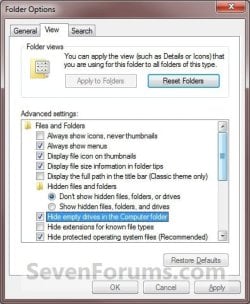
1. Open Folder Options in Windows 7 or Windows 8, and click/tap on the View tab. (See screenshot below)
2. To Show Empty Removable Drives
A) Uncheck the Hide empty drives in the Computer folder box, and click/tap on OK. (See screenshot above)
3. To Hide Empty Removable Drives
NOTE: This is the default setting.
A) Select (dot) Don't Show hidden files, folders, and drives.
B) Check the Hide empty drives in the Computer folder box, and click/tap on OK. (See screenshot above)
OPTION TWO
To Hide or Show Empty Drives using a REG File Download
1. To Show Empty Removable Drives
A) Click/tap on the Download button below to download the file below.
Show_empty_drives_in_the_Computer_folder.reg
Download
B) Go to step 3.
2. To Hide Empty Removable Drives
NOTE: This also sets to Don't Show hidden files, folders, and drives.
A) Click/tap on the Download button below to download the file below.
Hide_empty_drives_in_the_Computer_folder.reg
Download
3. Save the .reg file to your desktop.
4. Double click/tap on the downloaded .reg file to merge it.
5. Click on Run, Yes (UAC), Yes, and OK when prompted.
6. Log off and log on, or restart the computer to apply.
7. When done, you can delete the downloaded .reg file on the desktop if you like.
OPTION THREE
To Hide or Show Empty Drives Manually in Registry Editor
1. Open the Start Menu, then type regedit in the search line and press enter.
2. If prompted by UAC, then click/tap on Yes.
3. In regedit, navigate to the location below. (see screenshot below)
Code:
HKEY_CURRENT_USER\Software\Microsoft\Windows\CurrentVersion\Explorer\Advanced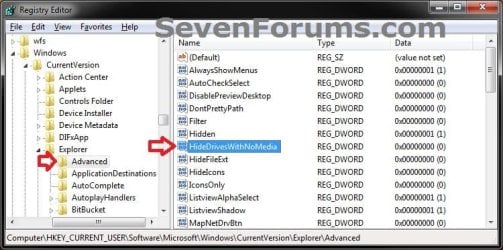
4. To Show Empty Removable Drives
A) In the right pane of Advanced, double click/tap on HideDrivesWithNoMedia to modify it. (see screenshot above)
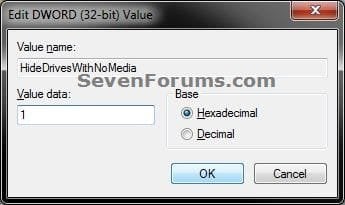
B) Type 0 and click/tap on OK. (see screenshot below step 5B)
C) Go to step 6.
5. To Hide Empty Removable Drives
NOTE: This also sets to Don't Show hidden files, folders, and drives.
A) In the right pane of Advanced, double click/tap on HideDrivesWithNoMedia to modify it. (see screenshot below step 3)
B) Type 1 and click on OK. (see screenshot below)
C) Go to step 6.
6. Close regedit.
7. Log off and log on, or restart the computer to apply.
That's it,
Shawn
Related Tutorials
- How to Show Windows 7 Computer Drive Letters Before or After Drive Name
- How to Fix Missing Vista Hard Disk Partition Letter in Windows 7
- How to Show or Hide All Hidden Files, Folders, and Drives in Windows 7
- How to Hide or Unhide a File or Folder in Windows 7
- How to Change a Drive Icon in Vista, Windows 7, and Windows 8
- How to Add, Change, or Remove a Drive Letter in Vista, Windows 7, and Windows 8
- How to Rename a Drive in Vista, Windows 7, and Windows 8
- How to Hide or Unhide a Drive in Vista and Windows 7
- How to Turn Off Hard Disk After so many Minutes of being Idle or Never
- How to Turn On or Off "USB Selective Suspend" for Idle USB Devices
- How to Enable or Disable Users from Connecting a USB Storage Device in Windows
- How to Add or Remove DLNA Media Servers from This PC in Windows 8 and 8.1
Attachments
Last edited:


