Windows 7 Forums


Windows 7: Desktop Background - Remove Picture Location History


Desktop Background - Remove Picture Location History

How to Remove the Desktop Background Picture Location History in Windows 7 and Windows 8
Published 13 Mar 2010
Published by

Featured Tutorial

Chrome GPU Hardware Acceleration - Turn On or Off

How to Turn GPU "Hardware Acceleration" On or Off in Chrome

Screen Capture and Video Editing in High Quality


Secunia ONLINE Software Inspector

How to Scan for Common Software Vulnerabilities

Troubleshooting Steps for Windows 7


Bootmgr - Move to C:\ with EasyBCD

How to Move Bootmgr to C:\ with EasyBCD
How to Remove the Desktop Background Picture Location History in Windows 7 and Windows 8

information   Information
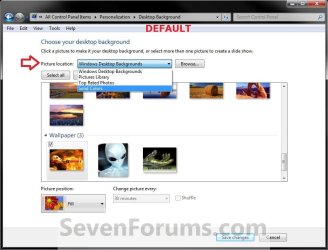
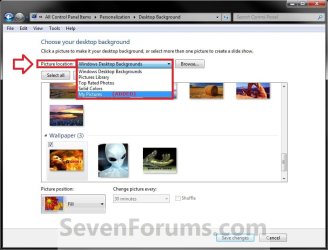
This will show you how to either reset to default or remove a folder in the desktop background picture location drop down list in Personalization in Windows 7 or Windows 8.


EXAMPLE: Desktop Background Picture Location
Desktop Background - Remove Picture Location History-example.jpgDesktop Background - Remove Picture Location History-default.jpg


OPTION ONE
To Reset Picture Location to Default using a REG Download

NOTE: This option will reset the picture location drop down menu list back to only having the default folders removing any folders that you have added (Option Three below) by browsing to them.
1. Click on the Download button below to download the file below.
Reset_Desktop_Background_Picture_Location_History.reg
download
2. Save the .reg file to your desktop.

3. Double click/tap on the downloaded .reg file to merge it.

4. Click/tap on Run, Yes (UAC), Yes, and OK when prompted.

5. When finished, you can delete the downloaded .reg file if you like.

6. Close and reopen Desktop Background in Windows 7 or Windows 8 to see the change.


OPTION TWO
Reset or Remove a Picture Location Through Registry

NOTE: This option will allow you to either manually reset the picture location drop down menu list back to only having the default folders removing any folders that you have added (Option Three below) by browsing to them, or only remove one or more folders listed in the picture location drop down menu list.
1. Press the Windows + R keys to open the Run dialog, type regedit, and press Enter.

2. If prompted by UAC, then click/tap on Yes to approve or type in the administrator's password.

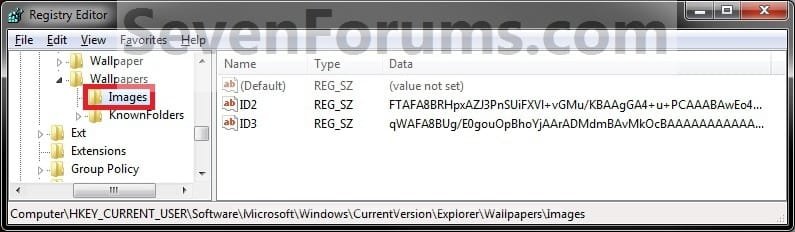
3. In regedit, navigate to the location below: (see screenshot below)
HKEY_CURRENT_USER\Software\Microsoft\Windows\CurrentVersion\Explorer\Wallpapers\Images
Desktop Background - Remove Picture Location History-reset_reg.jpg
4. To Reset Desktop Background Picture Location History
A) In the left pane of regedit, right click on Images, and click/tap on Delete. (see screenshot above)
NOTE: Images is restored automatically the first time that you add (Option Three below) a folder by browsing to.

B) Click/tap on Yes to confirm deletion. (see screenshot below)
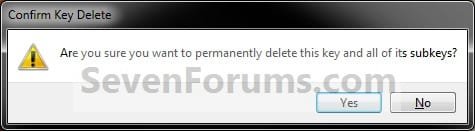
Desktop Background - Remove Picture Location History-reset_confirm.jpg
C) Go to step 6.
5. To Remove a Listed Folder in Picture Location
A) In the right pane of Images, right click on one of the listed ID# (0-9) that you want to remove, and click/tap on Delete. (see screenshot below)

Tip   Tip
The top 4 Windows Desktop Backgrounds, Pictures Library, Top Rated Photos, and Solid Colors default folders will not be included in the listed ID#'s.

The folders that you added will be listed in order under the default ones above with the same ID# order listed in the registry.
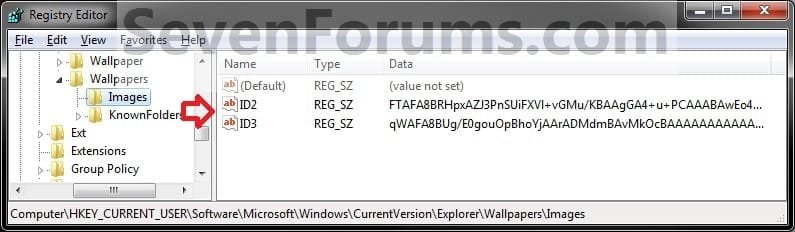
Desktop Background - Remove Picture Location History-remove_reg.jpg
B) Click/tap on Yes to confirm deletion. (see screenshot below)
NOTE: If you made a mistake and deleted the wrong picture location folder, then you can add it back by just browsing to and selecting it in Option Three below.
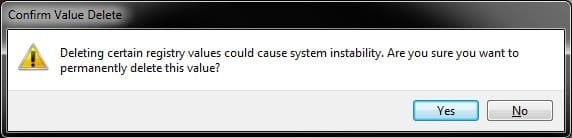
Desktop Background - Remove Picture Location History-remove_confirm.jpg
C) Repeat steps 6A/B if you wish to removed another added picture location folder.
6. Close regedit.

7. Close and reopen Desktop Background in Windows 7 or Windows 8 to see the change.


OPTION THREE
Add a Picture Location Through Desktop Background
1. Open Desktop Background in Windows 7 or Windows 8 in Personalization.

2. To the right of Picture location, click on the Browse button. (see screenshot below)
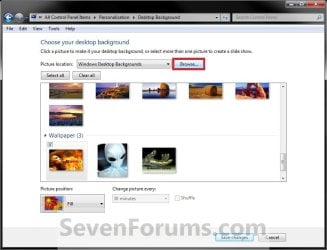
Desktop Background - Remove Picture Location History-add.jpg
3. Navigate to and select the folder you want to be added to the picture location history, and click/tap on OK. (see screenshot below)
Desktop Background - Remove Picture Location History-browse.jpg
4. It will be listed in the Picture location drop down arrow box.
That's it,
Shawn


Need more help? Try searching our extensive help and support site.
Loading
13 Mar 2010  
derekimo


AWESOME Shawn! That is another great tutorial, That bugs me seeing those old ones there. You're the Man.

My System SpecsSystem Spec

13 Mar 2010  
Brink


Thank you Derek. You're most welcome. Yeah, that had bugged me to.
My System SpecsSystem Spec
29 May 2010  
Endless


Thank you, this really helped me out!
My System SpecsSystem Spec
.


29 May 2010  
Brink


You're most welcome Endless, and welcome to Seven Forums.
My System SpecsSystem Spec
30 May 2010  
Endless


Quote   Quote: Originally Posted by Brink View Post
You're most welcome Endless, and welcome to Seven Forums.
Thank you .
My System SpecsSystem Spec
24 Jul 2010  
Jack8530


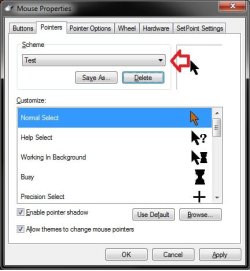
good job but do you know how to change the: how the pointer looks history
post a tutorial if you do

thanks Jack
My System SpecsSystem Spec
24 Jul 2010  
Brink


Hello Jack,

You should be able to just select a "Mouse Pointer" scheme that you had saved, and delete it to remove it from the list. You cannot delete the default schemes though.

Desktop Background - Remove Picture Location History-pointers.jpg

Hope this helps,
Shawn
My System SpecsSystem Spec
22 Aug 2011  
debellator

 
Can no longer add folder

So I know how to do whats described, yet somehow (in the last two weeks) I have lost the ability to add folders.

I Browse to one(any folder anywhere) and select it, and it doesn't work. Nothing happens, the folder is not added?? Any ideas?

How can I make it work again?
or
How can I manually(regedit) add in a new folder location? ++

Full add min rights etc.
My System SpecsSystem Spec
22 Aug 2011  
Brink


Hello Debellator, and welcome to Seven Forums.

Interesting. Does the folder that you selected contain any images in it? Could you post a few screenshots of what you are seeing instead to see if something may stand out?
My System SpecsSystem Spec
Comment

 Desktop Background - Remove Picture Location History problems?


Tutorial Tools


Similar help and support threads for: Desktop Background - Remove Picture Location History
Windows 7 Tutorial Category
Problem with Desktop Background Picture Position Customization
Solved Picture location ( wallpaper ) how to remove Customization
Desktop background picture error BSOD Help and Support
Picture Library option not working on Desktop background Customization
Registry Key Location RE: desktop background? Customization


All times are GMT -5. The time now is 05:58 AM.


Windows 7 Forums is an independent web site and has not been authorized,
sponsored, or otherwise approved by Microsoft Corporation.
"Windows 7" and related materials are trademarks of Microsoft Corp.
© Designer Media Ltd