Windows 7 Forums


Windows 7: Partition - Mark as Active


Partition - Mark as Active

How to Mark a Partition as Active in Windows 7
Published 16 Mar 2010
Published by

Featured Tutorial

Microsoft Account Primary Alias Email Address - Change

How to Change your Microsoft Account Primary Alias Email Address

Dual Boot - Windows 7 and Linux

How to Correctly Setup a Dual Boot with Windows 7 and LinuxMint13

Microsoft Outlook Desktop Shortcut - Create

How to Create a Special Outlook Desktop (Office XP style) Shortcut

SF Diagnostic Tool - Using for Troubleshooting

Using SF Diagnostic Tool for Troubleshooting

Online Scanners - Scan Suspicious Files on your PC

How to Scan Suspicious Files using Online Scanners

Microsoft Account Display Name - Change

How to Change your Microsoft Account Display Name
How to Mark a Partition as Active in Windows 7

information   Information
Marking a partition as active on a basic disk means that the computer will use the loader (an operating system tool) on that partition to start the operating system.


At various times the need to mark a partition as active arises. This will show you two ways of doing so.
Note   Note
  • You must be logged on as an administrator to mark a partition as active.
  • You can't make a logical drive or an extended partition active. Only a primary partition can be made active.
  • There can be only one active partition per physical hard disk.
  • If you have multiple hard disks installed on your computer, it's possible for each hard disk to have a partition set as active. However, the active partition on the first hard disk that your computer's BIOS detects is the one that will start the computer.
warning   Warning
Do not mark a partition as active if it doesn't contain the loader for an operating system. Doing so will make your computer unbootable.

If you disable the Disk Defragmenter service, then you will get the error below when you try to do anything in Disk Management. If you get this error, then make sure that the Disk Defragmenter service is set to only Manual.
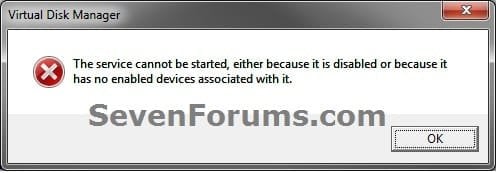
Partition - Mark as Active-error.jpg


METHOD ONE
Mak as Active in Disk Management
1. Type diskmgmt.msc into the start menu, and press enter.

2. Right click on the partition you want to mark as active, and select Mark Partition as Active.
Partition - Mark as Active-capture.png
That's it!

If you can't boot into Windows, use method 2.


METHOD TWO
Mark as Active in Command Prompt
1. Boot into your Windows 7 installation or repair disc.

Tip   Tip
If you don't have a Windows 7 installation DVD, you can Create a Repair Disc.


2. When you get to the language screen, press Shift+F10.

3. Enter diskpart, then list disk after diskpart is loaded.

4. Enter select disk [number of the disk the partition is on].

5. Enter list partition, followed by select partition [partition number].

6. Type active.
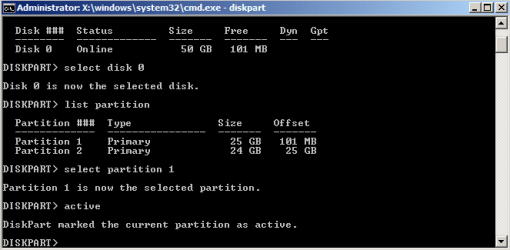
Partition - Mark as Active-capture1.png
There you go! You can now close the command prompt and reboot your computer.
Tip   Tip
You can also use this method from within Windows. Type cmd into the start menu and press enter.


METHOD THREE
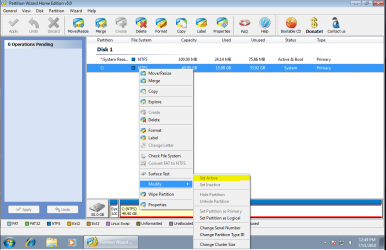
Mark as Active in Partition Wizard
1. Download a copy of the Partition Wizard Bootable CD.

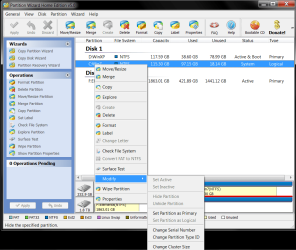
2. Boot it up, right-click on the partition, and select Modify>Set Active.
Partition - Mark as Active-pwiz.png


Need more help? Try searching our extensive help and support site.
Loading
11 Oct 2010   #1
gregrocker

Win7 x 6 PC's
California, Florida, Boston


We use this tutorial many times every day to rescue Windows 7.

My System SpecsSystem Spec

16 Jan 2011   #2
NewTo7

Home Premium 64bit


Thanks, unfortunately it did not work in my case and in fact MiniTools Partition Wizard is what caused the boot problem in the first place, an installed copy never succeeded in a reboot to copy the partition. FWIW a Paragon rescue disk saw the partition as invalid, although GParted identified it as NTFS.
My System SpecsSystem Spec
16 Jan 2011   #3
mjf

Windows 7x64 Home Premium SP1 x 2
Australia


Quote   Quote: Originally Posted by NewTo7 View Post
Thanks, unfortunately it did not work in my case and in fact MiniTools Partition Wizard is what caused the boot problem in the first place, an installed copy never succeeded in a reboot to copy the partition. FWIW a Paragon rescue disk saw the partition as invalid, although GParted identified it as NTFS.
Doesn't really explain enough of the background to your problem.
I've found the miniTools (installed) version fine for smaller jobs eg. setting partitions active etc. But for anything substantial, particularly partition moves, you should use the Bootable version, with the Windows OS out of the way. Apart from much greater flexibility, the bootable PW has proven more accurate at times in reporting accurate partition information compared with Windows Disk Management.
My System SpecsSystem Spec
.


16 Jan 2011   #4
NewTo7

Home Premium 64bit


Quote   Quote: Originally Posted by mjf View Post
Quote   Quote: Originally Posted by NewTo7 View Post
Thanks, unfortunately it did not work in my case and in fact MiniTools Partition Wizard is what caused the boot problem in the first place, an installed copy never succeeded in a reboot to copy the partition. FWIW a Paragon rescue disk saw the partition as invalid, although GParted identified it as NTFS.
Doesn't really explain enough of the background to your problem.
I've found the miniTools (installed) version fine for smaller jobs eg. setting partitions active etc. But for anything substantial, particularly partition moves, you should use the Bootable version, with the Windows OS out of the way. Apart from much greater flexibility, the bootable PW has proven more accurate at times in reporting accurate partition information compared with Windows Disk Management.
Well my particular problem is OT to this thread anyway, and there is always more info whether relevant or not.

What you said applies to everything anyway, and yet I've used an installed copy of similar programs if not PW itself to copy partition fine for XP. What I don't understand is why a simple reboot for partition copy has created a situation where the straight forward boot fixes of different utilities will not work.
My System SpecsSystem Spec
03 Jun 2011   #5
Shadowjk

Windows 7 Professional x64 SP1
Northamptonshire , England


My friend has Ubuntu on a seperate Harddrive and wants to uninstall but doesn't have the Internet or a Startup repair Disk so He was wondering that if he marks his Windows Drive as Active will it get rid of the GRUB Bootloader?

Josh
My System SpecsSystem Spec
03 Jun 2011   #6
mjf

Windows 7x64 Home Premium SP1 x 2
Australia


Quote   Quote: Originally Posted by NewTo7 View Post
Quote   Quote: Originally Posted by mjf View Post
Quote   Quote: Originally Posted by NewTo7 View Post
Thanks, unfortunately it did not work in my case and in fact MiniTools Partition Wizard is what caused the boot problem in the first place, an installed copy never succeeded in a reboot to copy the partition. FWIW a Paragon rescue disk saw the partition as invalid, although GParted identified it as NTFS.
Doesn't really explain enough of the background to your problem.
I've found the miniTools (installed) version fine for smaller jobs eg. setting partitions active etc. But for anything substantial, particularly partition moves, you should use the Bootable version, with the Windows OS out of the way. Apart from much greater flexibility, the bootable PW has proven more accurate at times in reporting accurate partition information compared with Windows Disk Management.
What you said applies to everything anyway, and yet I've used an installed copy of similar programs if not PW itself to copy partition fine for XP.
My comments apply to everything
If you don't want to take the advice re bootable PW don't take it.

If other installed programs work then use them.

This is a Windows 7 forum not an XP forum.
My System SpecsSystem Spec
04 Jun 2011   #7
Jonathan_King

Windows 7 Professional x64
Rednecksville


Hi Josh,

I'm not sure where the GRUB is installed to. If it's on the same hard drive Ubuntu is installed on, you should be able to just disconnect the drive, mark the Windows partition as active (if it's not already so), and run a startup repair. It's possible a startup repair will be unnecessary, give it a try!

If simply marking the partition as active doesn't do the trick, a repair disc can easily be created. See both methods in this guide: System Repair Disc - Create
My System SpecsSystem Spec
09 Apr 2012   #8
oxymoron02

Windows 7 Ultimate 64-bit
United Kingdom
 
 
Method not working.

Having severe difficulties getting any of the above (and other related) methods to work. A quick run-down of my partitions:

Hitachi is partitioned in two; C: houses Windows 7 and D: houses my old installation of WinXP.
WinXP is listed as System,Active (and Primary Partition); while Windows 7 is listed as Boot (and Logical).

Partition - Mark as Active-image2.png

When I come to try step one I immediately hit a hurdle; I have absolutely no option to set the partition as active. It's not greyed out, it simply doesn't even exist in the right-click context menu.


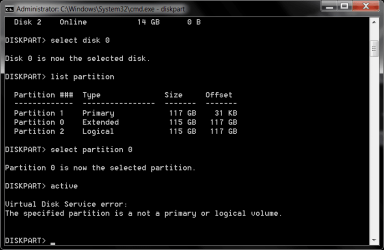
When I run diskpart and navigate down to the Hitachi, I am met with this.

Partition - Mark as Active-image1.png

Partition 1 is Windows XP
Partition 0 is Windows 7
Partition 2 is .... Wait- What? Three partitions?

Trying to set 0 as active nets me the message "Virtual Disk Service error: The specified partition is not a primary or logical volume." Ok. Balls.

Trying to set 2 as active brings further calamity: "The specified partition type is not valid for this operation." Well screw you then, computer.


The startup repair method was similarly unsuccessful, presumably because I had yet to flick the active status over to the Windows 7 partition.


I would love to say that I realise I'm doing something wrong, but being as I can't even perform step one I would hesitate to assume such. Perhaps someone on here can highlight what is causing my computer to be a complete hassle.

Thanks,
- Oxy
My System SpecsSystem Spec
09 Apr 2012   #9
Jonathan_King

Windows 7 Professional x64
Rednecksville


Hello Oxy,

Using Partition Wizard, right-click on your C partition, and select Modify > Set Partition as Primary. You should then be able to mark it as Active. While you have Partition Wizard up and running, you might find it fastest just to use that.

Good luck, post back any questions you may have!
My System SpecsSystem Spec
Comment

 Partition - Mark as Active problems?


Tutorial Tools


Similar help and support threads for: Partition - Mark as Active
Windows 7 Tutorial Category
System does not boots "Mark Partition as Active" General Discussion
Solved How to change active partition without removing data from partition? General Discussion
System does not boot "Mark Partition as Active" . General Discussion
Can't mark OS partition as Active Installation & Setup
How can i create a new partition to mark it as active ? Installation & Setup


All times are GMT -5. The time now is 03:29 PM.


Seven Forums Android App Seven Forums IOS App Follow us on Facebook

Windows 7 Forums is an independent web site and has not been authorized,
sponsored, or otherwise approved by Microsoft Corporation.
"Windows 7" and related materials are trademarks of Microsoft Corp.
© Designer Media Ltd
  

1 2 3 4 5 6 7 8 9 10 11 12 13 14 15 16 17 18 19 20 21 22 23 24 25 26 27 28 29 30 31 32