Marking a partition as active on a basic disk means that the computer will use the loader (an operating system tool) on that partition to start the operating system.
At various times the need to mark a partition as active arises. This will show you two ways of doing so.
Note
You must be logged on as an administrator to mark a partition as active.
You can't make a logical drive or an extended partition active. Only a primary partition can be made active.
There can be only one active partition per physical hard disk.
If you have multiple hard disks installed on your computer, it's possible for each hard disk to have a partition set as active. However, the active partition on the first hard disk that your computer's BIOS detects is the one that will start the computer.
Warning
Do not mark a partition as active if it doesn't contain the loader for an operating system. Doing so will make your computer unbootable.
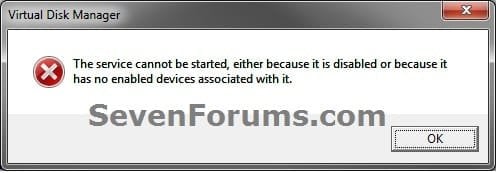
If you disable the Disk Defragmenterservice, then you will get the error below when you try to do anything in Disk Management. If you get this error, then make sure that the Disk Defragmenter service is set to only Manual.
METHOD ONE
Mak as Active in Disk Management
1. Type diskmgmt.msc into the start menu, and press enter.
2. Right click on the partition you want to mark as active, and select Mark Partition as Active.
That's it!
If you can't boot into Windows, use method 2.
METHOD TWO
Mark as Active in Command Prompt
1. Boot into your Windows 7 installation or repair disc.
Tip
If you don't have a Windows 7 installation DVD, you can Create aRepair Disc.
2. When you get to the language screen, press Shift+F10.
3. Enter diskpart, then list disk after diskpart is loaded.
4. Enter select disk [number of the disk the partition is on].
5. Enter list partition, followed by select partition [partition number].
6. Type active.
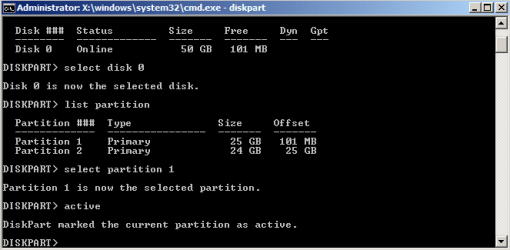
There you go! You can now close the command prompt and reboot your computer.
Tip
You can also use this method from within Windows. Type cmd into the start menu and press enter.
Thanks, unfortunately it did not work in my case and in fact MiniTools Partition Wizard is what caused the boot problem in the first place, an installed copy never succeeded in a reboot to copy the partition. FWIW a Paragon rescue disk saw the partition as invalid, although GParted identified it as NTFS.
Doesn't really explain enough of the background to your problem.
I've found the miniTools (installed) version fine for smaller jobs eg. setting partitions active etc. But for anything substantial, particularly partition moves, you should use the Bootable version, with the Windows OS out of the way. Apart from much greater flexibility, the bootable PW has proven more accurate at times in reporting accurate partition information compared with Windows Disk Management.
Thanks, unfortunately it did not work in my case and in fact MiniTools Partition Wizard is what caused the boot problem in the first place, an installed copy never succeeded in a reboot to copy the partition. FWIW a Paragon rescue disk saw the partition as invalid, although GParted identified it as NTFS.
Doesn't really explain enough of the background to your problem.
I've found the miniTools (installed) version fine for smaller jobs eg. setting partitions active etc. But for anything substantial, particularly partition moves, you should use the Bootable version, with the Windows OS out of the way. Apart from much greater flexibility, the bootable PW has proven more accurate at times in reporting accurate partition information compared with Windows Disk Management.
Well my particular problem is OT to this thread anyway, and there is always more info whether relevant or not.
What you said applies to everything anyway, and yet I've used an installed copy of similar programs if not PW itself to copy partition fine for XP. What I don't understand is why a simple reboot for partition copy has created a situation where the straight forward boot fixes of different utilities will not work.
My friend has Ubuntu on a seperate Harddrive and wants to uninstall but doesn't have the Internet or a Startup repair Disk so He was wondering that if he marks his Windows Drive as Active will it get rid of the GRUB Bootloader?
System Manufacturer/Model Number Custom Built OS Windows 7 Professional x64 SP1 CPU Intel Core i5 2400 @ 3.10GHz Motherboard Foxconn H67MP-S/-V/H67MP Memory 8.0GB DDR3 @ 665MHz (2GBx4) Graphics Card AMD Radeon HD 6800 Series (Sapphire/PCPartner) Sound Card Realtek High Definition Audio Monitor(s) Displays 2243W (1920x1080@60Hz) SMB1930NW (1440x900@60Hz) Screen Resolution 1440x900 & 1920x1080
Keyboard Dell Standard PS/2 Keyboard Mouse Dell HID-compliant mouse Case Novatech Night Cooling Fan Hard Drives 977GB Seagate ST31000524AS ATA Device (SATA) Internet Speed Download: 10 Mbps Ping: 30ms Upload: 0.81 Mbps Other Info Optiarc DVD RW AD-5260S ATA Device
Thanks, unfortunately it did not work in my case and in fact MiniTools Partition Wizard is what caused the boot problem in the first place, an installed copy never succeeded in a reboot to copy the partition. FWIW a Paragon rescue disk saw the partition as invalid, although GParted identified it as NTFS.
Doesn't really explain enough of the background to your problem.
I've found the miniTools (installed) version fine for smaller jobs eg. setting partitions active etc. But for anything substantial, particularly partition moves, you should use the Bootable version, with the Windows OS out of the way. Apart from much greater flexibility, the bootable PW has proven more accurate at times in reporting accurate partition information compared with Windows Disk Management.
What you said applies to everything anyway, and yet I've used an installed copy of similar programs if not PW itself to copy partition fine for XP.
My comments apply to everything
If you don't want to take the advice re bootable PW don't take it.
I'm not sure where the GRUB is installed to. If it's on the same hard drive Ubuntu is installed on, you should be able to just disconnect the drive, mark the Windows partition as active (if it's not already so), and run a startup repair. It's possible a startup repair will be unnecessary, give it a try!
If simply marking the partition as active doesn't do the trick, a repair disc can easily be created. See both methods in this guide: System Repair Disc - Create
Having severe difficulties getting any of the above (and other related) methods to work. A quick run-down of my partitions:
Hitachi is partitioned in two; C: houses Windows 7 and D: houses my old installation of WinXP.
WinXP is listed as System,Active (and Primary Partition); while Windows 7 is listed as Boot (and Logical).
When I come to try step one I immediately hit a hurdle; I have absolutely no option to set the partition as active. It's not greyed out, it simply doesn't even exist in the right-click context menu.
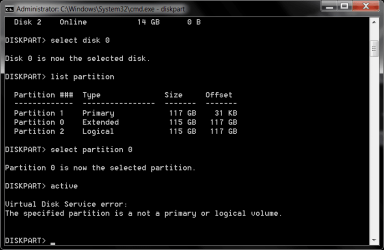
When I run diskpart and navigate down to the Hitachi, I am met with this.
Partition 1 is Windows XP
Partition 0 is Windows 7
Partition 2 is .... Wait- What? Three partitions?
Trying to set 0 as active nets me the message "Virtual Disk Service error: The specified partition is not a primary or logical volume." Ok. Balls.
Trying to set 2 as active brings further calamity: "The specified partition type is not valid for this operation." Well screw you then, computer.
The startup repair method was similarly unsuccessful, presumably because I had yet to flick the active status over to the Windows 7 partition.
I would love to say that I realise I'm doing something wrong, but being as I can't even perform step one I would hesitate to assume such. Perhaps someone on here can highlight what is causing my computer to be a complete hassle.
System Manufacturer/Model Number Custom OS Windows 7 Ultimate 64-bit CPU AMD Phenom II X4 955 Black OC'ed 4.0GHz Motherboard Asus M5A88-V EVO Memory 8GB Mushkin Enhanced Silverline (2x4GB) 1333 Graphics Card XFX Radeon HD6870 1024MB GDDR5 OC'ed 945MHz; 1151MHz Sound Card Soundblaster X-Fi Xtreme PCIe Monitor(s) Displays 32" Hannspree SE32LMNB Screen Resolution 1920 x 1080
Keyboard Logitech G510 Mouse CM Storm Sentinel Advance Zero-G PSU 650W XFX XXX Edition 80PLUS Bronze Modular Case Cougar 6GR1 Evolution Cooling Corsair H60 p/p 120mm; Zalman VF3000A; x4 120mm; x1 140mm Hard Drives 250GB Hitachi Deskstar (OS); 2TB Western Digital Elements Internet Speed Not fast enough :I Other Info No matter what your specs, my PC is better.
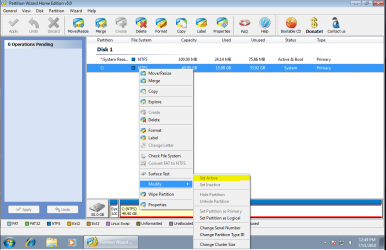
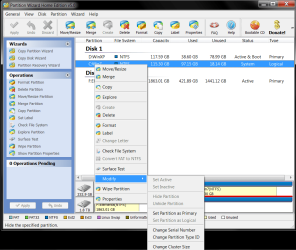
Using Partition Wizard, right-click on your C partition, and select Modify > Set Partition as Primary. You should then be able to mark it as Active. While you have Partition Wizard up and running, you might find it fastest just to use that.