
How to Run the Memory Diagnostics Tool in Windows 7
Information
This will show you how to run the Windows Memory Diagnostic Tool to test the Random Access Memory (RAM) on your computer for errors in Windows 7. The diagnostic includes a comprehensive set of memory tests. If you are experiencing problems while running Windows, you can use the diagnostic to determine whether the problems are caused by failing hardware, such as RAM or the memory system of your motherboard.
For more information, see: Microsoft Online Crash Analysis: Windows Memory Diagnostic Users Guide
For more information, see: Microsoft Online Crash Analysis: Windows Memory Diagnostic Users Guide
Tip
If you suspect memory issues, then you may also want to consider using and running Memtest86+ at boot. Memtest86+ is a comprehensive stand-alone memory diagnostic program that you boot from at startup to test your RAM. You can download a ISO file to burn to DVD to boot with, or a floppy disk package installable from Windows to a USB flash drive or floppy disk to boot with.
Warning
It could take a long time (several hours) for the Memory Diagnostics Tool to finish running depending on how many passes you set, and if there are any issues found.
Here's How:
NOTE: Start with either step 1, 2, or 3 for how you want to start the Memory Diagnostics Tool. 1. To Start from within Windows 7 A) Open the Control Panel (icons view).
B) Click on the Administrative Tools icon, and click on Memory Diagnostics Tool.
C) Go to step 1F below.
OR
D) Open the Start menu.
E) In the Start Menu search box, type mdsched and press Enter. (See screenshot below)
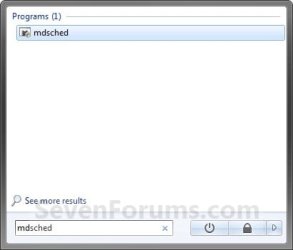
F) Select the Restart now and check for problems option. (See screenshot below)
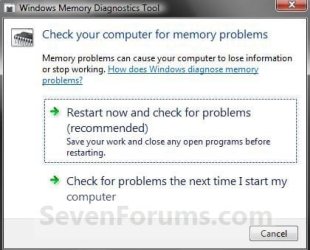
G) Go to step 4.
2. To Start from Windows Boot Manager A) Boot into the Advanced Boot Options screen.
B) While in the Advanced Boot Options screen, press the Escape (Esc) key. (See screenshot below)
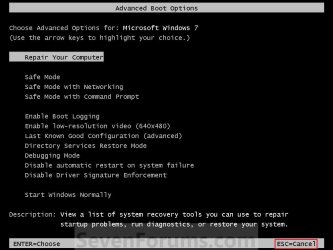
C) While in the Windows Boot Manager screen, press the Tab key. (See screenshot below)
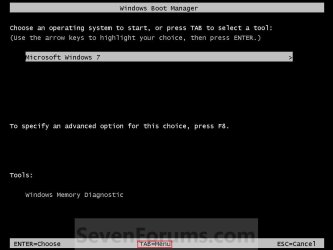
D) With Windows Memory Diagnostics selected, press Enter. (See screenshot below)
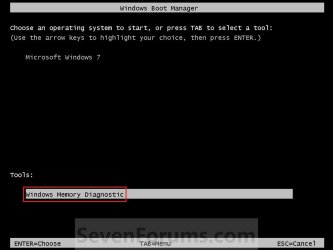
E) Go to step 4.
3. To Start from System Recovery Options A) Boot into the System Recovery Options screen.
B) Select the Windows Memory Diagnostic Tool option. (See screenshot below)

C) Select the Restart now and check for problems option. (See screenshot below)
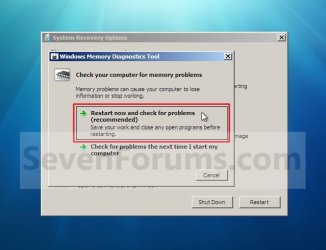
4. The computer will now restart, and you will see this screen next. (See screenshot below.
NOTE: Windows Memory Diagnostic Tool will run the Standard test by default.
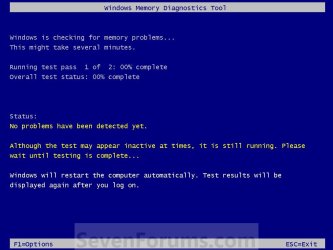
A) Go to step 6.
5. To Change the Memory Diagnostic Tool Options A) Press F1. (See screenshot above)
NOTE: If you have a multimedia keyboard, then you may need to press the Function (F-Lock) key for F1 to work.
B) Press the TAB key to switch between the option categories, and use the arrow keys to select the option. (See screenshot below)
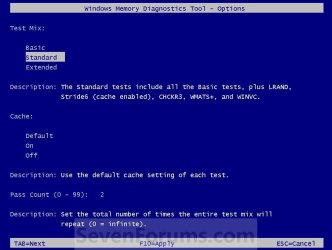
C) When finished, press F10 to apply any changes you made to the options. (See screenshot above)
NOTE: Press the Escape (Esc) key if you do not wish to make any changes to the options and return to the screen below step 4.
6. When the test is finished running, it will automatically restart the computer. (See screenshot below step 4)
NOTE: If errors are found, the Windows Memory Diagnostics Tool will attempt to determine which particular memory module in your computer is causing these errors. If that information is available, it will be stated in the results after you log on from the restart. If bad memory is found then you will need to remove and replace the bad RAM module.
7. You can also read the Memory Diagnostic Tool system log in Event Viewer.
That's it,
Shawn
Related Tutorials
- How to Boot to the System Recovery Options in Windows 7
- How to Boot to the Advanced Boot Options in Windows 7
- How to Create a Windows 7 System Repair Disc
- How to See Windows 7 Reliability and Problem History with Reliability Monitor
- How to Run Disk Check in Windows 7
- How to Set Maximum Memory to be Used by Windows 7 and Windows 8
- How to Read the Event Viewer Log for Memory Diagnostics Tool
- How to Test and Diagnose RAM Issues with Memtest86+
Last edited:
