
How to Enable or Disable Password must meet Complexity Requirements
Information
This will show you how to enable or disable that passwords for all users on the computer must meet complexity requirements.
Note
If enabled, passwords must meet the following minimum requirements:
For more info, see: Password must meet complexity requirements
- Not contain the user's account name or parts of the user's full name that exceed two consecutive characters
- Be at least six characters in length
- Contain characters from three of the following four categories:
- English uppercase characters (A through Z)
- English lowercase characters (a through z)
- Base 10 digits (0 through 9)
- Non-alphabetic characters (for example, !, $, #, %)
For more info, see: Password must meet complexity requirements
Here's How:
1. Open the Local Security Policy editor.
2. In the left pane, expand Account Policies, and click on Password Policy. (see screenshot below)

3. In the right pane, double click on Password must meet complexity requirements. (see screenshot above)
4. To Enable Password must meet Complexity Requirements
A) Select (dot) Enabled, and click on OK. (see screenshot below)
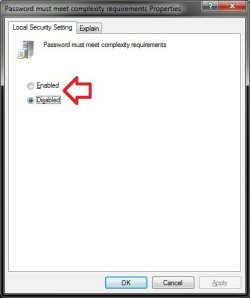
5. To Disable Password must meet Complexity Requirements
A) Select (dot) Disabled, and click on OK. (see screenshot above)
6. Close the Local Security Policy editor.
That's it,
Shawn
Related Tutorials
- How to Create a Password for a Windows 7 User Account
- How to Reset the Password of a User Account in Windows 7
- How to Make Windows 7 Require a User Name and Password at Log On
- How to Add or Remove Change Password from the CTRL+ALT+DEL Screen
- How to Create a Windows 7 Password Reset Disk
- How to Use System Restore to Change User Account Password
- How to Change the User Account Password if Unable to Login to Windows
- How to Change the Password for Your or Another User Account in Windows 7
- How to Set Account Lockout Threshold for Invalid Logon Attempts
- How to Set Account Lockout Duration for Locked Out User Accounts
- How to Set the Reset Account Lockout Counter After Setting
- How to Enable or Disable Password Expiration for a User in Windows 7
- How to Change the Maximum and Minimum Password Age in Windows 7
- How to Enable or Disable Windows 7 Password History Enforcement
- How to Change the Time to Warn a User to Change Password Before Expiration
- How to Prevent or Allow a User to Change their Password in Vista and Windows 7
- How to Remove the Password for Your or Another User Account in Windows 7
Last edited:

