
How to Enable or Disable Password History Enforcement in Windows 7 and Windows 8
Information
Password history determines the number of unique new passwords that have to be associated with and used by a user before an old password can be reused again. This enables administrators to enhance security by ensuring that old passwords are not reused continually.
By default, there is 24 remembered on domains, and 0 remembered on stand-alone computers. This will show you how to enable or disable enforcing password history, and set how many passwords will be remembered before users can reuse a password.
You must be logged in as an administrator to be able to do the steps in this tutorial.
By default, there is 24 remembered on domains, and 0 remembered on stand-alone computers. This will show you how to enable or disable enforcing password history, and set how many passwords will be remembered before users can reuse a password.
You must be logged in as an administrator to be able to do the steps in this tutorial.
Tip
To maintain the effectiveness of the password history, do not allow passwords to be changed immediately after they were just changed by also enabling the minimum password age and setting it to be more than 0 days.
In Windows 8, this will only apply to local accounts, and not to Microsoft accounts.
In Windows 8, this will only apply to local accounts, and not to Microsoft accounts.
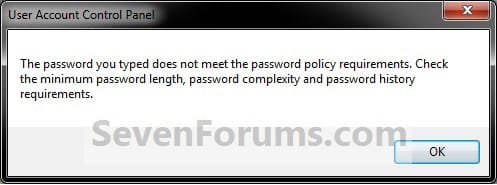
EXAMPLE: Password History Message
NOTE: This is a message a user will get when they try to change their password to a reused older password instead of a new unique password before the number of remember passwords has been reached.
OPTION ONE
Through Local Security Policy Manager
NOTE: This option is only available in the Windows 7 Professional, Windows 7 Ultimate, Windows 7 Enterprise, Windows 8/8.1 Pro, and Windows 8/8.1 Enterprise editions. 1. Open the Local Security Policy editor.
2. In the left pane, expand Account Policies, and click on Password Policy. (see screenshot below)
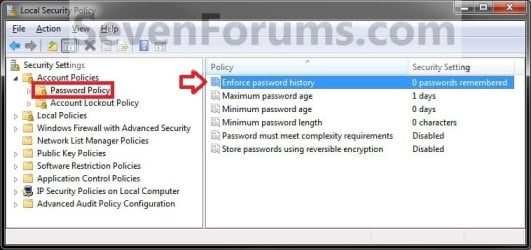
3. In the right pane, double click on Enforce password history. (see screenshot above)
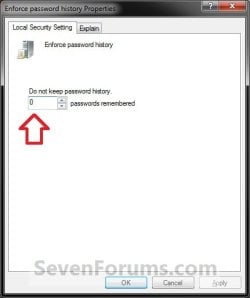
4. To Disable Password History for All Users A) Enter 0, and click on OK. (see screenshot below)
B) Go to step 6.
5. To Enforce Password History for All Users A) Enter how many passwords between 0 and 24 that you want remembered before users can reuse a password, then click on OK. (see screenshot above)
6. Close the Local Security Policy editor.
OPTION TWO
Through an Elevated Command Prompt
NOTE: This option is available in all Windows 7 and Windows 8 editions. 1. Open an elevated command prompt.
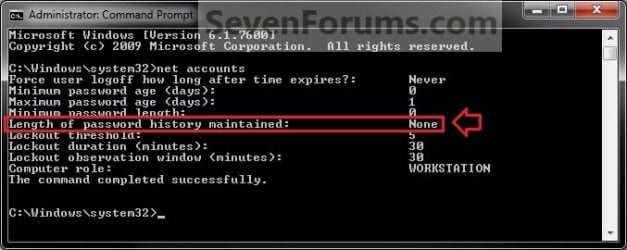
2. To See the Current "Password History" Setting A) In the elevated command prompt, type net accounts and press Enter. (see screenshot below)
3. To Disable Password History for All Users A) In the elevated command prompt, type the command below and press Enter. (see screenshot below)
Code:
net accounts /uniquepw:0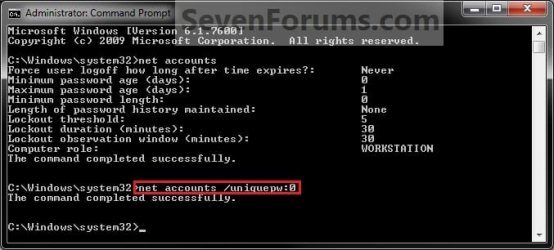
B) Go to step 5.
4. To Enable or Change the Password History for All Users A) In the elevated command prompt, type the command below and press Enter. (see screenshot below)
NOTE: Substitute (1-24) for how many passwords you want remembered before users can reuse a password.
Code:
net accounts /uniquepw:[COLOR=red][B](1-24)[/B][/COLOR]
Code:
net accounts /uniquepw:5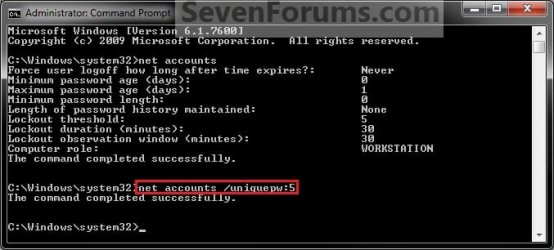
5. Close the elevated command prompt.
That's it,
Shawn
Related Tutorials
- How to Enable or Disable Password Expiration for a User in Windows 7
- How to Change the Password for Your or Another User Account in Windows 7
- How to Create a Password for a Windows 7 User Account
- How to Reset the Password of a User Account in Windows 7
- How to Make Windows 7 Require a User Name and Password at Log On
- How to Add or Remove Change Password from the CTRL+ALT+DEL Screen
- How to Create a Windows 7 Password Reset Disk
- How to Use System Restore to Change User Account Password
- How to Change the User Account Password if Unable to Login to Windows
- How to Enable or Disable Password must meet Complexity Requirements
- How to Set Account Lockout Threshold for Invalid Logon Attempts
- How to Set Account Lockout Duration for Locked Out User Accounts
- How to Set the Reset Account Lockout Counter After Setting
- How to Change the Time to Warn a User to Change Password Before Expiration
Last edited:

