How to Pin or Unpin a Program to the Windows 7 Start Menu
Information
This will show you how to pin or unpin a program of your choice to the Windows 7 Start Menu pin area to have a easy to access shortcut of it.
Note
The pinned items in the Start Menu are located in the hidden system folder:
Code:
C:\Users\(User-Name)\AppData\Roaming\Microsoft\Internet Explorer\Quick Launch\User Pinned\StartMenu
Warning
It is best to pin the program from it's EXE file location instead of from a shortcut of the program. It is easier for a shortcut to be moved or deleted, causing the pinned program in the Start Menu to not work anymore.
EXAMPLE: Pin to area of the Start Menu
NOTE: This is the white left side of the Start Menu.
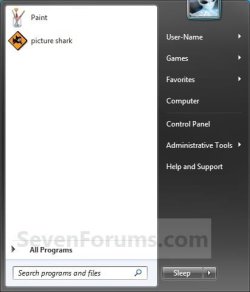
OPTION ONE
Pin a Program to the Start Menu
1. Right click on the program exe file or shortcut that you want to pin to the Start Menu.
NOTE: If you delete or move this program exe file or shortcut, the pinned program in the Start Menu will no longer work.
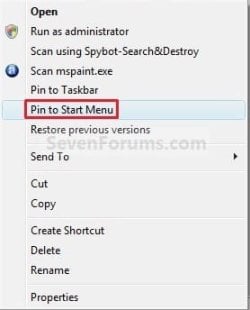
2. Click on Pin to Start Menu. (See screenshot below)
NOTE: Sometimes you may need to press and hold the Shift key, then right click on the program exe file or shortcut to see the Pin to Start Menu option.
OPTION TWO
Unpin a Program from the Start Menu
1. Right click on the pinned program in the Start Menu, and click on Unpin from Start Menu. (See screenshot below)
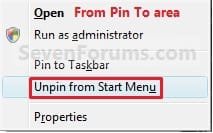
OR
2. Right click on the program exe file or shortcut, and click on Unpin from Start Menu. (See screenshot below)
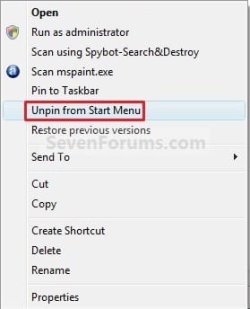
That's it,
Shawn
Related Tutorials
- How to Backup and Restore Pinned Start Menu Items in Windows 7
- How to Pin a Folder, Drive, and Library to the Start Menu in Windows 7
- How to Pin or Unpin Libraries in the Windows 7 Navigation Pane
- How to Pin or Unpin a Program to the Windows 7 Taskbar
- How to Pin or Unpin Items in Windows 7 Jump Lists
- How to Enable or Disable Pinning and Unpinning of Items in Windows 7 Jump Lists
- How to Use Small or Large Icons in the Windows 7 Start Menu
- How to Reset the Pin To Start Menu Area in Windows 7
- How to Turn Recent Programs On or Off in Windows 7
- How to Open and Use Windows 7 Start Menu and Taskbar Jump Lists
- Download a Shortcut that Opens the Start Menu in Windows
- How to Restore Missing "Pin to Taskbar" and "Pin to Start Menu" Context Menu Items in Windows 7 Shortcuts
- How to Enable or Disable Start Menu Auto Arrange by Name in Vista and Windows 7
Last edited: