
How to Change Power Plan Settings in Windows 7
Information
This will show you how to change the settings for the power plan that you have selected to reflect how you want your Windows 7 computer to manage power usage.
Here's How:1. Open the Start Menu, and type powercfg.cpl in the search box and press enter.A) Go to step 3.
OR
2. Open the Control Panel (icons view), and click on the Power Options icon.
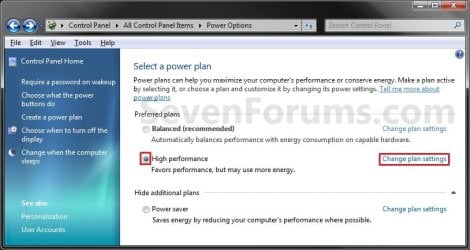
3. Click on the Change plan settings link to the right of the power plan that you want to change the settings for. (See screenshot below)
NOTE: Normally you will be changing the power plan that you have selected as your default power plan.
4. To Only Change the Basic Power Plan SettingsA) Choose how many minutes to wait for the Turn off display and Put the computer to sleep settings, or select never if you do not want to use a setting. (See screenshots below)
NOTE: If you have a computer with a battery (ex: notebook) or on a UPS, then you will see the right screenshot to adjust the options for when you are on battery or plugged in.
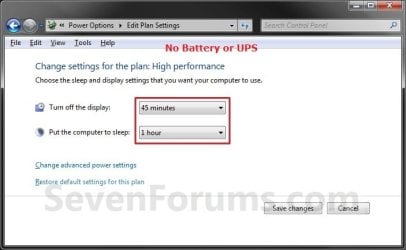
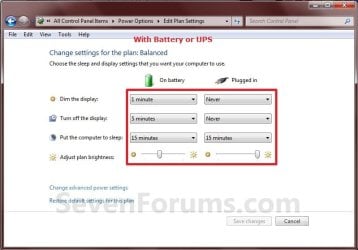
B) When done, click on the Save changes button. (See screenshots above)
C) Close the Power Options window. (See screenshots below step 3)
D) You're done.
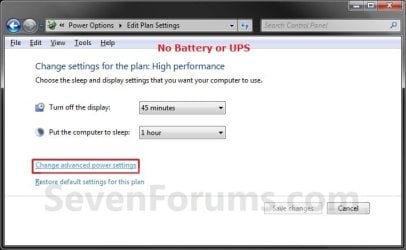
5. To Change the Advanced Power Plan SettingsA) Click on the Change advanced power settings link. (See screenshots below)

B) Click on the Change settings that are currently unavailable link. (See screenshot below)
NOTE: You will need to be logged in as an administrator account to be able to click on this option. This option allows you to change the power plan settings that are grayed out by default.
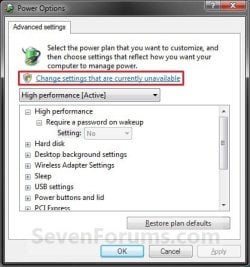
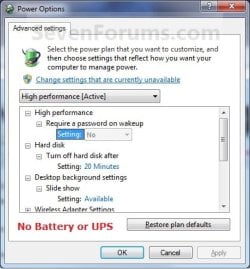
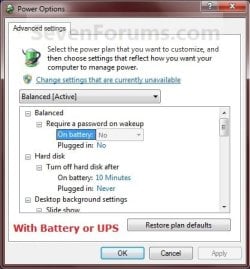
C) Make changes to the power plan settings below to suite your needs. (See screenshots below)
NOTE: If you have a computer with a battery (ex: notebook) or on a UPS, then you will see the right screenshot to adjust the options for when you are on battery or plugged in. See the tables below for some recommended settings for Sleep, Hybrid Sleep, or Hibernate. The settings that are not included in these recommendations are settings that you can set to whatever you like. These are only recommendations, you can choose to do what you want instead of course.

| Recommended Settings for SLEEP - |
|---|
| Sleep saves any open documents and programs to memory only, and then puts the computer into a low-power state. If you lose power to the computer, you will also lose what is in memory. |
| CATEGORY | SETTING | RECOMMENDED SETTING |
|---|---|---|
| Hard Disk | Turn off hard disk after | If turned on, set to at least 1 minute before the computer is set to sleep. |
| Sleep | Sleep after | This is for the computer. Set to at least 1 minute after Hard disk and Display is set to turn off. |
| Sleep | Allow hybrid sleep | If listed, set to Off. |
| Sleep | Hibernate after | If listed, set to Never. |
| Display | Turn off display after | If turned on, set to at least 1 minute before the computer is set to sleep. Usually set this as the same as the Hard disk time. |
| Multimedia settings | When sharing media | Set to Allow the computer to sleep to prevent it from waking up the computer. |
| Recommended Settings for HYBRID SLEEP - |
|---|
| Hybrid sleep saves your open documents and programs to memory and to the hard drive, and then puts the computer into a low-power state. After the Hibernate after time you set, it will then put the computer into hibernation. This requires that hibernate is enabled. |
| CATEGORY | SETTING | RECOMMENDED SETTING |
|---|---|---|
| Hard Disk | Turn off hard disk after | If turned on, set to at least 1 minute before the computer is set to sleep. |
| Sleep | Sleep after | This is for the computer. Set to at least 1 minute after Hard disk and Display is set to turn off. |
| Sleep | Allow hybrid sleep | Set to On. |
| Sleep | Hibernate after | Set to at least 1 minute after Sleep after is set for. |
| Display | Turn off display after | If turned on, set to at least 1 minute before the computer is set to sleep. Usually set this as the same as the Hard disk time. |
| Multimedia settings | When sharing media | Set to Allow the computer to sleep to prevent it from waking up the computer. |
| Recommended Settings for HIBERNATE - |
|---|
| Hibernation is a power-saving state that saves your open documents and programs to the hard drive and then turns off your computer. This requires that hibernate is enabled. |
| CATEGORY | SETTING | RECOMMENDED SETTING |
|---|---|---|
| Hard Disk | Turn off hard disk after | If turned on, set to at least 1 minute before the computer is set to sleep. |
| Sleep | Sleep after | Set to Never. |
| Sleep | Allow hybrid sleep | Set to Off. |
| Sleep | Hibernate after | Set it to at least 1 minute after Hard disk and Display is set to turn off. |
| Display | Turn off display after | If turned on, set to at least 1 minute before the computer is set to hibernate. Usually set this as the same as the Hard disk time. |
| Multimedia settings | When sharing media | Set to Allow the computer to sleep to prevent it from waking up the computer. |
D) When done, click on OK. (See screenshot below step 5C)
E) Close the Edit Plan Settings window. (See screenshot below step 5A)
6. Change your Start menu power button to do the action that you want it to do.
NOTE: You can choose from Switch User, Log Off, Lock, Restart, Sleep, Hibernate, or Shutdown when you click on the power button in the Start menu.
That's it,
Shawn Brink
Related Tutorials
- How to Select a Power Plan in Windows 7
- How to Create or Delete a Custom Power Plan in Windows 7
- How to Enable or Disable Hibernate in Windows 7
- How to Change the Size of the hiberfil.sys File in Windows 7
- How to Restore the Default Power Plan Settings in Windows 7
- How to Run a Windows 7 Power Efficiency Diagnostics Report
- How to Create a Shortcut to Change Power Plans in Windows 7 and Windows 8
- How to Add "Choose Power Plan" to Desktop Context Menu in Windows 7 and Windows 8
- How to Change the Return to Sleep Timeout for a Unattended Wake Up in Windows 7
- How to Create a Power Options Shortcut in Windows 7
- How to Create a "Advanced Power Options" Shortcut in Windows 7
- How to Create a Power Troubleshoot Shortcut in Windows 7
- How to Export and Import Power Plans in Windows 7
- How to Rename a Power Plan Name in Windows 7
- How to Turn Off Hard Disk After so many Minutes of being Idle or Never
- How to Turn On or Off "USB Selective Suspend" for Idle USB Devices
- How to See Available Sleep States on Your System in Windows 7
- How to Enable HIPM and DIPM for your SSD and HDD in Windows 7
- How to Specify Default Power Plan for All Users in Vista, Windows 7, and Windows 8
- How to Add or Remove "Allow Away Mode Policy" in Power Options in Windows
- How to Add or Remove "Allow sleep with Remote Opens" in Power Options in Windows 7 and 8
- How to Add or Remove "Allow wake timers" in Power Options in Windows
- How to Add or Remove Desktop Background "Slide Show" in Power Options in Windows
- How to Add or Remove "Dim display after" in Power Options in Windows
- How to Add or Remove "Enable forced button/lid shutdown" in Power Options
- How to Add or Remove "Hard disk burst ignore time" in Power Options
- How to Add or Remove "Hibernate after" in Power Options in Windows
- How to Add or Remove "Minimum processor state" and "Maximum processor state" in Power Options in Windows
- How to Add or Remove "System cooling policy" in Power Options in Windows
- How to Add or Remove "System unattended sleep timeout" in Power Options
- How to Add or Remove "Turn off hard disk after" in Power Options in Windows
- How to Add or Remove "USB selective suspend setting" in Power Options in Windows
- How to Add or Remove "When sharing media" in Power Options in Windows
- How to Add or Remove Wireless Adapter Settings "Power Saving Mode" in Windows
- How to View and Override Power Availability Requests in Windows
Last edited:


