
How to Customize the Office 2010 Ribbon
One of the biggest gripes people had with Office 2007 was the ribbon. Well, in 2010, you can customize the ribbon to suit your needs.
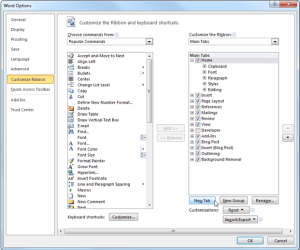
Here's how:
1. Click the Office Button | Options
2. In the Options dialog box that appears, select Customize Ribbon | New Tab. In the Choose Command From list, select your commands from the default list of Popular Commands or use the down arrow to select from other options such as All Commands. Pick out the commands you want to add to your new tab, and click Add. Use the Remove button to undo the addition.
3. Use the up/down arrows on the right to position your new tab on the Ribbon.
4. Click on the Rename button and in the Display name box, assign a name to the tab and click OK to confirm.
5. Click OK to update all your changes.
Last edited by a moderator:


