
How to Enable DLL Rule Collection in AppLocker in Windows 8
Information
By default DLL rule collection is disabled in AppLocker.
This tutorial will show you how to enable DLL rule collection so that you can create AppLocker rules to control how users can access and use files with .dll and .ocx file formats in Windows 7 and Windows 8.
This tutorial will show you how to enable DLL rule collection so that you can create AppLocker rules to control how users can access and use files with .dll and .ocx file formats in Windows 7 and Windows 8.
Note
AppLocker requirements
AppLocker is available in all editions of Windows Server 2008 R2, Windows Server 2012, Windows 7 Ultimate, Windows 7 Enterprise, and Windows 8 Enterprise.
To use AppLocker, you need:
AppLocker is available in all editions of Windows Server 2008 R2, Windows Server 2012, Windows 7 Ultimate, Windows 7 Enterprise, and Windows 8 Enterprise.
To use AppLocker, you need:
- To be logged on to an administrator account.
- A computer running Windows Server 2008 R2, Windows Server 2012, Windows 7 Ultimate, Windows 7 Enterprise, and Windows 8 Enterprise to create the AppLocker rules. Windows 7 Professional can be used to create the rules, but the rules cannot be enforced on computers running Windows 7 Professional. The computer can be a domain controller.
- For Group Policy deployment, at least one computer with the Group Policy Management Console (GPMC) or Remote Server Administration Tools (RSAT) installed to host the AppLocker rules.
- Computers running Windows Server 2008 R2, Windows Server 2012, Windows 7 Ultimate, Windows 7 Enterprise, or Windows 8 Enterprise to enforce the AppLocker rules that you create.
Warning
Before you enforce DLL rules, make sure that there are allow rules created for each DLL that is used by any of the allowed applications in AppLocker. This is usually done by using the Create Default Rules option when you right click on DLL Rules while creating the rules in AppLocker.
Here's How: 1. Open the Local Security Policy editor.
2. Double click/tap on Application Control Policies to expand it. (See screenshot below)
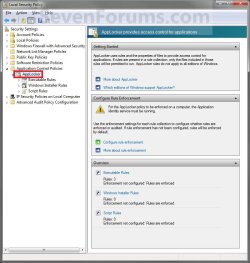
3. Right click on AppLocker, and click/tap on Properties. (See screenshot above)
4. Click/tap on the Advanced tab. (See screenshot below)
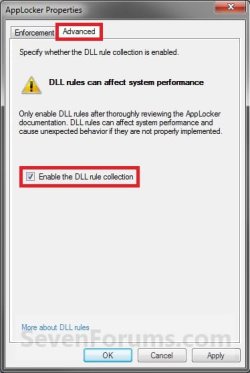
5. To Enable DLL Rules A) Check the Enable the DLL rule collection box, and click/tap on OK. (See screenshot above)
B) Go to step 7.
6. To Disable DLL Rules A) Uncheck the Enable the DLL rule collection box, and click/tap on OK. (See screenshot below step 4)
7. DLL Rules have now been enabled to create a AppLocker rule with. (See screenshot below)
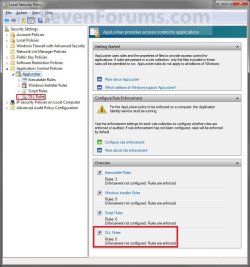
8. When done, close the Local Security Policy editor window. (See screenshot above)
That's it,
Shawn
Last edited:
