
How to Create New Rules in AppLocker in Windows 7 and Windows 8
Information
AppLocker is a feature that replaces the Software Restriction Policies feature. AppLocker helps administrators control which applications and files users can run. These include executable files, scripts, Windows Installer files, DLLs, Packaged apps and Packaged app installers.
For more details information about AppLocker, please see:
This tutorial will show you how to enable and create new rules in AppLocker to help control how users can access and use files, such as executables, scripts, Windows installer files, DLLs, and packaged apps (Windows 8 Store apps) in Windows 7 and Windows 8.
For more details information about AppLocker, please see:
This tutorial will show you how to enable and create new rules in AppLocker to help control how users can access and use files, such as executables, scripts, Windows installer files, DLLs, and packaged apps (Windows 8 Store apps) in Windows 7 and Windows 8.
Note
The AppLocker Microsoft Management Console (MMC) snap-in is organized into four areas called rule collections. The four rule collections are executable files, scripts, Windows Installer files, and DLL files. These collections give you an easy way to differentiate the rules for different types of applications. The following table lists the file formats included in each rule collection.
| Rule Collection | Associated File Formats |
|---|---|
| Executable Rules | .exe and .com |
| Windows Installer Rules | .msi and .msp |
| Script Rules | .ps1, .bat, .cmd, .vbs, and .js |
| DLL Rules | .dll and .ocx |
| Packacked app Rules (Windows 8 only) | .aappx (Store apps) |
Warning
AppLocker requirements
AppLocker enforcement is available in all editions of Windows Server 2008 R2, Windows Server 2012, Windows 7 Ultimate, Windows 7 Enterprise, Windows 8 Ultimate, and Windows 8 Enterprise.
To use AppLocker, you need:
AppLocker enforcement is available in all editions of Windows Server 2008 R2, Windows Server 2012, Windows 7 Ultimate, Windows 7 Enterprise, Windows 8 Ultimate, and Windows 8 Enterprise.
To use AppLocker, you need:
- You must be logged in as an administrator to be able to do this tutorial.
- Only a computer running Windows Server 2008 R2, Windows Server 2012, Windows 7 Ultimate, Windows 7 Enterprise, and Windows 8 Enterprise can both create and enforce AppLocker rules.
- While you can create AppLocker rules on computers running Windows 7 Professional and Windows 8 Pro, they will not be enforced on those computers. However, you can create the rules on a computer running Windows 7/8 Professional and then export the policy for implementation on a computer running an edition of Windows that does support AppLocker rule enforcement.
- For Group Policy deployment, at least one computer with the Group Policy Management Console (GPMC) or Remote Server Administration Tools (RSAT) installed to host the AppLocker rules.
- Computers running Windows Server 2008 R2, Windows Server 2012, Windows 7 Ultimate, Windows 7 Enterprise, or Windows 8 Enterprise enforce the AppLocker rules that you create.
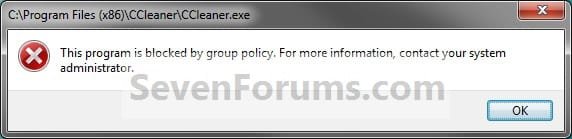
NOTE: This is the type of message users will see when they try to access a file that has had a rule created for it in AppLocker set to deny (step 7) for that user or user's group.
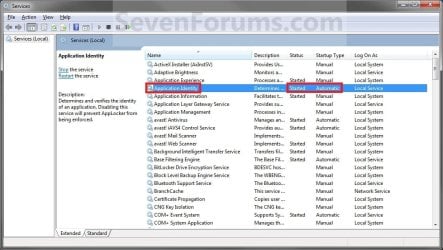
Here's How:1. If you have not already, then you will need to change the Application Identity service to be set as Started and Automatic. (See screenshot below)
2. Open the Local Security Policy editor.
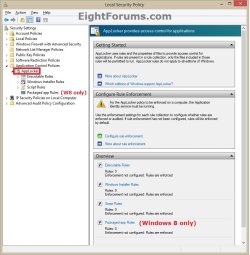
3. In the left pane, double click on Application Control Policies to expand it, then select a rule collection that you want to create a new rule in. (See screenshot below)
NOTE: The rule collection will be either the Executable Rules, Windows Installer Rules, Script Rules, or DLL Rules collection. You will need to enable the DLL Rules to be able to have it available. See the NOTE box at the top of the tutorial for more on these.
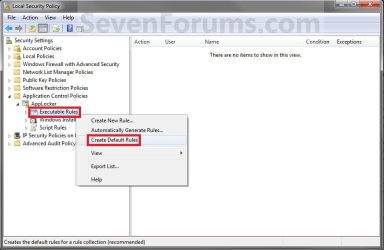
4. If you have not already created default rules for the selected rules collection, then you will need to right click on the selected rule collection and click on Create Default Rules. (See screenshot below)
NOTE: For example, I will be using Executable Rules in this tutorial.
.

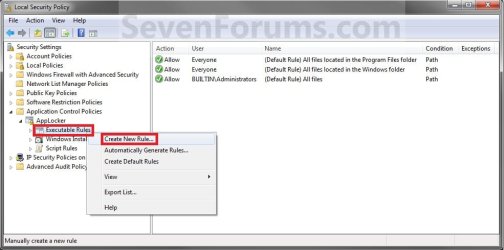
5. Right click on the selected rule collection, and click/tap on Create New Rule. (See screenshot below)
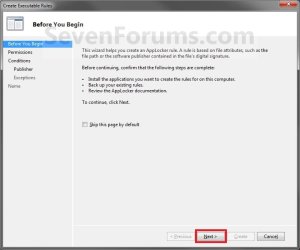
6. Click/tap on the Next button at the bottom. (See screenshot below)
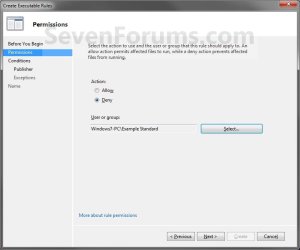
7. Select Allow or Deny as the action you want to use for the selected User or Group. (See screenshot below)
NOTE: An allow action permits affected files to run, while a deny actions prevents affected files from running. The affected files depends on what rule collection you selected in step 3.

8. If you do not want to have this rule applied to Everyone (default), then click on the Select button to select the User or Group you want to allow or deny instead. (See screenshot above)
NOTE: If you do want to have this rule apply to Everyone, then skip this step and go to step 12.
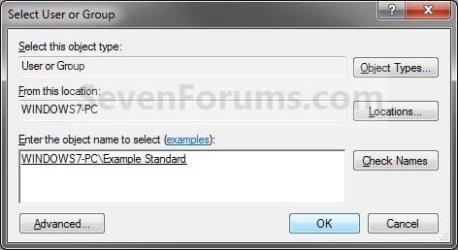
9. To Enter a User Name to Apply the Rule to
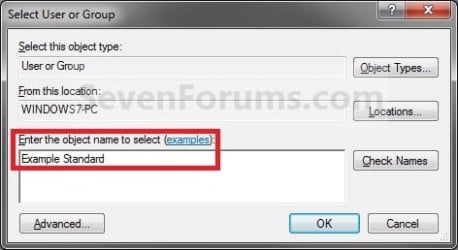
NOTE: This is if you know the user account name that you want to apply this rule to and just want to enter it instead of selecting it from a list.A) Type the user account name, and click/tap on the Check Names button. (See screenshot below)
NOTE: For example, I want to apply this rule to a user with the user account name of Example Standard.
B) Go to step 11.
10. To Select a User or Group to Apply the Rule toA) Click/tap on the Advanced button instead. (See screenshot below step 9A)
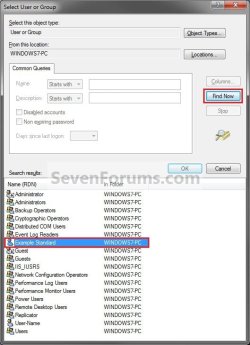
B) Click/tap on the Find Now button, select the User or Group that you want to apply this rule to, and click/tap on OK. (See screenshot below)
NOTE: For example, I want to apply this rule to a user with the user account name of Example Standard.
11. Click/tap on OK. (See screenshot below)
12. Click/tap on Next. (See screenshot below)
13. If you want a Publisher Rule Condition
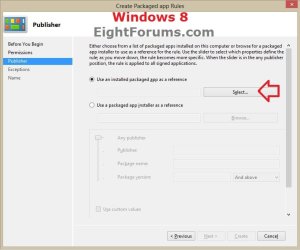
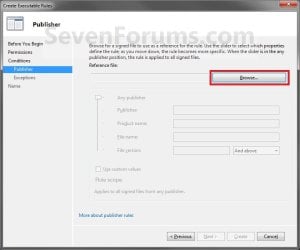
NOTE: This condition identifies an application based on its digital signature and extended attributes. The digital signature contains information about the company that created the application (the publisher). The extended attributes, which are obtained from the binary resource, contain the name of the product that the application is part of and the version number of the application. The publisher may be a software development company, such as Microsoft, or the information technology department of your organization. Use a publisher condition when possible. Publisher conditions can be created to allow applications to continue to function even if the location of the application changes or if the application is updated.A) Select (dot) Publisher, and click/tap on Next or Use an installed packaged app as a reference (Packaged apps Rules). (See screenshots below)

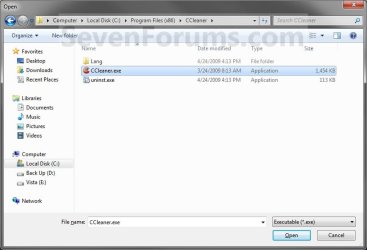
B) Click/tap on the Browse button. Navigate to the file that you want to allow or deny access to, select it, and click/tap on Open. (See screenshots below)
OR
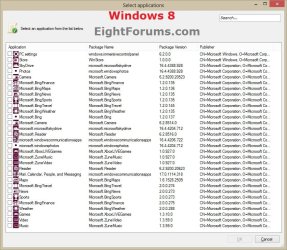
C) Click/tap on Select (Packaged apps Rules). Select (check) Store apps and Metro screens, that you want to allow or deny access to, and click/tap on OK. (See screenshots below)
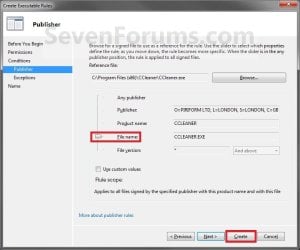
D) Use the slider to select which properties you want incuded to define the rule with. As you move the slider down, the more properties are added and makes the rule more specific for the selected file above. Click/tap on Create. (See screenshot below)
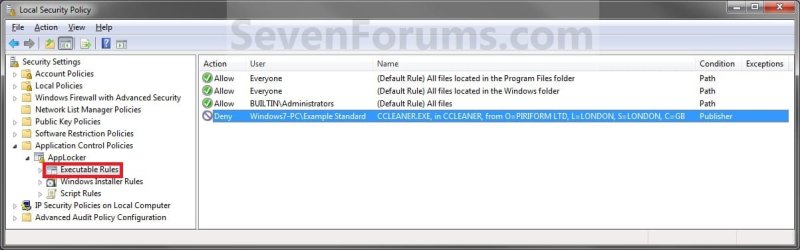
E) The rule has now been added. (See screenshot below)
F) Go to step 16 below.
14. If you want a Path Rule Condition
NOTE: This condition is used to select a specific file or folder path location on your computer or on the network.A) Select (dot) Path, and click/tap on Next. (See screenshot below)
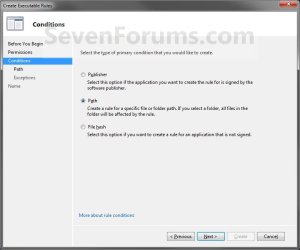
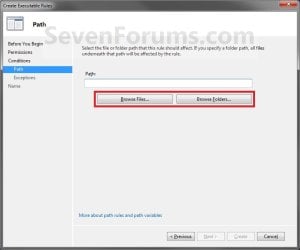
B) Select Browse Files or Browse Folders path to apply this rule to. If you specify a folder path, then all files in that folder will be included and affected by this rule.
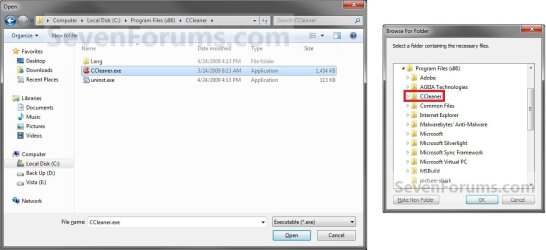
C) Navigate to the file or folder that you want allow or deny access to, select it, and click/tap on Open or OK. (See screenshots below)
D) Click/tap on the Create button. (See screenshots below)
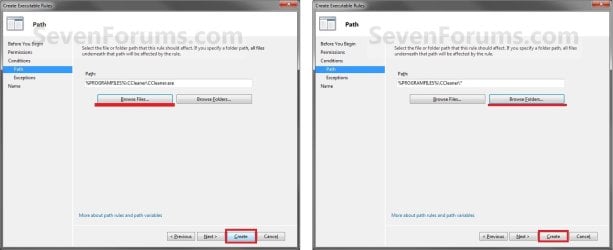
E) The rule has now been added. (See screenshots below)

F) Go to step 16 below.
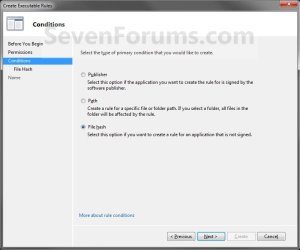
15. If you want a File Hash Rule Condition
NOTE: When the file hash condition is chosen, the system computes a cryptographic hash of the identified file. Select this option if you want to create a rule for an application that is not signed.A) Select (dot) File hash, and click/tap on Next. (See screenshot below)
B) Select Browse Files or Browse Folders path to apply this rule to. If you specify a folder path, then all files in that folder will be included and affected by this rule.
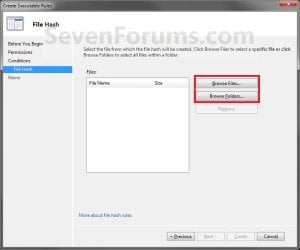
C) Navigate to the file or folder that you want allow or deny access to, select it, and click/tap on Open or OK. (See screenshots below)
D) The file or files in the folder have been added. Repeat steps 15B and 15C to add any more files to be included in this rule. (See screenshot below)
NOTE: To remove a file, select it and click/tap on the Remove button.

E) When done, click/tap on the Create button. (See screenshot above)
F) The rule has now been added. (See screenshot below)
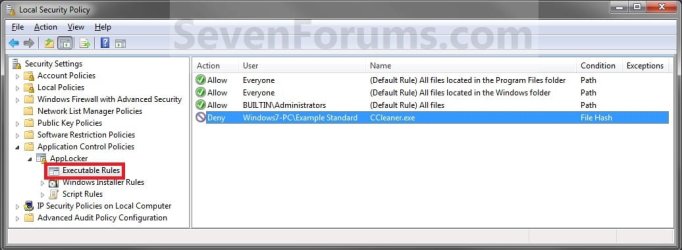
16. Repeat this tutorial to add another rule to any one of the Rule Collections.
NOTE: This will be either the Executable Rules, Windows Installer Rules, Script Rules, or DLL Rules collection. You will need to enable the DLL Rules to have it available. See the NOTE box at the top of the tutorial for more on these.
17. When done, close the Local Security Policy editor.
That's it,
Shawn Brink
Related Tutorials
- How to Enable DLL Rule Collection in AppLocker in Windows 7 and Windows 8
- How to Turn Windows 7 BitLocker To Go On or Off for Removable Drives
- How to Turn Windows 7 BitLocker On or Off for Internal Data Hard Drives
- How to Prevent Users from Running Specified Programs in Windows
- How to Allow Users to Run Only Specified Programs in Windows
- How to Set Up an Account for Assigned Access in Windows 8.1 and Windows RT 8.1
Last edited:


