How to Set Menus to Open to Left or Right Side in Windows 7 and Windows 8
Information
This tutorial will show you how to set all menus (ex: context menu, Menu bar, etc...) to open to the left or right side of where you click at in Windows 7 and Windows 8.
Warning
If the menu does not have enough room to fully open at the border of the window or display screen, it will compensate and open from the opposite direction of the border instead. This will override whatever side you have the menu set to open on below.
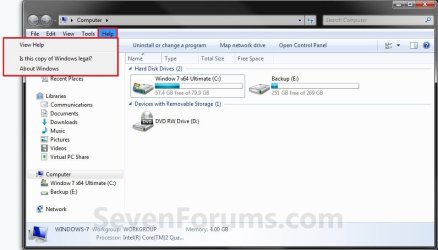
EXAMPLE: Right-handed
NOTE: Menus open to the left of your hand.
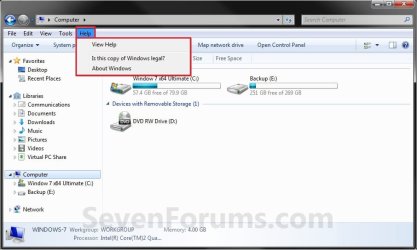
EXAMPLE: Left-handed
NOTE: Menus open to the right of your hand.
OPTION ONE
Set Menus to Open to Left or Right Side in Tablet PC Settings
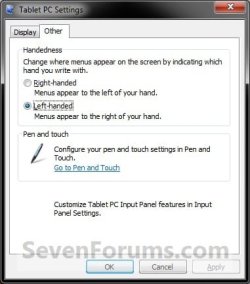
1. Open Tablet PC Settings, and click/tap on the Other tab. (see screenshot below)
2. To Have Menus Open to the Left
A) Select (dot) Right-handed, and click/tap on OK.
3. To Have Menus Open to the Right
A) Select (dot) Left-handed, and click/tap on OK.
OPTION TWO
Set Menus to Open to Left or Right Side using a REG File
1. Do step 2 or 3 below for what you would like to do.
2. To Have Menus Open to the Left
A) Click/tap on the Download button below to download the file below, and go to step 4 below.
Menus_Open_To_Left.reg
Download
3. To Have Menus Open to the Right
A) Click/tap on the Download button below to download the file below, and go to step 4 below.
Menus_Open_To_Right.reg
Download
4. Save the .reg file to your desktop.
5. Double click/tap on the downloaded .reg file to merge it.
6. If prompted, click/tap on Run, Yes (UAC), Yes, and OK to approve the merge.
7. Log off and log on, or restart the computer to apply.
8. When done, you can delete the downloaded .reg file if you like.
OPTION THREE
Set Menus to Open to Left or Right Side in Registry Editor
1. Press the Windows + R keys to open the Run dialog, type regedit, and press Enter.
2. If prompted by UAC, then click/tap on Yes.
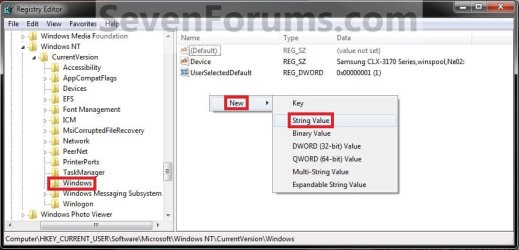
3. In regedit, navigate to the location below. (see screenshot below)
HKEY_CURRENT_USER\Software\Microsoft\Windows NT\CurrentVersion\Windows
4. To Have Menus Open to the Left
A) In the right pane of Windows, right click or press and hold on an empty space, and click/tap on New and String Value. Type MenuDropAlignment, and press Enter. (see screenshot below)
NOTE: If you already have MenuDropAlignment, then skip this step and go to step 4B instead.
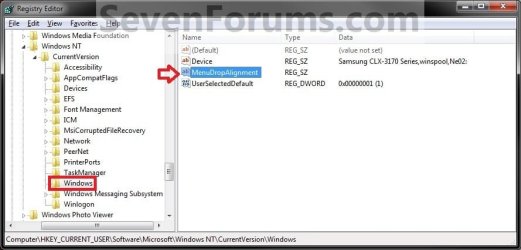
B) In the right pane, double click/tap on MenuDropAlignment and to modify it. (see screenshot above)
C) Type 1, click on OK, and go to step 6 below. (see screenshot below)

5. To Have Menus Open to the Right
A) In the right pane of Windows, right click on MenuDropAlignment and click on Delete and Yes. (see screenshot below step 4B)
OR
B) Repeat all steps in step 4, type 0 (zero) in step 4C instead, and go to step 6 below.
6. Close regedit.
7. Log off and log on, or restart the computer to apply.
That's it,
Shawn
Attachments
Last edited: