
How to Fix Manage "File does not have a program associated with it" Error
Information
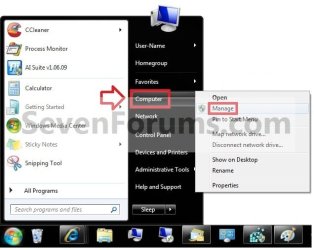
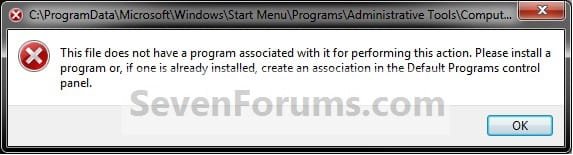
This will show you how to fix the This file does not have a program associated with it for performing this action error message you get when you click on the Manage context menu item for the Computer button in the Start Menu.
Note
This is usually caused by trying to change the shortcut overlay arrow icon using the improper XP method of deleting the IsShortcut string value in the registry instead of using the proper Windows 7 method.
EXAMPLE: Error message
NOTE: When you right click on the Computer button in the Start Menu and click on Manage, you get this error:
"This file does not have a program associated with it for performing this action. Please install a program or, if one is already installed, create an association in the Default Programs control panel."
OPTION ONE
To Fix Using a REG File Download
1. Click on the Download button below to download the file below.
Fix_Manage_Error.reg
Download
2. Save the .reg file to the desktop.
3. Right click the downloaded .reg file on the Desktop and click on Merge.
4. Click on Run, Yes (UAC), Yes, and OK when prompted.
5. When done, you can delete the downloaded .reg file if you would like to.
Tip
If your still get an error afterwards, then download and merge the lnk (LNK) option in the tutorial below to restore all of the default association for shortcuts (lnk), and try again.
http://www.sevenforums.com/tutorials/19449-default-file-type-associations-restore.html
http://www.sevenforums.com/tutorials/19449-default-file-type-associations-restore.html
OPTION TWO
To Manually Fix in Registry Editor
1. Open the Start Menu, and type regedit in the search box and press enter.
2. If prompted by UAC, then click on Yes (if administrator) or enter the administrator's password (if standard user).
3. In regedit, navigate to the location below.
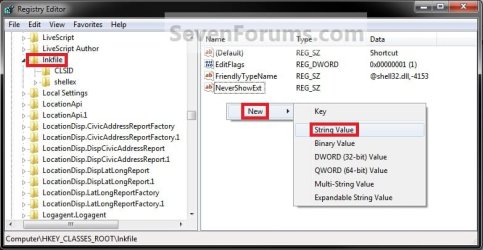
HKEY_CLASSES_ROOT\lnkfile
4. In the right pane of lnkfile (LNKFILE), right click on a empty space and click on New and String Value. (see screenshot below)
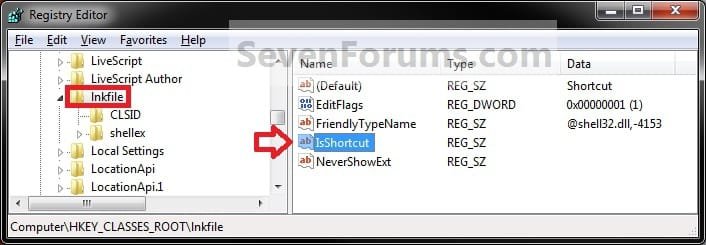
5. Type in IsShortcut for the name and press enter. (see screenshot below)
6. In regedit, navigate to the location below.
Code:
HKEY_CLASSES_ROOT\CLSID\{20D04FE0-3AEA-1069-A2D8-08002B30309D}\shell\Manage\command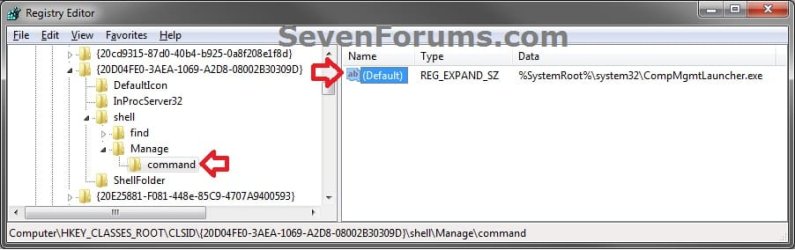
7. In the right pane of command, right click on a (Default) and click on Modify. (see screenshot above)
8. Type in the data below if it is not already there, and click on OK. (see screenshot below)
%SystemRoot%\system32\CompMgmtLauncher.exe
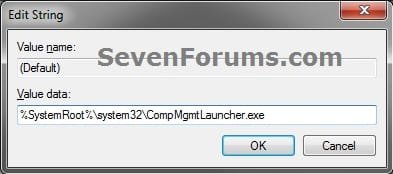
9. Close regedit.
Tip
If your still get an error afterwards, then download and merge the lnk (LNK) option in the tutorial below to restore all of the default association for shortcuts (lnk), and try again.
http://www.sevenforums.com/tutorials/19449-default-file-type-associations-restore.html
http://www.sevenforums.com/tutorials/19449-default-file-type-associations-restore.html
That's it,
Shawn
Related Tutorials
- How to Add or Remove Manage from Computer Context Menu
- Fix Empty Favorites in Navigation Pane Vista, Windows 7, and Windows 8
- How to Restore Missing "Pin to Taskbar" and "Pin to Start Menu" Context Menu Items in Windows 7 Shortcuts
- How to Disable or Enable "Context Menus" and "Dragging and Dropping" in the Start Menu
Attachments
Last edited:


