Windows 7 Forums


Windows 7: Internet Explorer - Language Preference for Webpages


Internet Explorer - Language Preference for Webpages

How to Add, Remove, and Arrange Language Preference for Webpages in IE8 and IE9
Published 20 Apr 2010
Published by

Featured Tutorial

Chrome GPU Hardware Acceleration - Turn On or Off

How to Turn GPU "Hardware Acceleration" On or Off in Chrome

Dual Boot - Windows 7 and Linux

How to Correctly Setup a Dual Boot with Windows 7 and LinuxMint13

Clean Reinstall - Factory OEM Windows 7

How to Clean Reinstall a Factory OEM Windows 7

Safe Internet Browsing

How to safely operate on the internet and stay free from malware infections

User Profiles - Create and Move During Windows 7 Installation

How to Create User Accounts on another Partition or Disk During Windows 7 Installation

Emergency Kit - save your files from a dead OS

How to Create and Use a Linux Mint Mate USB Flash Drive to Recover your Files
How to Add, Remove, and Arrange Language Preference for Webpages in IE8 and IE9

information   Information
This tutorial will show you how to add, remove, and arrange multiple languages in order of preference (priority) to display webpages and Address bar text correctly in IE8 and IE9.

If a website is available in multiple languages, the content will be displayed in the language that has the highest priority.

Resetting Internet Explorer will also reset any language preference changes you made below back to default as well.


Here's How:
1. Open IE8 or IE9, then click on Tools and Internet Options.
A) Go to step 3.
OR

2. Open the Control Panel (icons View), and click on Internet Options.

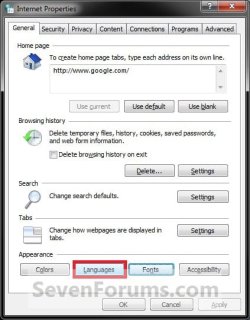
3. In the General tab under Appearance, click on the Languages button. (see screenshot below)
Internet Explorer - Language Preference for Webpages-languages1.jpg
4. To Add a Language
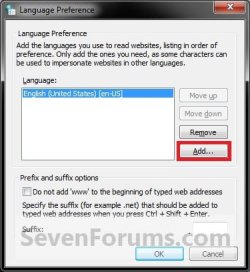
A) Click on the Add button. (see screenshot below)
Internet Explorer - Language Preference for Webpages-add-1.jpg
B) Select a language you want to add, and click on OK. (see screenshot below)

Internet Explorer - Language Preference for Webpages-add-2.jpg
C) Repeat steps 4A and 4B until you have added all of the languages you want to use to read websites.
5. To Remove a Language
A) In the Language box, select a added language and click on Remove. (see screenshot below)
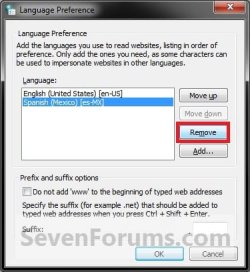
Internet Explorer - Language Preference for Webpages-remove.jpg
B) Repeat until you have removed all of the languages that you do not want to use anymore to read websites.
6. To Arrange Languages in Order of Preference -
NOTE: If you added more than one language, then you should arrange them in order of preference (priority). If a website is available in multiple languages, the content will be displayed in the language that has the highest priority at the top of the list.
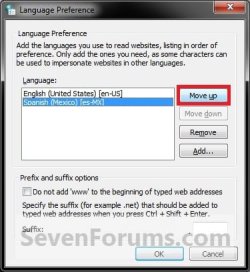
A) In the Language box, select a added language and click on the Move up (higher priority) or Move down (lower priority) buttons to arrange the languages in order of priority. (see screenshots below)
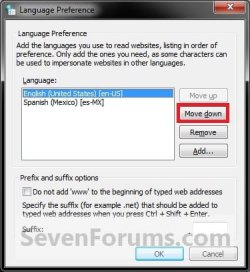
Internet Explorer - Language Preference for Webpages-move-1.jpgInternet Explorer - Language Preference for Webpages-move-2.jpg
B) Repeat until you have all added languages arranged in the order of priority you want.
7. When finished, click on OK. (see screenshot below)
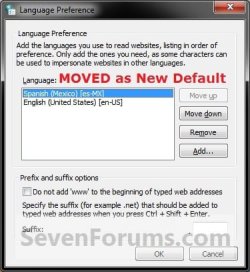
Internet Explorer - Language Preference for Webpages-move-3.jpg
8. Click on OK. (see screenshot below step 3)

9. You may need to either refresh (F5) or close and reopen Internet Explorer to see the changes.
That's it,
Shawn


Need more help? Try searching our extensive help and support site.
Loading
20 Apr 2010   #1
ryo

windows 7
Indonesia


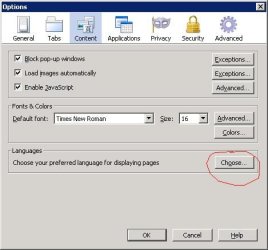
i always use that setting too..but i'm using fireforx browse..

so the setting is same just location different.
Tools > internet options > Internet Explorer - Language Preference for Webpages-language.jpg

My System SpecsSystem Spec

Comment

 Internet Explorer - Language Preference for Webpages problems?


Tutorial Tools


Similar help and support threads for: Internet Explorer - Language Preference for Webpages
Windows 7 Tutorial Category
Solved Internet Explorer 9 not displaying webpages Browsers & Mail
Internet Explorer - Change Colors Used for Webpages Tutorials
Internet Explorer - Change Text Size Used for Webpages Tutorials
Internet Explorer - Change Fonts Used for Webpages Tutorials
Changing display language of Internet Explorer 8 Browsers & Mail


All times are GMT -5. The time now is 09:20 AM.


Seven Forums Android App Seven Forums IOS App Follow us on Facebook

Windows 7 Forums is an independent web site and has not been authorized,
sponsored, or otherwise approved by Microsoft Corporation.
"Windows 7" and related materials are trademarks of Microsoft Corp.
© Designer Media Ltd
  

1 2 3 4 5 6 7 8 9 10 11 12 13 14 15 16 17 18 19 20 21 22 23 24 25 26 27 28 29 30 31 32