
How to Change Zoom Level in Internet Explorer
Information
This will show you how to change the Zoom level in Internet Explorer to enlarge or reduce the view of a webpage from 10% to 1000%. Unlike changing font size, zoom enlarges or reduces everything on the page, including text and images.
The default zoom level percentage is 100%.
The default zoom level percentage is 100%.
Tip
- If you have a mouse with a wheel, hold down the CTRL key, and then scroll the wheel to zoom in or out.
- If you keep clicking the Change Zoom Level button , it will cycle through 100%, 125%, and 150%, giving you a quick enlargement of the webpage.
- From the keyboard, you can increase or decrease the zoom value in 10% increments. To zoom in, press CTRL+(+). To zoom out, press CTRL+(-). To restore the zoom to 100%, press CTRL+0.
Here's How: 1. Open Internet Explorer, and step 2, 3, 4, 5, 6, or 7 below for what you would like to do.
NOTE: In Windows 8, you would open the IE10 desktop version, and not the IE10 Metro (Windows UI) version.
2. To Change the Zoom Level in Internet Explorer using Keyboard Shortcuts A) Press and hold the CTRL key, then press + (plus) or - (minus out) to zoom out and in to what you like, then release CTRL.
OR
B) Press and hold the CTRL key, then roll the mouse wheel up and down to zoom out and in to what you like, then release CTRL.
OR
C) Press the CTRL key, and press 0 (zero) to change the zoom level to 100%.
3. To Change the Zoom Level in Internet Explorer from the Toolbar A) On the toolbar, click/tap on the Tools (Alt+X) gear icon, Zoom, and on the percentage of enlargement or reduction you want. (see screenshot below)

OR
B) To specify a custom level, click/tap on Custom above. In the Percentage zoom box, scroll up and down or type or a zoom percentage value (10 to 1000), then click/tap on OK. (see screenshot below)
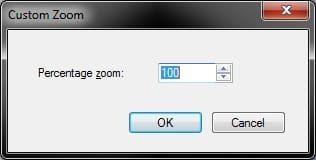
4. To Change the Zoom Level in Internet Explorer from the Command Bar A) On the Command Bar, click/tap on Page, Zoom, and on the percentage of enlargement or reduction you want. (see screenshot below)

OR
B) To specify a custom level, click/tap on Custom above. In the Percentage zoom box, scroll up and down or type or a zoom percentage value (10 to 1000), then click/tap on OK. (see screenshot below)
5. To Change the Zoom Level in Internet Explorer from the Menu Bar A) On the Menu Bar, click on View, Zoom, and on the percentage of enlargement or reduction you want. (see screenshot below)

OR
B) To specify a custom level, click/tap on Custom above. In the Percentage zoom box, scroll up and down or type or a zoom percentage value (10 to 1000), then click/tap on OK. (see screenshot below)
6. To Change the Zoom Level in Internet Explorer from the Status Bar A) On the bottom Status Bar, click/tap on the Change Zoom Level button
 to cycle through 100%, 125%, and 150%, giving you a quick enlargement of the webpage. (see screenshot below)
OR
B) On the bottom Status Bar, click/tap on the arrow to the right of the Change Zoom Level button
, and click/tap on the percentage of enlargement or reduction you want. (see screenshot below) 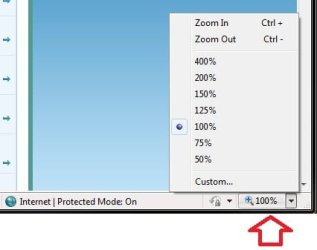
OR
C) To specify a custom level, click/tap on Custom above. In the Percentage zoom box, scroll up and down or type or a zoom percentage value (10 to 1000), then click/tap on OK. (see screenshot below)
7. To Set Zoom Level in Internet Explorer for New Windows and Tabs A) Click/tap on Tools, Internet Options, and the Advanced tab. (see screenshot below)
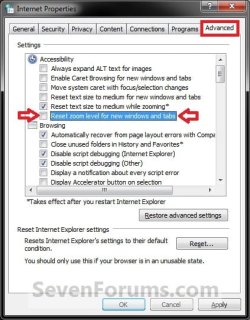
B) To Reset Zoom Level for New Windows and Tabs
- Check the Reset zoom level for new windows and tabs box, and click/tap on OK. (see screenshot above)
- Uncheck the Reset zoom level for new windows and tabs box, and click/tap on OK. (see screenshot above)
Shawn
Related Tutorials
- How to Change Zoom Level in Modern IE10 and IE11 in Windows 8 and 8.1
- How to Enable or Disable the Internet Explorer Zoom Level Option
- How to Change Font Styles Used for Webpages in Internet Explorer
- How to Change Colors Used for Webpages in Internet Explorer
- How to Add, Remove, and Arrange Language Preference for Webpages in IE8 and IE9
- How to Change Text Size Used for Webpages in Internet Explorer
Last edited:


