
How to Specify a Default Theme to Load for New Users in Windows 7
Information
This will show you how to have a theme that you specifiy to be applied by default when a new user logs on for the first time.
You must be logged in as an administrator to be able to do this tutorial.
You must be logged in as an administrator to be able to do this tutorial.
Note
If enabled, this does not prevent the user from changing their theme or any of the theme elements such as the desktop background, window color, sounds, or screen saver after the first logon. It only sets the theme you selected to be used by default until changed.
Warning
Your millage may vary.
It has been reported that this does not always work properly in 64-bit Windows 7, but does in 32-bit Windows 7. If you experience this issue, then see: The "Load a specific theme" Group Policy setting is not applied correctly for a new user in Windows 7 or in Windows Server 2008 R2
The Windows 7 Starter and Home Basic editions do not have the Personalization features included in them, such as changing and saving themes.
It has been reported that this does not always work properly in 64-bit Windows 7, but does in 32-bit Windows 7. If you experience this issue, then see: The "Load a specific theme" Group Policy setting is not applied correctly for a new user in Windows 7 or in Windows Server 2008 R2
The Windows 7 Starter and Home Basic editions do not have the Personalization features included in them, such as changing and saving themes.
OPTION ONE
Through the Local Group Policy Editor
1. Open the all users, specific users or groups, or all users except administrators Local Group Policy Editor for how you want this policy applied.
2. In the left pane, click on to expand User Configuration, Administrative Templates, Control Panel, and Personalization. (See screenshot below)

3. In the right pane, right click on Load a specific theme and click on Edit. (See screenshot above)
4. To Disable Loading a Specific Theme for New Users
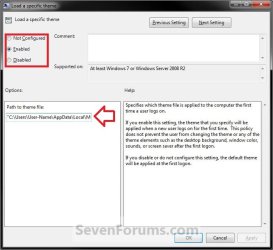
A) Select (dot) either Not Configured or Disabled. (see screenshot below step 6)
B) Go to step 6.
5. To Enable Loading a Specific Theme for New Users
A) Select (dot) Enabled. (see screenshot below step 6)
B) In the Path to theme file box under Options, type in the full path of the .theme file with file extension in quotes that you want to be used by default for new users. (see screenshot below step 6)
For example:
Code:
"C:\Users\User-Name\AppData\Local\Microsoft\Windows\Themes\Brink-Theme.theme"
Tip
- The saved user .theme files are located in the hidden C:\Users\User-Name\AppData\Local\Microsoft\Windows\Themes folder.
- The regional .theme files are located in the hidden C:\Windows\Globalization\MCT-(AU, CA, GB, US, or ZA)\Theme folder.
7. Close the Local Group Policy Editor window.
OPTION TWO
Manually in Registry Editor
1. Open the Start Menu, then type regedit in the search box and press enter.
2. If prompted by UAC, click on Yes.
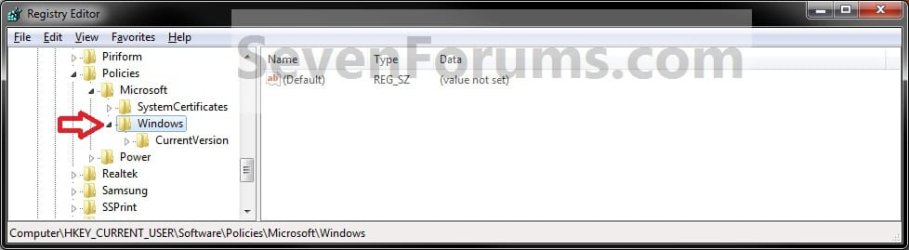
3. In regedit, navigate to the location below. (see screenshot below)
HKEY_CURRENT_USER\Software\Policies\Microsoft\Windows
4. To Enable Loading a Specific Theme for New Users
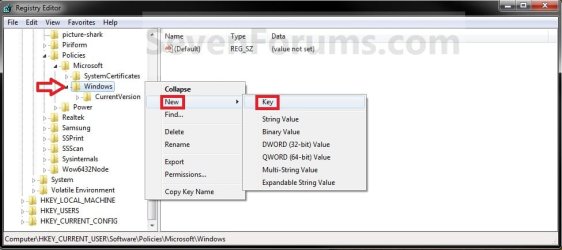
A) In the left pane, right click on Windows and click on New and Key. Type Personalization and press enter. (see screenshot below)
NOTE: If you already have the Personalization key, then skip this step and continue to 4B below.
B) In the right pane of Personalization, right click on a empty space and click on New and String Value. (see screenshot below)
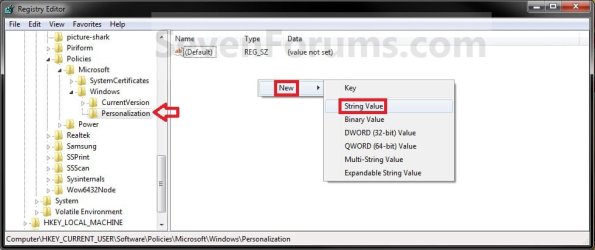
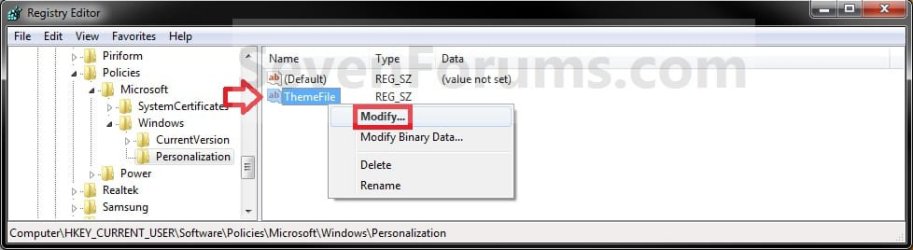
C) Type in ThemeFile and press Enter. Right click on ThemeFile and click on Modify. (see screenshot below)
D) type in the full path of the .theme file with file extension in quotes that you want to be used by default for new users. (see screenshot below)
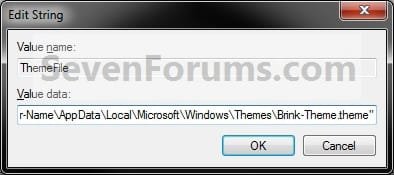
For example:
Code:
"C:\Users\User-Name\AppData\Local\Microsoft\Windows\Themes\Brink-Theme.theme"
Tip
- The saved user .theme files are located in the hidden C:\Users\User-Name\AppData\Local\Microsoft\Windows\Themes folder.
- The regional .theme files are located in the hidden C:\Windows\Globalization\MCT-(AU, CA, GB, US, or ZA)\Theme folder.
E) Go to step 6.
5. To Disable Loading a Specific Theme for New Users
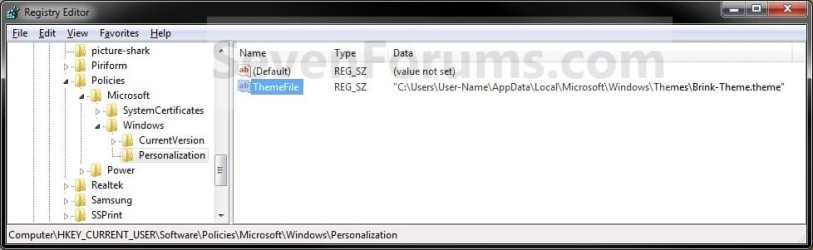
A) In the right pane of Personalization, right click on ThemeFile and click on Delete. (see screenshot below)
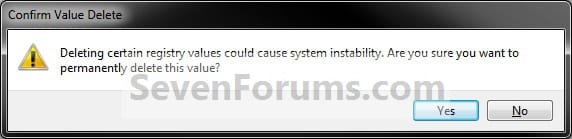
B) Click on Yes to confirm deletion. (see screenshot below)
6. Close regedit.
That's it,
Shawn
Related Tutorials
- Theme - Change or Save
- How to Allow or Prevent Changing Theme
- How to Use the Regional Themes in Windows 7
- How to Specify a Desktop Background for All Users
- How to Allow or Prevent Changing Desktop Background in Windows 7
- How to Allow or Prevent Changing Screen Saver in Windows 7
- How to Allow or Prevent Changing Sounds in Windows 7
- How to Allow or Prevent Changing Window Color and Appearance in Windows 7
Last edited:
 .
.
