
When working inside of your computer, you should always wear an anti-static wristband . If you shock an electrical component, you could PERMANENTLY DAMAGE THE COMPONENT and void your warranty!
-Graphics Ports (most new video cards now include a VGA to DVI adapter, so this is less of a worry)
-Power Supply (it needs to have enough to power the card and everything else)
-Case Space (with newer high end cards, there can be little room left. I have a N260GTX in a Full tower case, and it BARELY fits. Make sure to measure your case)
-Money vs Power (This is for you to determine, I WILL NOT cover this)
Things you will need to install your new card:
-Phillips Screwdriver (sometimes varies depending on the case)
-Anti-static wristband
-New Graphics Card
-About 30 minutes
-New video card drivers (on CD or downloaded beforehand)
Steps:
If you have onboard graphics on your motherboard, you should disable this is BIOS before you install your new card.
To do this, you must restart your computer. When the OEM logo (or BIOS) comes up, press one of the keys shown at the bottom, usually F1, DEL, ESC, etc. It should be labeled, ENTER SETUP.
Navigation is done with the arrow keys here. Scroll to the advanced tab, and look for a graphics setting, and disable it.
NOTE: This CANNOT be done through Windows (or any other OS), it MUST be done through BIOS.
1) Remove your old graphics card drivers. There are a few ways to do this, but I will cover the default Windows way:
a) Open Device Manager (Computer, right click Properties, Device Manager)
b) Select Display Adapters
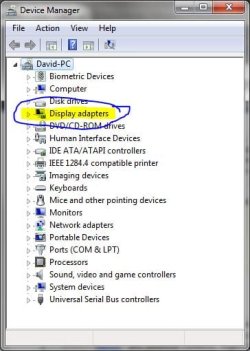
c) Right click Properties, and go to the Driver Tab, and click Uninstall.
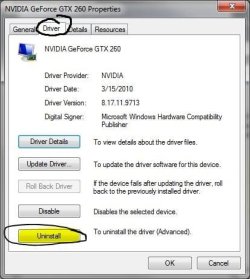
2) Turn off your computer, and unplug the power cord from the Power supply unit. It is also a good idea to remove all the plugs from the back of the computer, and take the unit to a non-static workplace, like a wood workbench. Carpet and metal is not recommended.
3) Pull out the old graphics card. Some motherboards (and cards) have a release catch on them, usually under the card, to the inside of the motherboard.
4) Put in the new card. Push it in with firm, steady pressure until it drops in snugly. Wiggle the card GENTLY to see if the base is loose. Plug in the power plug from the PSU (not all cards need this, some use one 6 pin, some one 8 pin, some two 6 pins, some two 8 pins. Look at your card and your manual to find out)
5) Screw the card into the case, and put the case back together
6) Turn on the computer, and install the new drivers.
Your new graphics card is installed and ready to go!
If you would like to keep your old graphics card, put it in the anti-static bag that your new card came in to keep it safe.
If you want to get rid of it, take it to your local computer outlet and ask them if they will dispose of it for you. Computer components CANNOT just be thrown away, they need to be disposed of properly.
Information
Neither I (Lorbob75), nor Seven Forums (Windows 7 Forums) take responsibility should your card be damaged or destroyed if you follow this advice. We do not advise installing a new video card unless you know what you are doing, and are willing to risk your video card.
Good info. I was wondering if maybe you could add what sockets are compatible with what graphics card and how it would be done if you have a built in graphics and then you add a graphics card. Basically thats the info I'm looking for haha
My PC has built in graphics and I want to put on a new graphics card thats suppose to be PCIe v 2.0 but on my com, the slot is a v 1.0. So would that work?
First off, most new graphics cards are PCIe 2.0 x16 or 2.1 x16. Same with most newer mobos. The best way to tell this is to look at the box of your graphics card, and it should tell you the slot type. For your motherboard, get the model number and look it up online (I like newegg) and it will tell you what it has.
Generally, PCIe is backwards compatible, so it should work.
Second, you will need to disable onboard video through the BIOS. I don't know exactly how to do this, as each mobo is different, and I don't have onboard, so I cannot check mine. In my past experiences, it will auto disable itself when you install it, but it is best to check.
System Manufacturer/Model Number Hera OS Windows 7 Ultimate x64, Mint 9 CPU Intel i5-2500k Motherboard ASUS P8P67 Pro Memory 2x 4Gb Corsair VENGEANCE DDR3-1600 Graphics Card NVidia GeForce N260GTX Twin Frozr Sound Card Realtek HD OnBoard Audio Monitor(s) Displays ASUS 24" Monitor Screen Resolution 1920x1080
Keyboard Razer Tarantula Mouse Razer Lachesis PSU Cooler Master Real Power Pro 750W Case Cooler Master Haf 932 Cooling Fans Hard Drives G.SKILL Phoenix Series 60GB SATA II MLC Internal Solid State Drive (SSD)
SAMSUNG Spinpoint F3R 1TB 7200 RPM 32MB Cache SATA II Internet Speed not fast enough
That was very helpful. I've read a few times too that they're mostly downward compatible and I was happy to read your reassuring message I guess I'll be getting a new graphics card now.
Lordbob useful info here but I have a question. If you disable onboard video won't this mean you have no display for deletion of old driver and install of new? Is there any reason the new card and drivers can't be installed first?
I guess the advice is similar for soundcards but temporary loss of sound is not a problem. I am doing a partial upgrade later this week (MB, sound and possibly video).
System Manufacturer/Model Number Mixture OS Win 7 Home Premium 64 bit CPU Phenom II X4 955 BE Motherboard GA-MA785GM-US2H Memory 8GB Kingston DDR2 800 Graphics Card Sapphire HD5670 1GB. Sound Card Asus Xonar Essence ST Monitor(s) Displays Samsung P2350 Screen Resolution 1920x1080
Lordbob useful info here but I have a question. If you disable onboard video won't this mean you have no display for deletion of old driver and install of new? Is there any reason the new card and drivers can't be installed first?
I guess the advice is similar for soundcards but temporary loss of sound is not a problem. I am doing a partial upgrade later this week (MB, sound and possibly video).
Well, typically when you install a card it will default to the PCIe slot for graphics. Disabling onboard video is actually not necessary, but still recommended. You also would disable it AFTER installing the new card.
System Manufacturer/Model Number Hera OS Windows 7 Ultimate x64, Mint 9 CPU Intel i5-2500k Motherboard ASUS P8P67 Pro Memory 2x 4Gb Corsair VENGEANCE DDR3-1600 Graphics Card NVidia GeForce N260GTX Twin Frozr Sound Card Realtek HD OnBoard Audio Monitor(s) Displays ASUS 24" Monitor Screen Resolution 1920x1080
Keyboard Razer Tarantula Mouse Razer Lachesis PSU Cooler Master Real Power Pro 750W Case Cooler Master Haf 932 Cooling Fans Hard Drives G.SKILL Phoenix Series 60GB SATA II MLC Internal Solid State Drive (SSD)
SAMSUNG Spinpoint F3R 1TB 7200 RPM 32MB Cache SATA II Internet Speed not fast enough
Computer type PC/Desktop System Manufacturer/Model Number Self Built OS Windows 7 Ultimate X64 SP1 CPU Intel(R) Core(TM) i5-2500K CPU @ 3.30GHz Motherboard Intel(R) Core(TM) i5-2500K CPU @ 3.30GHz Memory 8GB 1333Mhz DDR3 Graphics Card NVIDIA GeForce GTX 460 Sound Card Realtek Monitor(s) Displays Acer Al1980, Screen Resolution 1360*768
Keyboard Alba USB Mouse IT Works Wireless USB PSU 750W Cooler Master Case Cooler Master Haf X Cooling Cooler Master Hyper TX3 Hard Drives 500GB SATA WBC
1TB WD Caviar Green
80GB IDE Samsung Internet Speed 12Mb/s Down 1.2 Mb/s Up
System Manufacturer/Model Number Hera OS Windows 7 Ultimate x64, Mint 9 CPU Intel i5-2500k Motherboard ASUS P8P67 Pro Memory 2x 4Gb Corsair VENGEANCE DDR3-1600 Graphics Card NVidia GeForce N260GTX Twin Frozr Sound Card Realtek HD OnBoard Audio Monitor(s) Displays ASUS 24" Monitor Screen Resolution 1920x1080
Keyboard Razer Tarantula Mouse Razer Lachesis PSU Cooler Master Real Power Pro 750W Case Cooler Master Haf 932 Cooling Fans Hard Drives G.SKILL Phoenix Series 60GB SATA II MLC Internal Solid State Drive (SSD)
SAMSUNG Spinpoint F3R 1TB 7200 RPM 32MB Cache SATA II Internet Speed not fast enough
Computer type PC/Desktop System Manufacturer/Model Number Self Built OS Windows 7 Ultimate X64 SP1 CPU Intel(R) Core(TM) i5-2500K CPU @ 3.30GHz Motherboard Intel(R) Core(TM) i5-2500K CPU @ 3.30GHz Memory 8GB 1333Mhz DDR3 Graphics Card NVIDIA GeForce GTX 460 Sound Card Realtek Monitor(s) Displays Acer Al1980, Screen Resolution 1360*768
Keyboard Alba USB Mouse IT Works Wireless USB PSU 750W Cooler Master Case Cooler Master Haf X Cooling Cooler Master Hyper TX3 Hard Drives 500GB SATA WBC
1TB WD Caviar Green
80GB IDE Samsung Internet Speed 12Mb/s Down 1.2 Mb/s Up
System Manufacturer/Model Number Hera OS Windows 7 Ultimate x64, Mint 9 CPU Intel i5-2500k Motherboard ASUS P8P67 Pro Memory 2x 4Gb Corsair VENGEANCE DDR3-1600 Graphics Card NVidia GeForce N260GTX Twin Frozr Sound Card Realtek HD OnBoard Audio Monitor(s) Displays ASUS 24" Monitor Screen Resolution 1920x1080
Keyboard Razer Tarantula Mouse Razer Lachesis PSU Cooler Master Real Power Pro 750W Case Cooler Master Haf 932 Cooling Fans Hard Drives G.SKILL Phoenix Series 60GB SATA II MLC Internal Solid State Drive (SSD)
SAMSUNG Spinpoint F3R 1TB 7200 RPM 32MB Cache SATA II Internet Speed not fast enough