Dual Boot Installation with Windows 7 and XP

How to Setup a Dual Boot Installation with Windows 7 and XP


   Information
This will show you how to install Windows 7 and XP to dual boot with when you already have either Windows 7 or XP installed first.
   Note
With a dual boot installaton, you will have two operating systems (OS) installed. When you start the computer, you will have the choice to choose which OS you would like to start up to. This method is the easiest way of doing a dual boot with these two operating systems.
   Tip
When dual booting with another OS (ex: Vista or XP), you may not always have that OS partition show up in Computer with a driver letter in Windows 7. If this happens, then you will just need to add a drive letter to the OS (ex: Vista or XP) partition in Windows 7 Disk Management for it to show up in Computer with a driver letter.
   Warning
To stop XP from deleting your Windows 7 System Restore Points everytime XP is started, then see System Restore Points - Stop XP Dual Boot Delete to hide Windows 7 from XP.

Windows 7 Minimum Hardware Requirements


NOTE: For more information on this, see: Windows 7 system requirements
  • 1 GHz 32-bit or 64-bit processor
  • 1 GB RAM for 32-bit Windows 7 OR 2 GB RAM for 64-bit Windows 7
  • 16 GB available disk space 32-bit Windows 7 OR 20 GB for 64-bit Windows 7
  • Support for DirectX 9 graphics with 128 MB memory (in order to enable Aero theme)
  • DVD-R/W Drive
  • Internet or phone access to activate Windows 7.
Windows XP Minimum Hardware Requirements

NOTE: For more information on this, see: System requirements for Windows XP operating systems
  • PC with 300 megahertz (MHz) or higher processor clock speed recommended; 233-MHz minimum required;* Intel Pentium/Celeron family, AMD K6/Athlon/Duron family, or compatible processor recommended
  • 128 megabytes (MB) of RAM or higher recommended (64 MB minimum supported; may limit performance and some features)
  • 1.5 gigabyte (GB) of available hard disk space.*
  • Super VGA (800 × 600) or higher resolution video adapter and monitor
  • CD-ROM or DVD drive
  • Keyboard and Microsoft Mouse or compatible pointing device
EXAMPLE: Windows Boot Manager
NOTE: This is the boot screen where you select what operating system that you would like to start. By default, you have 30 seconds to choose another operating system before the default operating system will start automatically.
Example.jpg


OPTION ONE

When XP is Installed First


NOTE: If you have a RAID setup, you will need to have the Windows 7 RAID drivers on a USB flash drive available to select and load while installing Windows 7.
1. Do step 2 or 3 below for where you wanted to install Windows 7 at.

2. To Create a New Partition from the XP Hard Disk Drive
A) With your Windows 7 installation disc boot into the Command Prompt from the System Recovery Options screen.
NOTE: Make sure that the CD/DVD drive is selected first in the boot order in the BIOS.

B) In the command prompt, select and shrink the XP volume by how many MB (1024 MB = 1 GB) you want to have for this Windows 7 partition. (See screenshot below)
NOTE: You would do steps 2 to 9 in METHOD TWO at that link. Windows 7 will need a minimum of 16 GB (16384 MB).

XP-W7_1.jpg
C) Click on the X at the top right corner to close the command prompt. (See screenshot above)

D) Click on the X at the top right corner to close System Recovery Options. (See screenshot below)
XP-W7_2.jpg
E) Go to step 4.
3. To Use a Separate Hard Disk Drive than the XP Drive
A) Boot from your Windows 7 installation disc.
NOTE: Make sure that the CD/DVD drive is selected first in the boot order in the BIOS.
4. Click on the Install now button. (See screenshot below)

XP-W7_3.jpg
5. When you get to this point, select the partition (step 2) or hard drive to install Windows 7 on. (See screenshot below)

XP-W7_4.jpg
6. Finish installing Windows 7.
NOTE: You would start at step 9 in that link to finish installing Windows 7.

7. When finished, restart the computer to have the option to boot from XP (Earlier Verision of Windows) or Windows 7. (See screenshot below)

   Note
If you are only booting into Windows 7 and do not have XP listed in the Windows Boot Manager, then you can install only EasyBCD (step 8 Option Two below) to add XP (or Windows 7) while started in Windows 7 the same way to the boot list.

Example.jpg


OPTION TWO

When Windows 7 is Installed First


   Warning

1. To Create a New Partition from the Windows 7 Hard Disk Drive
NOTE: If you want to install XP on a separate internal hard drive instead, then skip this step and go to step 2.
A) In Windows 7, select and shrink the Windows 7 volume in Disk Management by how many MB (1024 MB = 1 GB) you want to have for this XP partition. (See screenshots below)
NOTE: You would do all of Method One at that link.

W7-XP-1.jpg

W7-XP-2.jpg

W7-XP-3.jpg
2. Insert your XP installation disc, then restart the computer and press any key to boot from it when prompted. (See screenshot below)
NOTE: Make sure that the CD/DVD drive is selected first in the boot order in the BIOS.

Step1.jpg
3. From XP Setup, Press Enter. (See screenshot below)


   Warning

W7-XP-4.jpg
4. Press F8. (See screenshot below)
NOTE: On some multimedia keyboards, you may need to press the F-Lock or Function key before pressing F8.
W7-XP-5.jpg
5. Select the partition (step 1) or hard drive that you want to install XP on using the arrow keys and press Enter.

W7-XP-6.jpg
6. Finish installing XP.


   Tip
If you get Error loading Operating System after XP restarts:
  • Using your Windows 7 installation disc, boot to the command prompt at startup.
  • Type in these comands below, and press enter after each one.
    • bootrec /FixMbr
    • bootrec /FixBoot
    • bootrec /RebuildBcd
  • Exit the command prompt and restart the computer.
  • At this point, Windows 7 should boot up the same way before trying to install XP.
  • Continue to step 8 below and run EasyBCD from Windows 7 instead.

7. In XP, download and install .Net Framework 2.0 (32-bit) version or .Net Framework 2.0 (64-bit) version first, and EasyBCD (free version) for your 32-bit (x86) or 64-bit (x86) XP.
NOTE: In XP, Net Framework is required to be installed to run EasyBCD. After you click on Register (at bottom of link) for the free EasyBCD, registration is not required to download it.

8. Run EasyBCD (free version).
NOTE: This is required to repair the Windows 7 boot file and add XP to the Windows Boot Manager list.

9. On the left side of EasyBCD, click on the Add New Entry button. (See screenshot below)
A) In the top section under Operating Systems, click on the Windows tab. (See screenshot below)
B) To the right of Type, select Windows NT/2k/XP/2k3 from the drop down menu. (See screenshot below)
:warn:WARNING: Be sure to leave the Automatically detect correct drive box checked.

C) To the right of Name, you can leave the default Microsoft Windows XP as the name to be displayed in the Windows Boot Manager, or you can type whatever name you would like to have instead. (See screenshot below)
D) Click on the Add Entry button. (See screenshot below)
W7-XP-7.jpg
10. On the left side of EasyBCD, click on the BCD Deployment button, select (dot) the Install the Windows Vista/7 bootloader to the MBR option, and click on the Write MBR button. (See screenshot below)

W7-XP-9.jpg
11. Close EasyBCD.

12. Restart the computer to have the option to boot from Microsoft Windows XP or Windows 7. (See screenshot below)

Example2.jpg
   Tip
If Windows 7 will not start up when selected, then use your Windows 7 installation DVD to do a Startup Repair.

That's it,
Shawn


Last edited:
You're most welcome Roy. :)
 

My Computer

Computer type
PC/Desktop
Computer Manufacturer/Model Number
Self built custom
OS
64-bit Windows 11 Pro for Workstations
CPU
Intel i7-8700K OC'd to 5 GHz
Motherboard
ASUS ROG Maximus XI Formula Z390
Memory
64 GB (4x16GB) G.SKILL TridentZ RGB DDR4 3600 MHz
Graphics Card(s)
ASUS ROG-STRIX-GTX1080TI-O11G-GAMING
Sound Card
Integrated
Monitor(s) Displays
2 x Samsung Odyssey G7 27"
Screen Resolution
2560x1440
Hard Drives
1TB Samsung 990 PRO M.2,
4TB Samsung 990 PRO PRO M.2,
TerraMaster F8 SSD Plus NAS
PSU
Seasonic Prime Titanium 850W
Case
Thermaltake Core P3
Cooling
Corsair Hydro H115i
Keyboard
Logitech wireless K800
Mouse
Logitech MX Master 4
Internet Speed
2 Gb/s Download and 100 Mb/s Upload
Antivirus
Malwarebyte Anti-Malware Premium
Browser
Google Chrome
Other Info
Logitech Z625 speaker system,
Logitech BRIO 4K Pro webcam,
HP Color LaserJet Pro MFP M477fdn,
APC SMART-UPS RT 1000 XL - SURT1000XLI,
Galaxy S23 Plus phone
Can't get XP to load I get an error maybe because I didn't load my raid drivers ? Took my floppy out long ago since it does not work any more.

Any way I'm loading Vista right now.
 

My Computer

Computer Manufacturer/Model Number
Me,Myself and I
OS
Windows 7 build 7229 32 bit & Build 7600 32bit
CPU
Intel Core2Duo E6300 1.8Ghz 2M 1066FSB Socket 775
Motherboard
ASUS P5B-Deluxe
Memory
4Gb OCZ Dual Channel PC3200 DDR 400MHz Gold Gamer eXtreme
Graphics Card(s)
PCI-E ATI Radeon HD 3650 1GB
Sound Card
SoundMAX Integrated Digital HD Audio
Monitor(s) Displays
Hp 2035 LCD Screen
Screen Resolution
1600 x 1200 pixels
Hard Drives
Seagate 1TB 7200rpm
Intel(R) ICH8R/DH SATA RAID 0 Controller
PSU
CoolMaster 550W
Case
Some thing I picked up at PCCLUB
Cooling
I'm good see other info
Keyboard
Logitech G15
Mouse
HP Laser Gaming Laser Mouse 3200 DPI
Internet Speed
Speed Test 5800 Kbits/sec - 485 Kbits/sec
Other Info
CPU-Thermaltake CL-P0114 120mm Big Typhoon CPU Cooler
Hard Drives- 2 Thermaltake A2376 Aluminum HDD Cooling Fans
Hello mdttb,

If you have a USB flash key drive with a motherboard that supports booting to it, then you could use it instead to load the RAID drivers from during installation.
 

My Computer

Computer type
PC/Desktop
Computer Manufacturer/Model Number
Self built custom
OS
64-bit Windows 11 Pro for Workstations
CPU
Intel i7-8700K OC'd to 5 GHz
Motherboard
ASUS ROG Maximus XI Formula Z390
Memory
64 GB (4x16GB) G.SKILL TridentZ RGB DDR4 3600 MHz
Graphics Card(s)
ASUS ROG-STRIX-GTX1080TI-O11G-GAMING
Sound Card
Integrated
Monitor(s) Displays
2 x Samsung Odyssey G7 27"
Screen Resolution
2560x1440
Hard Drives
1TB Samsung 990 PRO M.2,
4TB Samsung 990 PRO PRO M.2,
TerraMaster F8 SSD Plus NAS
PSU
Seasonic Prime Titanium 850W
Case
Thermaltake Core P3
Cooling
Corsair Hydro H115i
Keyboard
Logitech wireless K800
Mouse
Logitech MX Master 4
Internet Speed
2 Gb/s Download and 100 Mb/s Upload
Antivirus
Malwarebyte Anti-Malware Premium
Browser
Google Chrome
Other Info
Logitech Z625 speaker system,
Logitech BRIO 4K Pro webcam,
HP Color LaserJet Pro MFP M477fdn,
APC SMART-UPS RT 1000 XL - SURT1000XLI,
Galaxy S23 Plus phone
Hi everybody.
I have followed your excellent tutorial, and have managed to install a dual boot setup...... Nearly!
When I turn on my PC, I get the choice of OS, Win7 first, then XP underneath it.
If I selct Win7, the PC fires up perfectly and loads up. If I select XP, I get a message that reads;
"Windows failed to start"....... File: \NTLDR
Status: 0xc000000f

Info: The selected entry could not be loaded because the application is missing or corrupt.

Any suggestions?

Thanks,

Adam
 

My Computer

OS
Windows 7 & Windows XP Pro
Hi,

Boot into 7, go to folder options, make sure Hidden files and folders and protected operating system files are showing.

Have a look on the active partition and see if Xp bootfiles are there as well as 7 bootfiles.

You may like to post a screenshot of that partition , and also of the Disk Management window.

To post a screenshot , click the Go Advanced button at the bottom of this page and follow step 8 onward of this tutorial.

How to use the Snipping Tool in Vista - Vista Forums

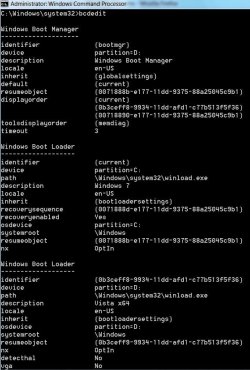
Another thing that would be useful is a shot of bcdedit ( or copy and paste the contents of the cmd window).

Open an elevated cmd prompt, type:

bcdedit {enter}

BCDEDIT2009-03-07_235226.jpg
 

My Computers

System One System Two

  • Computer type
    PC/Desktop
    OS
    7 X64
    CPU
    i5 8400
    Motherboard
    gigabyte b365m ds3h
    Memory
    2x8gb 3200mhz
    Hard Drives
    various
    PSU
    pure power 11 400w cm
    Case
    Coolermaster
    Cooling
    cryorig m9i
  • Computer type
    PC/Desktop
    OS
    7x64
    CPU
    g5400
    Motherboard
    ga b365m ds3h
    Memory
    8gb ddr4 2400
    PSU
    xfx pro 450w
Hi.

I'm afraid I'm having a couple of problems this evening!

The command bcdedit resulted in "The boot configuration data store could not be opened. Access is denied."

I will try and post a screenshot of the boot folder in a mo........

This is all a bit new for me!
 

My Computer

OS
Windows 7 & Windows XP Pro
You need to Elevate the cmd prompt to admin level.

Type cmd in start search - when it pops up, rt click and run as admin.

LOL - that's ok , it's tricky the first time for everyone.
 

My Computers

System One System Two

  • Computer type
    PC/Desktop
    OS
    7 X64
    CPU
    i5 8400
    Motherboard
    gigabyte b365m ds3h
    Memory
    2x8gb 3200mhz
    Hard Drives
    various
    PSU
    pure power 11 400w cm
    Case
    Coolermaster
    Cooling
    cryorig m9i
  • Computer type
    PC/Desktop
    OS
    7x64
    CPU
    g5400
    Motherboard
    ga b365m ds3h
    Memory
    8gb ddr4 2400
    PSU
    xfx pro 450w
I can't post a screenshot at the moment.
The C drive has a single folder called 'boot'. Inside it there a number of other folders which appear to be language related. The other files are BCD, BCD, BCD.LOG1, BCD.LOG2 & BOOTSTAT.DAT

Win7

Win 7 is installed on another machine at the moment, and it doesn't have network access at the moment. I hope to have that sorted out by tomorrow though! Time. There's just never enough of it!
 
Last edited by a moderator:

My Computer

OS
Windows 7 & Windows XP Pro
Hi,

Don't need a screenie of the boot folder - need one of the whole active partition, to see if ntldr, ntdetect.com and boot.ini are there as well as bootmgr and boot folder.
 

My Computers

System One System Two

  • Computer type
    PC/Desktop
    OS
    7 X64
    CPU
    i5 8400
    Motherboard
    gigabyte b365m ds3h
    Memory
    2x8gb 3200mhz
    Hard Drives
    various
    PSU
    pure power 11 400w cm
    Case
    Coolermaster
    Cooling
    cryorig m9i
  • Computer type
    PC/Desktop
    OS
    7x64
    CPU
    g5400
    Motherboard
    ga b365m ds3h
    Memory
    8gb ddr4 2400
    PSU
    xfx pro 450w
Thanks for your help. I managed to run CMD as administrator, and it returned lots of information, which unfortunately, I can't post as a screenshot at the moment!
There is a section that refers to Real-Mode Boot Sector: Device E [XP partition], path: NTLDR, Description: Microsoft Windows XP.

In the active partition [Win7 (C: ] ntldr, NTDETECT, boot and bootmgr are all present.
 
Last edited by a moderator:

My Computer

OS
Windows 7 & Windows XP Pro
Hello mdttb,

If you have a USB flash key drive with a motherboard that supports booting to it, then you could use it instead to load the RAID drivers from during installation.


I would if my mainboard USB ports worked. :mad:

I've been racking my brains and scouring the internet for any fixes and none have really helped.
It's kinda weird I can boot up and my flash key drive is found once windows loads, how ever my usb keyboard and mouse won't work at all with the 4 USB ports in back of the PC. I ran out and got a PCI USB Board so I can use my mouse and keyboard. From time to time I can get the USB ports to work but the fixes I found online only work once then the ports are hosed again. I did have the ports working with Windows 7 plugged in one of my Flash drives to get some files off it removed the drive by ejecting it and that's when the USB got hosed again.

The flash key drive isn't found when trying to boot into it and yes my board has the option.

Yes I have the correct settings in the Bios enabled for USB support and have messed around in the settings to try and get the ports to work with no luck.

If I remove the flash key drive while in windows to get it to work again I have to go into device manager and remove the USB Host Controller or restart the PC.

I did find one fix but I need the INF files off another PC that's running windows 7 and then copy the files and replace my INF folder from the donor. I don't have another PC I can install windows 7 on. Well I do but my wife will kill me if I install Windows 7 on her new laptop.
 

My Computer

Computer Manufacturer/Model Number
Me,Myself and I
OS
Windows 7 build 7229 32 bit & Build 7600 32bit
CPU
Intel Core2Duo E6300 1.8Ghz 2M 1066FSB Socket 775
Motherboard
ASUS P5B-Deluxe
Memory
4Gb OCZ Dual Channel PC3200 DDR 400MHz Gold Gamer eXtreme
Graphics Card(s)
PCI-E ATI Radeon HD 3650 1GB
Sound Card
SoundMAX Integrated Digital HD Audio
Monitor(s) Displays
Hp 2035 LCD Screen
Screen Resolution
1600 x 1200 pixels
Hard Drives
Seagate 1TB 7200rpm
Intel(R) ICH8R/DH SATA RAID 0 Controller
PSU
CoolMaster 550W
Case
Some thing I picked up at PCCLUB
Cooling
I'm good see other info
Keyboard
Logitech G15
Mouse
HP Laser Gaming Laser Mouse 3200 DPI
Internet Speed
Speed Test 5800 Kbits/sec - 485 Kbits/sec
Other Info
CPU-Thermaltake CL-P0114 120mm Big Typhoon CPU Cooler
Hard Drives- 2 Thermaltake A2376 Aluminum HDD Cooling Fans
Hi Holtsaber,

It seems ntldr is on C, so you need the bcd entry pointing at C.

You might try using Easybcd to remove the existing XP entry, then add a new XP entry for partition C.

When you get the screenshots posted, we will have a clearer idea.
 

My Computers

System One System Two

  • Computer type
    PC/Desktop
    OS
    7 X64
    CPU
    i5 8400
    Motherboard
    gigabyte b365m ds3h
    Memory
    2x8gb 3200mhz
    Hard Drives
    various
    PSU
    pure power 11 400w cm
    Case
    Coolermaster
    Cooling
    cryorig m9i
  • Computer type
    PC/Desktop
    OS
    7x64
    CPU
    g5400
    Motherboard
    ga b365m ds3h
    Memory
    8gb ddr4 2400
    PSU
    xfx pro 450w
I would if my mainboard USB ports worked. :mad:

I've been racking my brains and scouring the internet for any fixes and none have really helped.
It's kinda weird I can boot up and my flash key drive is found once windows loads, how ever my usb keyboard and mouse won't work at all with the 4 USB ports in back of the PC. I ran out and got a PCI USB Board so I can use my mouse and keyboard. From time to time I can get the USB ports to work but the fixes I found online only work once then the ports are hosed again. I did have the ports working with Windows 7 plugged in one of my Flash drives to get some files off it removed the drive by ejecting it and that's when the USB got hosed again.

The flash key drive isn't found when trying to boot into it and yes my board has the option.

Yes I have the correct settings in the Bios enabled for USB support and have messed around in the settings to try and get the ports to work with no luck.

If I remove the flash key drive while in windows to get it to work again I have to go into device manager and remove the USB Host Controller or restart the PC.

I did find one fix but I need the INF files off another PC that's running windows 7 and then copy the files and replace my INF folder from the donor. I don't have another PC I can install windows 7 on. Well I do but my wife will kill me if I install Windows 7 on her new laptop.

You can put the RAID drivers on a DVD to load them before finishing installing Windows 7. In step 4 of METHOD ONE, you can select the Load Drivers option to then load them from the DVD.
 

My Computer

Computer type
PC/Desktop
Computer Manufacturer/Model Number
Self built custom
OS
64-bit Windows 11 Pro for Workstations
CPU
Intel i7-8700K OC'd to 5 GHz
Motherboard
ASUS ROG Maximus XI Formula Z390
Memory
64 GB (4x16GB) G.SKILL TridentZ RGB DDR4 3600 MHz
Graphics Card(s)
ASUS ROG-STRIX-GTX1080TI-O11G-GAMING
Sound Card
Integrated
Monitor(s) Displays
2 x Samsung Odyssey G7 27"
Screen Resolution
2560x1440
Hard Drives
1TB Samsung 990 PRO M.2,
4TB Samsung 990 PRO PRO M.2,
TerraMaster F8 SSD Plus NAS
PSU
Seasonic Prime Titanium 850W
Case
Thermaltake Core P3
Cooling
Corsair Hydro H115i
Keyboard
Logitech wireless K800
Mouse
Logitech MX Master 4
Internet Speed
2 Gb/s Download and 100 Mb/s Upload
Antivirus
Malwarebyte Anti-Malware Premium
Browser
Google Chrome
Other Info
Logitech Z625 speaker system,
Logitech BRIO 4K Pro webcam,
HP Color LaserJet Pro MFP M477fdn,
APC SMART-UPS RT 1000 XL - SURT1000XLI,
Galaxy S23 Plus phone
When I install Win7 and select XP from the boot loader my computer reboots. I tried repairing my XP install since I couldn't boot from it any longer. I ended up having to reformat, it was suggested to install 7 from within XP. This did not work, because I have x86 xp and x64 7.

I am trying again using your tutorial (which is how I did it initally, lets hope it works this time).

I have 3 hard drives, one for XP with a 10gig partition for a page file, one for 7 with same 10 gig for page file and a final drive I store non-program data on.

If XP first then 7 install doesn't work this time I'll try 7 then XP and as a last resort I will use the boot loader from SUSE 10. Never used it with 2 windows installs though.

Has anyone else had dual boot issues with a 64 bit and non-64 bit version?
 

My Computer

Computer Manufacturer/Model Number
Home Brew
OS
XP Pro x86 & 7 RC x64
CPU
AMD Athlon 64 3200+ Venice 2.0GHz Socket 939 Single-Core Pro
Motherboard
ASUS A8N-SLI Premium 939 NVIDIA nForce4 SLI ATX AMD Motherbo
Memory
WINTEC AMPO 1GB 184-Pin DDR SDRAM DDR 400 (PC 3200) x4
Graphics Card(s)
XFX PVT84JUDF3 GeForce 8600 GT 256MB 128-bit GDDR3 PCI Expre
Keyboard
Logitech G15
Mouse
Microsoft Wireless Laser 6000
I finally got everything installed. I think the problem was with the 32bit and 64bit OSes not getting along. Now if only I could get my paws on a cheap XP64.
 

My Computer

Computer Manufacturer/Model Number
Home Brew
OS
XP Pro x86 & 7 RC x64
CPU
AMD Athlon 64 3200+ Venice 2.0GHz Socket 939 Single-Core Pro
Motherboard
ASUS A8N-SLI Premium 939 NVIDIA nForce4 SLI ATX AMD Motherbo
Memory
WINTEC AMPO 1GB 184-Pin DDR SDRAM DDR 400 (PC 3200) x4
Graphics Card(s)
XFX PVT84JUDF3 GeForce 8600 GT 256MB 128-bit GDDR3 PCI Expre
Keyboard
Logitech G15
Mouse
Microsoft Wireless Laser 6000
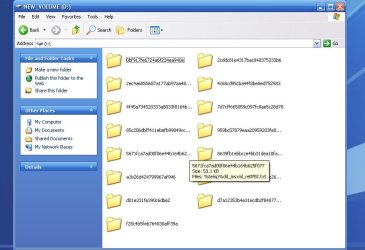
As a result of your previous help I am about to install Windows 7 on my D drive (XP is already installed on my C drive). I believe I have read somewhere that the D drive must be empty but I notice that there are some files already in place - presumably installed originally by HP. I am attaching a copy of the entries. Is there anything that is likely to cause a problem? Would you recommend using the seperate spare drive rather than partitioning the C drive which does seem to add a complication? Many thanks for your continued help. This is all very new to me and I do not want to mess it up!

untitled_edited-1.jpg
 

My Computer

OS
Winows XP Media
Hello Roy,

If your computer is a OEM (ex: Dell), then the D: partition may be a XP recovery partition used to restore your XP back to factory condition. Unless you have created a set of recovery discs from the partition, then I would not recommend to format and install Windows 7 on it unless you do not mind losing XP. You may be better off using the separate spare drive to make it easy to install on instead.
 

My Computer

Computer type
PC/Desktop
Computer Manufacturer/Model Number
Self built custom
OS
64-bit Windows 11 Pro for Workstations
CPU
Intel i7-8700K OC'd to 5 GHz
Motherboard
ASUS ROG Maximus XI Formula Z390
Memory
64 GB (4x16GB) G.SKILL TridentZ RGB DDR4 3600 MHz
Graphics Card(s)
ASUS ROG-STRIX-GTX1080TI-O11G-GAMING
Sound Card
Integrated
Monitor(s) Displays
2 x Samsung Odyssey G7 27"
Screen Resolution
2560x1440
Hard Drives
1TB Samsung 990 PRO M.2,
4TB Samsung 990 PRO PRO M.2,
TerraMaster F8 SSD Plus NAS
PSU
Seasonic Prime Titanium 850W
Case
Thermaltake Core P3
Cooling
Corsair Hydro H115i
Keyboard
Logitech wireless K800
Mouse
Logitech MX Master 4
Internet Speed
2 Gb/s Download and 100 Mb/s Upload
Antivirus
Malwarebyte Anti-Malware Premium
Browser
Google Chrome
Other Info
Logitech Z625 speaker system,
Logitech BRIO 4K Pro webcam,
HP Color LaserJet Pro MFP M477fdn,
APC SMART-UPS RT 1000 XL - SURT1000XLI,
Galaxy S23 Plus phone
I currently have both Windows 7 and XP installed on 1 HDD (XP on a partition). Following your steps I got this for EasyBCD:

"This application has failed to start because the application configuration is incorrect. Reinstalling may fix this problem".

I have reinstalled both Net Framework 2.0 several times as well as EasyBCD with no luck at all. Is there an alternative method of booting back into Windows 7? I do not currently have access to my Windows 7 DVD either.
 

My Computer

OS
Windows 7, XP
Hello Prolax, and welcome to Seven Forums.

Which OS did you have installed first?

Without a Windows 7 installation DVD, you may not be able to. You might see if you can borrow a friends or download and burn a new one from another computer.
 

My Computer

Computer type
PC/Desktop
Computer Manufacturer/Model Number
Self built custom
OS
64-bit Windows 11 Pro for Workstations
CPU
Intel i7-8700K OC'd to 5 GHz
Motherboard
ASUS ROG Maximus XI Formula Z390
Memory
64 GB (4x16GB) G.SKILL TridentZ RGB DDR4 3600 MHz
Graphics Card(s)
ASUS ROG-STRIX-GTX1080TI-O11G-GAMING
Sound Card
Integrated
Monitor(s) Displays
2 x Samsung Odyssey G7 27"
Screen Resolution
2560x1440
Hard Drives
1TB Samsung 990 PRO M.2,
4TB Samsung 990 PRO PRO M.2,
TerraMaster F8 SSD Plus NAS
PSU
Seasonic Prime Titanium 850W
Case
Thermaltake Core P3
Cooling
Corsair Hydro H115i
Keyboard
Logitech wireless K800
Mouse
Logitech MX Master 4
Internet Speed
2 Gb/s Download and 100 Mb/s Upload
Antivirus
Malwarebyte Anti-Malware Premium
Browser
Google Chrome
Other Info
Logitech Z625 speaker system,
Logitech BRIO 4K Pro webcam,
HP Color LaserJet Pro MFP M477fdn,
APC SMART-UPS RT 1000 XL - SURT1000XLI,
Galaxy S23 Plus phone
Hey Brink,

I had Windows 7 as my first OS. After 3 hours of google'ing I downloaded VistabootPro which booted me into windows 7, from there I used easyBCD to welcome back my boot menu. All is well regarding booting, now I just need to fix my media drive - filesystem is RAW.

Thanks for the reply. :)
 

My Computer

OS
Windows 7, XP
Back
Top