Dual Boot Installation with Windows 7 and XP

How to Setup a Dual Boot Installation with Windows 7 and XP


   Information
This will show you how to install Windows 7 and XP to dual boot with when you already have either Windows 7 or XP installed first.
   Note
With a dual boot installaton, you will have two operating systems (OS) installed. When you start the computer, you will have the choice to choose which OS you would like to start up to. This method is the easiest way of doing a dual boot with these two operating systems.
   Tip
When dual booting with another OS (ex: Vista or XP), you may not always have that OS partition show up in Computer with a driver letter in Windows 7. If this happens, then you will just need to add a drive letter to the OS (ex: Vista or XP) partition in Windows 7 Disk Management for it to show up in Computer with a driver letter.
   Warning
To stop XP from deleting your Windows 7 System Restore Points everytime XP is started, then see System Restore Points - Stop XP Dual Boot Delete to hide Windows 7 from XP.

Windows 7 Minimum Hardware Requirements


NOTE: For more information on this, see: Windows 7 system requirements
  • 1 GHz 32-bit or 64-bit processor
  • 1 GB RAM for 32-bit Windows 7 OR 2 GB RAM for 64-bit Windows 7
  • 16 GB available disk space 32-bit Windows 7 OR 20 GB for 64-bit Windows 7
  • Support for DirectX 9 graphics with 128 MB memory (in order to enable Aero theme)
  • DVD-R/W Drive
  • Internet or phone access to activate Windows 7.
Windows XP Minimum Hardware Requirements

NOTE: For more information on this, see: System requirements for Windows XP operating systems
  • PC with 300 megahertz (MHz) or higher processor clock speed recommended; 233-MHz minimum required;* Intel Pentium/Celeron family, AMD K6/Athlon/Duron family, or compatible processor recommended
  • 128 megabytes (MB) of RAM or higher recommended (64 MB minimum supported; may limit performance and some features)
  • 1.5 gigabyte (GB) of available hard disk space.*
  • Super VGA (800 × 600) or higher resolution video adapter and monitor
  • CD-ROM or DVD drive
  • Keyboard and Microsoft Mouse or compatible pointing device
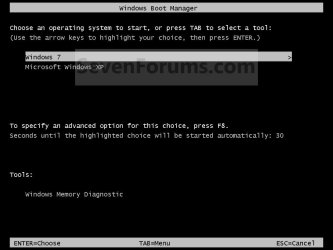
EXAMPLE: Windows Boot Manager
NOTE: This is the boot screen where you select what operating system that you would like to start. By default, you have 30 seconds to choose another operating system before the default operating system will start automatically.
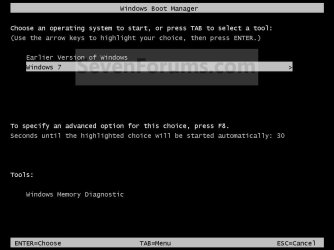
Example.jpg


OPTION ONE

When XP is Installed First


NOTE: If you have a RAID setup, you will need to have the Windows 7 RAID drivers on a USB flash drive available to select and load while installing Windows 7.
1. Do step 2 or 3 below for where you wanted to install Windows 7 at.

2. To Create a New Partition from the XP Hard Disk Drive
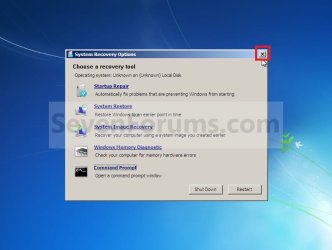
A) With your Windows 7 installation disc boot into the Command Prompt from the System Recovery Options screen.
NOTE: Make sure that the CD/DVD drive is selected first in the boot order in the BIOS.

B) In the command prompt, select and shrink the XP volume by how many MB (1024 MB = 1 GB) you want to have for this Windows 7 partition. (See screenshot below)
NOTE: You would do steps 2 to 9 in METHOD TWO at that link. Windows 7 will need a minimum of 16 GB (16384 MB).
XP-W7_1.jpg
C) Click on the X at the top right corner to close the command prompt. (See screenshot above)

D) Click on the X at the top right corner to close System Recovery Options. (See screenshot below)
XP-W7_2.jpg
E) Go to step 4.
3. To Use a Separate Hard Disk Drive than the XP Drive
A) Boot from your Windows 7 installation disc.
NOTE: Make sure that the CD/DVD drive is selected first in the boot order in the BIOS.
4. Click on the Install now button. (See screenshot below)
XP-W7_3.jpg
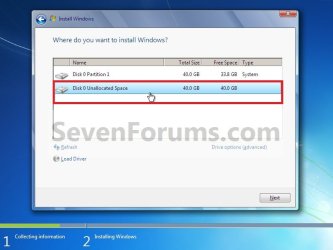
5. When you get to this point, select the partition (step 2) or hard drive to install Windows 7 on. (See screenshot below)
XP-W7_4.jpg
6. Finish installing Windows 7.
NOTE: You would start at step 9 in that link to finish installing Windows 7.

7. When finished, restart the computer to have the option to boot from XP (Earlier Verision of Windows) or Windows 7. (See screenshot below)

   Note
If you are only booting into Windows 7 and do not have XP listed in the Windows Boot Manager, then you can install only EasyBCD (step 8 Option Two below) to add XP (or Windows 7) while started in Windows 7 the same way to the boot list.

Example.jpg


OPTION TWO

When Windows 7 is Installed First


   Warning

1. To Create a New Partition from the Windows 7 Hard Disk Drive
NOTE: If you want to install XP on a separate internal hard drive instead, then skip this step and go to step 2.
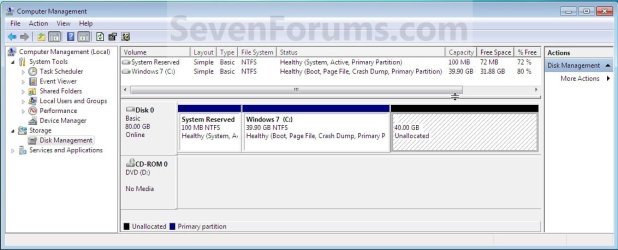
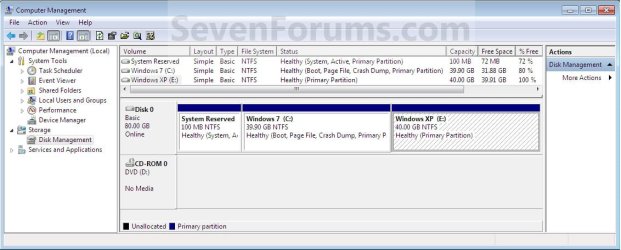
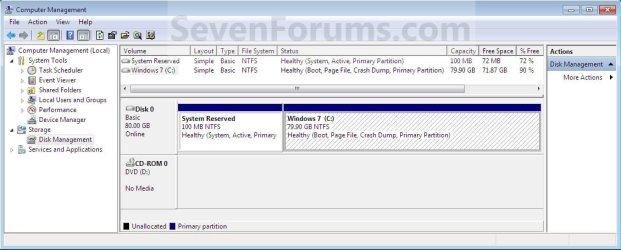
A) In Windows 7, select and shrink the Windows 7 volume in Disk Management by how many MB (1024 MB = 1 GB) you want to have for this XP partition. (See screenshots below)
NOTE: You would do all of Method One at that link.
W7-XP-1.jpg

W7-XP-2.jpg

W7-XP-3.jpg
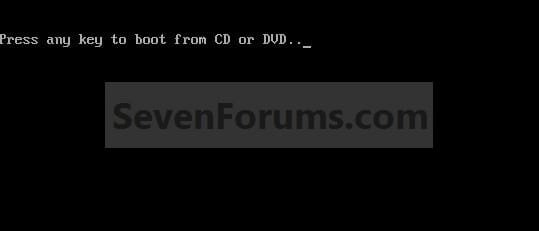
2. Insert your XP installation disc, then restart the computer and press any key to boot from it when prompted. (See screenshot below)
NOTE: Make sure that the CD/DVD drive is selected first in the boot order in the BIOS.
Step1.jpg
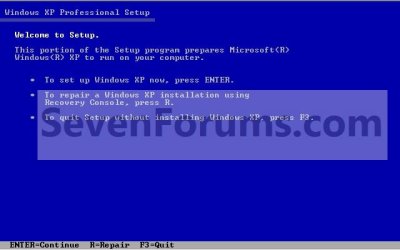
3. From XP Setup, Press Enter. (See screenshot below)


   Warning

W7-XP-4.jpg
4. Press F8. (See screenshot below)
NOTE: On some multimedia keyboards, you may need to press the F-Lock or Function key before pressing F8.
W7-XP-5.jpg
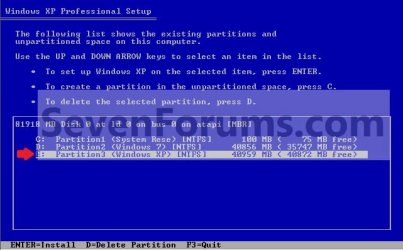
5. Select the partition (step 1) or hard drive that you want to install XP on using the arrow keys and press Enter.
W7-XP-6.jpg
6. Finish installing XP.


   Tip
If you get Error loading Operating System after XP restarts:
  • Using your Windows 7 installation disc, boot to the command prompt at startup.
  • Type in these comands below, and press enter after each one.
    • bootrec /FixMbr
    • bootrec /FixBoot
    • bootrec /RebuildBcd
  • Exit the command prompt and restart the computer.
  • At this point, Windows 7 should boot up the same way before trying to install XP.
  • Continue to step 8 below and run EasyBCD from Windows 7 instead.

7. In XP, download and install .Net Framework 2.0 (32-bit) version or .Net Framework 2.0 (64-bit) version first, and EasyBCD (free version) for your 32-bit (x86) or 64-bit (x86) XP.
NOTE: In XP, Net Framework is required to be installed to run EasyBCD. After you click on Register (at bottom of link) for the free EasyBCD, registration is not required to download it.

8. Run EasyBCD (free version).
NOTE: This is required to repair the Windows 7 boot file and add XP to the Windows Boot Manager list.

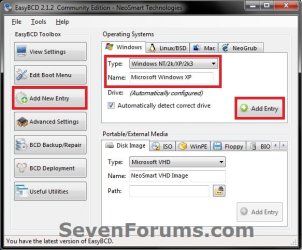
9. On the left side of EasyBCD, click on the Add New Entry button. (See screenshot below)
A) In the top section under Operating Systems, click on the Windows tab. (See screenshot below)
B) To the right of Type, select Windows NT/2k/XP/2k3 from the drop down menu. (See screenshot below)
:warn:WARNING: Be sure to leave the Automatically detect correct drive box checked.

C) To the right of Name, you can leave the default Microsoft Windows XP as the name to be displayed in the Windows Boot Manager, or you can type whatever name you would like to have instead. (See screenshot below)
D) Click on the Add Entry button. (See screenshot below)
W7-XP-7.jpg
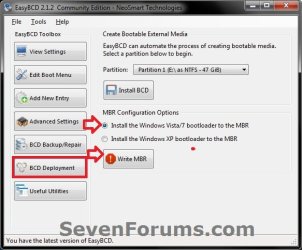
10. On the left side of EasyBCD, click on the BCD Deployment button, select (dot) the Install the Windows Vista/7 bootloader to the MBR option, and click on the Write MBR button. (See screenshot below)
W7-XP-9.jpg
11. Close EasyBCD.

12. Restart the computer to have the option to boot from Microsoft Windows XP or Windows 7. (See screenshot below)
Example2.jpg
   Tip
If Windows 7 will not start up when selected, then use your Windows 7 installation DVD to do a Startup Repair.

That's it,
Shawn


Last edited:

My Computer

Computer type
PC/Desktop
Computer Manufacturer/Model Number
Self built custom
OS
64-bit Windows 11 Pro for Workstations
CPU
Intel i7-8700K OC'd to 5 GHz
Motherboard
ASUS ROG Maximus XI Formula Z390
Memory
64 GB (4x16GB) G.SKILL TridentZ RGB DDR4 3600 MHz
Graphics Card(s)
ASUS ROG-STRIX-GTX1080TI-O11G-GAMING
Sound Card
Integrated
Monitor(s) Displays
2 x Samsung Odyssey G7 27"
Screen Resolution
2560x1440
Hard Drives
1TB Samsung 990 PRO M.2,
4TB Samsung 990 PRO PRO M.2,
TerraMaster F8 SSD Plus NAS
PSU
Seasonic Prime Titanium 850W
Case
Thermaltake Core P3
Cooling
Corsair Hydro H115i
Keyboard
Logitech wireless K800
Mouse
Logitech MX Master 4
Internet Speed
2 Gb/s Download and 100 Mb/s Upload
Antivirus
Malwarebyte Anti-Malware Premium
Browser
Google Chrome
Other Info
Logitech Z625 speaker system,
Logitech BRIO 4K Pro webcam,
HP Color LaserJet Pro MFP M477fdn,
APC SMART-UPS RT 1000 XL - SURT1000XLI,
Galaxy S23 Plus phone
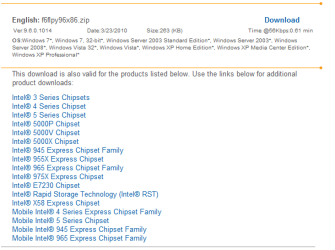
My rig is a Dell XPS 420. Running in x64 bit. "You can download your F6 Sata Controller drivers from here:

Intel Sata Controller Drivers" Ok I've gone to that site but which OS do I choose? My W7 or XP? And which driver to download. Sorry for the trouble.

You would need to choose the XP version so that you can slipstream them. :)

Hi Shawn

The Intel download covers all windows.

Ray.

Capture1.PNG
 

My Computer

OS
ME/XP/Vista/Win7
Ah ok. Thank you Ray. :)
 

My Computer

Computer type
PC/Desktop
Computer Manufacturer/Model Number
Self built custom
OS
64-bit Windows 11 Pro for Workstations
CPU
Intel i7-8700K OC'd to 5 GHz
Motherboard
ASUS ROG Maximus XI Formula Z390
Memory
64 GB (4x16GB) G.SKILL TridentZ RGB DDR4 3600 MHz
Graphics Card(s)
ASUS ROG-STRIX-GTX1080TI-O11G-GAMING
Sound Card
Integrated
Monitor(s) Displays
2 x Samsung Odyssey G7 27"
Screen Resolution
2560x1440
Hard Drives
1TB Samsung 990 PRO M.2,
4TB Samsung 990 PRO PRO M.2,
TerraMaster F8 SSD Plus NAS
PSU
Seasonic Prime Titanium 850W
Case
Thermaltake Core P3
Cooling
Corsair Hydro H115i
Keyboard
Logitech wireless K800
Mouse
Logitech MX Master 4
Internet Speed
2 Gb/s Download and 100 Mb/s Upload
Antivirus
Malwarebyte Anti-Malware Premium
Browser
Google Chrome
Other Info
Logitech Z625 speaker system,
Logitech BRIO 4K Pro webcam,
HP Color LaserJet Pro MFP M477fdn,
APC SMART-UPS RT 1000 XL - SURT1000XLI,
Galaxy S23 Plus phone
So I reloaded everything the last couple days since I got an SSD finally.

I started with xp on a spinning sata hd. Then put win 7 on the ssd. Booted after initial start and it went straight to win 7. No boot menu no nothing. So I went through the steps with easybcd again with adding the entry and such and I get a boot menu with win 7 and xp. It goes into win 7 just fine. When I select win xp it just goes to a black screen and reboots.

I have redone the easybcd numerous times and re read the instructions over and over and each time I'm doing them as it states. Yet each time selecting win xp takes me in a restart loop and back to the boot menu.

While in win 7 it shows win 7 as being C:
The 30gig partition I made for xp shows to be D:
I've set the system reserved drive as my last drive letter so its at the bottom of the list in my computer. I've also set it at the corresponding drive in easybcd as per the instructions.

What am I doing wrong?
 

My Computer

Computer Manufacturer/Model Number
Home built
OS
Win 7 Ult x64 Win XP Pro
CPU
I7 920
Motherboard
Bloodrage
Memory
Dom GT
Graphics Card(s)
XFX HD5870
Sound Card
X-FI Platinum
Monitor(s) Displays
AOC
Hard Drives
Too many to list
PSU
Enermax Revo 1050w
Case
Temporary
Cooling
Temporary
Easy 2.0 should set the drive letter automatically and autoconfigure when adding an XP entry.

Try dleting the XP entry and do it again - let easy do it automatically.
 

My Computers

System One System Two

  • Computer type
    PC/Desktop
    OS
    7 X64
    CPU
    i5 8400
    Motherboard
    gigabyte b365m ds3h
    Memory
    2x8gb 3200mhz
    Hard Drives
    various
    PSU
    pure power 11 400w cm
    Case
    Coolermaster
    Cooling
    cryorig m9i
  • Computer type
    PC/Desktop
    OS
    7x64
    CPU
    g5400
    Motherboard
    ga b365m ds3h
    Memory
    8gb ddr4 2400
    PSU
    xfx pro 450w
I was using 2.0.2 and it still isn't working. Getting the latest beta of 2.0 though to see.
 

My Computer

Computer Manufacturer/Model Number
Home built
OS
Win 7 Ult x64 Win XP Pro
CPU
I7 920
Motherboard
Bloodrage
Memory
Dom GT
Graphics Card(s)
XFX HD5870
Sound Card
X-FI Platinum
Monitor(s) Displays
AOC
Hard Drives
Too many to list
PSU
Enermax Revo 1050w
Case
Temporary
Cooling
Temporary
It do I need to still write the file? The OP should be updated for use with the new easybcd everyone stars talking about using since page 40 something. 90 pages is alot to look through to try and see fixes for problems. Which is why I went ahead and posted because I was tired of reading near 50 pages so far with non of the posts having the same problem/fix as mine. :-(
Yea and SSD is fast.
Was it worth it?
Not so sure now!

Well I deleted the XP in easybcd 2.0 beta.
added it and let it pick for me. Then went under edit settings because it was showing the xp install on the system reserved drive. Saved those.
Then wrote the file.
When I select xp on the boot menu I now get an error of widows failing to start on:

\NST\ntldr
Status: 0xc000000f

Lost now.

Guess I'll change where easybcd sees xp back to H drive.

Same error.

I'm tired. Been changing combinations and reading through this thread for the last 3 hours. The good ol days. Install xp then vista dual boot menu that works on first start.

Win 7 has just screwed everything up. I don't even understand why I'm having this problem considering I installed xp first this time.
 

My Computer

Computer Manufacturer/Model Number
Home built
OS
Win 7 Ult x64 Win XP Pro
CPU
I7 920
Motherboard
Bloodrage
Memory
Dom GT
Graphics Card(s)
XFX HD5870
Sound Card
X-FI Platinum
Monitor(s) Displays
AOC
Hard Drives
Too many to list
PSU
Enermax Revo 1050w
Case
Temporary
Cooling
Temporary
Ok now I can't even get WIN XP to show in the boot menu on startup. All I see is win 7 although I add it and write it to the mbr. I'm still not seeing a choice other then win 7. Wow this is rediculous.

When I boot back into 7 and open easybcd all I see is win 7 although win xp was there in the view settings when I wrote the mbr.
 

My Computer

Computer Manufacturer/Model Number
Home built
OS
Win 7 Ult x64 Win XP Pro
CPU
I7 920
Motherboard
Bloodrage
Memory
Dom GT
Graphics Card(s)
XFX HD5870
Sound Card
X-FI Platinum
Monitor(s) Displays
AOC
Hard Drives
Too many to list
PSU
Enermax Revo 1050w
Case
Temporary
Cooling
Temporary
no one have any ideas?
 

My Computer

Computer Manufacturer/Model Number
Home built
OS
Win 7 Ult x64 Win XP Pro
CPU
I7 920
Motherboard
Bloodrage
Memory
Dom GT
Graphics Card(s)
XFX HD5870
Sound Card
X-FI Platinum
Monitor(s) Displays
AOC
Hard Drives
Too many to list
PSU
Enermax Revo 1050w
Case
Temporary
Cooling
Temporary
Post a screenoie of the Disk Management window, so we can see what is going on.

Also post the output of Easy window showing the entries, you may need to ctrl+c to copy it.
 

My Computers

System One System Two

  • Computer type
    PC/Desktop
    OS
    7 X64
    CPU
    i5 8400
    Motherboard
    gigabyte b365m ds3h
    Memory
    2x8gb 3200mhz
    Hard Drives
    various
    PSU
    pure power 11 400w cm
    Case
    Coolermaster
    Cooling
    cryorig m9i
  • Computer type
    PC/Desktop
    OS
    7x64
    CPU
    g5400
    Motherboard
    ga b365m ds3h
    Memory
    8gb ddr4 2400
    PSU
    xfx pro 450w
Post a screenoie of the Disk Management window, so we can see what is going on.

Also post the output of Easy window showing the entries, you may need to ctrl+c to copy it.
Granted the structure of all the other drives are hit and miss, because of the reload and two of them are going to get pulled out. The first two lines are the ones to look at.
First one is the ssd that has the system reserved win 7 and then the left over space that is recommended everywhere for an ssd drive
2nd drive is the 250 gig spinning sata with xp being under d and I haven't formated the rest of the drive yet. No need to muck with all that until everything is working properly.
 

Attachments

  • DM.jpg
    DM.jpg
    283.3 KB · Views: 258

My Computer

Computer Manufacturer/Model Number
Home built
OS
Win 7 Ult x64 Win XP Pro
CPU
I7 920
Motherboard
Bloodrage
Memory
Dom GT
Graphics Card(s)
XFX HD5870
Sound Card
X-FI Platinum
Monitor(s) Displays
AOC
Hard Drives
Too many to list
PSU
Enermax Revo 1050w
Case
Temporary
Cooling
Temporary
The XP bootfiles need to be on H.

Boot.ini needs to point at Disk1 partition1.
 

My Computers

System One System Two

  • Computer type
    PC/Desktop
    OS
    7 X64
    CPU
    i5 8400
    Motherboard
    gigabyte b365m ds3h
    Memory
    2x8gb 3200mhz
    Hard Drives
    various
    PSU
    pure power 11 400w cm
    Case
    Coolermaster
    Cooling
    cryorig m9i
  • Computer type
    PC/Desktop
    OS
    7x64
    CPU
    g5400
    Motherboard
    ga b365m ds3h
    Memory
    8gb ddr4 2400
    PSU
    xfx pro 450w
The XP bootfiles need to be on H.

Boot.ini needs to point at Disk1 partition1.
; This boot.ini was automatically generated by NeoSmart Technologies' BootGrabber.exe
; Use EasyBCD from Download EasyBCD 2.0.2 - NeoSmart Technologies to manage your bootloader
[boot loader]
timeout=15
default=multi(0)disk(0)rdisk(1)partition(1)\WINDOWS
[operating systems]
multi(0)disk(0)rdisk(1)partition(1)\WINDOWS="Windows XP on D:\" /fastdetect

I got a windows xp screen this time then a black screen and a reboot. Then tried safe mode. It ran through some of the starting process, but then black screen and reboot. I'm going to say the install somehow is tanked now????
 

My Computer

Computer Manufacturer/Model Number
Home built
OS
Win 7 Ult x64 Win XP Pro
CPU
I7 920
Motherboard
Bloodrage
Memory
Dom GT
Graphics Card(s)
XFX HD5870
Sound Card
X-FI Platinum
Monitor(s) Displays
AOC
Hard Drives
Too many to list
PSU
Enermax Revo 1050w
Case
Temporary
Cooling
Temporary
No boot menu

Easy BCD would not run under Win XP even though I had installed the .net framework app.

So I used my Win 7 CD to get to the command prompt and enter the commands in Step 6> Tip

That returned my computer to booting with Win 7 and I was able to run Easy BCD from there but there is still no boot menu appearing when I reboot.

??
 

My Computer

OS
Windows 7 64-bit
The XP bootfiles need to be on H.

Boot.ini needs to point at Disk1 partition1.
; This boot.ini was automatically generated by NeoSmart Technologies' BootGrabber.exe
; Use EasyBCD from Download EasyBCD 2.0.2 - NeoSmart Technologies to manage your bootloader
[boot loader]
timeout=15
default=multi(0)disk(0)rdisk(1)partition(1)\WINDOWS
[operating systems]
multi(0)disk(0)rdisk(1)partition(1)\WINDOWS="Windows XP on D:\" /fastdetect

I got a windows xp screen this time then a black screen and a reboot. Then tried safe mode. It ran through some of the starting process, but then black screen and reboot. I'm going to say the install somehow is tanked now????
Am I correct in thinking this?
 

My Computer

Computer Manufacturer/Model Number
Home built
OS
Win 7 Ult x64 Win XP Pro
CPU
I7 920
Motherboard
Bloodrage
Memory
Dom GT
Graphics Card(s)
XFX HD5870
Sound Card
X-FI Platinum
Monitor(s) Displays
AOC
Hard Drives
Too many to list
PSU
Enermax Revo 1050w
Case
Temporary
Cooling
Temporary
Ok I now know why I can't get back into XP. It doesn't like AHCI mode which is necessary for running SSD drives for full performance. So anyone have a way (because nothing I check online allows me to) to get ahci drivers to swap out the ide drivers that get forced into a win xp install? I can't F6 them in as I don't have a floppy drive. Havent' for the last 8 years or so. I've tried to put the files to a cd and select S, but my windows keeps trying to find things on A which doesn't exist because I have floppy turned off since I don't have one.

It's looking like I will have to sell my Act Labs Force RS setup if I can't get this to work. Which really sucks, because there hasn't been another decent wheel on the market since!
 

My Computer

Computer Manufacturer/Model Number
Home built
OS
Win 7 Ult x64 Win XP Pro
CPU
I7 920
Motherboard
Bloodrage
Memory
Dom GT
Graphics Card(s)
XFX HD5870
Sound Card
X-FI Platinum
Monitor(s) Displays
AOC
Hard Drives
Too many to list
PSU
Enermax Revo 1050w
Case
Temporary
Cooling
Temporary

My Computer

Computer type
PC/Desktop
Computer Manufacturer/Model Number
Self built custom
OS
64-bit Windows 11 Pro for Workstations
CPU
Intel i7-8700K OC'd to 5 GHz
Motherboard
ASUS ROG Maximus XI Formula Z390
Memory
64 GB (4x16GB) G.SKILL TridentZ RGB DDR4 3600 MHz
Graphics Card(s)
ASUS ROG-STRIX-GTX1080TI-O11G-GAMING
Sound Card
Integrated
Monitor(s) Displays
2 x Samsung Odyssey G7 27"
Screen Resolution
2560x1440
Hard Drives
1TB Samsung 990 PRO M.2,
4TB Samsung 990 PRO PRO M.2,
TerraMaster F8 SSD Plus NAS
PSU
Seasonic Prime Titanium 850W
Case
Thermaltake Core P3
Cooling
Corsair Hydro H115i
Keyboard
Logitech wireless K800
Mouse
Logitech MX Master 4
Internet Speed
2 Gb/s Download and 100 Mb/s Upload
Antivirus
Malwarebyte Anti-Malware Premium
Browser
Google Chrome
Other Info
Logitech Z625 speaker system,
Logitech BRIO 4K Pro webcam,
HP Color LaserJet Pro MFP M477fdn,
APC SMART-UPS RT 1000 XL - SURT1000XLI,
Galaxy S23 Plus phone
need urgent help

hi I am totally unfamiliar with dual booting and using of diskpart, so when I followed the tutorial to install dual boot (with XP installed first) using the diskpart method, and tried to "shrink", nothing happened; instead a list of diskpart commands appeared whether i typed "shrink" or "shrink querymax". Pls help!
 

My Computer

OS
Windows XP 32 bit
Hello Mezumi, and welcome to Seven Forums.

If you like, you can use a great free program like Partition Wizard Home Edition to make shrinking the partition easier instead.

Hope this helps,
Shawn
 

My Computer

Computer type
PC/Desktop
Computer Manufacturer/Model Number
Self built custom
OS
64-bit Windows 11 Pro for Workstations
CPU
Intel i7-8700K OC'd to 5 GHz
Motherboard
ASUS ROG Maximus XI Formula Z390
Memory
64 GB (4x16GB) G.SKILL TridentZ RGB DDR4 3600 MHz
Graphics Card(s)
ASUS ROG-STRIX-GTX1080TI-O11G-GAMING
Sound Card
Integrated
Monitor(s) Displays
2 x Samsung Odyssey G7 27"
Screen Resolution
2560x1440
Hard Drives
1TB Samsung 990 PRO M.2,
4TB Samsung 990 PRO PRO M.2,
TerraMaster F8 SSD Plus NAS
PSU
Seasonic Prime Titanium 850W
Case
Thermaltake Core P3
Cooling
Corsair Hydro H115i
Keyboard
Logitech wireless K800
Mouse
Logitech MX Master 4
Internet Speed
2 Gb/s Download and 100 Mb/s Upload
Antivirus
Malwarebyte Anti-Malware Premium
Browser
Google Chrome
Other Info
Logitech Z625 speaker system,
Logitech BRIO 4K Pro webcam,
HP Color LaserJet Pro MFP M477fdn,
APC SMART-UPS RT 1000 XL - SURT1000XLI,
Galaxy S23 Plus phone
Hi Brink!
I'm New of the forum and I see you're great work with this tutorial!
However I still have some problem
I've done thing in the tutorial but still there's isn't a dual boot when i restar the computer.
There's only Windows 7..
I've tryed to do something with Easy Bcd but every time i reboot my pc the entry of windows XP disappear!
:-(
Any suggestion?

Sorry for my bad english, and thank again for your great work!

Wrathchild
 

My Computer

OS
Windows 7 Home Premium 32bit
CPU
Intel Core2 Duo
Motherboard
ASRock G31M-S R2.0
Graphics Card(s)
Intel G31 Chipset
Keyboard
Logitech Slim Keyboard
Mouse
Logitech Optical Wired Mouse
Internet Speed
7 Mb DSL Connection
Back
Top