
Services - Customize View of Window

How to Customize and Save the View in the Services Window in Windows 7

   Information
This will show you how to save changes made to the icons size, add or remove columns, and customize the view in the Services window in Windows 7.

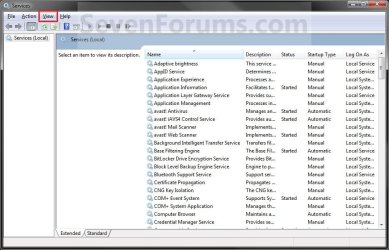
EXAMPLE: Services window
Services.jpg


Here's How:
1. For a New Custom Services Window
A) In Windows Explorer, navigate to C:\Windows\System32, right click on services.msc, and click on Author.

B) Go to step 3.
2. To Save Changes to an Existing Custom Services Window
A) In Windows Explorer, navigate to where you previously saved the existing custom Services window to at step 8B below, right click on it, and click on Author.
3. Make any changes you like to the Services window size, left pane width, and to show Extended or Standard view in the right pane. (see screenshot below)
Services.jpg
4. Click on View (Menu bar). (see screenshot below)
View_Menu.jpg
5. To Change the Display Size of the Icons
NOTE: This will be for the items (Services) under the Name column.
A) Click on the icon size you want displayed in the Services window. (See screenshot above)
NOTE: This will be the Large Icons, Small Icons, List, or Detail view.
6. To Add or Remove Columns
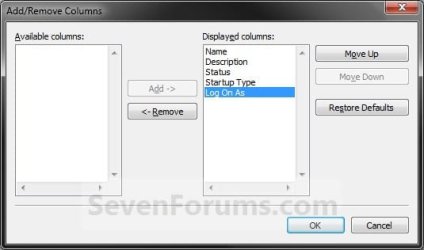
A) Click on Add/Remove Columns. (See screenshot below step 4)

B) Select a column you want to add (left box) or remove (right box), and click on the Add or Remove button in the middle. (See screenshot below)
Columns.jpg
C) When done, click on OK. (See screenshot above)
7. To Customize the View
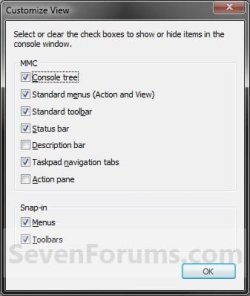
A) Click on Customize. (See screenshot below step 3)

B) Check the items you want to add, and uncheck the items you want removed. (See screenshot below)
Customize_View.jpg
C) When done, click on OK. (See screenshot above)
8. For a New Custom Services Window
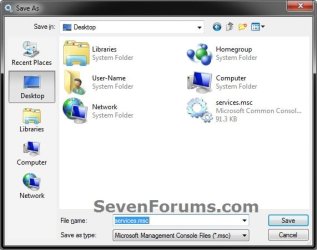
A) When you are done with changing the Services window to how you like, click on File (Menu bar) and Save As.

B) Navigate to and select the folder for where you would like to save this custom Services window at, then click on Save.
Save_As.jpg
C) Go to step 10.
9. To Save Changes to an Existing Custom Services Window
A) When you are done with changing the Services window to how you like, click on File (Menu bar) and Save.
10. Whenever you open this custom Services window, the changes you made will still be there.
That's it,
Shawn


Last edited:

My Computer

Computer type
PC/Desktop
Computer Manufacturer/Model Number
Dwarf Dwf/11/2012 r09/2013
OS
Windows 8.1 Pro RTM x64
CPU
Intel Core-i5-3570K 4-core @ 3.4GHz (Ivy Bridge) (OC 4.4GHz)
Motherboard
ASRock Z77 Extreme4-M
Memory
4 x 4GB DDR3-1600 Corsair Vengeance CMZ8GX3M2A1600C9B (16GB)
Graphics Card(s)
MSI GeForce GTX770 Gaming OC 2GB
Sound Card
Realtek High Definition on board solution (ALC 898)
Monitor(s) Displays
ViewSonic VA1912w Widescreen (VGA)
Screen Resolution
1440x900
Hard Drives
OCZ Agility 3 SSD 120GB SATA III x2 (RAID 0)
Samsung HD501LJ 500GB SATA II x2
Hitachi HDS721010CLA332 1TB SATA II
Iomega 1.5TB Ext USB 2.0
WD 2.0TB Ext USB 3.0
PSU
XFX Pro Series 850W Semi-Modular
Case
Gigabyte IF233
Cooling
1 x 120mm Front Inlet 1 x 120mm Rear Exhaust
Keyboard
Microsoft Comfort Curve Keyboard 3000 (USB)
Mouse
Microsoft Comfort Mouse 3000 for Business (USB)
Internet Speed
NetGear DG834Gv3 ADSL Modem/Router (Ethernet) ~4.0 Mb/s (O2)
Antivirus
Avast! 8.0.1497
Browser
IE 11
Other Info
Optical Drive: HL-DT-ST BD-RE BH10LS30 SATA Bluray
Lexmark S305 Printer/Scanner/Copier (USB)
WEI Score: 8.1/8.1/8.5/8.5/8.25
Asus Eee PC 1011PX Netbook (Windows 7 x86 Starter)

My Computer

Computer type
PC/Desktop
Computer Manufacturer/Model Number
Self built custom
OS
64-bit Windows 11 Pro for Workstations
CPU
Intel i7-8700K OC'd to 5 GHz
Motherboard
ASUS ROG Maximus XI Formula Z390
Memory
64 GB (4x16GB) G.SKILL TridentZ RGB DDR4 3600 MHz
Graphics Card(s)
ASUS ROG-STRIX-GTX1080TI-O11G-GAMING
Sound Card
Integrated
Monitor(s) Displays
2 x Samsung Odyssey G7 27"
Screen Resolution
2560x1440
Hard Drives
1TB Samsung 990 PRO M.2,
4TB Samsung 990 PRO PRO M.2,
TerraMaster F8 SSD Plus NAS
PSU
Seasonic Prime Titanium 850W
Case
Thermaltake Core P3
Cooling
Corsair Hydro H115i
Keyboard
Logitech wireless K800
Mouse
Logitech MX Master 4
Internet Speed
2 Gb/s Download and 100 Mb/s Upload
Antivirus
Malwarebyte Anti-Malware Premium
Browser
Google Chrome
Other Info
Logitech Z625 speaker system,
Logitech BRIO 4K Pro webcam,
HP Color LaserJet Pro MFP M477fdn,
APC SMART-UPS RT 1000 XL - SURT1000XLI,
Galaxy S23 Plus phone
"Any changes made will just be reset back to the default view when you open the Services window next."

It would be better if they stayed. Here's how to do that:

Open Windows Explorer, go to the WINDOWS\system32 directory, and right-click on the services.msc file. One of the options should be "Author". Select that option and services.msc will open in Author mode. Now make all the changes you need to make to the display, and when you exit services.msc, you will be asked if you want to save the changes. Select Yes, and services.msc will now always open using your new customized view settings. (You can also simply click File and then Save at any time to save your changes.)

You can then replace the services.msc file on all your computers with this revised version.

Note that on my computer I had to edit WINDOWS\system32\en-US\services.msc to get the changes to stick. If you get in-use errors when you try to save changes, use Unlocker available at Unlocker - Free software downloads and software reviews - CNET Downloads
 

My Computer

Computer Manufacturer/Model Number
HP Pavilion Elite HPE-570t customizable Desktop PC
OS
Windows 7 Home Premium x64 SP1
CPU
i7-2600 quad-core processor with Turbo-Boost [up to 3.8GHz]
Memory
16GB DDR3-1333MHz SDRAM [4 DIMMs]
Graphics Card(s)
2GB DDR3 ATI Radeon HD 5570
Sound Card
Beats Audio (tm) - built into motherboard
Monitor(s) Displays
Sony Bravia KDL55HX800 - 55" with LED Backlighting
Screen Resolution
1360 x 768 (normally using it at this - does 1920 x 1080)
Hard Drives
1.5TB RAID 1 (2 x 1.5TB SATA HDDs) - data security
PSU
A big 300 watts baby!
Keyboard
Belkin ErgoBoard Pro Wired Keyboard - Black
Mouse
HP optical mouse (wired) - scroll wheel works nice on it.
Internet Speed
30 Mb/s download and 3 Mb/s upload
Other Info
I like my keyboard because it has the 6 on the right side of the keyboard, not the left like the Microsoft Natural Ergonomic Keyboards.

With a monitor as big as mine, I work out of a recliner.

Also have:
Blu-ray writer & Lightscribe SuperMulti DVD burner
Blu-ray player & Lightscribe SuperMulti DVD burner
USB 3.0 connected 2 TB external drive
Ultra ULT33046 2000 VA 1200 W Backup UPS
Hello Lifeboat, and welcome to Seven Forums.

Thank you. The tutorial has been updated for this. :)
 

My Computer

Computer type
PC/Desktop
Computer Manufacturer/Model Number
Self built custom
OS
64-bit Windows 11 Pro for Workstations
CPU
Intel i7-8700K OC'd to 5 GHz
Motherboard
ASUS ROG Maximus XI Formula Z390
Memory
64 GB (4x16GB) G.SKILL TridentZ RGB DDR4 3600 MHz
Graphics Card(s)
ASUS ROG-STRIX-GTX1080TI-O11G-GAMING
Sound Card
Integrated
Monitor(s) Displays
2 x Samsung Odyssey G7 27"
Screen Resolution
2560x1440
Hard Drives
1TB Samsung 990 PRO M.2,
4TB Samsung 990 PRO PRO M.2,
TerraMaster F8 SSD Plus NAS
PSU
Seasonic Prime Titanium 850W
Case
Thermaltake Core P3
Cooling
Corsair Hydro H115i
Keyboard
Logitech wireless K800
Mouse
Logitech MX Master 4
Internet Speed
2 Gb/s Download and 100 Mb/s Upload
Antivirus
Malwarebyte Anti-Malware Premium
Browser
Google Chrome
Other Info
Logitech Z625 speaker system,
Logitech BRIO 4K Pro webcam,
HP Color LaserJet Pro MFP M477fdn,
APC SMART-UPS RT 1000 XL - SURT1000XLI,
Galaxy S23 Plus phone
Here is a sure way to customize the Services Control Panel applet and ensure the changes will stick.

Go to C:\Windows\System32\ and create a clone of the services.msc file (e.g. call the cloned file services2.msc).

Open the newly cloned services2.msc file and customize it as desired. Save the changes.

Create a shortcut from the services2.msc file and rename the shortcut Services.

Copy/Paste the newly created Services shortcut to the ‘C:\ProgramData\Microsoft\Windows\Start Menu\Programs\Administrative Tools’ folder (replacing the existing Services shortcut).

This will force Services in the Start Menu and Control Panel to point to your customized services2.msc file.
 

My Computer

Computer Manufacturer/Model Number
Home built
OS
Windows 7 Home Premium
CPU
DualCore AMD Athlon 64 X2, 2000 MHz (10 x 200) 3800+
Motherboard
Asus A8N-SLI Deluxe Socket 939
Memory
4048 MB (PC3200 DDR SDRAM)
Graphics Card(s)
Asus EN9600GSO [nVIDIA GeForce 9600 GSO (384 MB)]
Sound Card
Creative SB X-Fi Sound Card
Monitor(s) Displays
Sansum SyncMaster 215TW/216TW
Hard Drives
Seagate Barracuda ST3250824AS
Seagate Barracuda ST3160023A
Seagate Barracuda ST3808110AS
PSU
Enermax EG465P-VE 24P
Case
CM Stacker
Cooling
Standard case, CPU and PSU cooling fans
Back
Top