
How to Open and Use Disk Cleanup in Windows 7 and Windows 8
Information
You can use Disk Cleanup to reduce the number of unnecessary files on your drives, which can help your PC run faster. It can delete temporary files and system files, empty the Recycle Bin, and remove a variety of other items that you might no longer need.
This tutorial will show you how to open and use Disk Cleanup in Windows 7 and Windows 8.
This tutorial will show you how to open and use Disk Cleanup in Windows 7 and Windows 8.
Note
The Disk Cleanup exe file is located at C:\Windows\System32\cleanmgr.exe.
Warning
Here's How:
1. Press the Windows+R keys to open the Run dialog, type cleanmgr, and press Enter.
2. Select the drive that you want to use Disk Cleanup on, and click/tap on OK. (see screenshot below)
NOTE: You will not see this window unless you have more than one drive or partition on your computer.
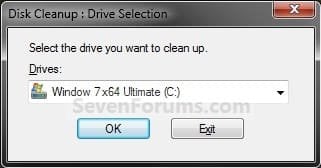
3. You will now see this screenshot below for a moment. Afterwards, do step 4, 5, 6, or 7 below for what you would like to delete using Disk Cleanup.
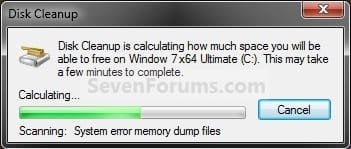
4. To Delete Unnecessary Non-System Files
A) Check the type of files box that you want to delete, and click/tap on OK. (see screenshot below)
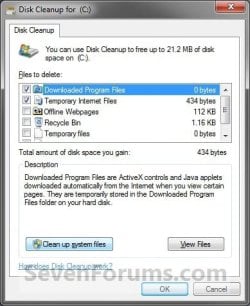
B) Click/tap on the Delete Files button. (see screenshot below)
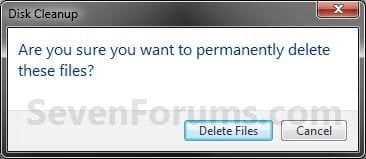
C) The files will be deleted and Disk Cleanup will close.
5. To Delete Unnecessary System Files
A) Click/tap on the Clean up system files button. (see screenshot below)
NOTE: If you just did a upgrade install or repair install recently, then you will also see the Files discarded by Windows upgrade option. This would be for the C:\$INPLACE.~TR and C:\$WINDOWS.~Q folders. If you just did a custom install recently, then you will also see the Previous Windows installations option. This would be for the C:\Windows.old folder.
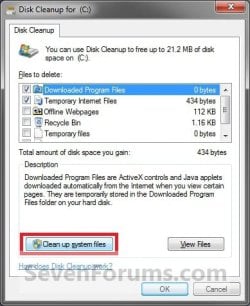
B) If prompted by UAC, then click/tap on Yes.
C) Repeat steps 2 to 4.
6. To Open Programs and Features
NOTE: This will open the Programs and Features window where you can uninstall programs. Normally you could also do this by opening Programs and Features in the Control Panel.
A) Click/tap on the Clean up system files button, and repeat steps 2 and 3. (see screenshot below step 5A)
B) If prompted by UAC, then click/tap on Yes.
C) Click/tap on the More Options tab. (see screenshot below)
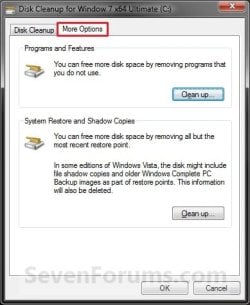
D) Click/tap on the Clean up button under the top Programs and Features section. (see screenshot above)
E) Click/tap on OK. (see screenshot below step 6C)
F) In Programs and Features, select any program that you want uninstall.
7. To Delete All but the Most Recent System Restore Point
NOTE: In Windows 7, this will also include deleting shadow copies (Previous Versions) that were created with the deleted restore point.
A) Click/tap on the Clean up system files button, and repeat steps 2 and 3. (see screenshot below step 5A)
B) If prompted by UAC, then click/tap on Yes.
C) Click/tap on the More Options tab. (see screenshot below step 6C)
D) Click/tap on the Clean up button under the bottom System Restore and Shadow Copies section. (see screenshot below step 6C)
E) Click/tap on the Delete button to confirm the deletion. (see screenshot below)
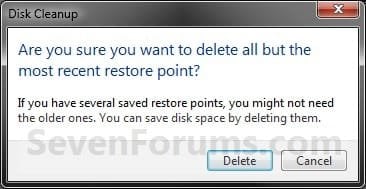
F) Click/tap on OK. (See screenshot below step 6C)
G) Click/tap on the Delete Files button. (see screenshot below)
H) The files will be deleted and Disk Cleanup will close.
That's it,
Shawn
Related Tutorials
- How to Delete System Protection Restore Points in Windows 7
- How to Enable or Disable Hibernate in Windows 7
- How to Add or Remove Disk Cleanup from Drive Properties Page
- How to Run Disk Check in Windows 7
- How to Create a System Maintenance Troubleshoot Shortcut in Windows 7
- How to Use Extended Disk Cleanup in Windows 7
- How to Add "Disk Cleanup" to Context Menu in Windows
- How to Add "Extended Disk Cleanup" to Desktop Context Menu in Windows 7 and Windows 8
- How Use the Windows 7 SP1 Disk Cleanup Tool to Recover Lost Disk Space
- How to Free Up and Recover Hard Drive Space in Windows 7
- How to Use File History Cleanup to Delete Older Versions of Files in Windows 8
- How to Use CCleaner to Clean Out Junk Files in Windows
- How to Remove Outdated Windows Updates in Disk Cleanup in Windows 7
- How to Use Windows Update Cleanup in Windows 8 and 8.1
- How to View Disk Space Usage in Windows 8.1 Update
Attachments

Last edited:


