
Hibernate - Enable or Disable

How to Enable or Disable Hibernate in Windows 7 and Windows 8


   Information
Hibernation is a power-saving state designed primarily for laptops. While sleep puts your work and settings in memory and draws a small amount of power, hibernation puts your open documents and programs on your hard disk, and then turns off your computer. Of all the power-saving states in Windows, hibernation uses the least amount of power. On a laptop, use hibernation when you know that you won't use your laptop for an extended period and won't have an opportunity to charge the battery during that time.

This tutorial will show you how to enable or disable hibernate and restore or delete the hiberfil.sys file in Windows 7 and Windows 8.

When hibernate is disabled, the Hibernate option is missing from the Start Menu (Windows 7 only), Shut Down Windows dialog, Power menu (Windows 8 only) and the Advanced Power Plan Options.

You must be logged in as an administrator to be able to do the steps in this tutorial.

   Note

  • By default, the size of the hidden protected OS hibernation file (C:\hiberfil.sys) is 75% of the total amount of installed RAM on your computer.
  • In Windows 7, you can set your computer to either use or not use the Hybrid or Hibernate sleep mode option from the Advanced Power Plan Options.
  • In Windows 7, you will only see Hibernate listed in the Start Menu power button arrow menu if you have Hybrid turned off in the Advanced Power Plan Options.
  • Windows 8/8.1 PCs with InstantGo don't have the hibernate option
  • If you disable hibernate in Windows 8 and 8.1, then it will also disable fast startup.

:note: For Windows 10 instructions please see the following link - Hibernate - Enable or Disable in Windows 10 - Windows 10 Tutorials

CONTENTS:
  • Option One: Enable or Disable Hibernate in Elevated Command Prompt
  • Option Two: Enable or Disable Hibernate using a REG File Download
  • Option Three: Enable or Disable Hibernate in Registry Editor
  • Option Four: To Turn On or Off Hibernate in Advanced Power Options


OPTION ONE

Enable or Disable Hibernate in Elevated Command Prompt


1. Open an elevated command prompt.

2. Do step 3 or step 4 below for what you would like to do.

3. To Enable Hibernate
NOTE: This step will restore the hiberfil.sys file, and the Allow hybrid sleep and Hibernate after Power Options under Sleep.
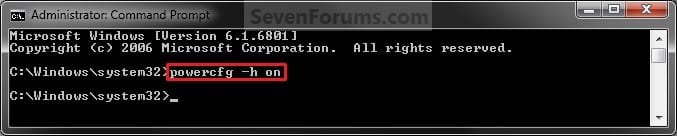
A) In the elevated command prompt, copy and paste the command below, and press Enter. (see screenshot below)
powercfg -h on

Enable.jpg
C) If you would also like to have hibernate turned on, then you will also need do to step 2 in OPTION FOUR below.

D) If you like, you may also wish to add or remove Hibernate from power menus.

E) Go to step 5 below.
4. To Disable Hibernate
NOTE: This step will disable hibernation, delete the hiberfil.sys file, and remove the Allow hybrid sleep and Hibernate after Power Options under Sleep. This will also disable fast startup in Windows 8.
A)In the elevated command prompt, copy and paste the command below, and press Enter. (see screenshot below)
powercfg -h off


Disable.jpg
B) Check your Power Options to make sure that the Critical battery action and Low battery action settings under Battery are not set to Hibernate, and go to step 5 below. (see screenshot below)
Battery_Power_Options.jpg
5. You can now close the elevated command prompt if you like.


OPTION TWO

Enable or Disable Hibernate using a REG File Download


1. To Enable Hibernate
NOTE: This step will restore the hiberfil.sys file, and the Allow hybrid sleep and Hibernate after Power Options under Sleep.
A) Click/tap on the Download button below to download the file below, and go to step 3 below.
Enable_Hibernate.reg


Download


2. To Disable Hibernate
NOTE: This step will disable hibernation, delete the hiberfil.sys file, and remove the Allow hybrid sleep and Hibernate after Power Options under Sleep. This will also disable fast startup in Windows 8.
A) Check your Power Options to make sure that the Critical battery action and Low battery action settings under Battery are not set to Hibernate. (see screenshot below)
Battery_Power_Options.jpg
B) Click/tap on the Download button below to download the file below, and go to step 3 below.
Disable_Hibernate.reg

Download


3. Save the .reg file to your desktop.

4. Double click/tap on the downloaded .reg file to merge it.

5. Click/tap on Run, Yes (UAC), Yes, and OK when prompted to approve the merge.

6. Restart the computer to apply the changes.

7. If you would also like to have hibernate turned on, then you will also need do to step 2 in OPTION FOUR below.

8. If you like, you may also wish to add or remove Hibernate from power menus.

9. When finished, you can delete the downloaded .reg file if you like.


OPTION THREE

Enable or Disable Hibernate in Registry Editor


1. Press the Windows + R keys to open the Run dialog, type regedit, and click/tap on OK.

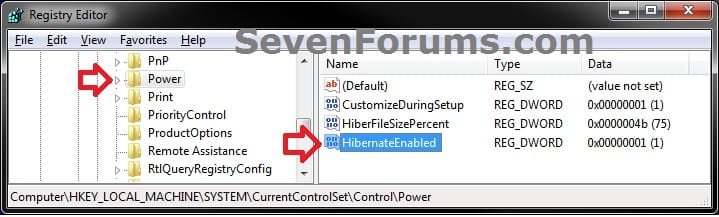
2. In regedit, navigate to the location below. (see screenshot below)
HKEY_LOCAL_MACHINE\SYSTEM\CurrentControlSet\Control\Power
REG-1.jpg
3. In the right pane of the Power key, double click/tap on HibernateEnabled, and do step 4 or 5 below for what you would like to do. (see screenshot above)

4. To Enable Hibernate
NOTE: This step will restore the hiberfil.sys file, and the Allow hybrid sleep and Hibernate after Power Options under Sleep.
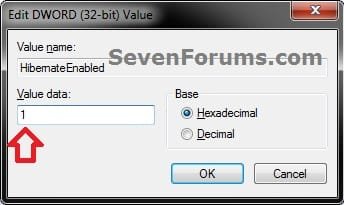
A) Type in 1, click/tap on OK, and go to step 6 below. (see screenshot below)
REG-2.jpg
5. To Disable Hibernate
NOTE: This step will disable hibernation, delete the hiberfil.sys file, and remove the Allow hybrid sleep and Hibernate after Power Options under Sleep. This will also disable fast startup in Windows 8.
A) Type in 0 (zero), and click/tap on OK. (see screenshot above)

B) Check your Power Options to make sure that the Critical battery action and Low battery action settings under Battery are not set to Hibernate, and go to step 6 below. (see screenshot below)
Battery_Power_Options.jpg
6. Close regedit, and restart the computer to apply the changes.

7. If you would also like to have hibernate turned on, then you will also need do to step 2 in OPTION FOUR below.

8. If you like, you may also wish to add or remove Hibernate from power menus.


OPTION FOUR

To Turn Hibernate On or Off in Advanced Power Options


NOTE: This option does not disable hibernate, but only turns it on or off for your power plan.
1. Do either step 2 or step 3 below for what you would like to do.

2. To Turn On Hibernate
NOTE: You could also use a hibernate shortcut to manually put the computer into hibernation instead or in addition to this option.
A) If you have not already, then you will need to enable hibernate using either OPTION ONE, OPTION TWO, or OPTION THREE above first.

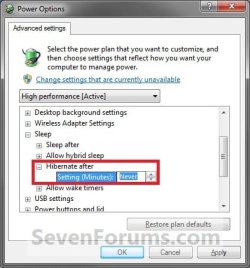
B) Open the Advanced Power Plan Settings for your power plan, then expand Sleep. (see screenshot below step 4)

C) Under Hibernate after, set the Setting (Minutes) to how many minutes you want your computer to sit idle for before it goes into hibernation. (see screenshot step 4)

D) Go to step 4.
3. To Turn Off Hibernate
NOTE: If you disabled hibernate using OPTION 1, 2, or 3 above, then there's no need to do this since Hibernate after and Allow hybrid sleep will no longer be listed in your power options.
A) Open the Advanced Power Plan Settings for your power plan, and expand Sleep. (see screenshot below step 4)
B) Under Hibernate after, set the Setting (Minutes) to Never. (see screenshot below step 4)

C) Under Allow hybrid sleep, set Setting to Off. (see screenshot below step 4)

D) Go to step 4.
4. When finished, click/tap on OK. (see screenshot below)
Power_Options.jpg
That's it,
Shawn


Attachments

Last edited:
thank you Shawn, straight way gained back 5gigs on my system, when i set the hybernate, i had no idea this was happening, and i keep a sharp eye on my memory, i used the command prompt, because i started out in dos in the mid 80's learning to be a programmer, and am more familiar with it, but i'am still missing about 5gigs, guess i'll have to start a thread or do a little more archive hunting, anyway thanks as always when i come here i always get real working solutions. tothe3rdpwr
 

My Computer

Computer Manufacturer/Model Number
dell XPS L702X
OS
windows 7 home premium 64bit svc pk 1
CPU
Intel core i5-2520M CPU @ 2.5GHz
Motherboard
dell OK4H3G
Memory
6 GB Ram
Graphics Card(s)
Nividia GeForce GT 550m
Sound Card
Realtek High Def
Monitor(s) Displays
L E D 1600 X 600 (32-bit) @ 60Hz
Hard Drives
WDC WD500 Gb
Case
LapTop

My Computer

Computer type
PC/Desktop
Computer Manufacturer/Model Number
Self built custom
OS
64-bit Windows 11 Pro for Workstations
CPU
Intel i7-8700K OC'd to 5 GHz
Motherboard
ASUS ROG Maximus XI Formula Z390
Memory
64 GB (4x16GB) G.SKILL TridentZ RGB DDR4 3600 MHz
Graphics Card(s)
ASUS ROG-STRIX-GTX1080TI-O11G-GAMING
Sound Card
Integrated
Monitor(s) Displays
2 x Samsung Odyssey G7 27"
Screen Resolution
2560x1440
Hard Drives
1TB Samsung 990 PRO M.2,
4TB Samsung 990 PRO PRO M.2,
TerraMaster F8 SSD Plus NAS
PSU
Seasonic Prime Titanium 850W
Case
Thermaltake Core P3
Cooling
Corsair Hydro H115i
Keyboard
Logitech wireless K800
Mouse
Logitech MX Master 4
Internet Speed
2 Gb/s Download and 100 Mb/s Upload
Antivirus
Malwarebyte Anti-Malware Premium
Browser
Google Chrome
Other Info
Logitech Z625 speaker system,
Logitech BRIO 4K Pro webcam,
HP Color LaserJet Pro MFP M477fdn,
APC SMART-UPS RT 1000 XL - SURT1000XLI,
Galaxy S23 Plus phone
to melissasoua3
i had hibernate active cause i thought it was cool when i closed my laptop, i could come back to my session, web and all, but i like movies and music, and always kept track of my harddisk space, cause they eat alot ( click, start, go to computor and a quick glance shows your available space) when i began to notice 5 and 10 gigs at a time vanishing, with no downloads, so i came here, and got the answers i needed, i also got back 10 more gigs by using a program that is in "system mechanic" called " program accelerator " which realigns programs and dependant files, but it can take more than 2hrs depending on the size of your HD and how jumbled your files are, system mechanic is free to dwnld, and program accl. will work but its a trial version, but it did get the job done, i also believe that a boot time defrag will also help which i believe also helps in system performance ( i have the paid ver.) hope this helps, and weekly maintenace is a good idea and will prevent alot of problems, its like getting a cold, you were already sick but its not till you crash that you really notice. also check out the tutorials on freeing up hard disk space, very good stuff....
 

My Computer

Computer Manufacturer/Model Number
dell XPS L702X
OS
windows 7 home premium 64bit svc pk 1
CPU
Intel core i5-2520M CPU @ 2.5GHz
Motherboard
dell OK4H3G
Memory
6 GB Ram
Graphics Card(s)
Nividia GeForce GT 550m
Sound Card
Realtek High Def
Monitor(s) Displays
L E D 1600 X 600 (32-bit) @ 60Hz
Hard Drives
WDC WD500 Gb
Case
LapTop
(OPTION ONE) (To Disable Hibernate) NOTE: This step will disable hibernation, delete the hiberfil.sys file, and remove the Allow hybrid sleep and Hibernate after Power Options under Sleep.
but it will leave 'hibernate' in 'Battery>Critical battery action' in power plan. I was working ignoring 'battery low' warnings and suddenly KABOOM! screen black, no power. System didn't shutdown/sleep when battery got critical, it was set to hibernate but the function was disabled. (windows 7 Pro x64)
 

My Computer

Computer type
Laptop
Computer Manufacturer/Model Number
Lenovo
OS
Windows 10 Pro Insider Preview + WSL2
CPU
i5
Motherboard
Lenovo
Memory
8GB
Graphics Card(s)
Intel HD
Sound Card
HD Audio
Monitor(s) Displays
12"
Screen Resolution
1280x800
Hard Drives
500GB SSD
PSU
65W
Keyboard
QWERTY
Mouse
Trackpoint
Internet Speed
100Mb
Antivirus
none
Browser
Vivaldi
Hello mt12345,

Hmm, interesting. I never noticed that before. I updated the tutorial for this to help others avoid that.

Thank you. :)
 

My Computer

Computer type
PC/Desktop
Computer Manufacturer/Model Number
Self built custom
OS
64-bit Windows 11 Pro for Workstations
CPU
Intel i7-8700K OC'd to 5 GHz
Motherboard
ASUS ROG Maximus XI Formula Z390
Memory
64 GB (4x16GB) G.SKILL TridentZ RGB DDR4 3600 MHz
Graphics Card(s)
ASUS ROG-STRIX-GTX1080TI-O11G-GAMING
Sound Card
Integrated
Monitor(s) Displays
2 x Samsung Odyssey G7 27"
Screen Resolution
2560x1440
Hard Drives
1TB Samsung 990 PRO M.2,
4TB Samsung 990 PRO PRO M.2,
TerraMaster F8 SSD Plus NAS
PSU
Seasonic Prime Titanium 850W
Case
Thermaltake Core P3
Cooling
Corsair Hydro H115i
Keyboard
Logitech wireless K800
Mouse
Logitech MX Master 4
Internet Speed
2 Gb/s Download and 100 Mb/s Upload
Antivirus
Malwarebyte Anti-Malware Premium
Browser
Google Chrome
Other Info
Logitech Z625 speaker system,
Logitech BRIO 4K Pro webcam,
HP Color LaserJet Pro MFP M477fdn,
APC SMART-UPS RT 1000 XL - SURT1000XLI,
Galaxy S23 Plus phone
hibernation--disable "wake on..." "feature"

Hibernation is working fine for me, but soon after it completes, the system wakes up, probably as a result of receiving an e-mail. I want hibernation to last until I turn the machine back on.

How do I do that?

Thanks,
Steve Samson
 

My Computer

Computer Manufacturer/Model Number
Toshiba SatelliteL305-S5955
OS
windows 7 pro x64
CPU
celeron
I do not have hibernate in any of my power menus. I have Windows 7 64 bit.
I have tried the option to run in command window and get the following messages:

C:\Windows\system32>powercfg -h on
Hibernation failed with the following error: The request is not supported.

The following items are preventing hibernation on this system.
An internal system component has disable hibernation.

I have also downloaded and run the enable hibernate script and still do not
have hibernate in my power menus. Any suggestions?
 

My Computer

Computer type
PC/Desktop
OS
windows 7 64bit
I do not have hibernate in any of my power menus. I have Windows 7 64 bit.
I have tried the option to run in command window and get the following messages:

C:\Windows\system32>powercfg -h on
Hibernation failed with the following error: The request is not supported.

The following items are preventing hibernation on this system.
An internal system component has disable hibernation.

I have also downloaded and run the enable hibernate script and still do not
have hibernate in my power menus. Any suggestions?

Hello Tom, and welcome to Seven Forums. :)

If this Windows is a virtual machine or on VHD, then hibernate is not available.

If not, then double check to make sure that you are not having any issues with your display adapter in Device Manager, and that you have the latest drivers installed for your graphics card/chip.
 

My Computer

Computer type
PC/Desktop
Computer Manufacturer/Model Number
Self built custom
OS
64-bit Windows 11 Pro for Workstations
CPU
Intel i7-8700K OC'd to 5 GHz
Motherboard
ASUS ROG Maximus XI Formula Z390
Memory
64 GB (4x16GB) G.SKILL TridentZ RGB DDR4 3600 MHz
Graphics Card(s)
ASUS ROG-STRIX-GTX1080TI-O11G-GAMING
Sound Card
Integrated
Monitor(s) Displays
2 x Samsung Odyssey G7 27"
Screen Resolution
2560x1440
Hard Drives
1TB Samsung 990 PRO M.2,
4TB Samsung 990 PRO PRO M.2,
TerraMaster F8 SSD Plus NAS
PSU
Seasonic Prime Titanium 850W
Case
Thermaltake Core P3
Cooling
Corsair Hydro H115i
Keyboard
Logitech wireless K800
Mouse
Logitech MX Master 4
Internet Speed
2 Gb/s Download and 100 Mb/s Upload
Antivirus
Malwarebyte Anti-Malware Premium
Browser
Google Chrome
Other Info
Logitech Z625 speaker system,
Logitech BRIO 4K Pro webcam,
HP Color LaserJet Pro MFP M477fdn,
APC SMART-UPS RT 1000 XL - SURT1000XLI,
Galaxy S23 Plus phone
Brink,

Perhaps you can help me with the post I originally placed in this thread: I have a rather new HP desktop with Windows 7 Pro 64. I can enable hibernation and put the machine into hibernation just fine, but within a (variable) short time, the machine starts up again. I think it's some sort of "wake on e-mail" trigger, but I cannot find any way to control it. I would like hibernation to remain in effect until I hit the power button.

Any ideas?

TIA,

Steve
 

My Computer

Computer Manufacturer/Model Number
Toshiba SatelliteL305-S5955
OS
windows 7 pro x64
CPU
celeron
Hello Steve,

Yeah, that would be a wake up issue instead of for enabling or disabling hibernation.

For your issue, you could use the tutorial below to read your wake source event log to see if it may help to ID what it waking the PC.

http://www.sevenforums.com/tutorials/179257-wake-source-read-event-viewer-log.html

Afterwards, you could see about disabling whatever may have woke the PC up. :)
 

My Computer

Computer type
PC/Desktop
Computer Manufacturer/Model Number
Self built custom
OS
64-bit Windows 11 Pro for Workstations
CPU
Intel i7-8700K OC'd to 5 GHz
Motherboard
ASUS ROG Maximus XI Formula Z390
Memory
64 GB (4x16GB) G.SKILL TridentZ RGB DDR4 3600 MHz
Graphics Card(s)
ASUS ROG-STRIX-GTX1080TI-O11G-GAMING
Sound Card
Integrated
Monitor(s) Displays
2 x Samsung Odyssey G7 27"
Screen Resolution
2560x1440
Hard Drives
1TB Samsung 990 PRO M.2,
4TB Samsung 990 PRO PRO M.2,
TerraMaster F8 SSD Plus NAS
PSU
Seasonic Prime Titanium 850W
Case
Thermaltake Core P3
Cooling
Corsair Hydro H115i
Keyboard
Logitech wireless K800
Mouse
Logitech MX Master 4
Internet Speed
2 Gb/s Download and 100 Mb/s Upload
Antivirus
Malwarebyte Anti-Malware Premium
Browser
Google Chrome
Other Info
Logitech Z625 speaker system,
Logitech BRIO 4K Pro webcam,
HP Color LaserJet Pro MFP M477fdn,
APC SMART-UPS RT 1000 XL - SURT1000XLI,
Galaxy S23 Plus phone
Lenovo X200 laptop has fn+f12 combo for hibernation.
I disabled hibernation (long time ago) but when I accidentally hit fn+f12 system got hibernated, after resuming value in registry changed from 0 to 1.
 

My Computer

Computer type
Laptop
Computer Manufacturer/Model Number
Lenovo
OS
Windows 10 Pro Insider Preview + WSL2
CPU
i5
Motherboard
Lenovo
Memory
8GB
Graphics Card(s)
Intel HD
Sound Card
HD Audio
Monitor(s) Displays
12"
Screen Resolution
1280x800
Hard Drives
500GB SSD
PSU
65W
Keyboard
QWERTY
Mouse
Trackpoint
Internet Speed
100Mb
Antivirus
none
Browser
Vivaldi
What is the point of "Check your Power Options to make sure that the Critical battery action and Low battery action settings under Battery are not set to Hibernate. (see screenshot below)" while the screenshot shows that Critical battery action is hibernate?
What happen if I disable hibernation and my laptop battery is very low?
 

My Computer

Computer type
PC/Desktop
OS
Windows 7 home premium 32 bit

My Computer

Computer type
Laptop
Computer Manufacturer/Model Number
Lenovo
OS
Windows 10 Pro Insider Preview + WSL2
CPU
i5
Motherboard
Lenovo
Memory
8GB
Graphics Card(s)
Intel HD
Sound Card
HD Audio
Monitor(s) Displays
12"
Screen Resolution
1280x800
Hard Drives
500GB SSD
PSU
65W
Keyboard
QWERTY
Mouse
Trackpoint
Internet Speed
100Mb
Antivirus
none
Browser
Vivaldi
Back
Top