
How to Enable or Disable Restoring Backup Files in Windows 7
Information
This will show you how to enable or disable all users from being able to restore backup user and system files in Windows 7.
EXAMPLE: Restore Backup Files Enabled and Disabled
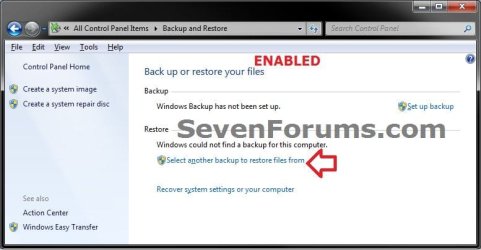
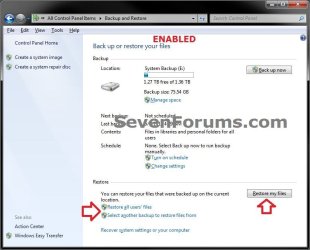

OPTION ONE
Using a REG File Download
1. To Enable Ability to Restore Backup User and System Files
A) Click on the Download button below to download the file below.
Enable_Restore_Back_Up_Files.reg
Download
B) Go to step 3.
2. To Disable Ability to Restore Backup User and System Files
A) Click on the Download button below to download the file below.
Disable_Restore_Back_Up_Files.reg
Download
3. Click on Save, and save the .reg file to the desktop.
4. Right click the downloaded .reg file on the Desktop and click on Merge.
5. Click on Run, Yes, Yes, and OK when prompted.
6. When done, you can delete the downloaded .reg file on the desktop if you like.
OPTION TWO
Through the Local Group Policy Editor
1. Open the all users, specific users or groups, or all users except administrators Local Group Policy Editor for how you want this policy applied.
2. In the left pane, click on to expand User Configuration, Administrative Templates, Windows Components, Backup, and Client. (see screenshot below)
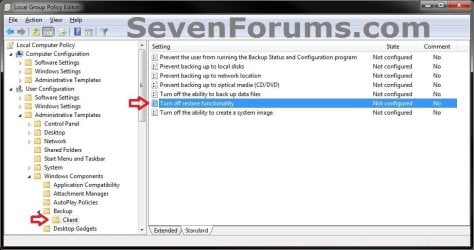
3. In the right pane, right click on Turn off restore functionality and click on Edit. (see screenshot above)
4. To Enable Ability to Restore Backup User and System Files
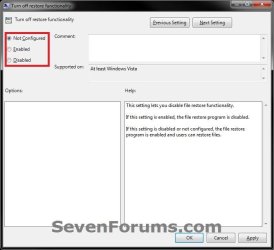
A) Select (dot) either Not Configured or Disabled. (see screenshot below step 6)
B) Go to step 6.
5. To Disable Ability to Restore Backup User and System Files
A) Select (dot) Enabled. (see screenshot below step 6)
6. Click on OK. (see screenshot below)
7. Close the Local Group Policy Editor window.
That's it,
Shawn
Related Tutorials
- How to Restore Backup User and System Files in Windows 7
- How to Create a Windows 7 "Restore Backup User and System Files" Shortcut
- How to Create a "Restore Files from Selected Backup Location" Shortcut
- How to Enable or Disable to Backup Data Files in Windows 7
- How to Backup User and System Files in Windows 7
- How to Enable or Disable Backing up to a CD or DVD in Windows 7
- How to Enable or Disable Backing up to Local Hard Disks in Windows 7
- How to Manually Extract Files from a Backup in Vista and Windows 7
Attachments
Last edited:
