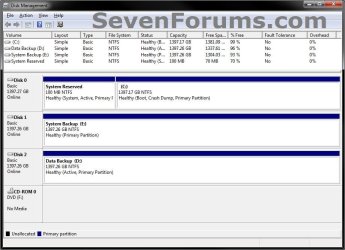
Drive Letter - Add, Change, or Remove in Windows

How to Add, Change, or Remove a Drive Letter in Vista, Windows 7, and Windows 8


   Information
This will show you how to add, change, or remove a drive letter for any drive installed or connected to the computer in Vista, Windows 7, and Windows 8.
   Note

  • You can only assign the letters D to Z to each drive on your computer.
  • The letters A and B are usually reserved for floppy disk drives. If you do not have a floppy disk drive installed, then you could assign A and B to a drive, partition, or volume if you like. However, it's not recommended to assign A and B to anything other than a floppy or floppy substitute.
  • The letter C is reserved for the drive or partition that the operating system (Windows 7 or Vista) is installed on. If you multi boot operating systems, then whatever OS that you happen to startup in will always show as the C drive by default. You do not want to change or remove the C: drive letter.
  • If you change or remove a drive letter of a drive, partition, or volume that a shortcut or installed program references as their target location, then that shortcut or program may not work afterwards since it can no longer find that drive letter.


OPTION ONE

To Change, Add, or Remove Drive Letter in Disk Management


1. Press the Windows + R keys to open the Run dialog, type compmgmt.msc OR diskmgmt.msc, and press Enter.

2. If prompted by UAC, then click on Yes.

3. In the left pane of Computer Management, click/tap on Disk Management under Storage. (see screenshots below)
Computer_Management.jpg

Disk_Management.jpg

4. Do step 5, 6, or 7 for what you would like to do.

5. To Change a Drive Letter
NOTE: You cannot change a drive letter if the drive is either a system partition or a boot partition, like the partition or drive that Windows 7 is installed on. If you get an error, the partition or drive you are trying to change might be in use. Close any program or window that is using the partition or drive and try again.
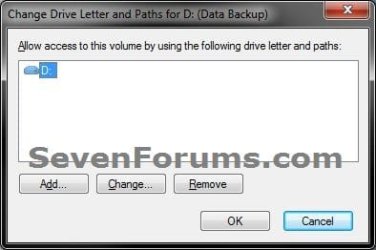
A) Right click on a listed drive, partition, or volume letter that you want to change the drive letter of, and click on Change Drive Letter and Paths. (see screenshot below)
Step-2_Change-Remove.jpg
B) Click/tap on the Change button. (see screenshot below)
Step-2_Change-Remove.jpg
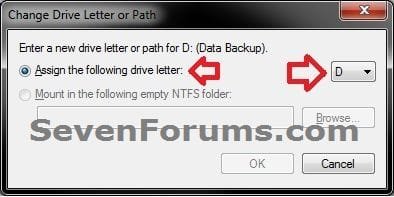
C) Select (dot) Assign the following drive letter, then select an available drive letter from the drop down box, and click/tap on OK. (see screenshot below)
Change-2.jpg
D) Click/tap on Yes to confirm changing the drive letter. (see screenshot below)
Change-3.jpg
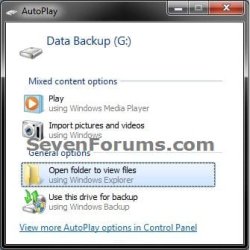
E) If you get a AutoPlay pop-up window afterwards, then you can just close this. It indicates that the drive, partition, or volume has been assigned the drive letter. (see screenshot below)
Change-4.jpg
F) Go to step 8.
6. To Add a Drive Letter
NOTE: This is to assign a drive letter to a drive, partition, or volume if a drive letter has been removed or does not already have one assigned to it.
A) Right click on a listed drive, partition, or volume that does not have a driver letter that you want to add one to, and click/tap on Change Drive Letter and Paths. (see screenshot below step 5A)
Add.jpg
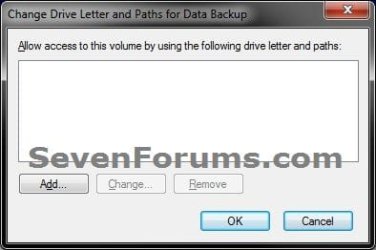
B) Click/tap on the Add button. (see screenshot below)
Add-1.jpg
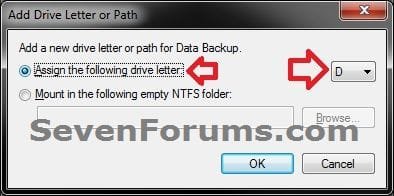
C) Select (dot) Assign the following drive letter, then select an available drive letter from the drop down box, and click/tap on OK. (see screenshot below)
Add-2.jpg
D) Go to step 8.
7. To Remove a Drive Letter
NOTE: This will only remove the drive letter and not the drive, partition, or volume. This can be useful if you are getting a low disk space warning for this drive letter.
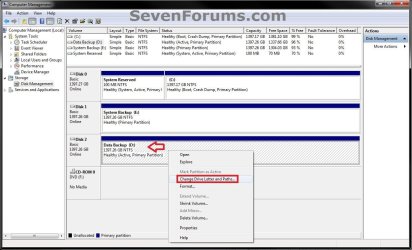
A) Right click on a listed drive, partition, or volume letter that you want to remove the drive letter of, and click/tap on Change Drive Letter and Paths.
Step1.jpg
B) Click/tap on the Remove button. (see screenshot below)
Step-2_Change-Remove.jpg
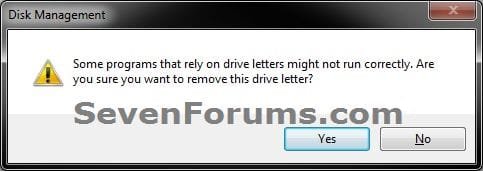
C) Click/tap on Yes to confirm removing the drive letter. (see screenshot below)
Remove-2.jpg
8. Close the Computer Management or Disk Management window.

9. Open the Computer window to confirm the changes.


OPTION TWO

To Change or Remove Drive Letter Manually in Registry Editor


1. Press the Windows + R keys to open the Run dialog, type regedit in the search box, and press Enter.

2. If prompted by UAC, then click on Yes.

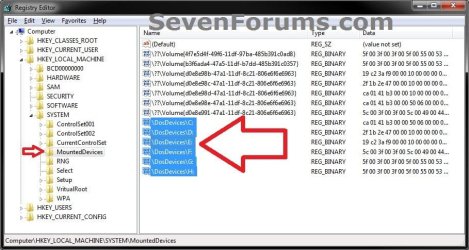
3. In regedit, navigate to the location below, and do step 4 or 5 below for what you would like to do.. (see screenshot below)
HKEY_LOCAL_MACHINE\SYSTEM\MountedDevices
Reg1.jpg
4. To Change a Drive Letter
WARNING: Do not change the C: drive letter.
A) Right click on a listed /DosDevices\(drive letter) (Ex: /DosDevices\D: ) that you want to change the drive letter of, then click on Rename. (see screenshot above)

B) Rename it with a drive letter that you want to use, and is not already listed here, and press enter. (see screenshot above)
For Example: If I wanted to change it from D: to K: , then I would rename it to /DosDevices\K: instead.
5. To Remove a Drive Letter
WARNING: Do not remove the C: drive letter.
A) Right click on a listed /DosDevices\(drive letter) (Ex: /DosDevices\D: ) that you want to remove the drive letter of, then click on Delete. (see screenshot above)

B) Click/tap on Yes to confirm the deletion. (see screenshot below)
Reg_Remove.jpg
6. Close regedit.

7. Log off and log on, or restart the computer to apply the changes.


OPTION THREE

To Add, Change, or Remove a Drive Letter in Command Prompt


1. Open either an elevated command prompt in Windows 7 or Windows 8, or a command prompt at boot for Windows 7 or Windows 8.
NOTE: Changing the drive letter at boot will not always result in having the same drive letter in Windows. Changing the drive letter while in Windows is preferred.

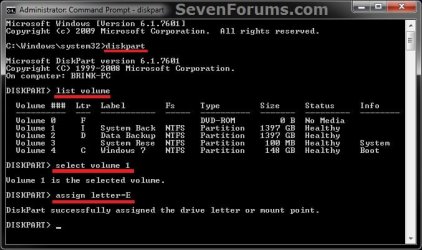
2. In the command prompt, type diskpart and press Enter. (see screenshot below step 6)

3. In the command prompt, type list volume and press Enter. (see screenshot below step 6)
NOTE: Make note of what the volume # is for the drive label/size that you wanted to add or change the drive letter of.

4. In the command prompt, type select volume # and press Enter. (see screenshot below step 6)
NOTE: Substitute # in the command with the volume number from step 3 that you wanted to add or change the drive letter of.
For example: If I wanted to add or change the drive letter of my listed volume 1 for my I: System Back drive, I would type the command below exactly and press Enter.
select volume 1
5. Do step 6 or 7 below for what you would like to do.

6. To Add or Change a Drive Letter
A) In the command prompt, type assign letter=letter and press Enter, and go to step 8 below. (see screenshot below)
NOTE: Substitute the second letter in the command with the drive letter that you wanted to add or change the drive from step 4 to.
For example: If I wanted to add or change the drive letter of my listed volume 1 for my I: System Back drive from I to E, I would type the command below exactly and press Enter.
assign letter=E
CMD.jpg
7. To Remove a Drive Letter
A) In the command prompt, type remove letter=letter and press Enter, and go to step 8 below.
NOTE: Substitute the second letter in the command with the drive letter that you wanted to remove the drive from step 4.
For example: If I wanted to remove the drive letter of my listed volume 1 for my I: System Back drive, I would type the command below exactly and press Enter.
remove letter=E
8. When successful, you're done. Close the elevated command prompt, or close the command prompt at boot and restart the computer.
That's it,
Shawn


Last edited:
Just trying to fill in the fields, and not being technical, that’s as much info as I can provide! :cool:
 

My Computer

Computer type
PC/Desktop
Computer Manufacturer/Model Number
Custom build with Asus motherboard
OS
Windows 7 Home Premium 64-bit
CPU
Intel Core i5-2500 at 3·3 GHz
Memory
8 Gbyte
Graphics Card(s)
Nvidia GeForce GTX550Ti
Browser
Firefox 20
Hello Jack, and welcome to Seven Forums.

I'm happy to hear that you got your drive letter issue sorted. :)
 

My Computer

Computer type
PC/Desktop
Computer Manufacturer/Model Number
Self built custom
OS
64-bit Windows 11 Pro for Workstations
CPU
Intel i7-8700K OC'd to 5 GHz
Motherboard
ASUS ROG Maximus XI Formula Z390
Memory
64 GB (4x16GB) G.SKILL TridentZ RGB DDR4 3600 MHz
Graphics Card(s)
ASUS ROG-STRIX-GTX1080TI-O11G-GAMING
Sound Card
Integrated
Monitor(s) Displays
2 x Samsung Odyssey G7 27"
Screen Resolution
2560x1440
Hard Drives
1TB Samsung 990 PRO M.2,
4TB Samsung 990 PRO PRO M.2,
TerraMaster F8 SSD Plus NAS
PSU
Seasonic Prime Titanium 850W
Case
Thermaltake Core P3
Cooling
Corsair Hydro H115i
Keyboard
Logitech wireless K800
Mouse
Logitech MX Master 4
Internet Speed
2 Gb/s Download and 100 Mb/s Upload
Antivirus
Malwarebyte Anti-Malware Premium
Browser
Google Chrome
Other Info
Logitech Z625 speaker system,
Logitech BRIO 4K Pro webcam,
HP Color LaserJet Pro MFP M477fdn,
APC SMART-UPS RT 1000 XL - SURT1000XLI,
Galaxy S23 Plus phone
Create .reg file to automate deletions of drive letters

Thank you Brink, for this excellent tutorial! I am managing a large number of touch-screen kiosks running Win 7. Program is on thumb drives, updated annually and must run on F. Users are (by and large) not computer-savvy. I can step them through Disk Management....but some units have "phantom" drive on F that is blocking changing in Disk Management. I believe stepping them through regedit is too risky. Is there a way to create a .reg file that would delete references to E, F, G, etc. (everything other than C and D)?
 

My Computer

Computer type
PC/Desktop
Computer Manufacturer/Model Number
This computer Home built Asus board
OS
This computer XP Pro 32-bit; Other computers 7 Pro 64
CPU
P4
Motherboard
Asus
Memory
4 gig
Graphics Card(s)
Radeon
Hard Drives
multiple
Antivirus
nod32
Browser
chrome and IE 8
Hello Jimandre, and welcome to Seven Forums.

I created a .reg file that I attached below that will automatically remove all drive letters except C: and D: using the same method as step 5 in OPTION TWO. They will need to be an administrator to be able to run and approve it, and may need to log off/on or restart PC afterwards to apply.

Hope this helps, :)
Shawn
 

Attachments

Last edited:

My Computer

Computer type
PC/Desktop
Computer Manufacturer/Model Number
Self built custom
OS
64-bit Windows 11 Pro for Workstations
CPU
Intel i7-8700K OC'd to 5 GHz
Motherboard
ASUS ROG Maximus XI Formula Z390
Memory
64 GB (4x16GB) G.SKILL TridentZ RGB DDR4 3600 MHz
Graphics Card(s)
ASUS ROG-STRIX-GTX1080TI-O11G-GAMING
Sound Card
Integrated
Monitor(s) Displays
2 x Samsung Odyssey G7 27"
Screen Resolution
2560x1440
Hard Drives
1TB Samsung 990 PRO M.2,
4TB Samsung 990 PRO PRO M.2,
TerraMaster F8 SSD Plus NAS
PSU
Seasonic Prime Titanium 850W
Case
Thermaltake Core P3
Cooling
Corsair Hydro H115i
Keyboard
Logitech wireless K800
Mouse
Logitech MX Master 4
Internet Speed
2 Gb/s Download and 100 Mb/s Upload
Antivirus
Malwarebyte Anti-Malware Premium
Browser
Google Chrome
Other Info
Logitech Z625 speaker system,
Logitech BRIO 4K Pro webcam,
HP Color LaserJet Pro MFP M477fdn,
APC SMART-UPS RT 1000 XL - SURT1000XLI,
Galaxy S23 Plus phone
.reg file

Thank you so much, Shawn. This will be a huge help!
 

My Computer

Computer type
PC/Desktop
Computer Manufacturer/Model Number
This computer Home built Asus board
OS
This computer XP Pro 32-bit; Other computers 7 Pro 64
CPU
P4
Motherboard
Asus
Memory
4 gig
Graphics Card(s)
Radeon
Hard Drives
multiple
Antivirus
nod32
Browser
chrome and IE 8
You're most welcome. :)
 

My Computer

Computer type
PC/Desktop
Computer Manufacturer/Model Number
Self built custom
OS
64-bit Windows 11 Pro for Workstations
CPU
Intel i7-8700K OC'd to 5 GHz
Motherboard
ASUS ROG Maximus XI Formula Z390
Memory
64 GB (4x16GB) G.SKILL TridentZ RGB DDR4 3600 MHz
Graphics Card(s)
ASUS ROG-STRIX-GTX1080TI-O11G-GAMING
Sound Card
Integrated
Monitor(s) Displays
2 x Samsung Odyssey G7 27"
Screen Resolution
2560x1440
Hard Drives
1TB Samsung 990 PRO M.2,
4TB Samsung 990 PRO PRO M.2,
TerraMaster F8 SSD Plus NAS
PSU
Seasonic Prime Titanium 850W
Case
Thermaltake Core P3
Cooling
Corsair Hydro H115i
Keyboard
Logitech wireless K800
Mouse
Logitech MX Master 4
Internet Speed
2 Gb/s Download and 100 Mb/s Upload
Antivirus
Malwarebyte Anti-Malware Premium
Browser
Google Chrome
Other Info
Logitech Z625 speaker system,
Logitech BRIO 4K Pro webcam,
HP Color LaserJet Pro MFP M477fdn,
APC SMART-UPS RT 1000 XL - SURT1000XLI,
Galaxy S23 Plus phone
DRIVE LETTER CHANGE

THANK YOU FOR SAVING ME A LOT OF TROUBLE.
FOLLOWED YOUR ADVICE TO CHANGE DRIVE LETTERS, TYPED INSTRUCTIONS AND FOUND DOS.
I HAD TO RE INSTALL WINDOWS AND THE DRIVE LETTER BECAME B INSTEAD OF D COULD NOT CHANGE TO D,AS I FOUND OUT IT WAS ALL READY IN REG SO FOUND D DRIVE DEL IT AND CHANGED LETTER TO D AND THAT WAS IT.
IF I CAN DO IT ANYONE CAN.
SOLVED
 

My Computer

Computer type
PC/Desktop
Computer Manufacturer/Model Number
Custom
OS
win 64 bit win 7 home premium
Motherboard
as rock FM2a75 pro 4 DUAL GRAPHICS
Memory
16GB DDR3
Graphics Card(s)
NVIDIA GT 220
Hard Drives
WD 500 GB CAVIAR BLUE
WD 500 GB CAVIAR GREEN
Antivirus
AVG
Browser
SUPERBIRD
Welcome to Seven Forums getitright. I'm glad it was able to help. :)
 

My Computer

Computer type
PC/Desktop
Computer Manufacturer/Model Number
Self built custom
OS
64-bit Windows 11 Pro for Workstations
CPU
Intel i7-8700K OC'd to 5 GHz
Motherboard
ASUS ROG Maximus XI Formula Z390
Memory
64 GB (4x16GB) G.SKILL TridentZ RGB DDR4 3600 MHz
Graphics Card(s)
ASUS ROG-STRIX-GTX1080TI-O11G-GAMING
Sound Card
Integrated
Monitor(s) Displays
2 x Samsung Odyssey G7 27"
Screen Resolution
2560x1440
Hard Drives
1TB Samsung 990 PRO M.2,
4TB Samsung 990 PRO PRO M.2,
TerraMaster F8 SSD Plus NAS
PSU
Seasonic Prime Titanium 850W
Case
Thermaltake Core P3
Cooling
Corsair Hydro H115i
Keyboard
Logitech wireless K800
Mouse
Logitech MX Master 4
Internet Speed
2 Gb/s Download and 100 Mb/s Upload
Antivirus
Malwarebyte Anti-Malware Premium
Browser
Google Chrome
Other Info
Logitech Z625 speaker system,
Logitech BRIO 4K Pro webcam,
HP Color LaserJet Pro MFP M477fdn,
APC SMART-UPS RT 1000 XL - SURT1000XLI,
Galaxy S23 Plus phone
Just did a clean install of Windows 8 and no longer found my secondary HDD listed in file explorer. Never knew about the diskpart program until now. Thank you, very much.
 

My Computer

Computer type
PC/Desktop
OS
Windows 8.1 Professional with Media Center
Desktop icons, download folder lost after drive letter change

Thought I might post here since my problem began after following these same steps. Apologies if I'm mistaken :o

I've been running an SSD on which the OS is installed (Win7 Home Premium), and I'm using an HDD for data storage. All programs are on the SSD. I've been using the system without problems for about a year, except that windows search never returned ANY results on the storage drive. I exhausted all indexing solutions many times and had given up, figuring I'd just live with it. Then I encountered a post by someone with the same setup as mine who had the same problem, and they immediately solved it by changing their storage drive from B: to something else. So I successfully changed the B: to an S: drive, per your tutorial and the search function was restored.

However, the problem was that after I restarted, all but the recycle bin was gone from my desktop, and I received persistent error messages similar to:

"B:\Windows\system32\config\systemprofile\Desktop refers to a location that is unavailable. It could be on a hard drive on this computer, or on a network. Check to make sure that the disk is properly inserted, or that you are connected to the Internet or your network, and then try again. If it still cannot be located, the information might have been moved to a different location."

Note: I'm not 100% certain that the filepath above (in red) was precisely the filepath shown in MY error, but I do believe it referenced the desktop.
I AM certain however, that it referred to the B: drive that I had just changed to S:

I was able to access all programs (at least all those attempted) just fine by using the start menu, but again, the desktop was completely empty but for the recycle bin. Apparently the download folder (which also had pointed to the B: drive) was also affected, as I could no longer access the downloads using the links to downloads that displays in my web browser. As I test, I attempted to download a program update, but it was unresponsive and didn't seem to download at all (I assume due to the old B: filepath). Incidentally I was able to access all my data normally, as I had before, via Windows Explorer.

I was unable to find a quick solution, so I re-named the storage drive back to B:, and all but the Windows search function works-- just as it did in the first place. However I'd like to rename it again to S: so I can use Windows search, but how can I restore my desktop, download folder, and who knows what other links the drive change severed?

Thanks in advance-
 

My Computer

Computer type
PC/Desktop
OS
Win7 Home Premium 64 bit
Hello expoke, and welcome to Seven Forums.

The issue is that changing the drive letter B: to S: broke all shortcuts and registry entries pointing to B:.

Unfortunately, as you found out, the A and B drive letters cannot be added to the index.

http://www.sevenforums.com/tutorials/17854-index-locations-add-remove.html

About all you can do is to properly move everything back to C, change the drive letter from B: to S:, move everything back, and fix any broke shortcuts to point to the correct S: target.

Hope this helps, :)
Shawn
 

My Computer

Computer type
PC/Desktop
Computer Manufacturer/Model Number
Self built custom
OS
64-bit Windows 11 Pro for Workstations
CPU
Intel i7-8700K OC'd to 5 GHz
Motherboard
ASUS ROG Maximus XI Formula Z390
Memory
64 GB (4x16GB) G.SKILL TridentZ RGB DDR4 3600 MHz
Graphics Card(s)
ASUS ROG-STRIX-GTX1080TI-O11G-GAMING
Sound Card
Integrated
Monitor(s) Displays
2 x Samsung Odyssey G7 27"
Screen Resolution
2560x1440
Hard Drives
1TB Samsung 990 PRO M.2,
4TB Samsung 990 PRO PRO M.2,
TerraMaster F8 SSD Plus NAS
PSU
Seasonic Prime Titanium 850W
Case
Thermaltake Core P3
Cooling
Corsair Hydro H115i
Keyboard
Logitech wireless K800
Mouse
Logitech MX Master 4
Internet Speed
2 Gb/s Download and 100 Mb/s Upload
Antivirus
Malwarebyte Anti-Malware Premium
Browser
Google Chrome
Other Info
Logitech Z625 speaker system,
Logitech BRIO 4K Pro webcam,
HP Color LaserJet Pro MFP M477fdn,
APC SMART-UPS RT 1000 XL - SURT1000XLI,
Galaxy S23 Plus phone
Thanks Shawn. I had a feeling it may entail something like that. Couple questions though:

What am I moving back to C:, and why? The desktop file? Others? Not sure how or where. I've seen desktop files under "default" and "user" for both C: and B: drives, so I'm not sure exactly from where my desktop is pulling it's info, but changes are reflected in the "users" "desktop" file of B: Could I save those files, then paste them all in the new "users" "desktop" file of the S: I rename it to?

Finally, might going to HKCU\Software\Microsoft\Windows\CurrentVersion\Explorer\User Shell Folders, then manually changing any registries seen (such as desktop) from B: to S: work? Do you think there may be other keys referencing B:, as I just happened across the above.

What if I re-install windows on the SSD? Would that allow me to re-define the HDD as S:?

I don't understand why Windows seems to adjust to the change in some areas, but not others.
 

My Computer

Computer type
PC/Desktop
OS
Win7 Home Premium 64 bit
If it's just the user folders, then yes those can be switched to the S: location like that. Any shortcuts you have for them would need to manually have all their targets changed though.

HKEY_CURRENT_USER\Software\Microsoft\Windows\CurrentVersion\Explorer\Shell Folders
 

My Computer

Computer type
PC/Desktop
Computer Manufacturer/Model Number
Self built custom
OS
64-bit Windows 11 Pro for Workstations
CPU
Intel i7-8700K OC'd to 5 GHz
Motherboard
ASUS ROG Maximus XI Formula Z390
Memory
64 GB (4x16GB) G.SKILL TridentZ RGB DDR4 3600 MHz
Graphics Card(s)
ASUS ROG-STRIX-GTX1080TI-O11G-GAMING
Sound Card
Integrated
Monitor(s) Displays
2 x Samsung Odyssey G7 27"
Screen Resolution
2560x1440
Hard Drives
1TB Samsung 990 PRO M.2,
4TB Samsung 990 PRO PRO M.2,
TerraMaster F8 SSD Plus NAS
PSU
Seasonic Prime Titanium 850W
Case
Thermaltake Core P3
Cooling
Corsair Hydro H115i
Keyboard
Logitech wireless K800
Mouse
Logitech MX Master 4
Internet Speed
2 Gb/s Download and 100 Mb/s Upload
Antivirus
Malwarebyte Anti-Malware Premium
Browser
Google Chrome
Other Info
Logitech Z625 speaker system,
Logitech BRIO 4K Pro webcam,
HP Color LaserJet Pro MFP M477fdn,
APC SMART-UPS RT 1000 XL - SURT1000XLI,
Galaxy S23 Plus phone
Thanks Shawn for your time. I've give that a shot hopefully this week or next weekend and report back. :thumbsup:
 

My Computer

Computer type
PC/Desktop
OS
Win7 Home Premium 64 bit
You're welcome. I hope it goes smoothly.
 

My Computer

Computer type
PC/Desktop
Computer Manufacturer/Model Number
Self built custom
OS
64-bit Windows 11 Pro for Workstations
CPU
Intel i7-8700K OC'd to 5 GHz
Motherboard
ASUS ROG Maximus XI Formula Z390
Memory
64 GB (4x16GB) G.SKILL TridentZ RGB DDR4 3600 MHz
Graphics Card(s)
ASUS ROG-STRIX-GTX1080TI-O11G-GAMING
Sound Card
Integrated
Monitor(s) Displays
2 x Samsung Odyssey G7 27"
Screen Resolution
2560x1440
Hard Drives
1TB Samsung 990 PRO M.2,
4TB Samsung 990 PRO PRO M.2,
TerraMaster F8 SSD Plus NAS
PSU
Seasonic Prime Titanium 850W
Case
Thermaltake Core P3
Cooling
Corsair Hydro H115i
Keyboard
Logitech wireless K800
Mouse
Logitech MX Master 4
Internet Speed
2 Gb/s Download and 100 Mb/s Upload
Antivirus
Malwarebyte Anti-Malware Premium
Browser
Google Chrome
Other Info
Logitech Z625 speaker system,
Logitech BRIO 4K Pro webcam,
HP Color LaserJet Pro MFP M477fdn,
APC SMART-UPS RT 1000 XL - SURT1000XLI,
Galaxy S23 Plus phone
SOLVED!

:party:I wanted to report back that this problem is solved and how it was done. :party:

Prior to changing the drive letter, I determined that my desktop contents were housed on my storage drive, within the USERS>[username]>DESKTOP file. I copied these contents from the storage drive to the corresponding folder on the C: drive.

Then, using Windows Disk Management, I changed the storage drive letter from the B: I had been using, to S: by right-clicking the drive in question and selecting "Change drive letter and paths" (There's more complete instructions on this forum for doing this (and it's fairly straightforward anyway), so I won't re-hash it here, other than to say don't use a drive letter Windows already uses, such as B:!)

At this point, all my desktop icons disappeared, except for the recycle bin. I navigated back to the USERS>[username]>DESKTOP file on the newly-labeled S: drive, and pasted the contents of the files I had transferred earlier to the USERS>[username]>DESKTOP file on the C: drive, back to the S: drive location.

Then I used REGEDIT to navigate to:

HKEY_CURRENT_USER\Software\Microsoft\Windows\CurrentVersion\Explorer\User Shell Folders
and
HKEY_CURRENT_USER\Software\Microsoft\Windows\CurrentVersion\Explorer\Shell Folders

In each directory I noticed several registries that did not update to the new S: drive. In other words, those entries still showed my old B: drive. Some of these I recall dealt with "desktop, "download," etc. I went into each registry that showed the old drive (for me, B: and updated them all to show S:, which was the letter to which I'd changed my storage drive.

Then I restarted my computer and voila! All normal functions (desktop, download file, etc.) were restored, and I could once again use the Windows search capability on my storage drive that previously didn't work when it was labeled as a B: drive.

It's been about a week and I've noticed no problems.

Maybe some of the experts here can shed more light on the necessity of changing registry entries in BOTH files. I chose to change the registries in both files simply because I saw no reason to update the drive letter in one file, but leave the old drive letter unchanged in the other file. I'm only curious now what other registry entries may still show the old B: drive....ideas?

Hope this helps someone! Thanks again, Shawn :thumbsup:
 

My Computer

Computer type
PC/Desktop
OS
Win7 Home Premium 64 bit

My Computer

Computer type
PC/Desktop
Computer Manufacturer/Model Number
Self built custom
OS
64-bit Windows 11 Pro for Workstations
CPU
Intel i7-8700K OC'd to 5 GHz
Motherboard
ASUS ROG Maximus XI Formula Z390
Memory
64 GB (4x16GB) G.SKILL TridentZ RGB DDR4 3600 MHz
Graphics Card(s)
ASUS ROG-STRIX-GTX1080TI-O11G-GAMING
Sound Card
Integrated
Monitor(s) Displays
2 x Samsung Odyssey G7 27"
Screen Resolution
2560x1440
Hard Drives
1TB Samsung 990 PRO M.2,
4TB Samsung 990 PRO PRO M.2,
TerraMaster F8 SSD Plus NAS
PSU
Seasonic Prime Titanium 850W
Case
Thermaltake Core P3
Cooling
Corsair Hydro H115i
Keyboard
Logitech wireless K800
Mouse
Logitech MX Master 4
Internet Speed
2 Gb/s Download and 100 Mb/s Upload
Antivirus
Malwarebyte Anti-Malware Premium
Browser
Google Chrome
Other Info
Logitech Z625 speaker system,
Logitech BRIO 4K Pro webcam,
HP Color LaserJet Pro MFP M477fdn,
APC SMART-UPS RT 1000 XL - SURT1000XLI,
Galaxy S23 Plus phone
Asus preinstalled software will prevent any changes to drive letters

Asus' preinstalled software kept returning the drive letters back to ones that I removed following the above instructions - including manually removing entries from the registry under MountedDevices. I uninstalled the Asus Data Security Manager and Asus Copy Protect software and then was able to do this right from the GUI disk management module of win7. (To be clear, since I uninstalled both software prior to retyring, I did not eliminate them one at a time but my suspicion is that Asus Copy Protect was the culprit -actually probably just doing its job. And no I did not try to disable them using their GUIs prior to renaming the disks as I did not have any use for these apps anyway).

Also, btw, MountedDevices entries may be under an additional node in the registry Wow???? (suspect when virtualiztion is used, I still need to satisfy my curiosity on this).

Hope this helps those with Asus PC's :)
 

My Computer

Computer type
Laptop
Computer Manufacturer/Model Number
HP and Asus Laptops
OS
Windows 7 Home Premium
CPU
i3, AMD, i5 and i7
Motherboard
By each mfr
Memory
4-16GB
Graphics Card(s)
multiple
Hard Drives
multiple
Antivirus
AVG, Avast, Comodo, Kapersky
Browser
Firefox
Hello Pete, and welcome to Seven Forums. Thank you for posting your findings. :)
 

My Computer

Computer type
PC/Desktop
Computer Manufacturer/Model Number
Self built custom
OS
64-bit Windows 11 Pro for Workstations
CPU
Intel i7-8700K OC'd to 5 GHz
Motherboard
ASUS ROG Maximus XI Formula Z390
Memory
64 GB (4x16GB) G.SKILL TridentZ RGB DDR4 3600 MHz
Graphics Card(s)
ASUS ROG-STRIX-GTX1080TI-O11G-GAMING
Sound Card
Integrated
Monitor(s) Displays
2 x Samsung Odyssey G7 27"
Screen Resolution
2560x1440
Hard Drives
1TB Samsung 990 PRO M.2,
4TB Samsung 990 PRO PRO M.2,
TerraMaster F8 SSD Plus NAS
PSU
Seasonic Prime Titanium 850W
Case
Thermaltake Core P3
Cooling
Corsair Hydro H115i
Keyboard
Logitech wireless K800
Mouse
Logitech MX Master 4
Internet Speed
2 Gb/s Download and 100 Mb/s Upload
Antivirus
Malwarebyte Anti-Malware Premium
Browser
Google Chrome
Other Info
Logitech Z625 speaker system,
Logitech BRIO 4K Pro webcam,
HP Color LaserJet Pro MFP M477fdn,
APC SMART-UPS RT 1000 XL - SURT1000XLI,
Galaxy S23 Plus phone
Back
Top