
How to Turn Aero Peek On or Off in Windows 7
Information
This will show you how to turn Windows 7 Aero Peek, also known as Desktop Preview, On or Off to temporarily make all open windows on the desktop transparent when you place the mouse pointer on the button at the far right end of the taskbar.
Warning
- When turned on, Desktop Preview will only work if you have more than one window opened.
- You will need to have a Aero Theme selected and not one of the Basic and High Contrast Themes for Desktop Preview to work.
NOTE: If Aero is not enabled, then Aero Peek will not work even when turned on.
- Aero is not included in Windows 7 Home Basic or Windows 7 Starter editions.
- 1 GHz 32-bit or 64-bit processor
- 1 GB of system memory
- Support for DirectX 9 graphics with 128 MB memory (in order to enable Aero theme)
- You must be have True Color (32 bit) set instead of High Color (16 bit).
- The Desktop Window Manager Session Manager and Themes Services need to be set as Started and Automatic.
- Refresh or update your WEI score. You will need an WEI score minimum of 2.0 in both Graphics & Gaming graphics in order for Aero to be activated.
- The desktop composition and Animate controls and elements inside windows options need to be enabled in Visual Effects.
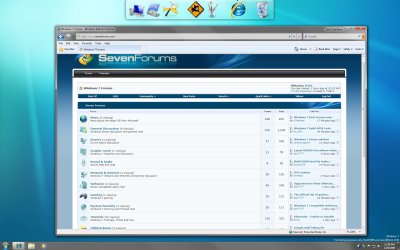
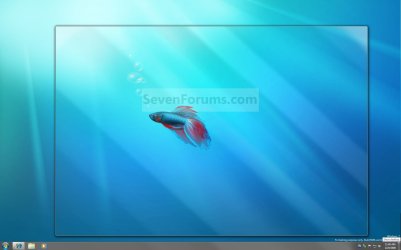
EXAMPLE: Aero Peek
NOTE: This is before (left screenshot) and after (right screenshot) hovering the mouse pointer over the Show Desktop button on the taskbar, or pressing the Windows Key + Spacebar.
OPTION ONE
Turn Aero Peek On or Off in Taskbar and Start Menu Properties
OR
2. Right click on a empty area on the taskbar and click on Properties.
3. Click on the Taskbar tab. (See screenshot below)
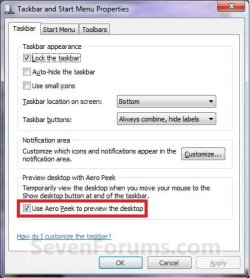
4. To Turn Off Aero Peek A) Uncheck the Use Aero Peek to preview the desktop box. (See screenshot above)
B) Go to step 6.
5. To Turn On Aero Peek
NOTE: By default, Desktop is turned on in Windows 7. A) Check the Use Aero Peek to preview the desktop box. (See screenshot below step 3)
6. Click on OK. (See screenshot below step 3)
OPTION TWO
Turn Aero Peek On or Off with Show Desktop Button on Taskbar
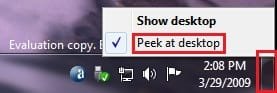
2. To Turn Off Aero Peek A) Right click on the far right taskbar button and select Peek at desktop to uncheck it. (See screenshot above)
3. To Turn On Aero Peek
NOTE: By default, Preview desktop is checked in Windows 7. A) Right click on the far right taskbar button and select Peek at desktop to check it. (See screenshot below step 1)
OPTION THREE
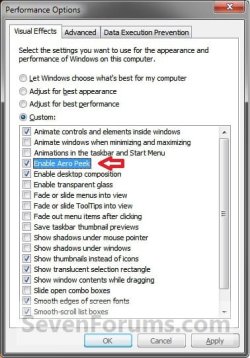
Turn Aero Peek On or Off in Visual Effects
NOTE: This option will also enable or disable taskbar thumbnail live previews. 1. Open the Visual Effects settings.
2. To Enable Areo Peek A) Check the Enable Aero Peek box. (See screenshot below step 4)
B) Go to step 4.
3. To Disable Areo Peek
NOTE: This will gray out the settings in OPTION ONE and OPTION TWO above. A) Uncheck the Enable Aero Peek box. (See screenshot below step 4)
4. Click on OK.
OPTION FOUR
Turn Aero Peek On or Off Using a REG File Download
NOTE: This option will not work if Aero Peek was disabled using OPTION THREE above. 1. To Enable Aero Peek A) Click on the Download button below to download the file below. Enabled_Aero_Peek.reg
Download
B) Go to step 3.
2. To Disable Aero Peek A) Click on the Download button below to download the file below. Disabled_Aero_Peek.reg
Download
3. Click on Save, and save the .reg file to the desktop.
4. Right click on the downloaded .reg file and click on Merge.
5. Click on Run, Yes, Yes, and OK when prompted.
6. Log off and log on, or restart the computer.
7. When done, you can delete the downloaded .reg file if you like.
That's it,
Shawn
Related Tutorials
- How to Use Show Desktop in Windows 7
- How to Create a Show Desktop Shortcut in Windows 7
- How to Clear the Desktop with Aero Shake in Windows 7 and Windows 8
- How to Change the Windows 7 Desktop Background
- How to Create a Desktop Slideshow in Windows 7
- How to Add or Remove a Default Desktop Icon in Windows 7
- How to Hide or Show Desktop Icons in Windows 7
- How to Change the Windows 7 Aero Peek Mouse Hover Delay Time to Preview Desktop
- How to Turn Aero Snap and Aero Shake On or Off in Windows 7
- How to Enable or Disable Aero Shake in Windows 7 and Windows 8
- How to Enable Aero in Unsupported Editions of Windows 7
- How to Create a Taskbar Properties Shortcut in Windows 7
- How to Enable or Disable Taskbar Thumbnail Live Previews in Windows 7
Attachments
Last edited:


