
How to Change the Default Windows 7 Start Menu Power Button Action
Information
This will show you how to change the Windows 7 Start Menu power button default action for the current user account or all user accounts to be either Switch User, Log Off, Lock, Restart, Sleep, Hibernate, or Shutdown when clicked on.
Tip
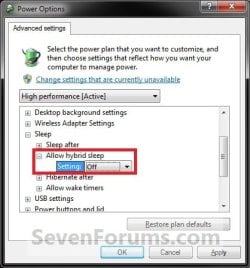
The Hibernate option will not be available in the Start Menu Power Button unless you have hibernate enabled and have hybrid sleep turned off in your Power Plan Options.
EXAMPLE: Start Menu Power Button

OPTION ONE
Through Taskbar and Start Menu Properties
NOTE: This option will let you change the default action for the Start Menu power button only in the user account that you are currently logged on.
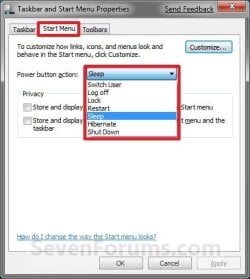
1. Right click on the Start button and click on Properties.
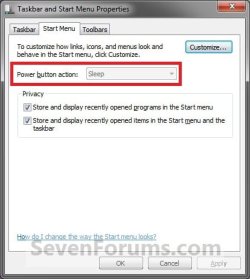
2. To the right of Power button action, select the action that you want for the Start Menu power button and click on OK. (see screenshot below)
NOTE: The Hibernate option will not be listed unless you enable hibernate and have turned off the Hybrid sleep option in the Power Plan Settings. If you are using Hybrid sleep, then you would select Sleep from below.
OPTION TWO
Through Advanced Power Options
NOTE: This option will let you change the default action for the Start Menu power button only in the user account that you are currently logged on.
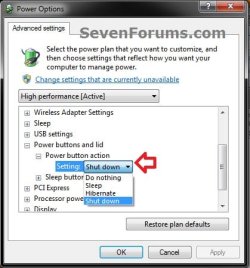
1. Open Advanced Power Options for your power plan.
2. Scroll down, and expand the Power buttons and lid and Power button action options. (see screenshot below step 3)
3. To the right of the Power button action Setting, select the action you would like for the Start Menu power button and click on OK. (see screenshot below)
NOTE: The Hibernate option will not be listed unless you enable hibernate and have turned off the Hybrid sleep option in the Power Plan Settings. If you are using Hybrid sleep, then you would select Sleep from below.
OPTION THREE
Through System Settings
NOTE: This option will let you change the default action for the Start Menu power button only in the user account that you are currently logged on. This will also change the Power button setting in all power plans in your user account.
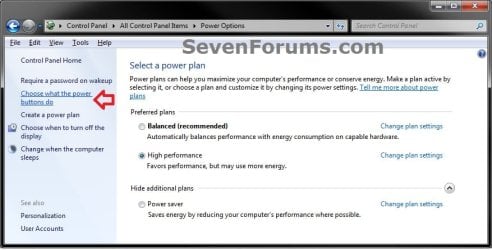
1. Open the Control Panel (Icons View), and click on the Power Options icon.
2. In the left pane, click on the Choose what the power buttons do link. (see screenshot below)
3. To the right of When I press the power button, select the action that you want for the Start Menu power button in the drop down box and click on the Save changes button. (see screenshot below)
NOTE: The Save changes button will remain grayed out until you make a change in the settings. The Hibernate option will not be listed unless you enable hibernate and have turned off the Hybrid sleep option in the Power Plan Settings. If you are using Hybrid sleep, then you would select Sleep from below.
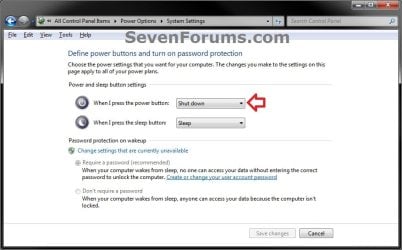
4. You can close the Power Options window when done. (see screenshot below step 2)
OPTION FOUR
Manually in Registry Editor
NOTE: This option will let you change the default action for the Start Menu power button only in the user account that you are currently logged on.
1. Open the Start Menu, then type regedit in the search box and press Enter.
2. If prompted by UAC, then click on Yes (if administrator) or enter administrator's password (if standard user).
3. Do step 4 or 5 below for how you want to set this.
4. Same as OPTION 1, 2, or 3 above
A) In regedit, navigate to the location below. (see screenshot below)
HKEY_CURRENT_USER\Software\Microsoft\Windows\CurrentVersion\Explorer\Advanced
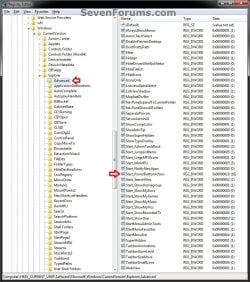
B) In the right pane of Advanced, double click on Start_PowerButtonAction to modify it, and go to step 6 below. (see screenshot above)
5. Same as OPTION FIVE below with Group Policy for All Users
NOTE: You must be logged in as an administrator to be able to do this step.
A) In regedit, navigate to the location below.
HKEY_CURRENT_USER\Software\Policies\Microsoft\Windows\Explorer
B) In the right pane of Advanced, double click on Start_PowerButtonAction to modify it, and go to step 6 below.
NOTE: If Start_PowerButtonAction doesn't exist, then right click on an empty area in the right pane of Explorer, click on New and DWORD (32-bit) Value, type Start_PowerButtonAction, and press Enter.
6. Type in the Hexadecimal Value data number below for the Power Button option that you want, and click on OK. (see screenshot below)
NOTE: The Hibernate option will not be available unless you enable hibernate and have turned off the Hybrid sleep option in the Power Plan Settings. If you are using Hybrid sleep, then you would select Sleep from below.
Switch User |100
Log Off |1
Lock|200
Restart|4
Sleep|10
Hibernate|40
Shutdown|2

7. Close regedit.
8. If open, close and reopen Taskbar and Start Menu Properties (Option One) to see the changes.
NOTE: If you used step 5, then you may need to log off and on to apply first.
OPTION FIVE
Through Local Group Policy Editor
NOTE: You can only do this option while logged in an administrator account.
1. Open the all users, specific users or groups, or all users except administrators Local Group Policy Editor for how you want this policy applied.
2. In the left pane, double click on User Configuration, Administrative Templates, and click on Start Menu and Taskbar. (see screenshot below)
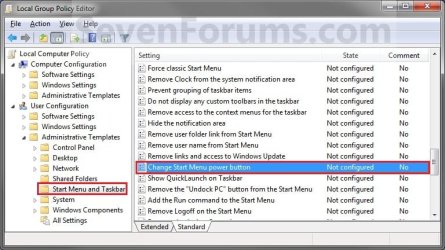
3. In the right pane of Start Menu and Taskbar, right click on Change Start Menu power button and click on Edit. (See screenshot below)
4. To Allow All Users to Change Power Button
NOTE: This option will allow all users to be able to change their Start Menu power button to what they like using OPTION ONE above.
A) Select (dot) Not Configured or Disabled. (see screenshot below step 6)
B) Go to step 6.
5. To Change Start Menu Power Button for All Users
NOTE: This option will let you change the Start Menu power button to what you want for all users accounts on the computer. After applied, the Power button action option in the Start Menu will be grayed out for all users and cannot be changed (see step 7).
A) Select (dot) Enabled, then under Options, select the action you want for the Start Menu power button in the drop down menu. (see screenshot below step 6)
NOTE: The Hibernate option will not be listed unless you enable hibernate and have turned off the Hybrid sleep option in thePower Plan Settings. If you are using Hybrid sleep, then you would select Sleep from below.
6. Click on OK. (See screenshot below)
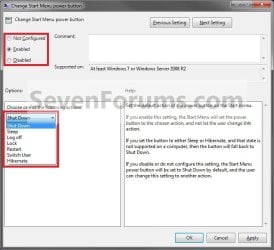
7. If you check Start Menu and Taskbar Properties using the OPTION ONE section above, you will now notice that the option to change the Start Menu power button is grayed out and set to what you have it set to in step 5A above. (see screenshot below)
That's it,
Shawn
Related Tutorials
- How to Change the Default Action of the Windows 7 Alt+F4 Shut Down Window
- How to Change the Power Plan Settings in Windows 7
- How to Customize the Windows 7 Start Menu
- Download a Shortcut that Opens the Start Menu in Windows
- How to Create a Start Menu Properties Shortcut in Windows 7 and Vista
- How to Enable or Disable "Log off" in the Start Menu of Windows 7
- How to Add or Remove the Shut Down, Restart, Sleep, and Hibernate Commands in Windows 7
- How to Allow or Prevent Users and Groups to Shut Down the Computer
- How to Enable or Disable "Install Updates and Shut Down" Option in Windows 7
- How to Change "Install Updates and Shut Down" as Default Choice in Shut Down Windows Dialog
Last edited:


